


SSD vs HDD in 2026: Which Storage Do You Actually Need?
Article
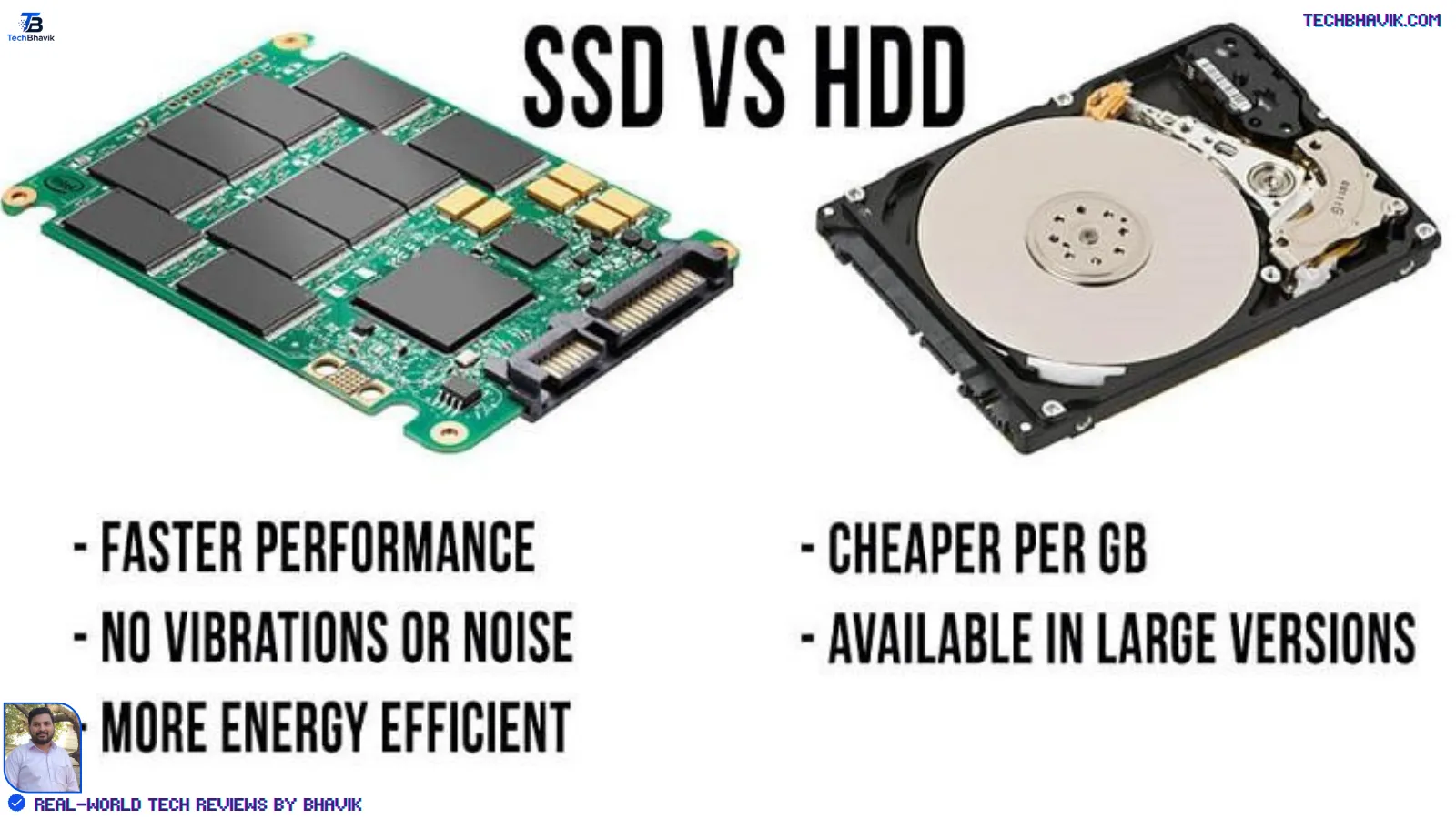
The question SSD vs HDD isn’t really “which is better.” It’s whether you’re buying a drive for speed or for space — and most people end up needing a bit of both without realizing it.
Quick Answer
If you can only pick one drive, choose an SSD. It makes your laptop feel new again — faster boot, faster app loading, faster everything you touch daily. An HDD still makes sense as a second, secondary drive when you need cheap bulk storage for videos, backups, or old files you rarely open. Most modern laptops in India ship with SSDs by default now, and for good reason.
Key Takeaways
- An SSD (Solid State Drive) has no moving parts and uses flash memory, which is why it boots and loads files in seconds rather than the 30–60 seconds a spinning HDD can take.
- HDDs (Hard Disk Drives) remain significantly cheaper per gigabyte at higher capacities, which is why they haven’t disappeared — they’re still common in external drives, NAS boxes, and budget desktops needing 2TB or more.
- For everyday laptop use — Windows boot, opening apps, browsing, office work — the SSD upgrade is the single biggest speed improvement most users can make, often bigger than a CPU or RAM upgrade.
- SSDs are more shock-resistant and power-efficient, which matters for laptop battery life and durability, while HDDs are more vulnerable to damage from drops or vibration.
- Many modern laptops and desktops use both: a smaller, fast SSD for the operating system and frequently used apps, paired with a larger HDD for photos, videos, and archives.
What Is an SSD vs HDD?
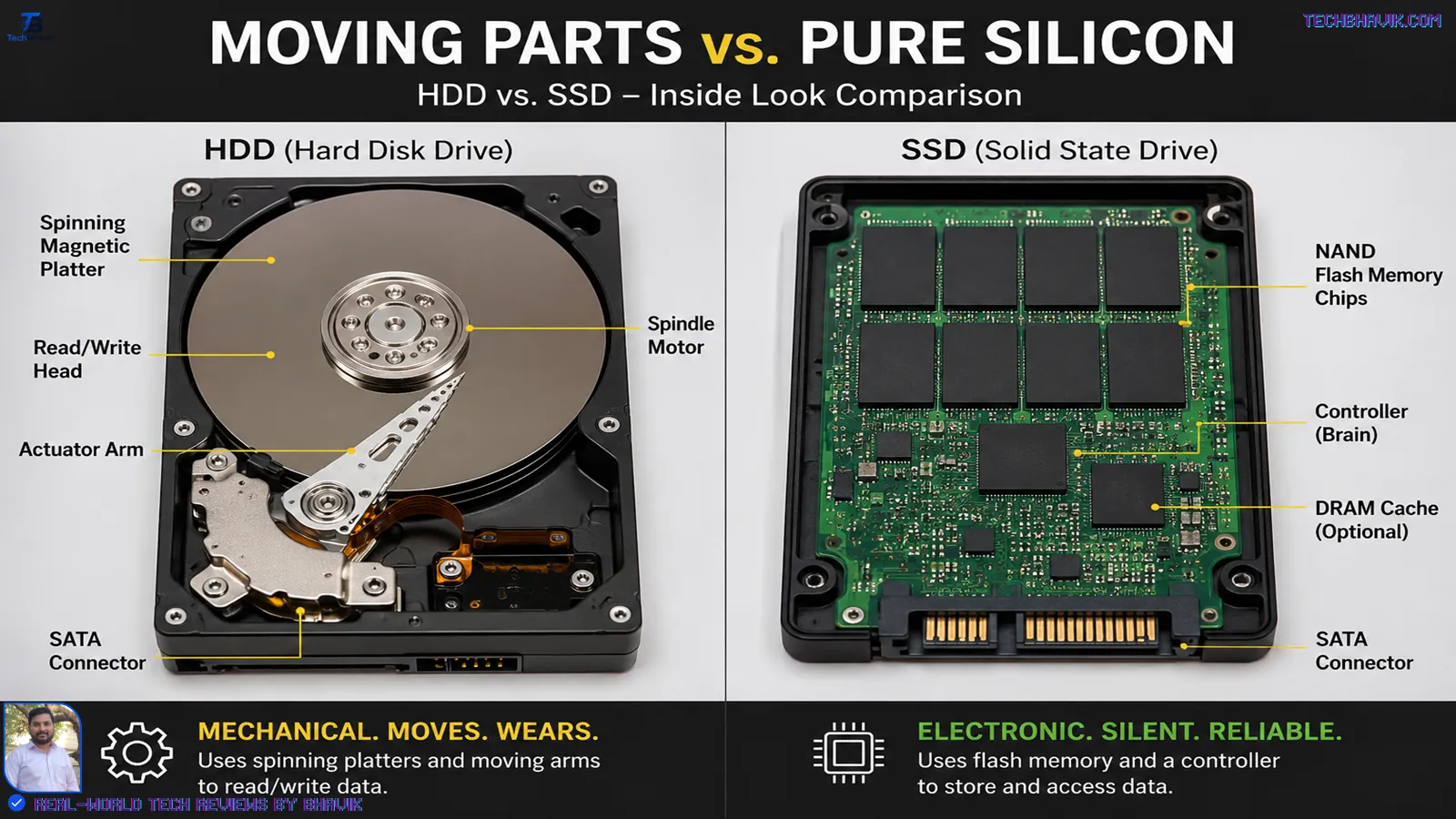
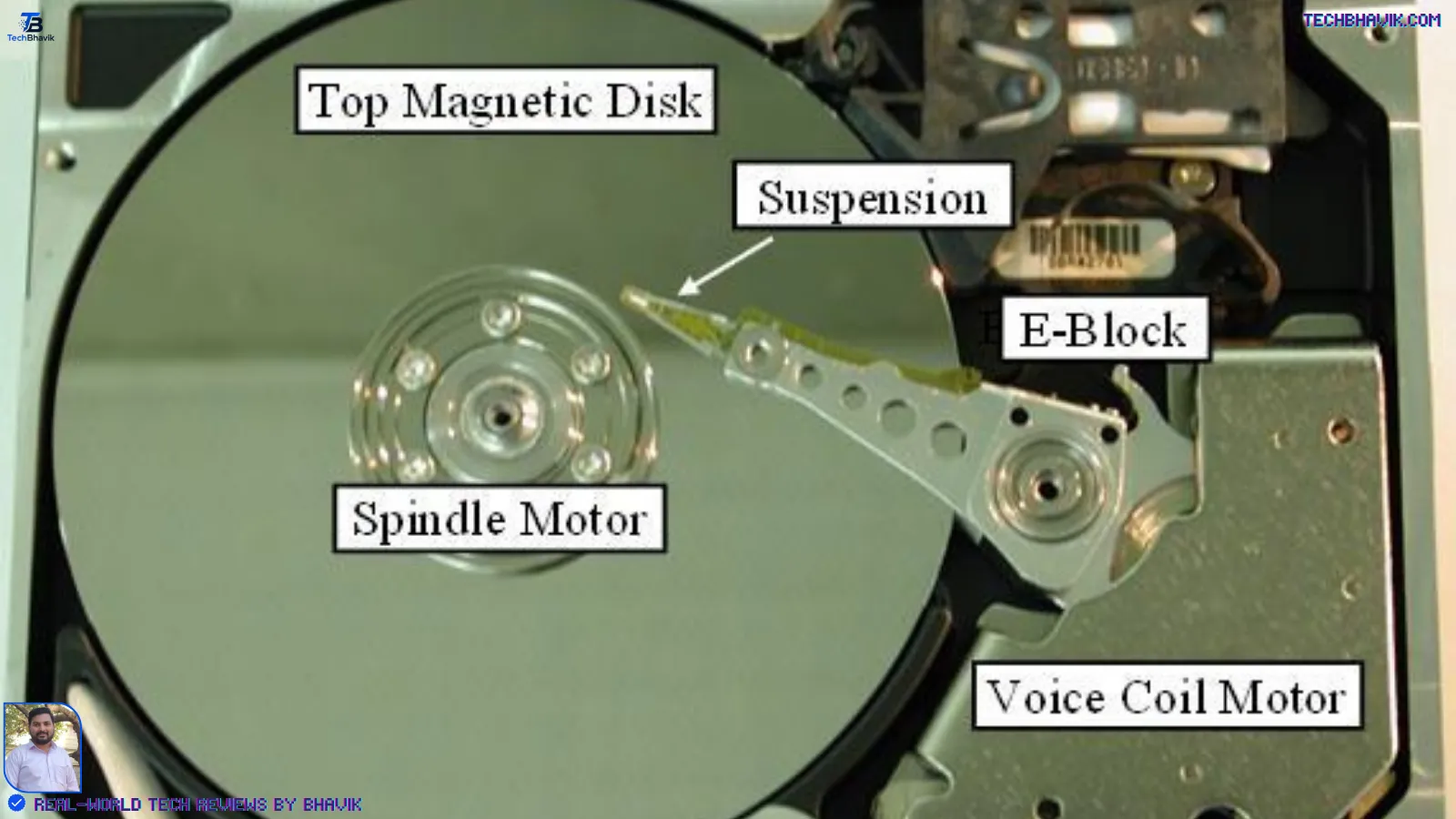
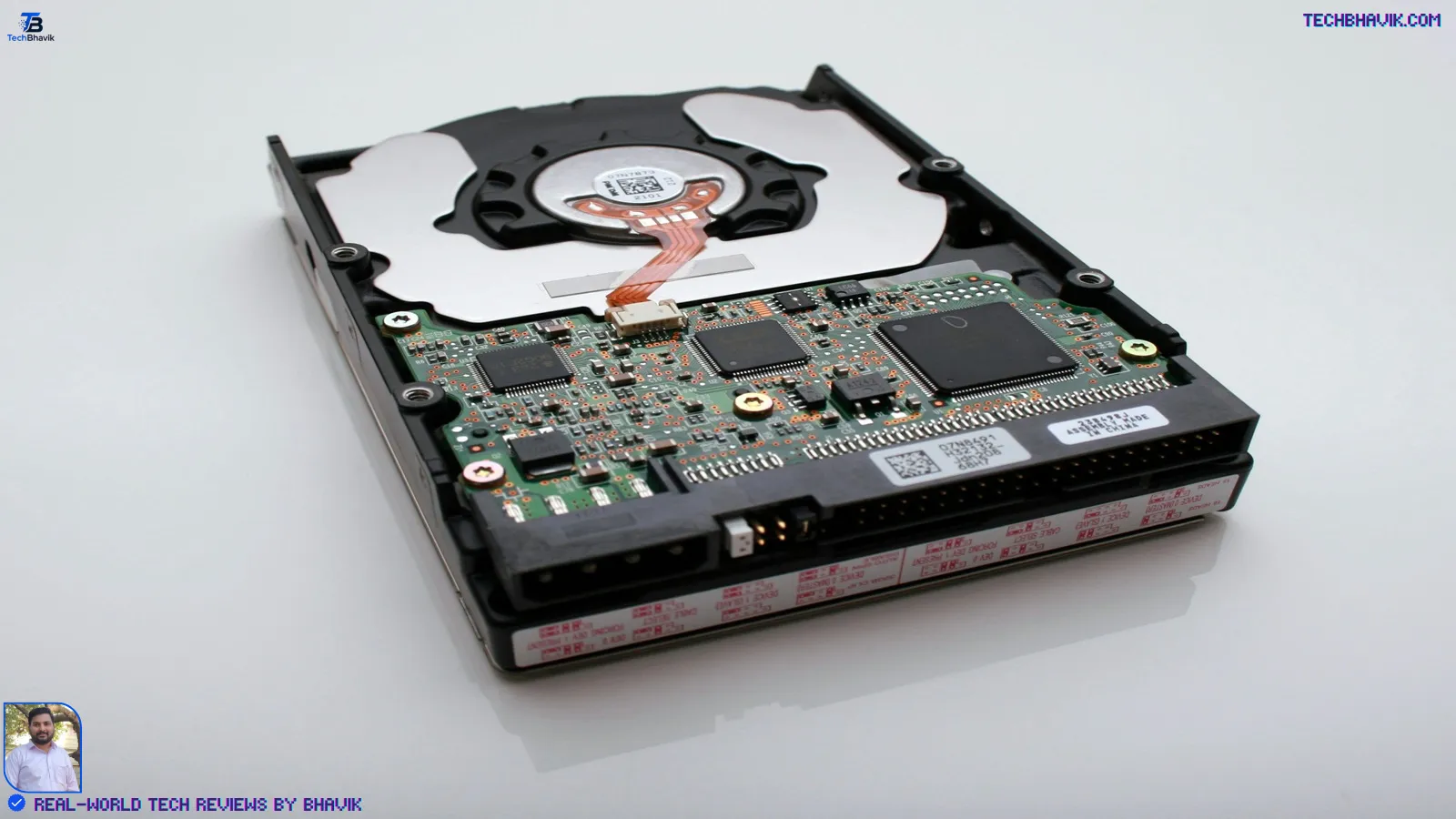
An HDD stores data on spinning magnetic platters, with a mechanical arm physically moving to read and write information — similar in principle to how a record player reads a vinyl disc. That physical movement is what limits its speed and makes it more fragile.
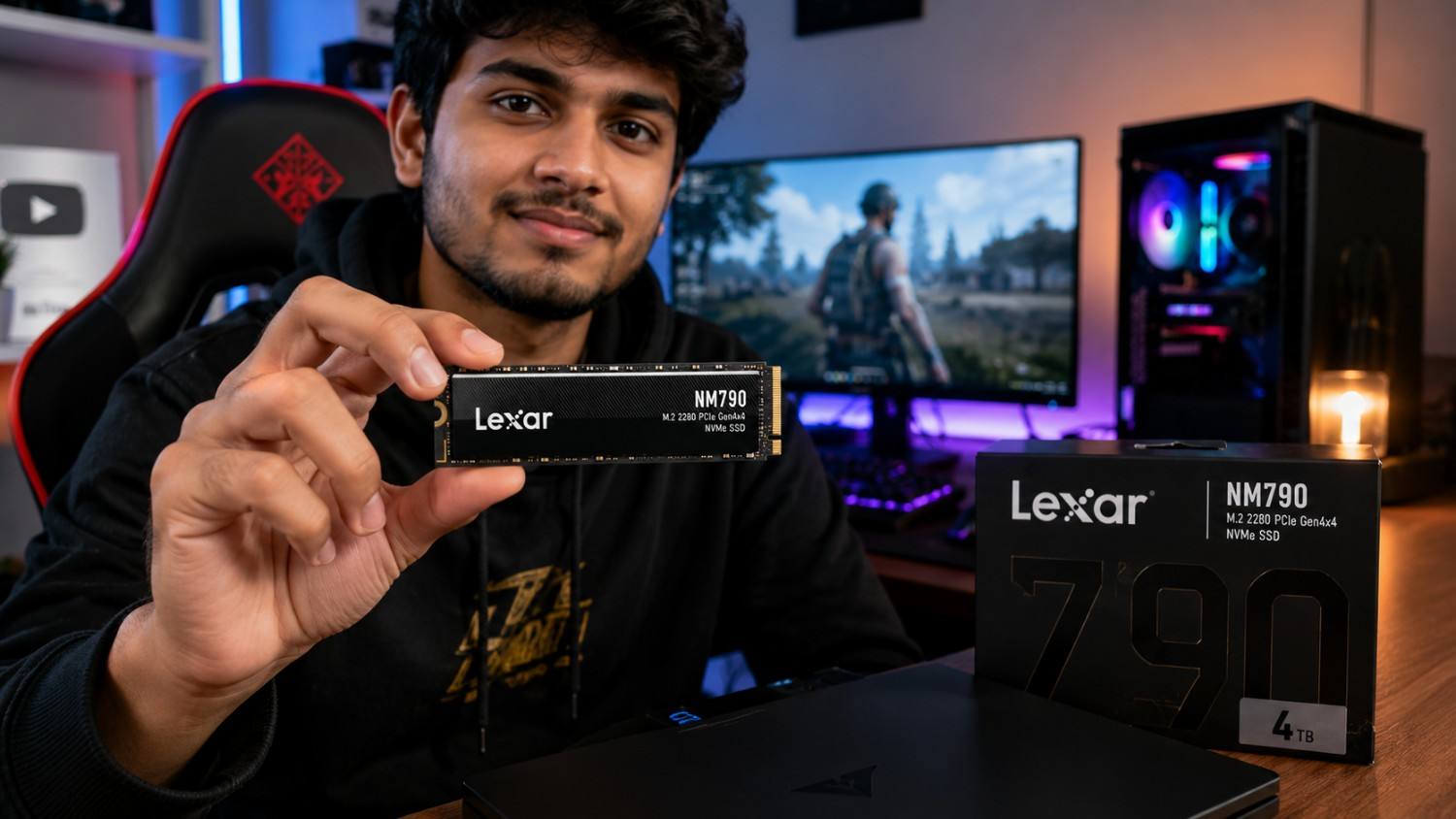
An SSD stores data electronically on NAND flash memory chips, with no moving parts at all. Data can be accessed almost instantly because there’s nothing to spin up or physically reposition. Within SSDs, there are two common types buyers will run into: SATA SSDs, which use an older connector standard and are moderately fast, and NVMe SSDs, which connect directly to the PCIe bus and are considerably faster — the type used in most modern laptops today.
What Has Actually Changed?
HDDs and SSDs have coexisted for well over a decade, but the balance has shifted meaningfully in the last few years. NVMe SSD prices have come down enough that even budget and mid-range laptops in India now ship with SSD storage as standard, rather than the HDD-only configurations common a decade ago. At the same time, HDD capacities have kept growing, so the “cheap way to store a lot of data” role has moved to larger and larger drives rather than disappearing.
The practical result: SSDs have effectively become the default for the drive your operating system lives on, and HDDs have narrowed into a role of secondary, bulk, or backup storage — particularly for desktops, NAS systems, and video-heavy workflows.
The Most Important Differences
Speed
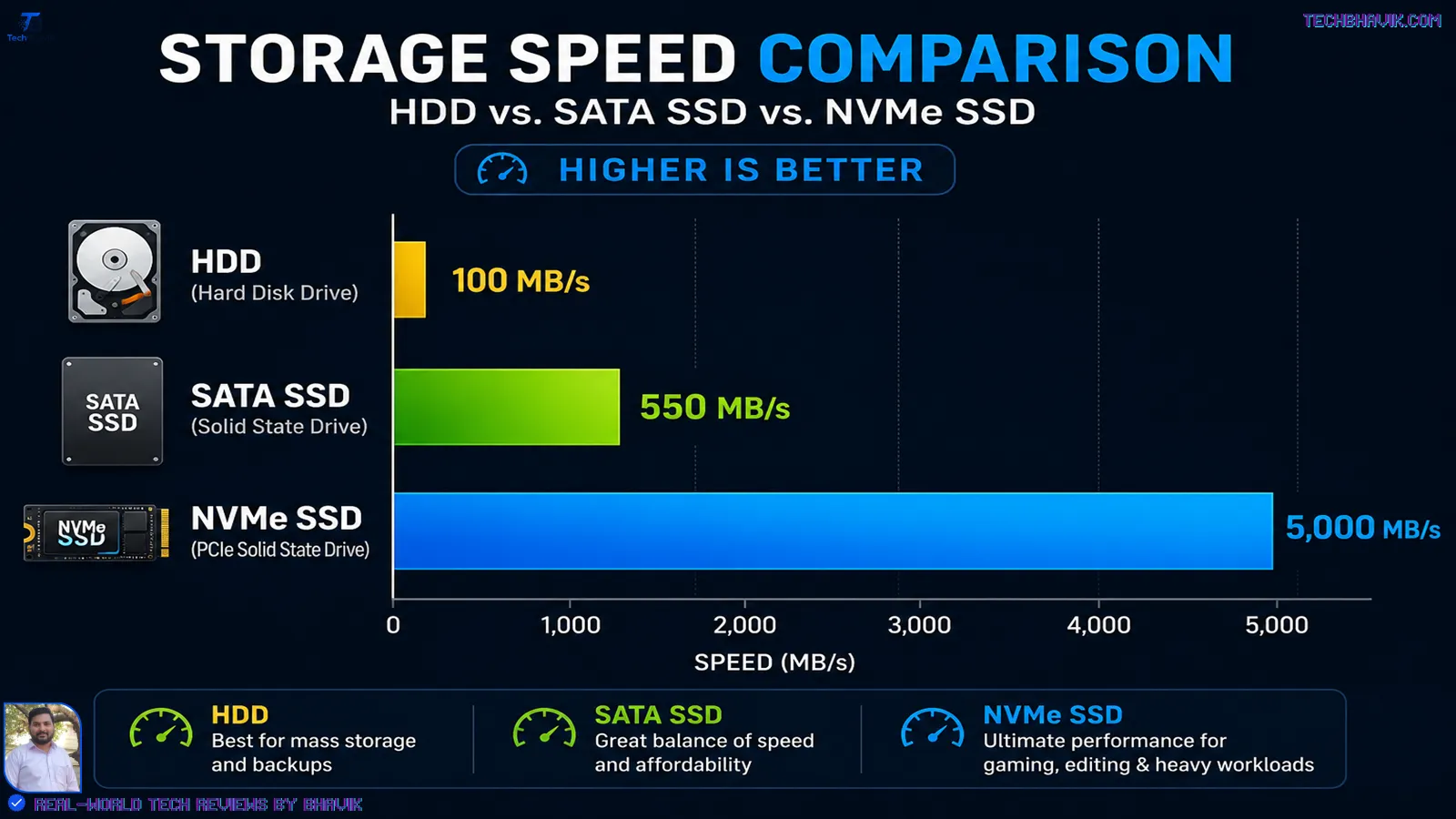
This is the difference you’ll actually feel. A typical SATA SSD reads and writes at roughly 500–560 MB/s, while an NVMe SSD can reach several thousand MB/s depending on the generation and drive. A conventional 5400–7200 RPM HDD, by comparison, typically manages 80–160 MB/s.
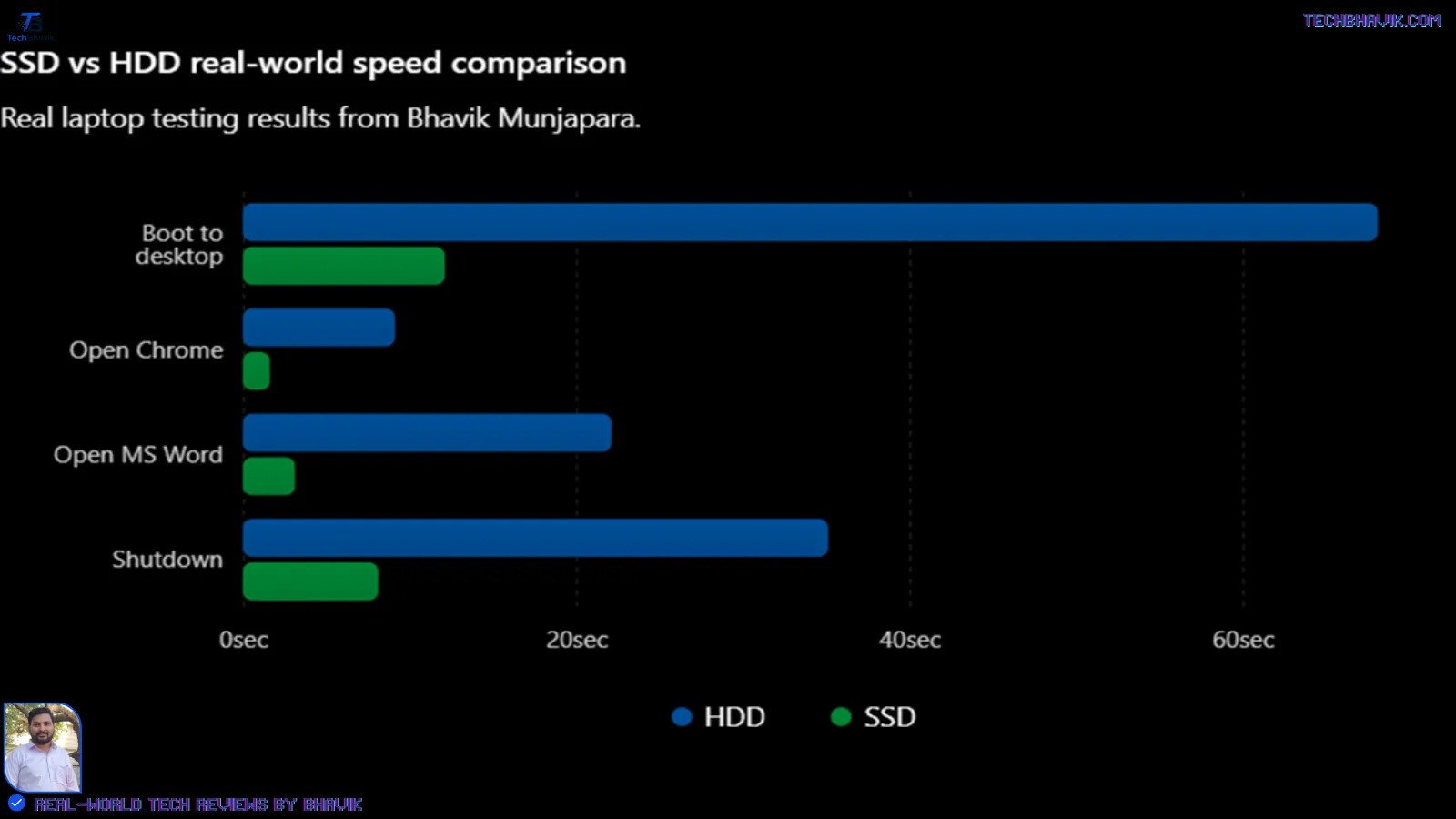
What it means in practice: a Windows boot that takes 45–60 seconds on an HDD often drops to 8–15 seconds on an SSD. Opening a large Excel file, exporting a video, or installing a game all happen noticeably faster. If your laptop feels sluggish today and it still has an HDD, this is very likely the biggest reason.
Who benefits most: anyone doing daily work — professionals, students, content creators — where waiting on the drive interrupts your flow.
Who may not need it as much: someone using a drive purely for cold storage — files you rarely touch, like an archive of old project folders — where load speed barely matters.
Price per Gigabyte
HDDs remain cheaper per GB, particularly at 2TB and above. SSDs have closed the gap significantly at smaller capacities (250GB–1TB), where the price difference is often small enough that it’s not worth choosing an HDD anymore. At 4TB and beyond, HDDs still hold a clear cost advantage, which is why they remain the default choice for NAS drives, external backup drives, and video archives.
Exact prices shift constantly with NAND supply, currency movement, and festive-season sales in India, so treat any number you see today as a snapshot rather than a fixed reference — check current listings on Amazon.in, Flipkart, or a local retailer before buying rather than relying on a figure from an article.
Reliability and Durability
HDDs have moving parts, which makes them more sensitive to physical shock — a drop, a bump during transport, or vibration can cause data loss or drive failure. SSDs have no moving parts, so they tolerate movement and vibration far better, which matters a lot for laptops that travel.
That said, SSDs aren’t immune to failure — flash memory has a finite number of write cycles, though for typical consumer use (browsing, office work, gaming) this is not something most users will encounter as a practical limitation within the life of the device. HDDs, on the other hand, tend to fail more predictably with age and usage hours, and often give some warning signs (unusual noises, slower response) before outright failure.
Power Consumption and Heat
SSDs draw less power and generate less heat than HDDs, since there’s no motor spinning platters. On a laptop, this translates to modestly better battery life and a cooler, quieter machine — HDDs are also the source of the faint whirring or clicking noise older laptops sometimes make, which disappears entirely with an SSD.
What This Means in Real-World Use
For most people buying a new laptop or upgrading an old one, the SSD question isn’t really optional anymore — it’s the baseline expectation. Where the real decision now sits is capacity and whether you need a second drive:
- Students and office professionals: A 256GB–512GB SSD is usually enough if most work lives in the cloud (Google Drive, OneDrive) rather than locally.
- Content creators and gamers: Local files add up fast — a single AAA game can be 80–150GB, and raw video footage is even heavier. A 1TB SSD, or a smaller SSD paired with a larger secondary HDD, tends to make more sense here.
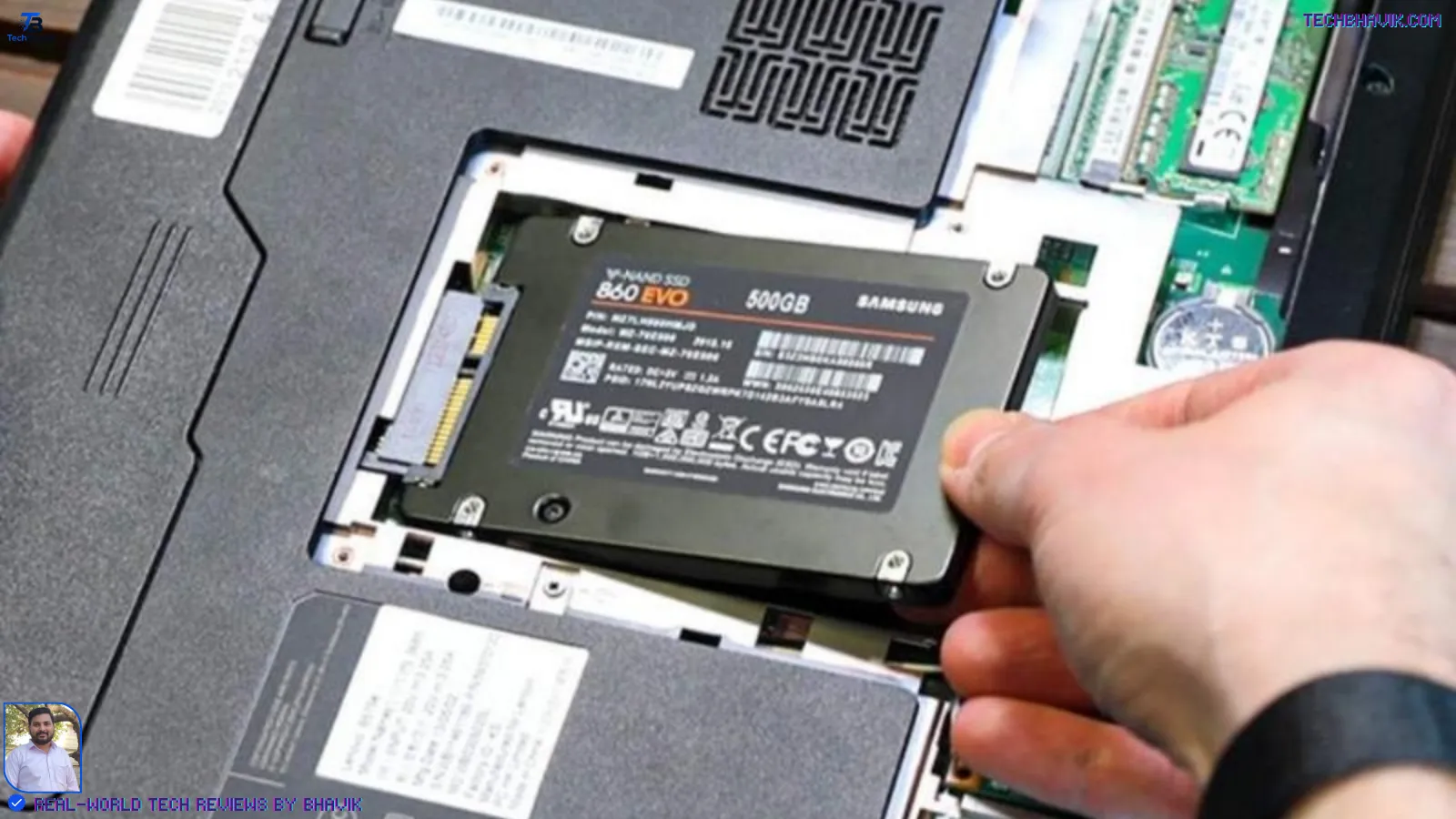
- People upgrading an old laptop: Swapping a tired HDD for an SSD (SATA, if the laptop is older, or NVMe if it supports it) is one of the most cost-effective upgrades available — often more noticeable than a RAM upgrade.
SSD vs HDD: Head-to-Head
| Factor | SSD | HDD |
|---|---|---|
| Speed | Very fast (500 MB/s–7000+ MB/s depending on type) | Slower (80–160 MB/s typical) |
| Price per GB | Higher, but gap has narrowed a lot at smaller sizes | Lower, especially at 2TB+ |
| Durability | No moving parts, better shock resistance | Moving parts, more vulnerable to drops |
| Noise | Silent | Can produce faint whirring/clicking |
| Power draw | Lower | Higher |
| Lifespan pattern | Wears via write cycles, usually fine for typical use | Mechanical wear, often shows warning signs before failure |
| Best use case | OS drive, apps, daily-use laptop storage | Bulk storage, backups, NAS, archival data |
| Common capacities available | 128GB–4TB (higher capacities pricier) | 500GB–20TB+ |
Neither drive “wins” outright — an SSD wins on everything you feel day to day, while an HDD wins on cost when you need to store a large volume of data you don’t need instant access to.
Who Should Consider an SSD-Only Setup
- Anyone buying a new laptop where storage needs are moderate (under 1TB of local files)
- Students, office workers, and general users who rely heavily on cloud storage
- Gamers or creators who can budget for a larger single SSD (1TB+) rather than splitting storage
- Anyone upgrading an old HDD-based laptop looking for the single biggest speed improvement available
Who Should Consider Adding an HDD
- Desktop users or content creators storing large video libraries, raw footage, or big backups
- Anyone setting up a NAS (Network Attached Storage) for home file backup
- Users who need very large capacity (4TB+) on a tighter budget
- People archiving files they access rarely, where speed isn’t a priority
Important Limitations
- Not every laptop supports adding a second drive — many modern ultrabooks have only a single M.2 slot and no room for a secondary HDD, so check your specific model before planning a dual-drive setup.
- SSD prices and availability change frequently based on global NAND supply, so a “good deal” today may not reflect the going rate next month.
- SATA SSDs and NVMe SSDs are not interchangeable slots — confirm which type your laptop or motherboard actually supports before buying.
- Very cheap, unbranded SSDs sometimes use lower-quality NAND (QLC without adequate cache), which can bottleneck under sustained large file transfers — this is a real limitation to check for, not just a spec-sheet number.
Price and Availability in India
SSDs (SATA and NVMe) and HDDs are both widely available in India through retailers like Amazon.in, Flipkart, and authorized dealers of brands such as WD, Seagate, Samsung, Crucial, and Kingston. Pricing fluctuates with global NAND flash supply and currency movement, and often dips meaningfully during major sales events (Republic Day, Independence Day, Diwali/Big Billion Days-type sales).
Rather than quoting specific rupee figures here — which can go stale within weeks — the more useful approach for a buyer is: compare price-per-GB across a few listed drives on the day you’re buying, and prioritize known brands with a minimum 3-year warranty, since warranty support and RMA convenience vary more between sellers in India than raw pricing does.
What We Know vs What Is Still Unconfirmed
Confirmed / well-established:
- The fundamental mechanical difference between SSD and HDD technology, and the resulting speed gap
- SSDs’ lower power draw and better shock resistance compared to HDDs
- HDDs’ cost advantage at large capacities
Varies and is not fixed:
- Exact current pricing in India for any specific drive — this moves too frequently to state as fact in an evergreen article
- Real-world lifespan of a specific SSD/HDD model — depends heavily on usage pattern, workload, and individual unit quality, not just drive type
Releted: The Secret to a Faster Windows 11 : 10 Powerful Tips for 2026
Final Take
If you’re buying one drive for a laptop, get an SSD — there’s no scenario in 2026 where an HDD-only laptop makes sense for daily use. The genuine decision left is capacity, and whether your workflow (video editing, large game libraries, local backups) justifies pairing that SSD with a larger, cheaper HDD for bulk storage. For most everyday users, a single well-sized SSD covers everything they need.

Frequently Asked Questions
Is SSD really that much faster than HDD in daily use?
Yes — this is one of the most noticeable upgrades in computing. Boot times, app launches, and file transfers are all dramatically faster on an SSD, often more noticeable than upgrading the processor.
Can I use both an SSD and HDD in the same laptop?
Only if your laptop has a slot or bay for a second drive — many slim modern laptops don’t. Check your specific model’s specifications before planning this.
Is HDD storage becoming obsolete?
Not obsolete, but its role has narrowed. HDDs remain the more cost-effective choice for large-capacity bulk storage, backups, and NAS setups, even as SSDs have taken over as the default for OS and daily-use drives.
Which is better for gaming, SSD or HDD?
SSD, without much debate — it reduces game load times noticeably and is now considered close to a baseline requirement for a good gaming experience, though HDDs can still work for storing a game library you’re not actively playing.
Do SSDs fail more often than HDDs?
Not typically for standard consumer use. SSDs fail differently (through write-cycle wear) rather than more often, and generally show fewer early-life mechanical failures than HDDs.
Is it worth upgrading an old laptop from HDD to SSD?
For most laptops still functional otherwise, yes — it’s one of the highest-impact, lowest-cost upgrades available, though whether it’s possible depends on whether the laptop’s storage is user-replaceable.
What size SSD should I buy for a new laptop?
256GB–512GB comfortably covers general use with cloud storage; 1TB is worth it if you keep large local files, games, or media libraries.
Sources: SSD and HDD makers (Seagate, Western Digital, Samsung, Kingston, Crucial).
Editorial / Testing Note Research-based: This article is based on publicly available technical documentation and general industry knowledge about SSD and HDD technology. It was not produced from hands-on benchmark testing of specific drive models by the author, and no specific product was personally tested, purchased, or owned for this piece.








[…] (SSD/HDD) — permanent, slower, holds everything […]
[…] Top 100 free AI tools for 2026, SSD vs HDD: The Ultimate Upgrade, 5 tips, How to Fix Computer […]
[…] In real-world testing, it is found that HP laptop’s battery life improved from 4 hours 20 minutes to 5 hours 10 minutes after replacing the SSD with HDD. In 2026, this gap is even more relevant because AI features constantly read and write data in the background. […]
[…] SSD or HDD for Your Next Laptop? Here’s How to Decide […]