

The Secret to a Faster Windows 11: 10 Powerful Tips for 2026
- Is your Windows 11 PC running slowly? Does it always take a long time to boot up, lag when opening applications, or freeze during simple tasks? You are not alone. Millions of Windows 11 users face these issues daily—whether after updates, following prolonged use, or simply due to accumulated digital clutter.
- The good news is that you don’t need to buy a new computer. In this article i will guide you, I will show you 10 are super working i tested in my own Dell laptopt these are ways to make Windows 11 faster in 2026—methods that actually work, are completely free, and require no technical expertise.
- These tips work on all Windows 11 PCs and laptops—whether you have a brand-new machine or an older, sluggish computer. Let’s get started!
Table of Contents
Why is Windows 11 Running Slow?
Before jumping into the fixes, let us understand why Windows 11 becomes slow over time:
- Too many apps are launching automatically at startup
- Visual effects and animations consume CPU and GPU resources
- Accumulated temporary files and junk data
- Outdated drivers are causing compatibility issues
- Low disk space is slowing down the system
- Background apps are consuming RAM and processor power
- Windows tips and suggestions for monitoring your activity
Now, let us fix all of these issues one by one.
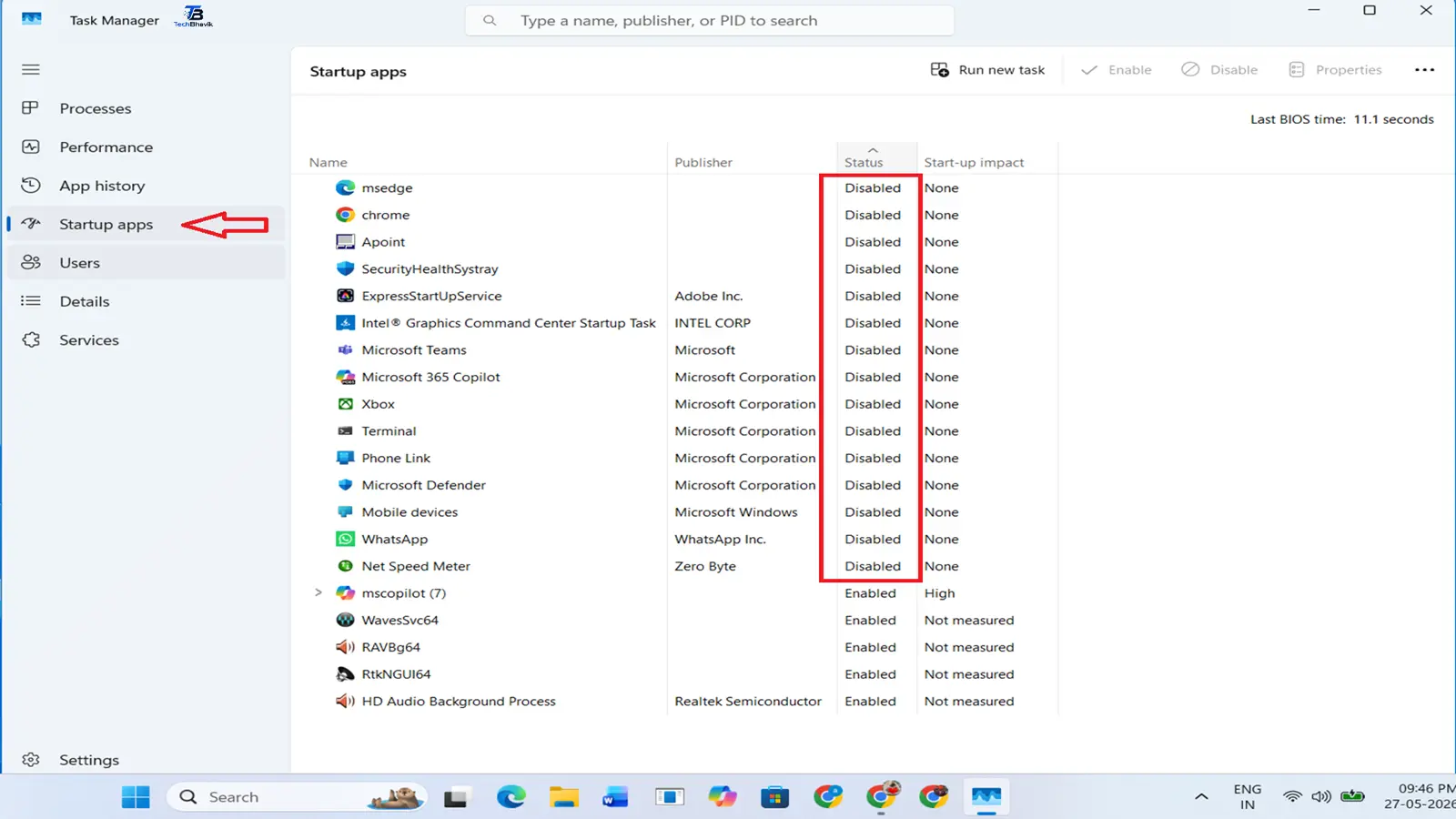
Tip 1 — Disable Startup Programs (Biggest Impact!)
This is the single most effective way to speed up Windows 11. Many applications—such as Spotify, Discord, Teams, and browser update services—launch automatically when you start your PC, but they significantly slow it down.
How to do it:
Cheks 1 — Press in your PC/Laptop Ctrl + Shift + Esc to open Task Manager
Cheks 2 — Click the “Startup apps” icon on the left side
Cheks 3 — You will see a list of all apps that start with Windows
Cheks 4 — Right-click on any unnecessary app and select “Disable“
List that’s shift to disable:
- Spotify
- Discord
- Steam or Epic Games launcher
- OneDrive (if you do not use it)
- Teams (if not needed at startup)
- Any app you do not use immediately after turning on your PC
What to keep enabled:
- Antivirus software
- Audio drivers
- Windows Security
Expected result: Your pc Boot time can improve by 30-60% after disabling unnecessary startup apps.
Tip 2 — Adjust Visual Effects for Best Performance
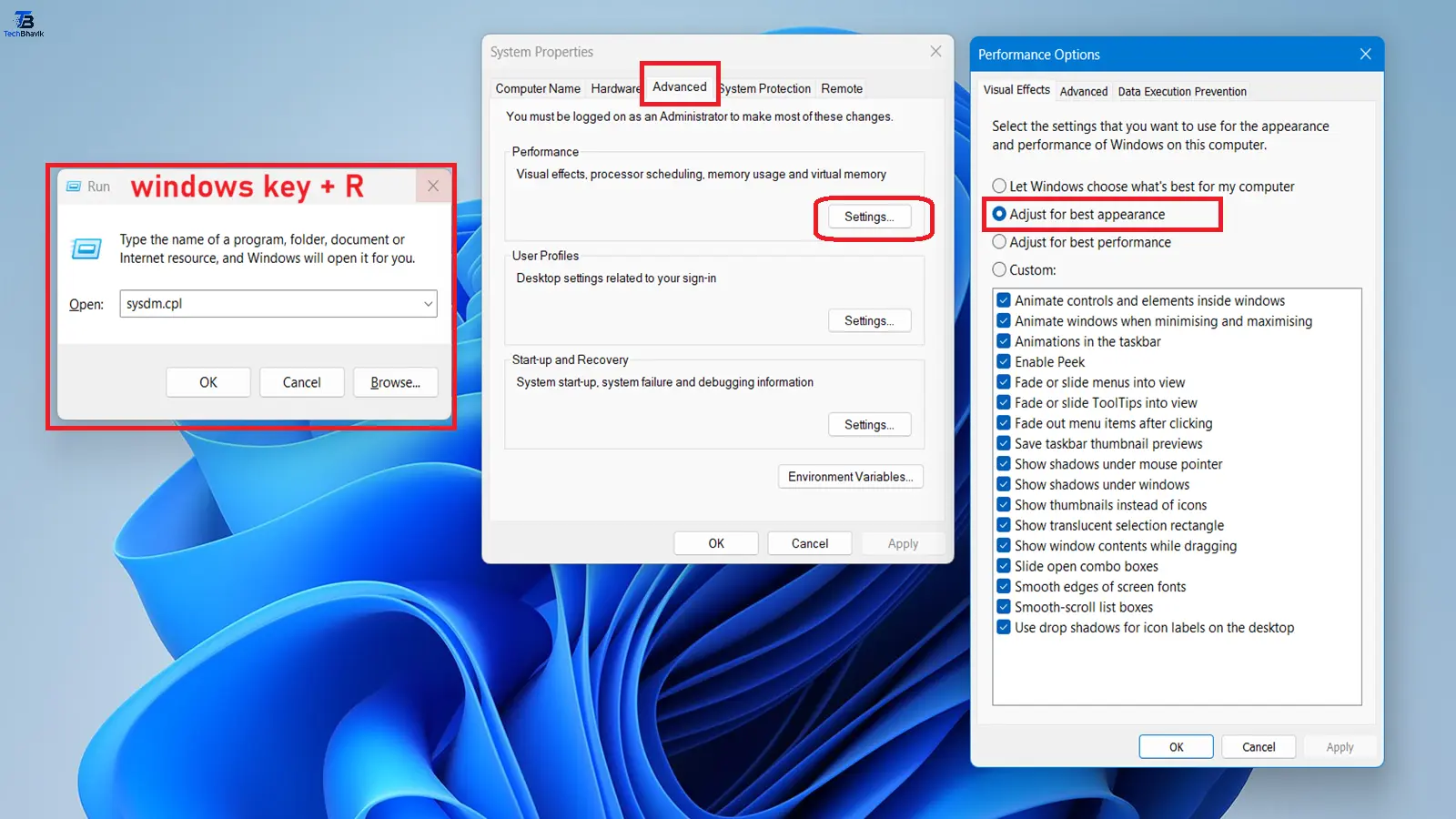
Windows 11 has beautiful animations, transparency effects, and shadows — but these consume significant CPU and GPU resources. Turning them off makes your PC feel noticeably faster, especially on older hardware.
How to do it:
Step 1 — Press Windows key + R, type “sysdm.cpl” and press Enter
Step 2 — Click the “Advanced” tab
Step 3 — Under Performance, click “Settings“
Step 4 — Select “Adjust for best performance“
Step 5 — Click Apply and OK
For a balanced approach: Select “Custom” and uncheck only these options:
- Animate windows when minimizing and maximizing
- Animations in the taskbar
- Fade or slide menus into view
- Show shadows under the mouse pointer
Expected result: 10-20% performance improvements in pc/laptops, especially on older systems.
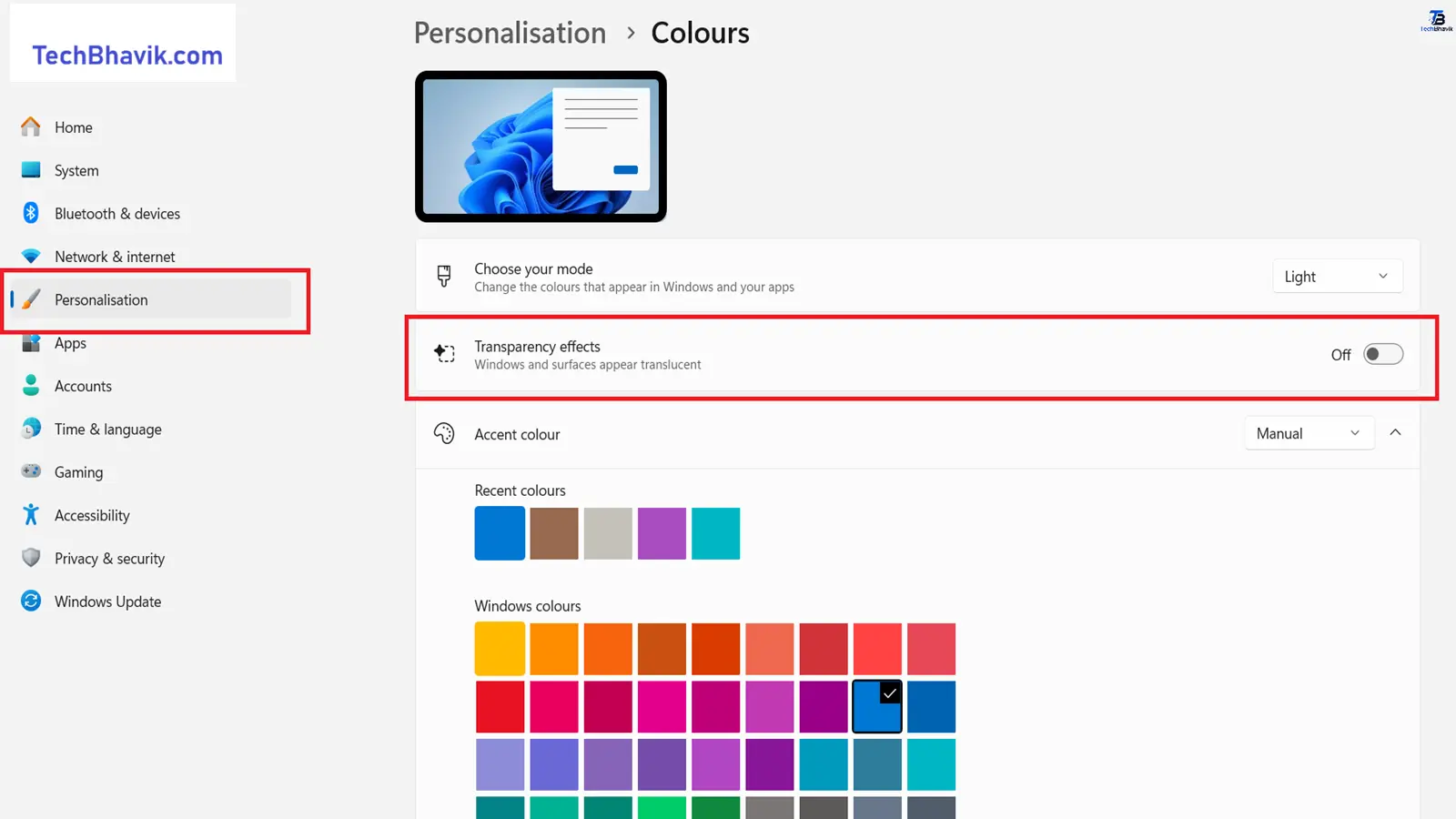
Tip 3 — Disable Transparency Effects
Windows 11’s transparency effects look great, but consume extra GPU resources. Turning them off gives a small but noticeable speed boost.
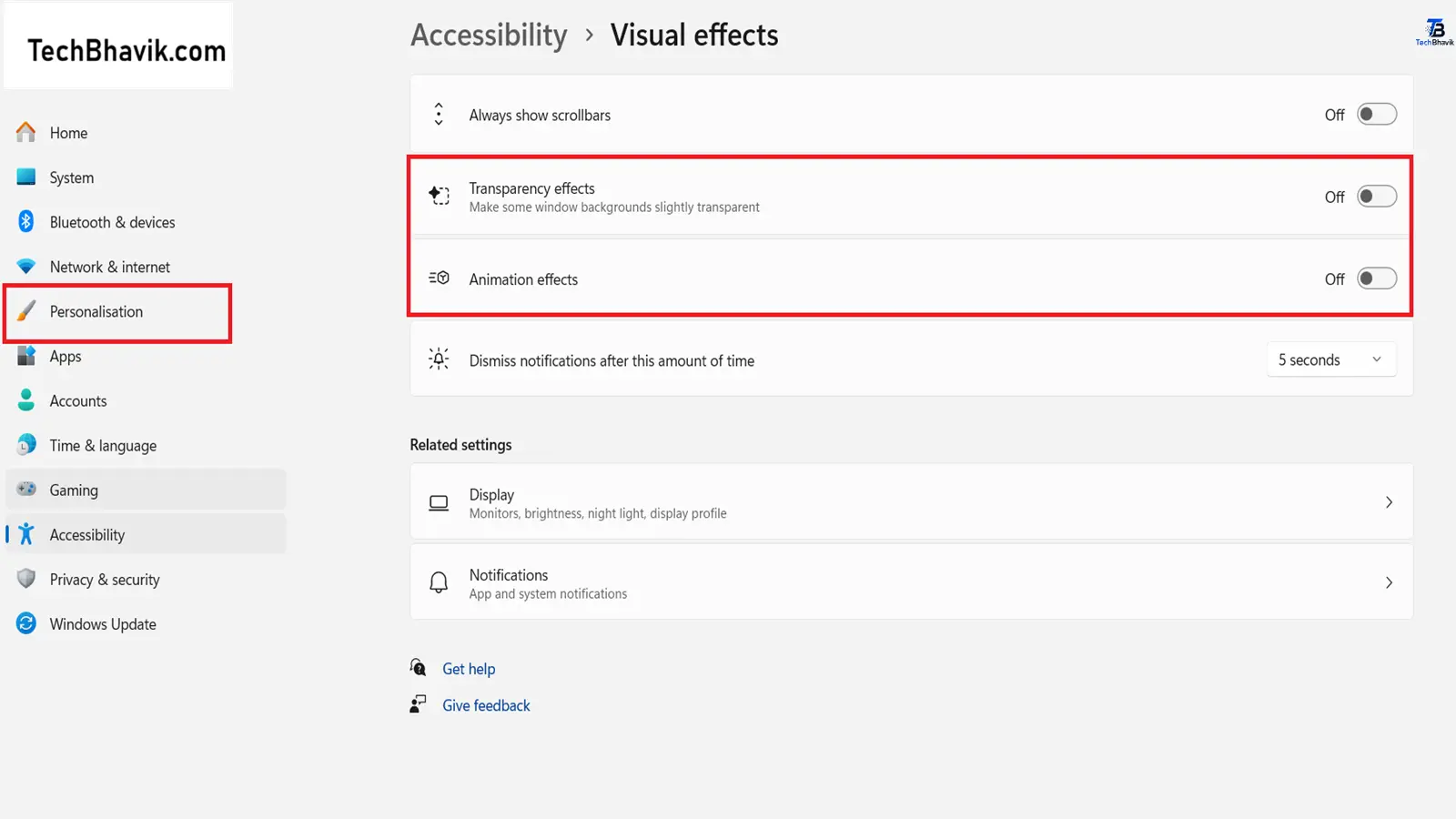
How to do it:
Step 1 — Press Windows key + I to open Settings
Step 2 — Go to Personalization → Colors
Step 3 — Turn OFF “Transparency effects”
Step 4 — Also go to Accessibility → Visual Effects
Step 5 — Turn OFF “Animation effects”
This takes less than one minute and instantly makes Windows feel snappier.
Tip 4 — Change Power Plan to High Performance
Windows 11 defaults to “Balanced” power mode, which intentionally limits your CPU speed to save battery. Switching to “Best Performance” unlocks your processor’s full potential.
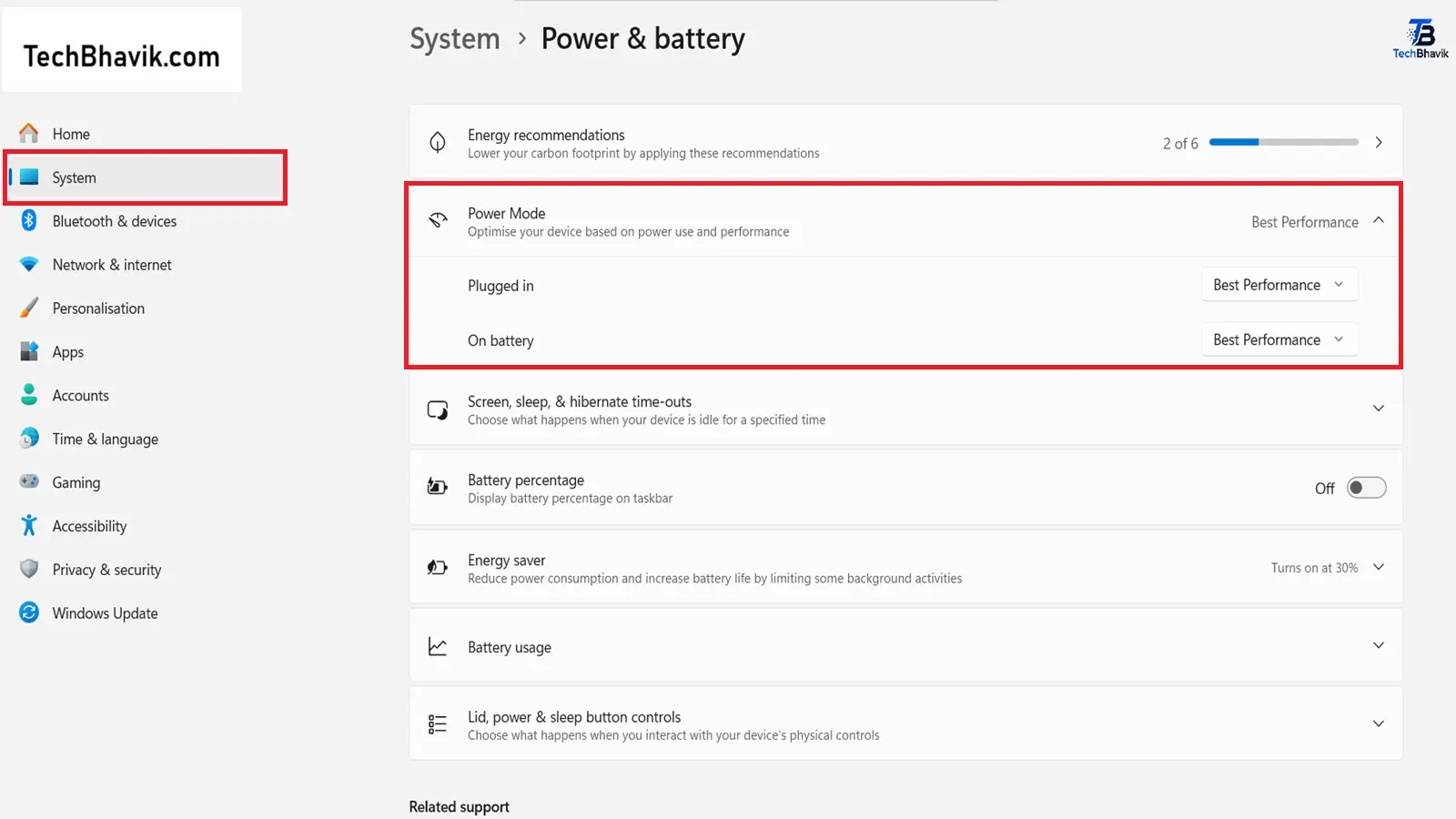
How to do it:
Step 1 — Press Windows key + I to open Settings
Step 2 — Go to System → Power and Battery
Step 3 — Click the “Power mode” dropdown
Step 4 — Select “Best performance”
Step 5 — Close Settings
Important note: This setting increases power consumption. On laptops, it will drainthe battery faster. Use it when plugged in for maximum performance.
Expected result: Significant improvement in app launch times and overall responsiveness.
Tip 5 — Clean Up Disk Space with Storage Sense
Windows accumulates temporary files, cache, old update files, and junk data over time. When your drive gets full, Windows slows down significantly. Cleaning it up is essential.
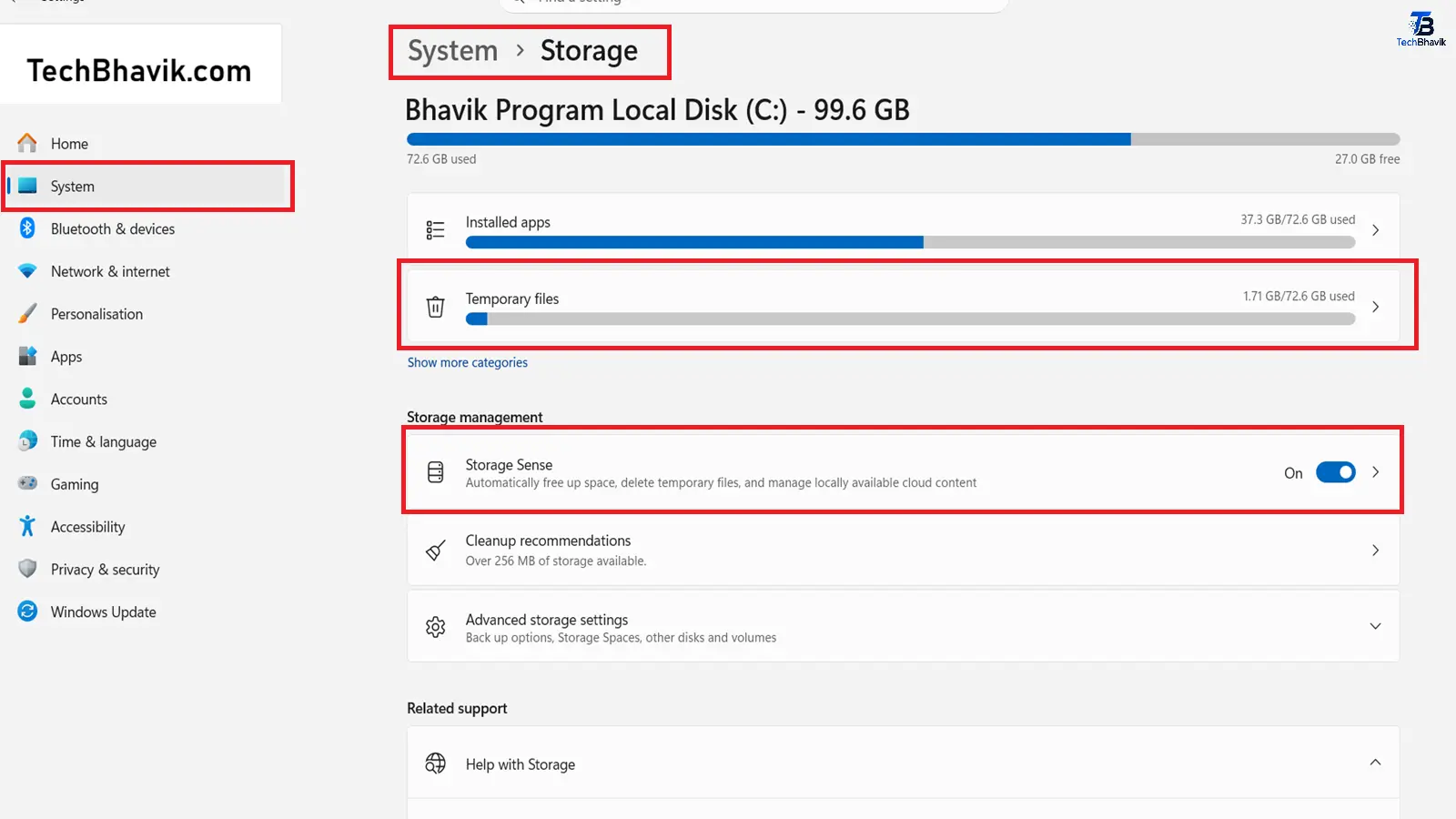
How to do it:
Step 1 — Press Windows key + I to open Settings
Step 2 — Go to System → Storage
Step 3 — Click “Temporary files”
Step 4 — Check all boxes — Temporary files, Recycle Bin, Thumbnails, Downloads (be careful with Downloads)
Step 5 — Click “Remove files”
Also, enable Storage Sense:
Step 1 — In Storage settings, click “Storage Sense”
Step 2 — Toggle it ON
Step 3 — Set it to run automatically every month
Step 4 — Save settings
For manual cleaning: Press Windows key + R, type “%temp%” and press Enter. Select all files and delete them. This removes temporary files manually.
Expected result: Freeing up space improves system performance significantly, especially if your drive was over 80% full.
Tip 6 — Disable Background Apps
Many apps continue running in the background even when you are not using them — consuming RAM and CPU power silently. Disabling them frees up significant resources.
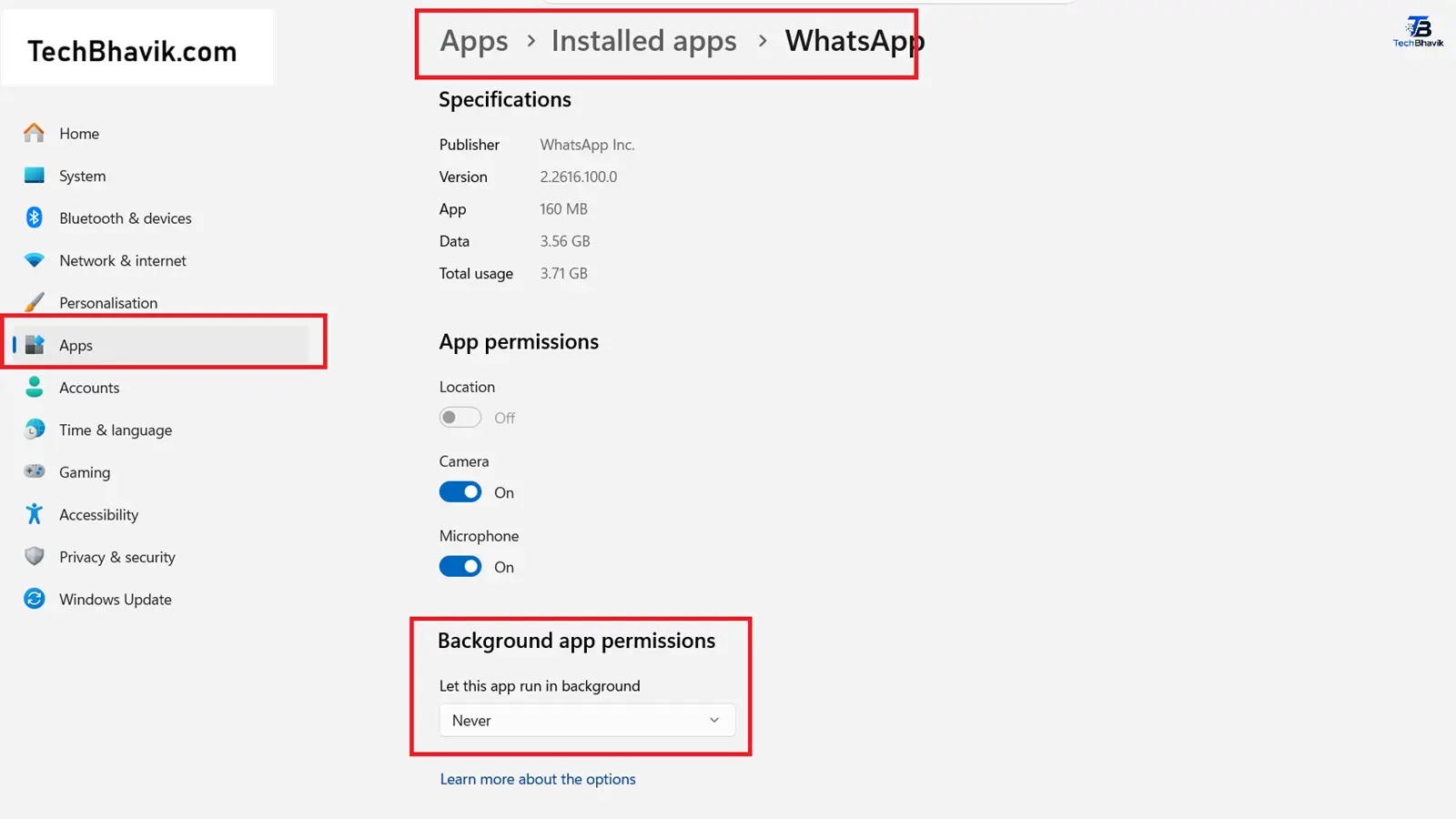
How to do it:
Step 1 — Press Windows key + I to open Settings
Step 2 — Go to Apps → Installed apps
Step 3 — Click on any app you want to manage
Step 4 — Click “Advanced options”
Step 5 — Under “Background apps permissions”
Step 6 — Select “Never” from the dropdown
Repeat for all apps you do not need running in the background — especially social media apps, news apps, and entertainment apps.
Tip 7 — Turn Off Windows Tips and Suggestions
Windows 11 constantly monitors your activity to give you tips and suggestions. This background monitoring slows down your PC without providing much value.
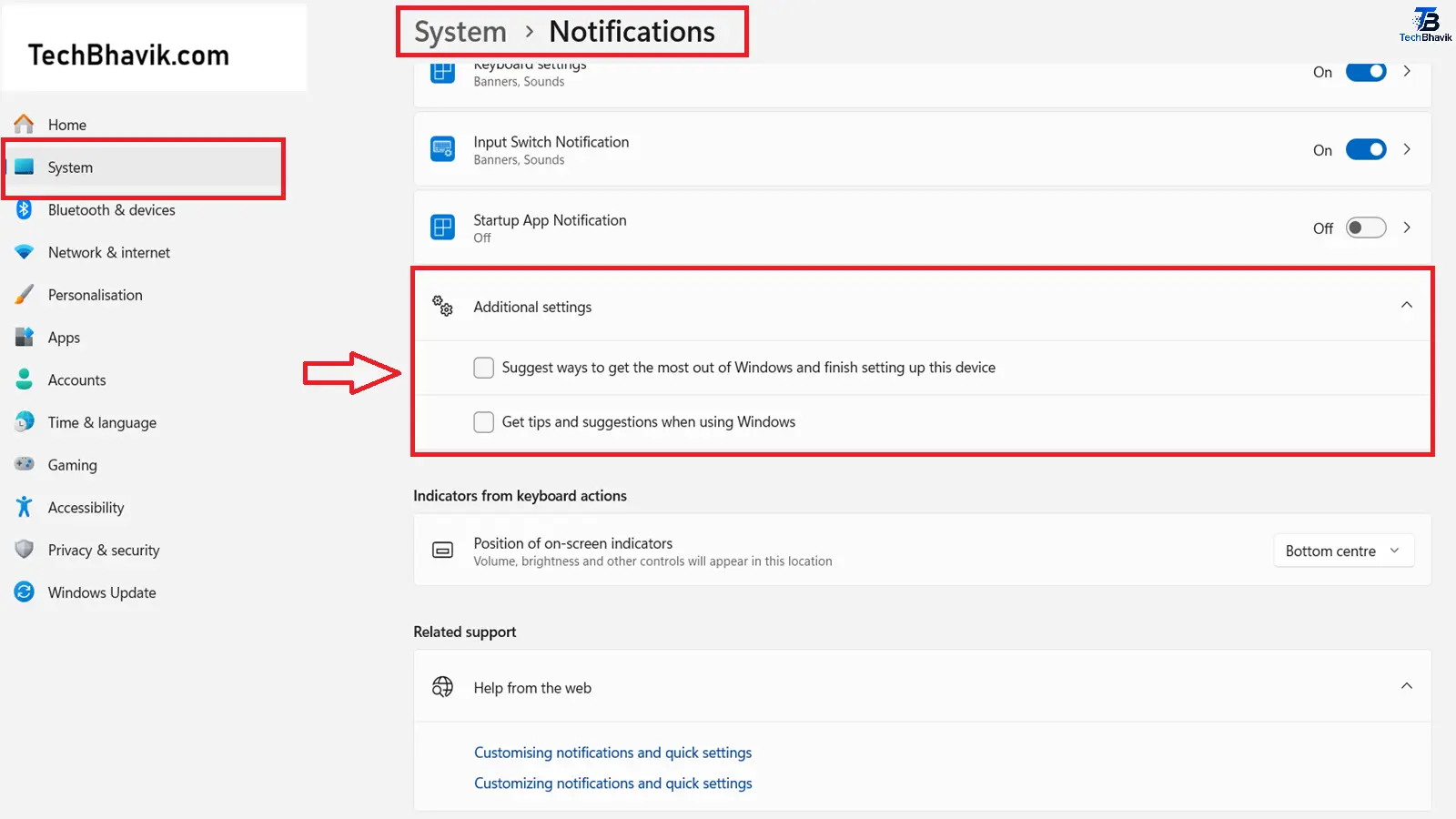
How to do it:
Step 1 — Press Windows key + I to open Settings
Step 2 — Go to System → Notifications
Step 3 — Scroll down to “Additional settings”
Step 4 — Click the arrow to expand it
Step 5 — Uncheck “Get tips and suggestions when using Windows”
Step 6 — Also uncheck “Suggest ways to get the most out of Windows”
This simple change can noticeably improve overall system responsiveness.
Tip 8 — Update Drivers (Especially Graphics Drivers)
Outdated drivers are a leading cause of Windows 11 slowdowns. Graphics drivers especially impact performance for both everyday use and gaming.
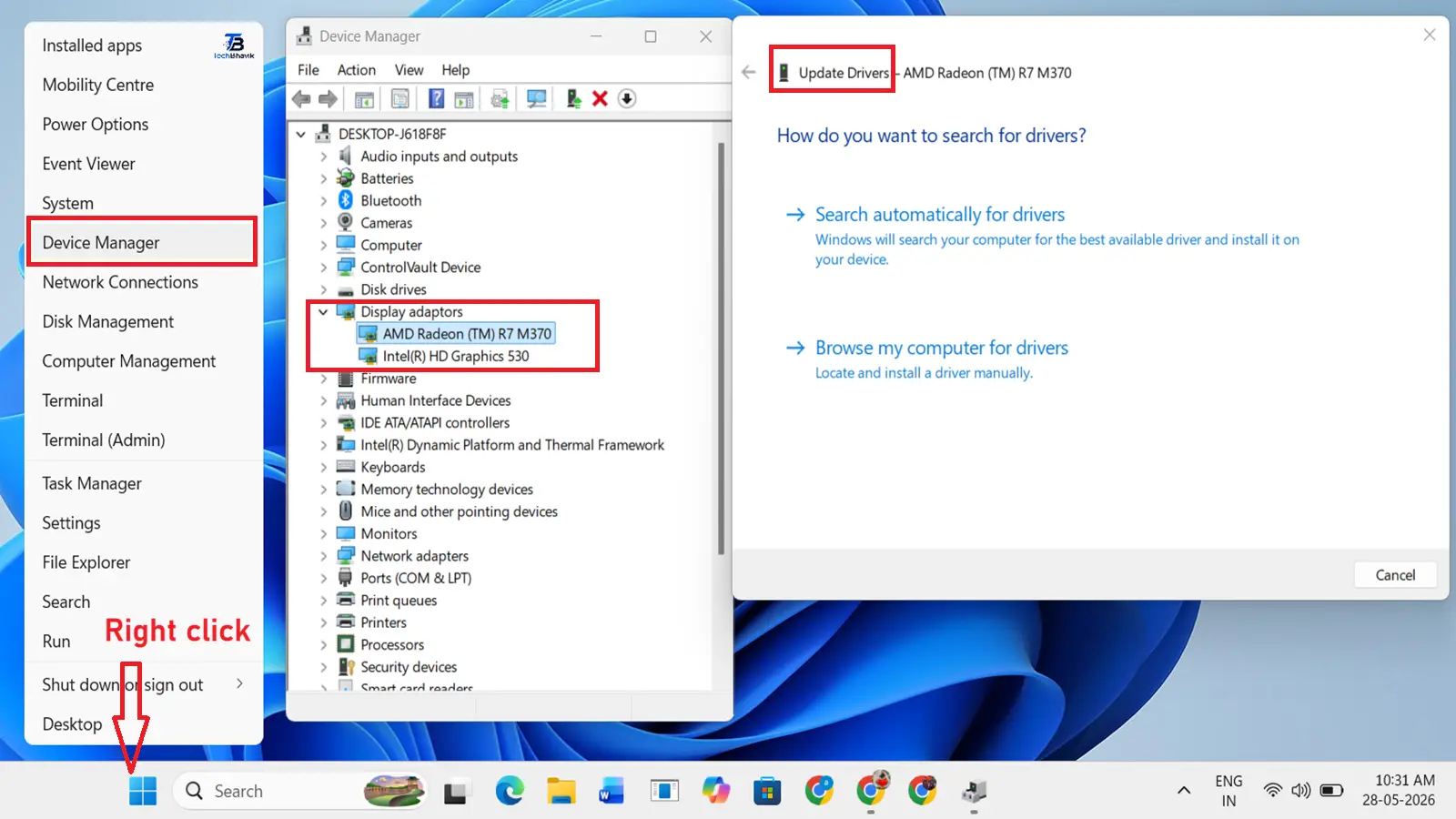
How to update drivers:
Step 1 — Right-click the Start button
Step 2 — Select “Device Manager”
Step 3 — Expand “Display adapters”
Step 4 — Right-click your graphics card
Step 5 — Select “Update driver”
Step 6 — Choose “Search automatically for drivers”
For NVIDIA users: Download GeForce Experience from nvidia.com for automatic driver updates.
For AMD users: Download AMD Adrenalin from amd.com for automatic driver updates.
For Intel users: Download Intel Driver and Support Assistant from intel.com.
Expected result: Significant improvement in graphics performance and overall system stability.
- I Upgraded 5 Old Laptops SSD vs HDD—Here’s What Happened
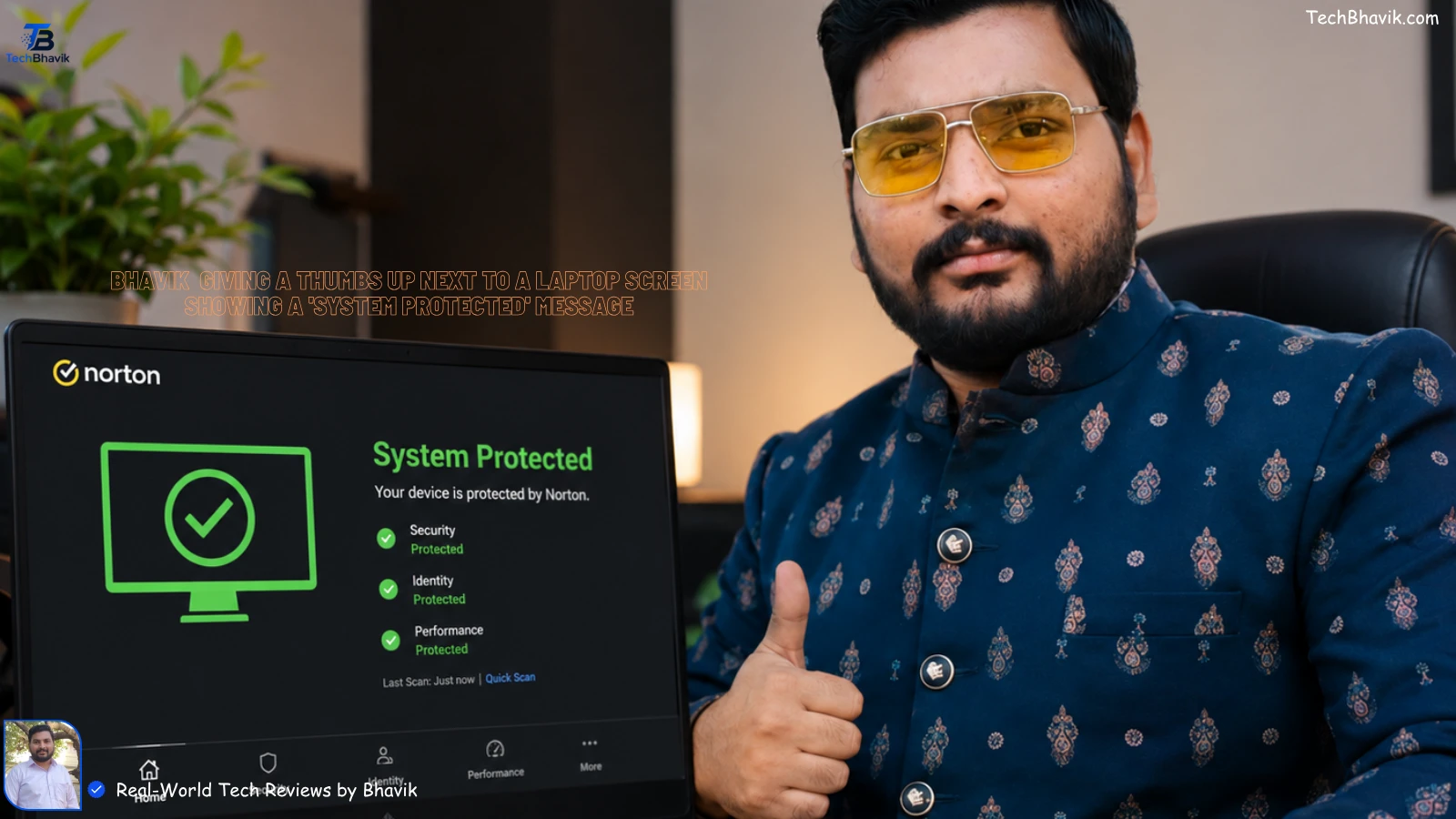
- How to Secure Your PC: Best Free Antivirus for Windows 11 in 2026
Tip 9 — Use Efficiency Mode in Task Manager
Windows 11 includes a useful feature called Efficiency Mode that limits the CPU resources used by specific apps — freeing up power for the apps you are actively using.
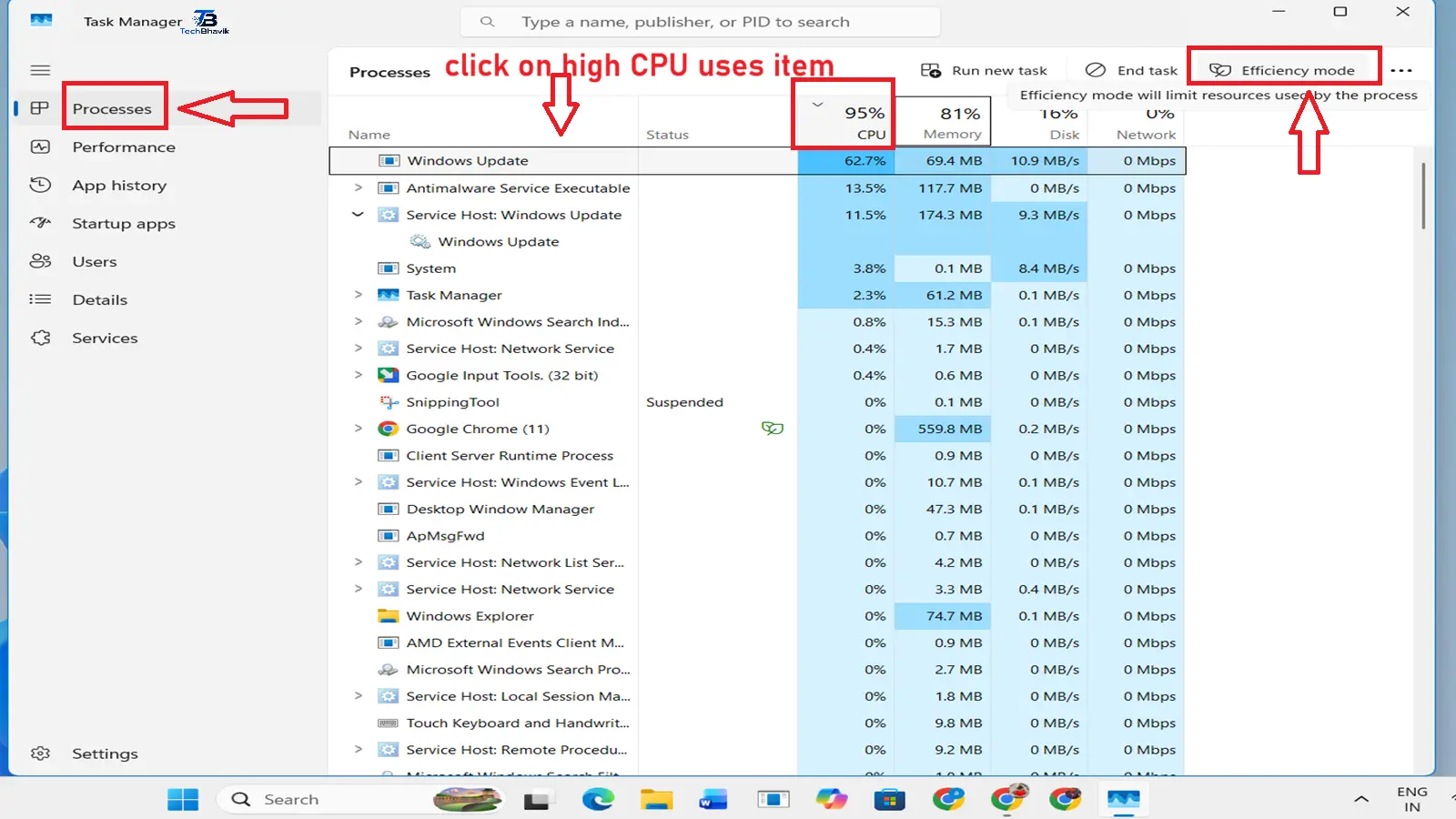
How to do it:
Step 1 — Press Ctrl + Shift + Esc to open Task Manager
Step 2 — Click the “Processes” icon on the left
Step 3 — Find an app consuming high CPU that you are not actively using
Step 4 — Click on it to select it
Step 5 — Click the “Efficiency mode” button at the top right
Step 6 — Confirm by clicking “Turn on Efficiency Mode”
This is especially useful for browser processes, update services, and background system processes.
Tip 10 — Restart Your PC Regularly
This sounds obvious, but many Windows 11 users never restart their PC — they just put it to sleep. Over time, RAM fills up with cached data and background processes accumulate, slowing everything down.
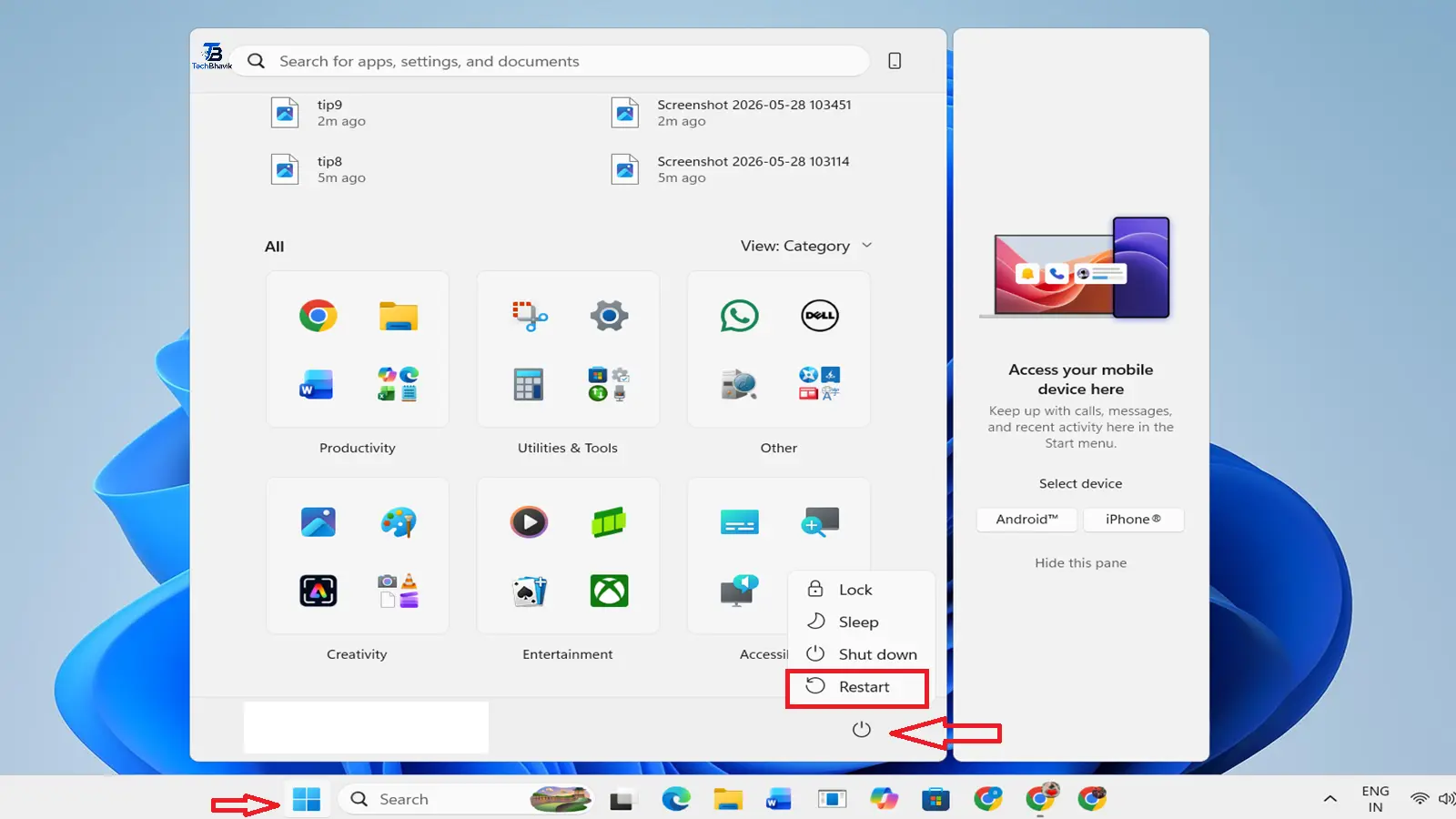
Best practice:
- Restart your PC at least once every 2-3 days
- Always use “Restart”, not “Shutdown”, for a proper fresh start
- After Windows updates, always restart immediately
A fresh restart clears RAM, resets background processes, and often fixes mysterious slowdowns instantly.
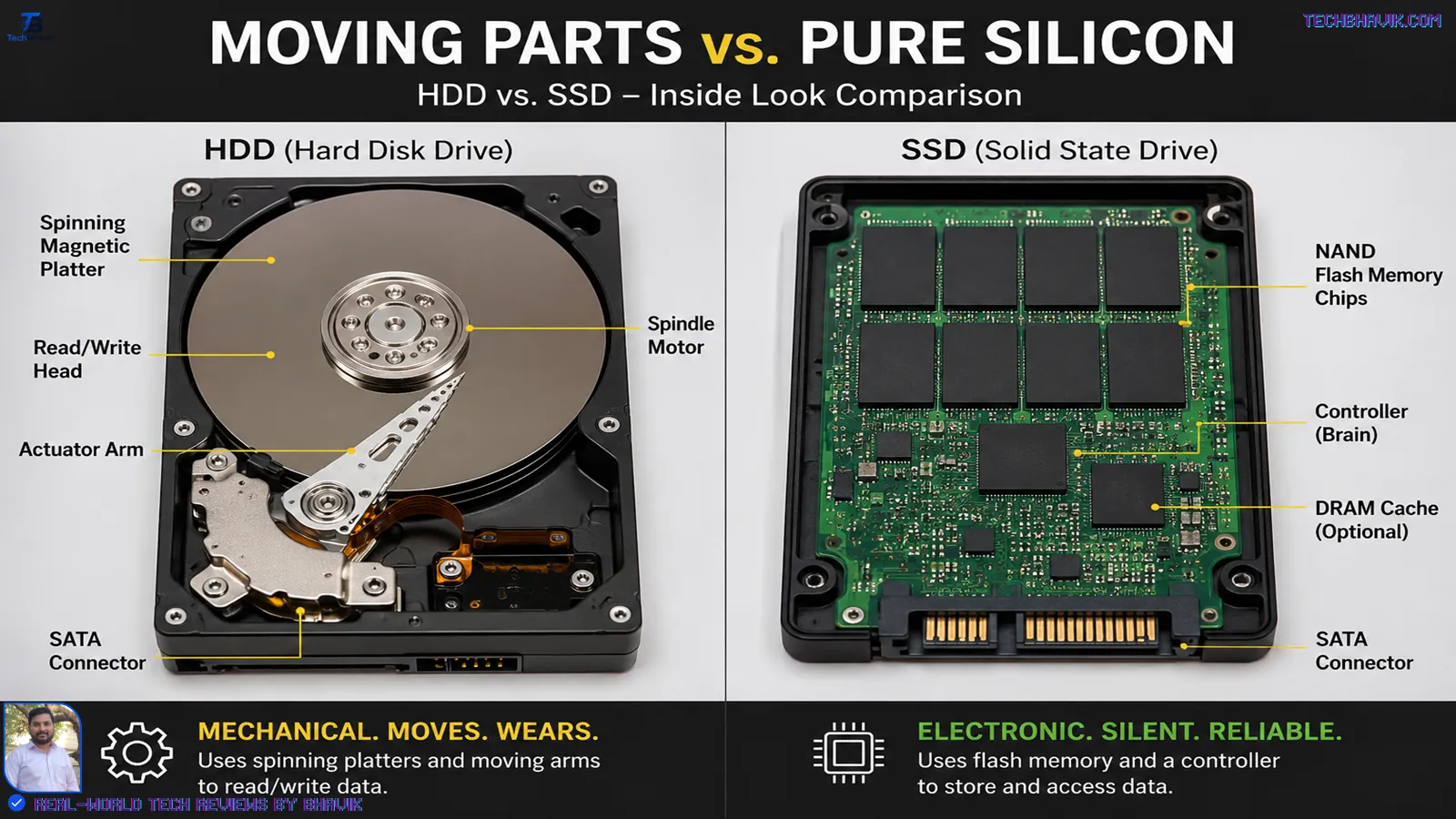
Bonus Tip — Upgrade to SSD (Biggest Hardware Upgrade!)
If your computer is using an old HDD (Hard Disk Drive) and you want the biggest possible speed improvement, upgrading to an SSD is the single best investment you can make.
Speed comparison:
- HDD boot time: 45-90 seconds
- SSD boot time: 8-15 seconds
An SSD makes Windows boot faster, apps open instantly, and everything feels like a brand new computer. A 512GB SSD costs just ₹2,500-₹3,500 in India in 2026.
Quick Summary — All 10 Tips at a Glance
| Tip | Action | Difficulty | Impact |
|---|---|---|---|
| 1 | Disable startup programs | Easy | Very High |
| 2 | Adjust visual effects | Easy | High |
| 3 | Disable transparency effects | Easy | Medium |
| 4 | Set power plan to High Performance | Easy | High |
| 5 | Clean disk space with Storage Sense | Easy | High |
| 6 | Disable background apps | Easy | Medium |
| 7 | Turn off Windows tips | Easy | Medium |
| 8 | Update drivers | Medium | High |
| 9 | Use Efficiency Mode | Medium | Medium |
| 10 | Restart PC regularly | Easy | High |
How Much Speed Improvement Can You Expect?
Results may vary depending on your hardware, but most users notice a significant difference after applying even just the first 3-4 tips.
Frequently Asked Questions (FAQ)
1. How do I install Windows 11 on my PC?
Windows 11 is a new operating system, but it is not compatible with Windows 10. It is a very slow operating system
2. What is the Windows 11 Windows 11 card?
Windows 11 juna hardver par dhimu laagi shake che kaaran ke teni system aavshyktao vadhu che ane vadhu vizaual ifacts chhe. jo ke, ochhama ochhi 8 jibi rem ane sasdivala aadhunik hardver par, Windows 11 saraltathi chale chhe. aa margdarshikama aapeli tips juna ane nava banne hardver par pradarshanne optimais karvama madad kare chhe.
3. What are some tips for preventing campus injuries?
naa, aa margdarshikama aapeli badhi tips sampurnpane salamat chhe. tema vindoz setings badalva ane binjaruri suvidhaone aksham karvano samavesh thaay che – koipan system filoma ferfaar na karvo. jo jarur pade to tame hamesha aamaannaa koipan ferfaarone ultavi shako cho.
4. Windows 11 is a great place to start, but is it a hassle?
tamare mahinama ochhama ochhi ek var kaamchalaau filo saaf karvi joiae. storage sencene saksham karvathi aa prakriya swachalit thaay chhe. jo tame tamara peeseene dhimu thatu josho, to kaamchalaau filo saaf karvi hamesha ek saru pahelu paglu chhe.
5. Does restarting really help speed up Windows 11?
Yes, Windows 11 restarted, background processes reset, and other things are still there. The PC speed is restored, and the system is running smoothly. The screen is not showing any sleep mode, so it is restarted.
6. What is the single best way to speed up an old Windows 11 laptop?
HDD thi SSD ma upgrade karvu e juna laptop par tame kari shako cho te ekmatra southi moto pradarshan sudharo chhe. te badhu j banaave che – but thavathi laine aps kholava sudhi – natakiy rite zadapi. startup programs ane vizaual ifactsne aksham karwa sathe, juna laptop lagbhag nava jevu laage che
- iPhone 18 Pro Max: Apple’s Massive 5,200mAh Battery Fixes Our Biggest Gripe

- Should You Upgrade iPhone 17 Pro to iPhone 18 Pro?

Final Truth Verdict by Bhavik
Windows 11 can become slow over time, but it does not have to stay that way. By following the 10 tips in this guide, you can significantly improve your PC’s speed and responsiveness without spending any money.
Start with the easiest wins — disable startup programs, adjust visual effects, and change your power plan. These three steps alone can transform a sluggish Windows 11 PC into a fast and responsive machine.
If you have tried everything and your PC is still slow, consider upgrading your RAM to 8GB or switching to an SSD — these hardware upgrades deliver the most dramatic improvements on older computers.
Did these tips help speed up your Windows 11 PC? Leave a comment below or contact us at contact@techbhavik.com
— Bhavik Munjapara, TechBhavik.com
Tech community Microsoft: How to speed up windows 11 and make it run faster?

















Show CommentsBest of information provided
[…] The Secret to a Faster Windows 11 : 10 Powerful Tips for 2026 […]
[…] 10 Proven Tips to Speed Up Windows 11 in 2026 (Ultimate Guide) […]
Top of best information articles I saw these.
keep it mores updates ..
[…] منبع: TechBhavik – 10 Proven Tips To Speed Up Windows 11 In 2026 […]
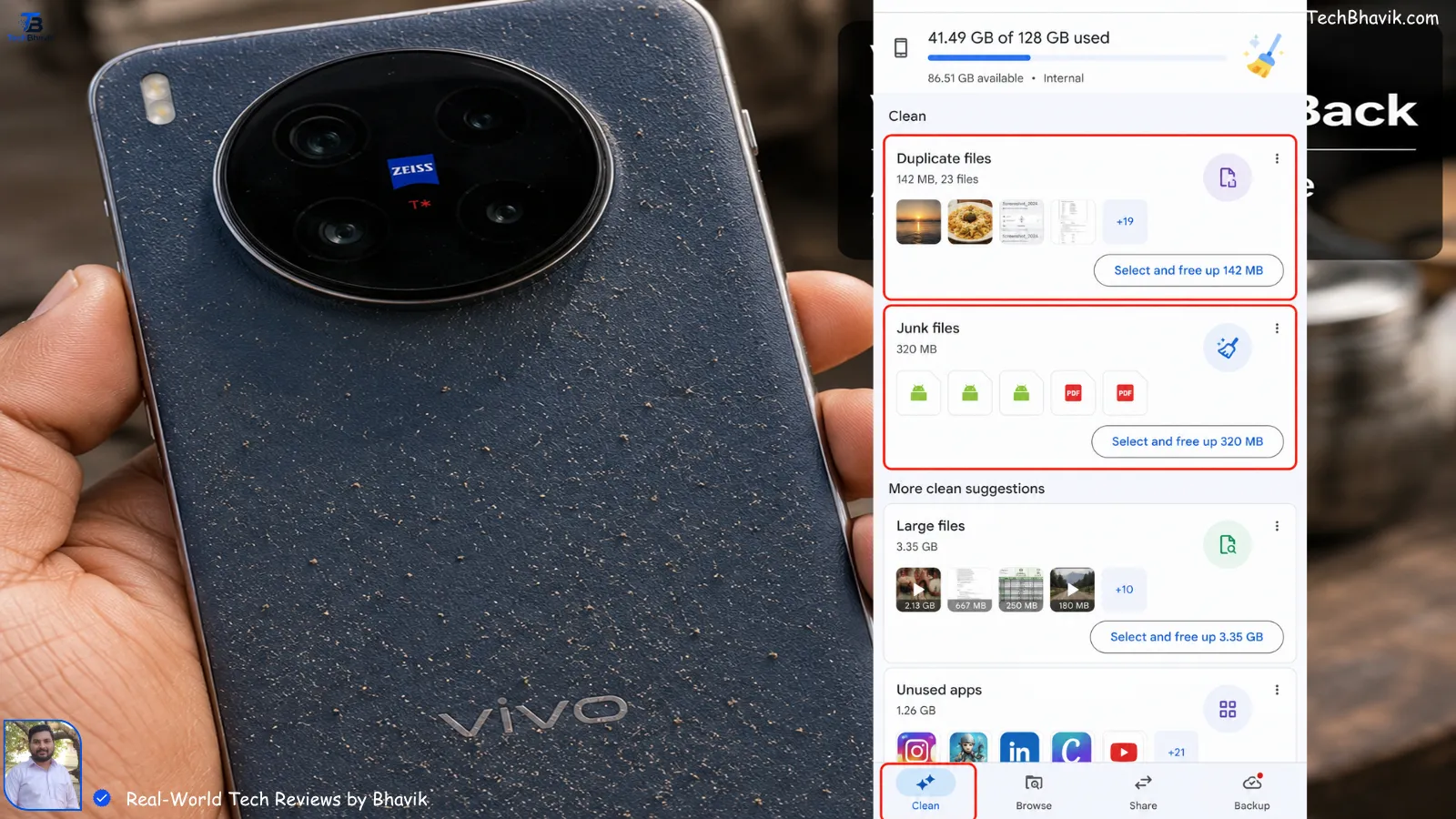
[…] How to Free Up Storage on Android Phone — 7 Tips […]
[…] [how-to-speed-up-windows-11 → Windows 11 Optimization Tips] […]