


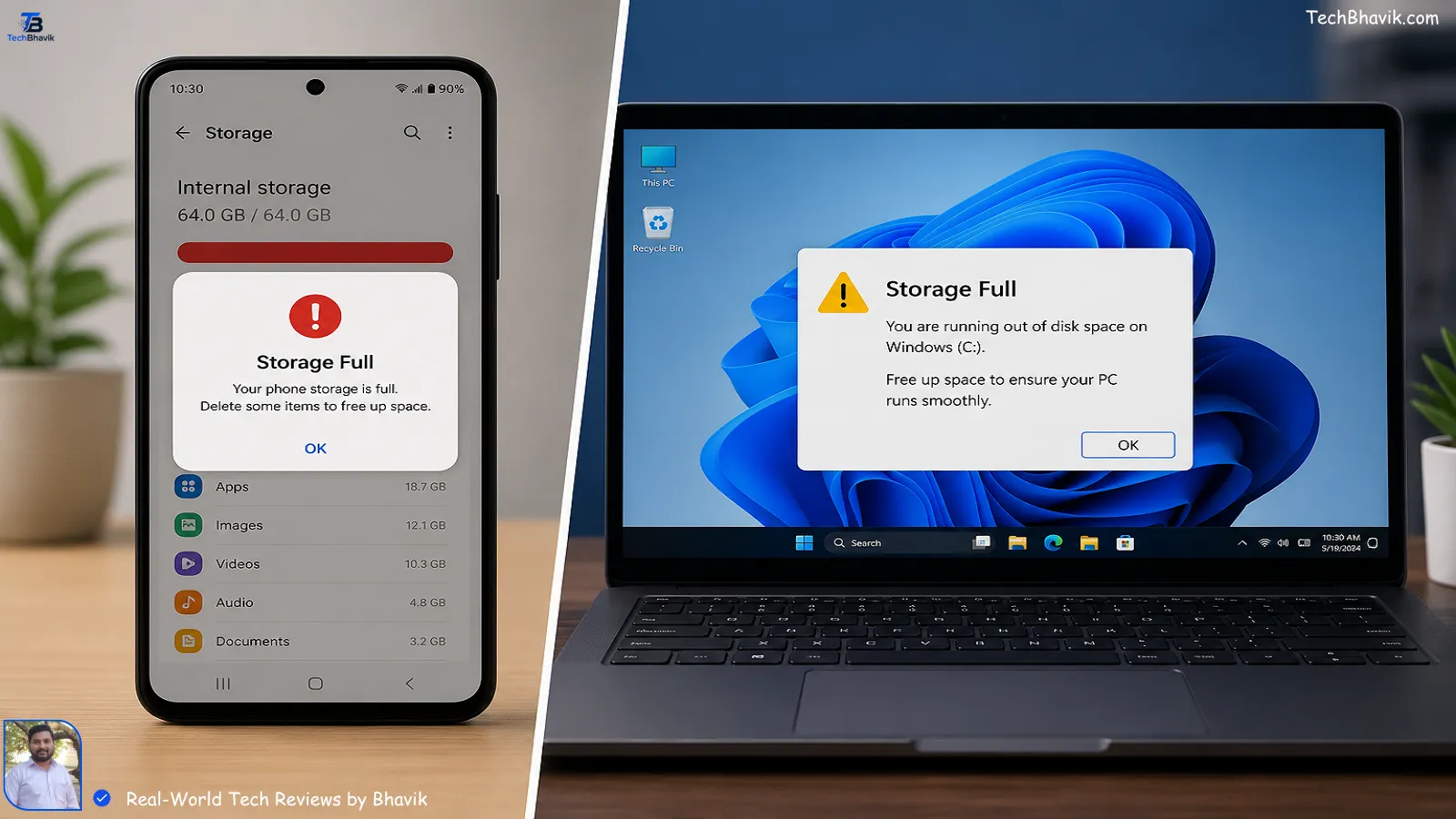
My Friend Abhi’s mobile phone is showing “Storage Almost Full” warnings. My friend here is showing how to free up storage Windows PC is running slow because the hard drive of Old lenova cpu use of computer is nearly full. You are not alone. Running out of storage is one of the most common tech problems faced by millions of Indians every day in 2026.
The good news is that you do not need to buy a new phone, upgrade your storage, or pay for expensive cloud plans. In this complete guide, I will show you 12 proven ways to free up storage on your Android phone and Windows PC in 2026 — all completely free, without deleting your important photos or files.
Whether your phone has 64GB, 128GB, or even 256GB of storage, these tips will help you reclaim gigabytes of space quickly and keep your device running fast and smooth.
📋 Table of Contents
How to Check Your Current Storage
Before freeing up space, always check exactly how much storage you have left and what is using the most space.
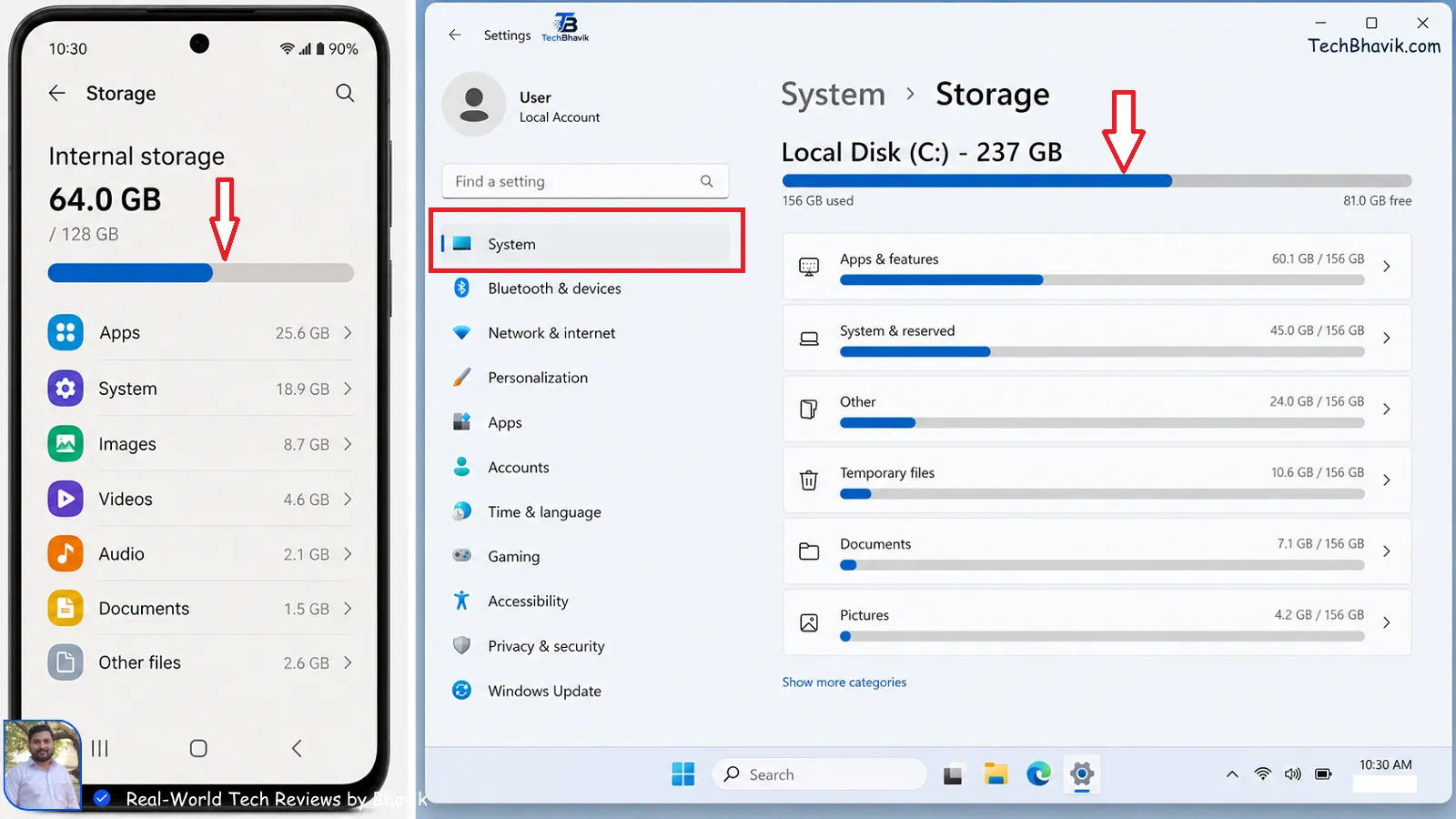
These image shown of Open Windows Computer settings > System > Storage > Now you can see Temporary Files – you can delete it if not useful. and Enabel Storage Sense, which provides your pc best fast speeds.
On Android Phone:
Step 1 — Open Settings app
Step 2 — Tap Storage
Step 3 — You will see a breakdown showing:
Total storage, Used storage, Available storage
Categories: Apps, Photos, Videos, Audio, Documents, Other
On Windows PC:
Step 1 — Press Windows + I to open Settings
Step 2 — Go to System — Storage
Step 3 — You will see a full breakdown of what is using your storage including Apps, Temporary files, Documents, and Other
Once you know what is using the most space, you can target those areas for maximum results.
How to Free Up Storage on Android Phone — 7 Tips
Tip 1 — Clear App Cache (Fastest Way to Free Up Space!)
App cache is temporary data stored by apps to load faster. Over time, cache files from WhatsApp, YouTube, Instagram, Chrome, and other apps accumulate and can take up several gigabytes of space — without you even knowing.
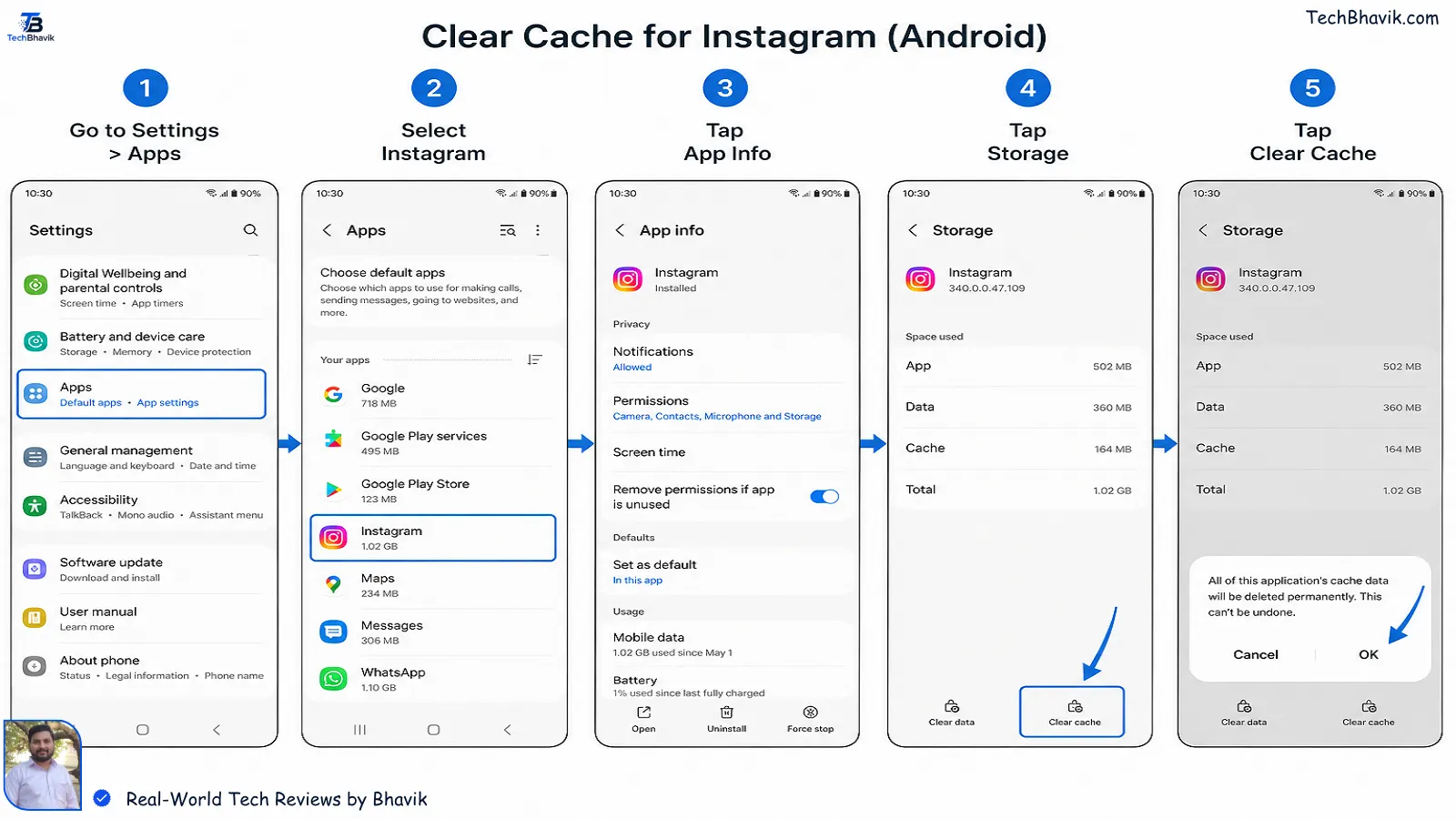
How to clear cache on Android: Here is full information provided by Bhavik’s personal Mobile Phone settings.
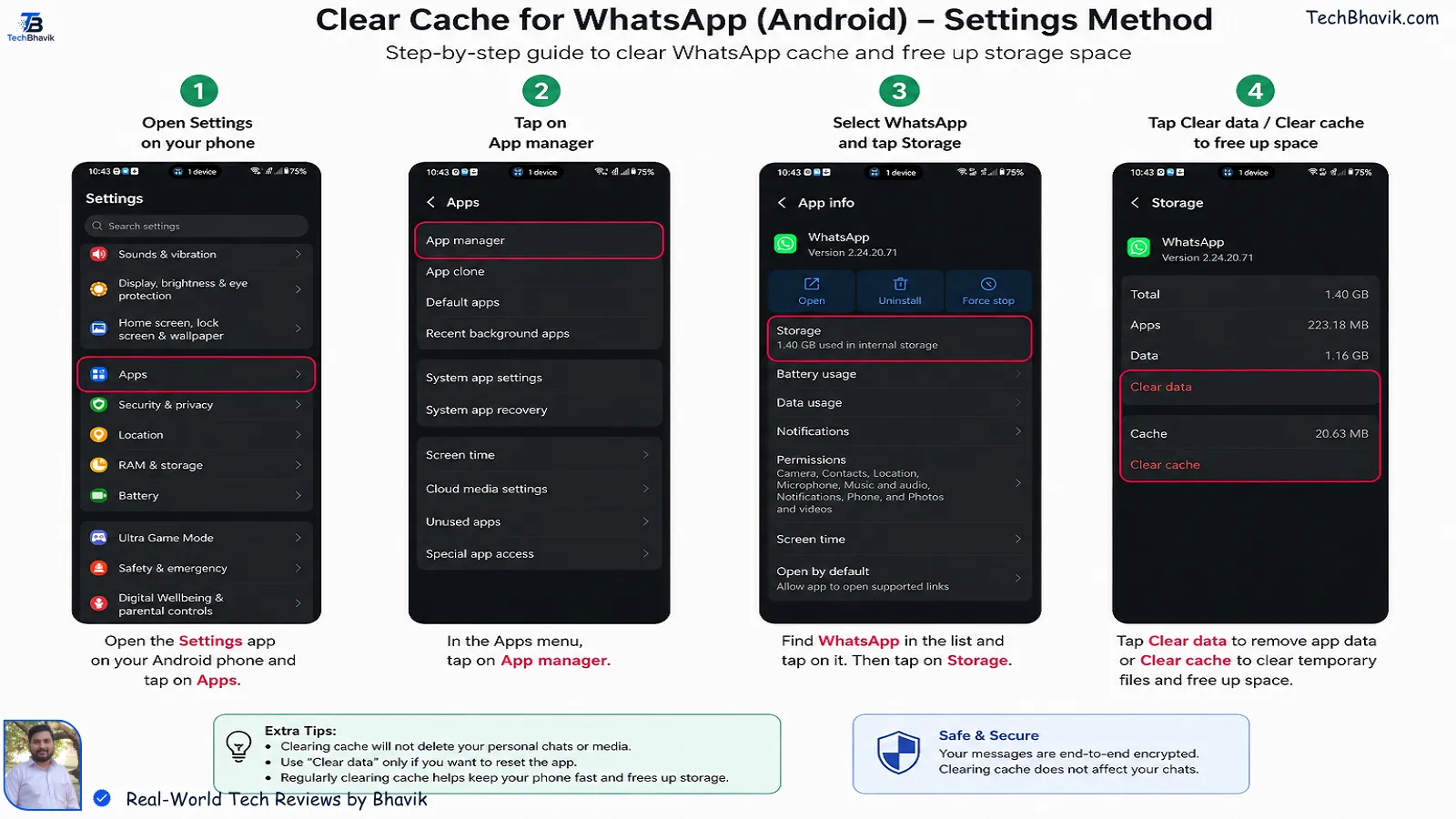
Step 1 — Open Settings
Step 2 — Tap Apps or Application Manager
Step 3 — Tap on any app — for example, WhatsApp
Step 4 — Tap Storage
Step 5 — Tap Clear Cache
Step 6 — Repeat for all apps you use frequently
Fastest way to clear all cache at once:
Settings — Storage — Cached Data — Clear Cached Data — OK
Expected space savings: 500MB to 5GB depending on how long since your last cleanup.
Important note: Clearing cache does not delete your personal data, photos, or messages. The app simply rebuilds the cache the next time you use it.
Tip 2 — Delete WhatsApp Media (Biggest Space Saver in India!)
WhatsApp is the single biggest storage consumer on most Indian phones. Photos, videos, GIFs, stickers, voice messages, and documents sent and received in WhatsApp groups accumulate silently and can easily consume 5GB to 20GB of storage on your phone.
How to delete WhatsApp media: Here is full information provided by Bhavik’s personal Mobile Phone settings.
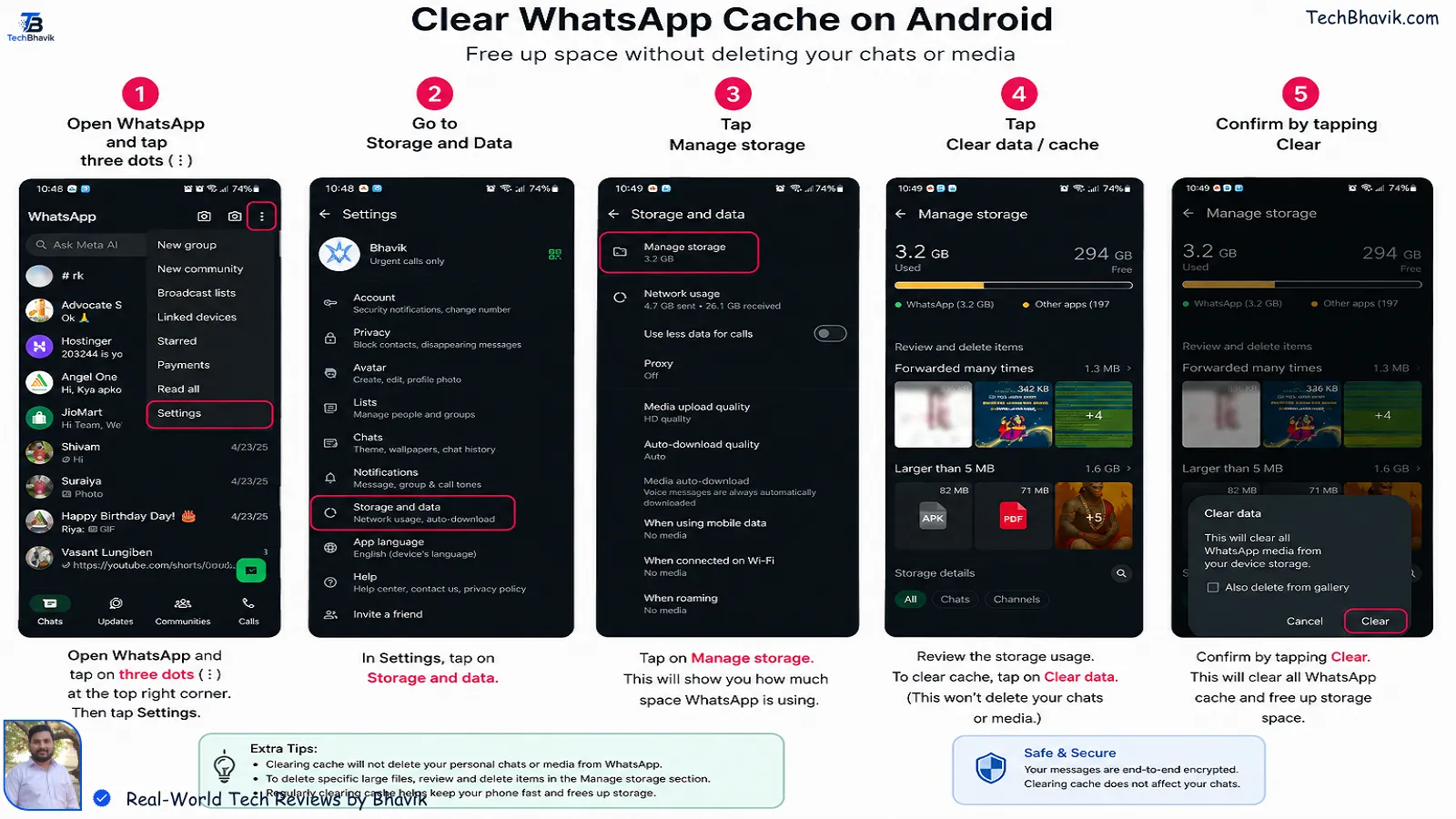
Method 1 — From WhatsApp:
Step 1 — Open WhatsApp
Step 2 — Tap three dots menu — Settings
Step 3 — Tap Storage and Data
Step 4 — Tap Manage Storage
Step 5 — You will see all chats sorted by storage used
Step 6 — Tap any large chat or group
Step 7 — Select media you want to delete
Step 8 — Tap Delete
Method 2 — From File Manager:
Step 1 — Open File Manager app
Step 2 — Go to Internal Storage — WhatsApp — Media
Step 3 — You will see folders:
WhatsApp Images, WhatsApp Video, WhatsApp Documents, WhatsApp Audio
Step 4 — Open each folder and delete files you do not need
Step 5 — Empty the Trash or Recycle Bin after deleting
Expected space savings: 2GB to 20GB — the biggest single space saving tip for most Indian phone users.
Pro tip: Go to WhatsApp Settings — Storage and Data — turn off Auto Download for Photos, Videos, and Documents on Mobile Data. This prevents WhatsApp from automatically downloading every media file sent in groups.
Tip 3 — Back Up Photos to Google Photos and Delete Local Copies
Photos and videos are usually the largest files on your phone. A single 4K video can be 500MB to 1GB. If you have hundreds or thousands of photos and videos, they can easily consume 20GB to 50GB of your storage.
How to free up photo storage:
Step 1 — Download and open Google Photos app
Step 2 — Make sure Backup is turned ON
Step 3 — Wait for all photos to back up to Google
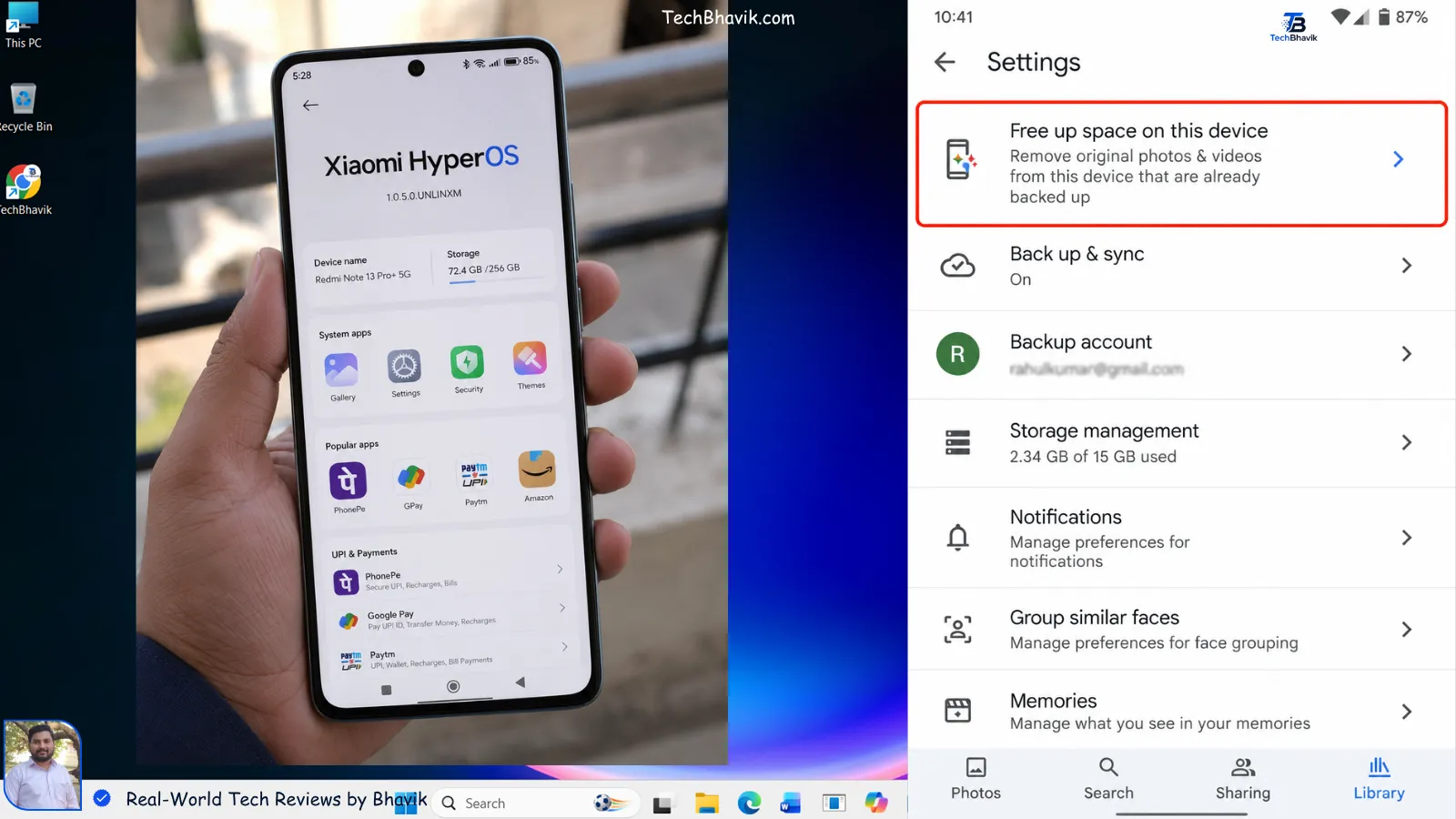
Step 4 — Tap your profile picture — Manage Storage
Step 5 — Tap Free up space on this device
Step 6 — Tap Free up — this deletes local copies of photos already backed up to Google
Your photos are NOT deleted — they are safely stored in your Google Photos account and accessible anytime with internet.
Expected space savings: 5GB to 50GB depending on how many photos and videos you have.
Important: Google gives 15GB of free storage. If you need more, Google One plans start at ₹130 per month for 100GB.
Tip 4 — Uninstall Unused Apps and Games
Apps and games — especially large games like BGMI, Free Fire, and Genshin Impact — consume enormous amounts of storage. A single game can take 2GB to 8GB of space. If you have games installed that you no longer play regularly, uninstalling them is a quick and easy way to reclaim significant storage.
How to find and uninstall large apps:
Step 1 — Settings — Storage — Apps
Step 2 — Sort apps by size (largest first)
Step 3 — Identify apps and games you no longer use
Step 4 — Tap each one and select Uninstall
Alternative quick method:
Step 1 — Open Google Play Store
Step 2 — Tap your profile picture — Manage Apps and Device
Step 3 — Tap Manage — sort by Size
Step 4 — Select apps to uninstall — Uninstall
Expected space savings: 1GB to 15GB depending on installed games and apps.
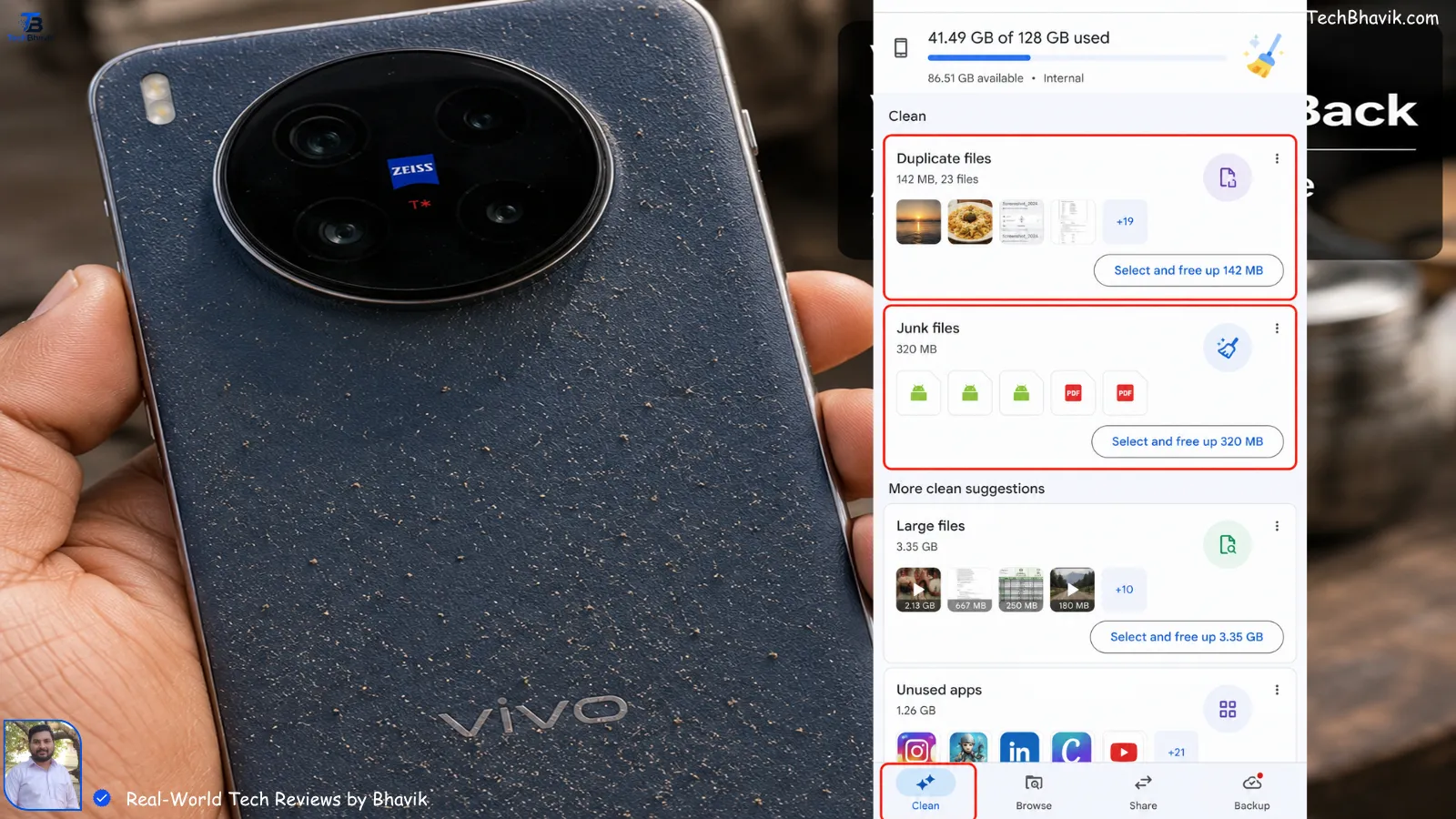
Tip 5 — Use Files by Google to Remove Junk Files
Files by Google is a free app developed by Google specifically to help you find and remove junk files, duplicate files, old downloads, and other unnecessary files from your Android phone.
How to use Files by Google:
Step 1 — Download Files by Google from Play Store (free)
Step 2 — Open the app
Step 3 — Tap the Clean tab at the bottom
Step 4 — You will see categories:
Junk files, Old screenshots, Large files, Duplicate files, Downloads
Step 5 — Tap each category and select files to delete
Step 6 — Tap Confirm and free up
Expected space savings: 500MB to 5GB from junk and duplicate files alone.
Tip 6 — Move Files to SD Card (If Your Phone Has One)
If your Android phone has a MicroSD card slot, you can move apps, photos, videos, and other files from internal storage to the SD card — freeing up your phone’s internal storage significantly.
How to move files to SD card:
Step 1 — Settings — Storage
Step 2 — Tap Internal Storage
Step 3 — Select files or folders to move
Step 4 — Tap Move — select SD card as destination
How to move apps to SD card:
Step 1 — Settings — Apps
Step 2 — Tap any app
Step 3 — Tap Storage — Change (if available)
Step 4 — Select SD card
Important note: Not all apps can be moved to an SD card. System apps and some games must remain on internal storage.
Expected space savings: 5GB to 30GB depending on SD card capacity.
Tip 7 — Delete Downloads Folder
The Downloads folder on most Android phones is a silent storage killer. Every file you download — PDF documents, APK files, ZIP archives, Office documents — gets stored in the Downloads folder and forgotten. Over months and years, this folder can accumulate several gigabytes of files you no longer need.
How to clear Downloads folder:
Step 1 — Open Files by Google or File Manager
Step 2 — Navigate to Downloads folder
Step 3 — Sort by Date (oldest first) or Size (largest first)
Step 4 — Select files you no longer need
Step 5 — Delete them permanently
Expected space savings: 500MB to 5GB depending on how many files you have downloaded over time.
How to Free Up Storage on Windows PC — 5 Tips
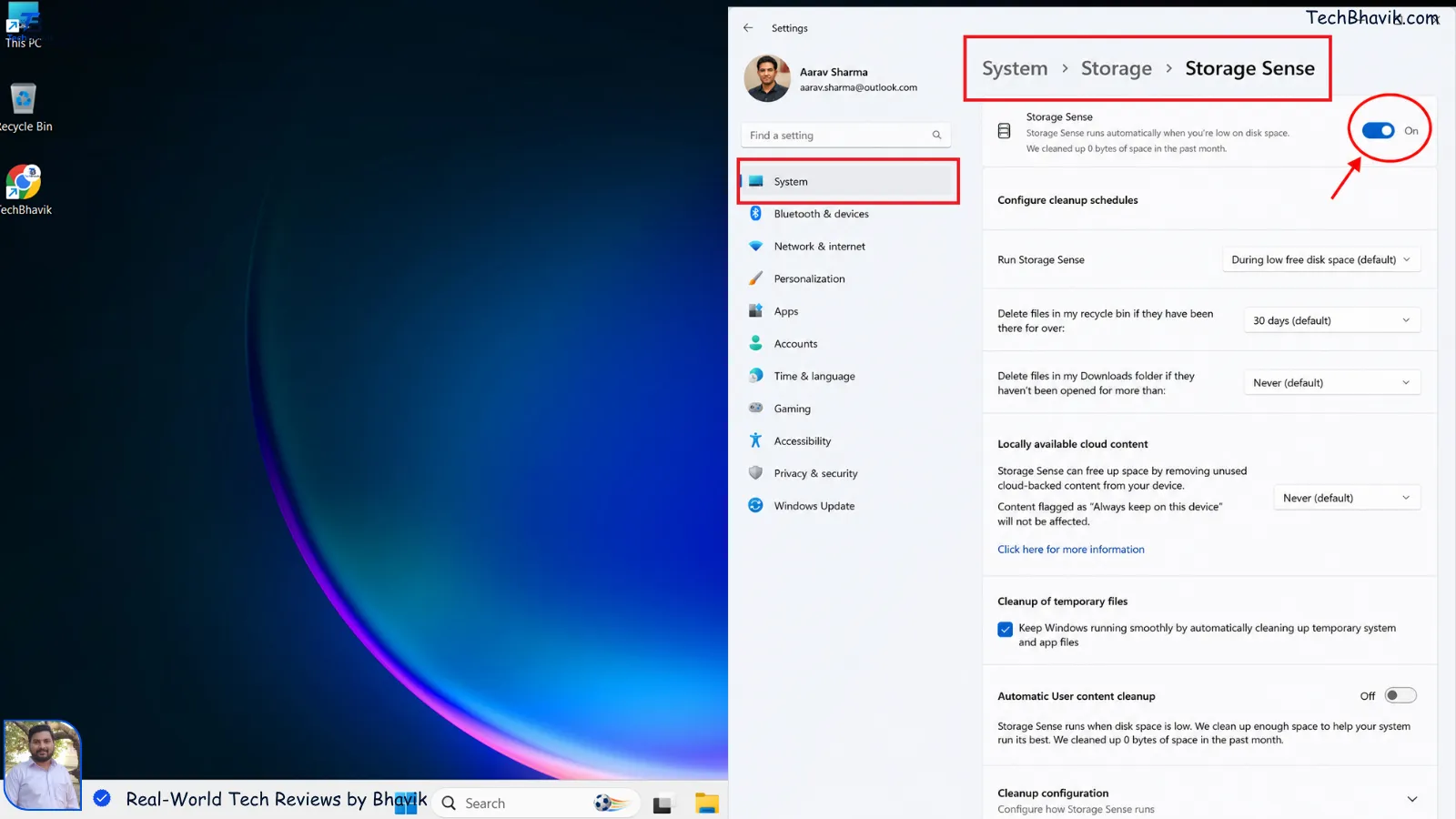
Windows 11 system storage settings showing how to enable and configure Storage SenseTip 8 — Use Storage Sense to Automatically Clean Up
Windows 11 has a built-in feature called Storage Sense that automatically removes temporary files, empties the Recycle Bin, and cleans up unnecessary system files on a schedule.
How to enable Storage Sense:
Step 1 — Press Windows + I to open Settings
Step 2 — Go to System — Storage
Step 3 — Click Storage Sense toggle to turn it ON
Step 4 — Click Storage Sense to configure settings:
Run Storage Sense: Every month
Delete files in Recycle Bin: After 30 days
Delete files in Downloads: After 60 days (optional)
Step 5 — Click Run Storage Sense Now for immediate cleanup
Expected space savings: 1GB to 10GB from temporary files and Recycle Bin.
Tip 9 — Delete Temporary Files Manually
Windows accumulates a large amount of temporary files over time — update files, installation leftovers, thumbnail cache, and system logs. These files serve no ongoing purpose and can safely be deleted.
How to delete temporary files:
Method 1 — Windows Settings:
Step 1 — Settings — System — Storage
Step 2 — Click Temporary Files
Step 3 — Check all boxes — Temporary Files, Recycle Bin, Thumbnails, DirectX Shader Cache, Windows Update Cleanup
Step 4 — Click Remove Files
Method 2 — Manual cleanup:
Step 1 — Press Windows + R
Step 2 — Type %temp% and press Enter
Step 3 — Select all files with Ctrl + A
Step 4 — Press Delete to remove all temporary files
Step 5 — Repeat with temp (without %) in the Run dialog
Expected space savings: 2GB to 15GB — Windows Update cleanup files alone can be several gigabytes.
Tip 10 — Uninstall Programs You Do Not Use
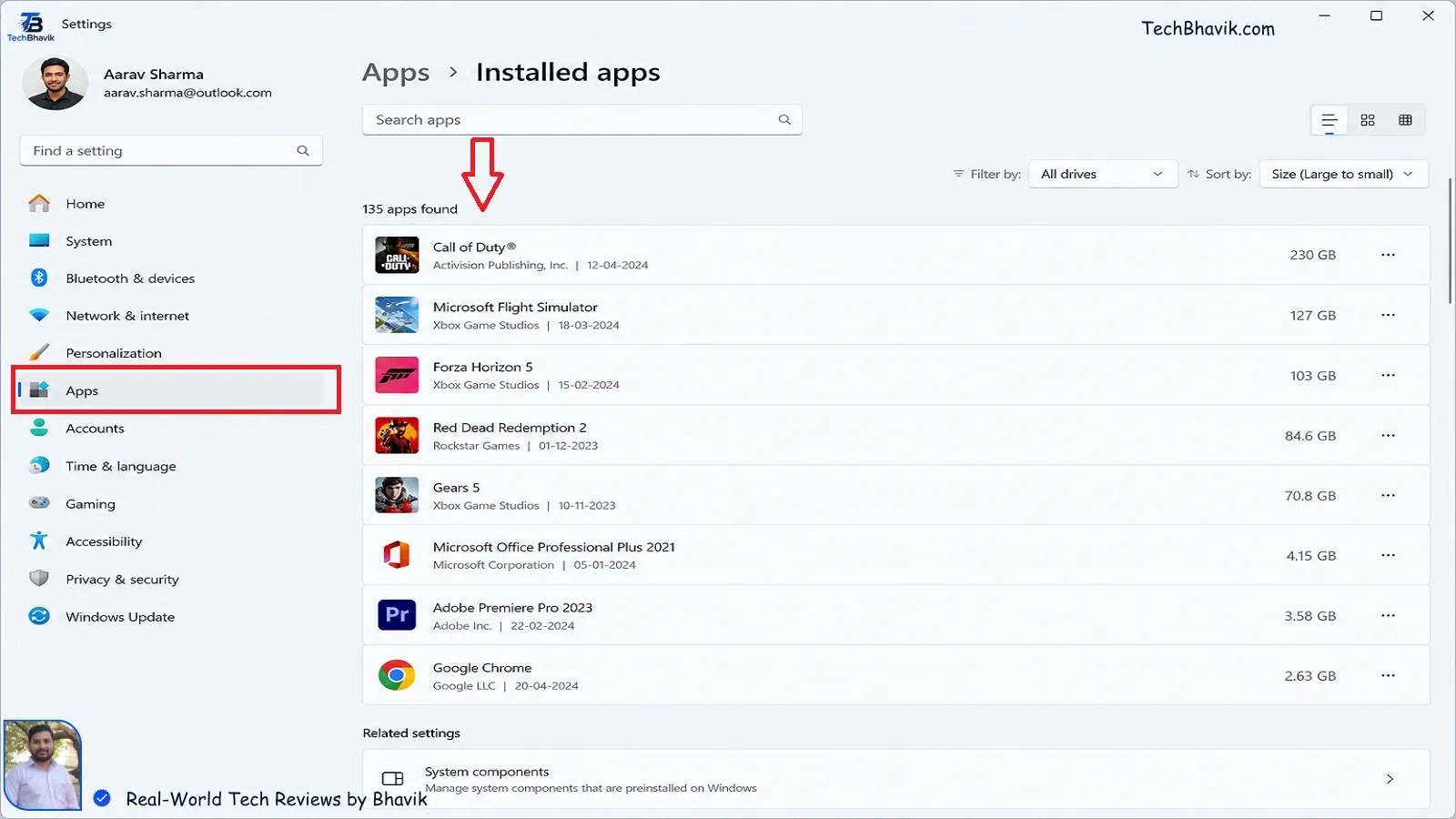
Like phones, Windows PCs accumulate unused programs over time. Old games, software trials, manufacturer bloatware, and forgotten applications can collectively consume tens of gigabytes of storage.
How to uninstall programs on Windows:
Step 1 — Settings — Apps — Installed Apps
Step 2 — Sort by Size (largest first)
Step 3 — Identify programs you no longer use
Step 4 — Click the three dots next to each program
Step 5 — Click Uninstall
Step 6 — Follow uninstall prompts
Pay special attention to:
Old games you no longer play (can be 50GB to 100GB each)
Trial software and demos
Old antivirus programs
Manufacturer pre-installed bloatware
Old versions of software you have already updated
Expected space savings: 5GB to 100GB depending on installed games and programs.
Tip 11 — Move Files to External Storage or Cloud
If your PC’s storage is genuinely running out of space even after cleanup, moving large files to an external hard drive or cloud storage is the most effective long-term solution.
External storage options:
A 1TB external hard drive costs just ₹2,500 to ₹4,000 in India in 2026. Move old photos, videos, project files, and backups to the external drive to free up significant space on your PC.
Free cloud storage options:
Google Drive: 15GB free
OneDrive: 5GB free (included with Windows)
Dropbox: 2GB free
iCloud: 5GB free
How to use OneDrive to free up space:
Step 1 — Right-click any file or folder in OneDrive
Step 2 — Select Free up space
Step 3 — The file is moved to OneDrive cloud and a shortcut remains on your PC
Step 4 — The file downloads automatically when you open it
Expected space savings: As much as your external drive or cloud storage allows.
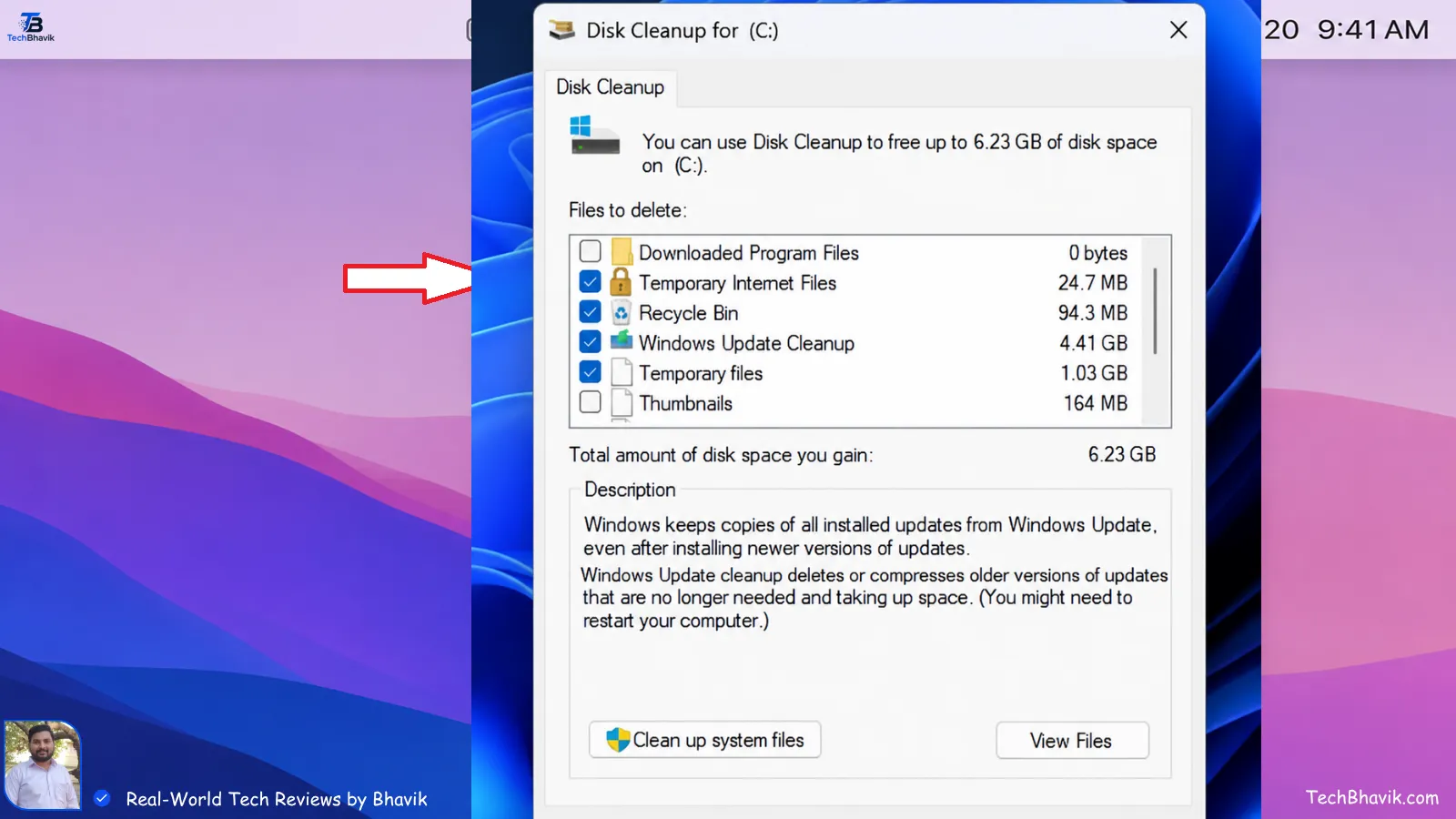
Tip 12 — Run Disk Cleanup Tool
Windows includes a built-in Disk Cleanup tool that safely removes unnecessary files including system files, Windows Update cleanup files, and temporary internet files.
How to run Disk Cleanup:
Step 1 — Search Disk Cleanup in the Start menu
Step 2 — Select your C: drive — click OK
Step 3 — Click Clean up system files (for deeper cleanup)
Step 4 — Select all categories — click OK — Delete Files
Step 5 — Wait for cleanup to complete
Expected space savings: 1GB to 20GB — Windows Update cleanup can be particularly large after major updates.
Quick Reference — All 12 Tips at a Glance
| Tip Number | Action | Device | Expected Savings | Difficulty |
| Tip 1 | Clear App Cache | Android | 500MB to 5GB | Easy |
| Tip 2 | Delete WhatsApp Media | Android | 2GB to 20GB | Easy |
| Tip 3 | Back Up Photos to Google Photos | Android | 5GB to 50GB | Easy |
| Tip 4 | Uninstall Unused Apps and Games | Android | 1GB to 15GB | Easy |
| Tip 5 | Use Files by Google | Android | 500MB to 5GB | Easy |
| Tip 6 | Move Files to SD Card | Android | 5GB to 30GB | Medium |
| Tip 7 | Delete Downloads Folder | Android | 500MB to 5GB | Easy |
| Tip 8 | Enable Storage Sense | Windows | 1GB to 10GB | Easy |
| Tip 9 | Delete Temporary Files | Windows | 2GB to 15GB | Easy |
| Tip 10 | Uninstall Unused Programs | Windows | 5GB to 100GB | Easy |
| Tip 11 | Move Files to External or Cloud | Windows | Unlimited | Medium |
| Tip 12 | Run Disk Cleanup Tool | Windows | 1GB to 20GB | Easy |
Best Free Apps to Free Up Storage in 2026
For Android:
Files by Google (Most Recommended):
Developer: Google
Price: Free
Best for: Finding and removing junk files, duplicates, old downloads
Download: Google Play Store
SD Maid 2/SE:
Developer: darken
Price: Free (with optional paid features)
Best for: Deep cleaning app cache and ghost files left by deleted apps
Download: Google Play Store
Google Photos:
Developer: Google
Price: Free (15GB storage included)
Best for: Backing up photos and videos and freeing local storage
Download: Google Play Store
For Windows:
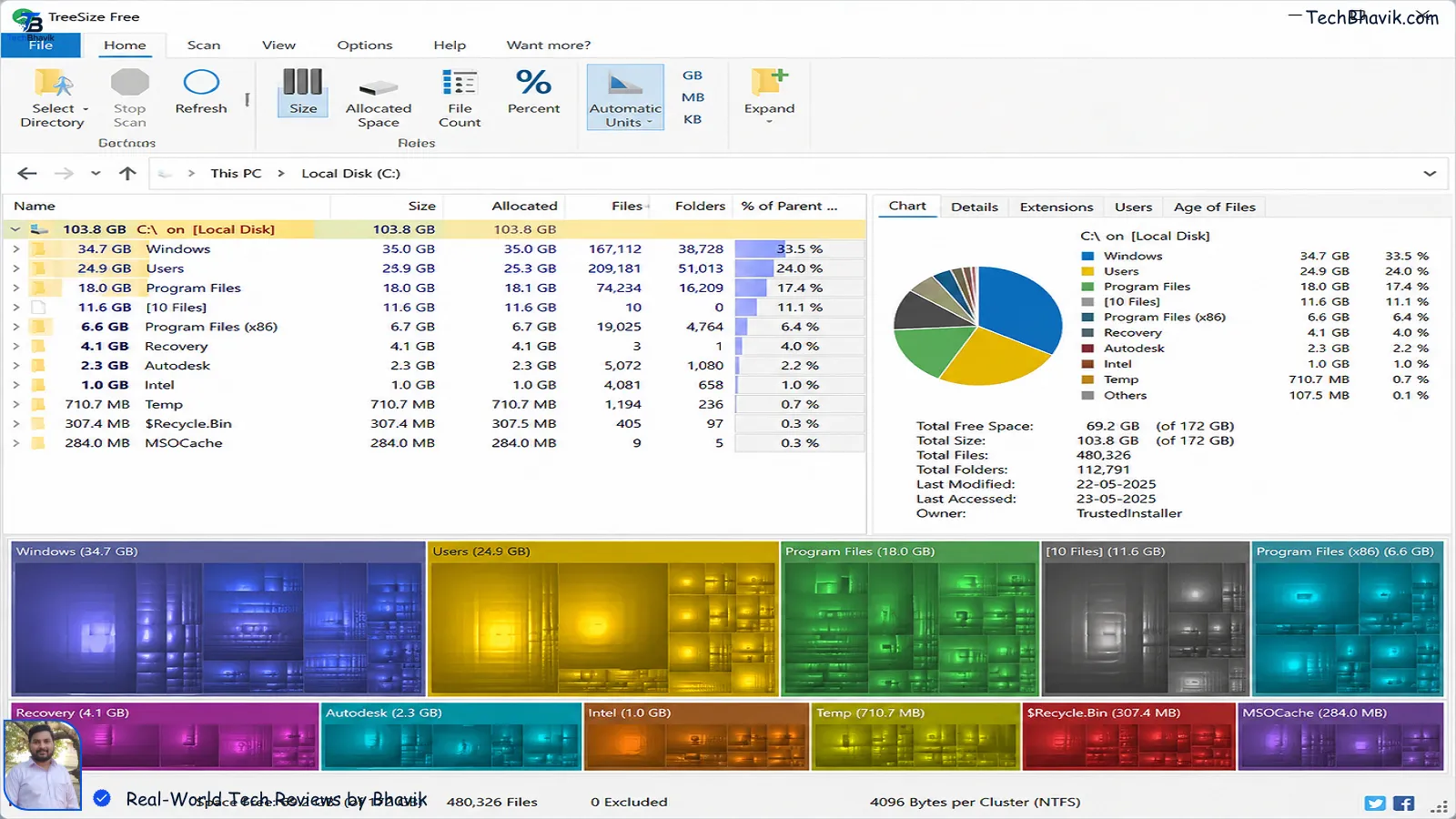
TreeSize Free:
Developer: JAM Software
Price: Free
Best for: Visualizing which folders and files are consuming the most storage
Download: Microsoft Store or treesizefree.com
WinDirStat:
Developer: Open Source
Price: Free
Best for: Visual representation of storage usage in color-coded blocks
Download: windirstat.net
CCleaner:
Developer: Piriform
Price: Free (basic version)
Best for: Removing temporary files, browser cache, and registry junk
Download: ccleaner.com
How to Prevent Storage from Filling Up Again
After freeing up storage, follow these habits to prevent it from filling up quickly again:
For Android Phone:
Turn off WhatsApp auto-download for photos and videos on mobile data
Enable Google Photos backup and regularly tap Free up device space
Review and uninstall unused apps every month
Clear cache for your most-used apps every 2 to 4 weeks
Move photos and videos to cloud storage regularly
For Windows PC:
Enable Storage Sense to run automatically every month
Empty the Recycle Bin and Downloads folder regularly
Set up automatic cloud backup for important files
Uninstall games and programs immediately after you finish using them
Run Disk Cleanup after every major Windows update

People Frequently Asked Questions (FAQ)
Q1. How do I free up storage on my Android phone quickly?
The fastest ways to free up storage on Android in 2026 are: clear app cache (Settings — Apps — Storage — Clear Cache), delete WhatsApp media (WhatsApp — Settings — Storage and Data — Manage Storage), back up photos to Google Photos and delete local copies, and use Files by Google to remove junk files. These four steps together can free up 5GB to 30GB in just 15 minutes on most Indian Android phones.
Q2. Will clearing cache delete my photos, messages, or app data?
No, clearing cache does not delete your personal data. Cache is just temporary data that apps create to load faster. Clearing it removes these temporary files only. Your photos, messages, contacts, and app settings remain completely safe. The app simply rebuilds the cache the next time you use it.
Q3. How much storage does WhatsApp use on Indian phones?
WhatsApp is typically the largest storage consumer on Indian phones due to the heavy use of WhatsApp groups in India. On phones that have been in use for 1 to 2 years without cleanup, WhatsApp media folders commonly contain 5GB to 25GB of photos, videos, and documents. Regularly clearing WhatsApp media is the single most effective way to free up storage on most Indian Android phones.
Q4. How do I free up storage on Windows 11 PC for free?
The best free ways to free up storage on Windows 11 in 2026 are: enable Storage Sense (Settings — System — Storage), delete temporary files manually using the %temp% folder, uninstall large programs and games you no longer use, and run the built-in Disk Cleanup tool. These steps together can free up 10GB to 50GB on most Windows PCs without spending any money.
Q5. Is Files by Google safe to use on my phone?
Yes, Files by Google is a completely safe and trustworthy app developed directly by Google. It does not collect or sell your personal data. It simply scans your phone’s storage for junk files, duplicates, and large unnecessary files, and gives you the option to delete them. It is one of the most recommended storage cleanup apps for Android phones in 2026.
Q6. How do I stop my phone storage from filling up so fast?
To stop your phone storage from filling up quickly, turn off WhatsApp auto-download for media files, enable Google Photos automatic backup and regularly free up device space, uninstall games and apps you no longer use, and clear app cache every two to four weeks. Setting up automatic Google Photos backup is the single most effective habit to prevent photos and videos from consuming your internal storage.
Q7. Can I increase my phone storage without buying a new phone?
Yes, you can effectively increase your phone’s available storage without buying a new phone by: using Google Photos or Google Drive (15GB free) to store photos and videos in the cloud, inserting a MicroSD card if your phone supports it, using streaming apps instead of downloading media for offline use, and regularly clearing junk files and app cache. These methods together can free up significant storage and make your existing phone feel like it has much more space.
Q8. How often should I clean up my phone and PC storage?
For Android phones, do a storage cleanup at least once a month — clear cache, delete WhatsApp media you no longer need, and review downloaded files. For Windows PCs, enable Storage Sense to run automatically every month. Additionally, run a manual cleanup after installing or uninstalling large programs or games, and after every major Windows update which often leaves large temporary files behind.
Bhavik Final Verdict of This Post
Running out of storage is frustrating, but it is almost always fixable without spending any money. The 12 tips in this guide cover every major source of wasted storage on both Android phones and Windows PCs.
For Android users, the biggest wins are deleting WhatsApp media, backing up photos to Google Photos, and clearing app cache — these three steps alone can free up 10GB to 30GB on most Indian phones.
For Windows PC users, deleting temporary files, uninstalling unused programs, and running Disk Cleanup can quickly recover 10GB to 50GB of wasted storage.
Start with the tips that offer the highest expected savings for your specific situation, and make storage cleanup a monthly habit to keep your devices running fast and smooth all year long.
Have questions about freeing up storage on your specific device? Leave a comment below or contact us at contact@techbhavik.com
Source: Bhavik Personal Mobiles & Computer




















Show CommentsНа представленном ресурсе вы сможете найти обилие увлекательных статей.
На страницах ресурса опубликованы различные руководства на интересные вопросы.
Каждый пользователь сумеет почерпнуть немало нового и пополнить собственный багаж знаний.
Публикации периодически дополняются, чтобы читатели всегда имели доступ к наиболее новейшей подборке.
На этом сайте удастся встретить массу увлекательных публикаций.
Тут собраны различные обзоры на важные темы.
Любой читатель сумеет почерпнуть немало полезного и пополнить собственный понимание.
Публикации регулярно обновляются, чтобы читатели всегда имели доступ к самой свежей базе.
Термоизоляция выполняет важнейшую роль в удержании комфортной температуры внутри дома.
Надёжная теплоизоляция помогает существенно уменьшить расходы на отопление и охлаждение зданий.
Более того, теплоизоляция препятствует возникновение влаги, плесени и разрушения конструкций.
Таким образом, правильная теплоизоляция создаёт энергоэффективность и комфортный климат в помещении.
Утепление выполняет критическую роль в удержании комфортной температуры внутри дома.
Надёжная защита даёт возможность значительно сократить затраты на обогрев и охлаждение зданий.
Помимо этого, утепление предотвращает образование конденсата, грибка и промерзания стен.
Следовательно, правильная изоляция создаёт энергоэффективность и уютный микроклимат в доме.
На этом сайте можно отыскать интересную информацию.
На данном сайте удастся обнаружить нужную информацию.