






Best Software for Windows & Mac 2026: Free & Paid India
I saw my neighbour Jethalal’s laptop freeze right in the middle of a GPay UPI payment last week. 43°C in Bhavnagar, fan running full speed, and his Windows 11 screen just went black. He looked at me: “Beta, naya laptop le lu? Flipkart par EMI chalti hai.”
I smiled. Since 2023, running TechBhavik.com, I’ve fixed more “dead” laptops with the right software than with new hardware. Kaka didn’t need a ₹55,000 machine. He needed 4 free apps and one ₹499 tool. 30 minutes later, his old i5 was running faster than my nephew’s new MacBook Air.
That’s the problem with most of us — we buy hardware, but ignore software. So today, let’s talk about the Best Software Every Windows/Mac User Must Have in 2026. Not bloatware. Not “AI-powered seamlessly” nonsense. Real tools I use daily in Gujarat’s heat, dust, and patchy Jio 5G.
Table of Contents: what we cover
Why Your Laptop Feels Slow Even If It’s New
Last Diwali, my cousin bought a ₹72,000 ASUS laptop from Amazon India. Two months later: “Bhavik, game chalti nahi.” I checked. 17 auto-start apps. Chrome with 42 tabs. Three “PC optimisers” from random websites.
In my experience, 80% of slow laptops are software problems. Gujarat’s dust clogs fans, sure. But software clogs RAM. Our heat makes CPUs throttle faster if background apps keep them at 100%.
You don’t need a new machine. You need to clean house. And that starts with installing the right tools and deleting the wrong ones.
Security First: Which Antivirus Actually Works in India?
“Do I Even Need Antivirus in 2026? Windows Defender Is Free, No?”
Good question. I asked the same thing in 2023. Then my friend in Rajkot clicked a “Flipkart Big Billion Day ₹1 iPhone” WhatsApp link. ₹18,000 gone from his account in 7 minutes.
Here’s what I learned testing 9 antivirus tools during Bhavnagar’s 2024 monsoon: Windows Defender is solid, but it misses Indian scams. Fake UPI APKs, “KBC lottery” PDFs, and pirated Bollywood movie torrents — these need local threat databases.
My picks after real testing:
- Bitdefender Total Security – RAM light. Caught a fake SBI NetBanking page that my uncle almost used. Costs ₹2,499/year for 5 devices. Worth it if your parents use your laptop.
- Malwarebytes Free – I run a scan every Sunday. Catches adware that Defender ignores. Zero impact on speed.
- For Mac users: KnockKnock – Free. Shows everything that runs at startup. My MacBook Air had a hidden “crypto miner” from a free Photoshop download. Deleted in 2 clicks.
Don’t use: Any “free antivirus” that pops up with “1000 threats found! Pay now!” Those are scams themselves. I noticed on my own PC that they slow you down more than a virus.
[Remove a virus from Windows → Windows Security ]
The “Jugaad” Tools That Save Hours Every Week
This is where I get excited. Software that saves time is like getting an extra salary.
1. Everything (Windows) / Alfred (Mac) – The “File Finder”
Windows Search is garbage. I tested this in Manek Chowk on Airtel 3G. Typing “GST bill March” took 22 seconds.
With Everything, same search: 0.2 seconds. It indexes all files once. Free. I use it to find client invoices before the chai gets cold.
Mac users: Alfred does the same + lets you run shortcuts. “Open Zoom” → Enter. Done.
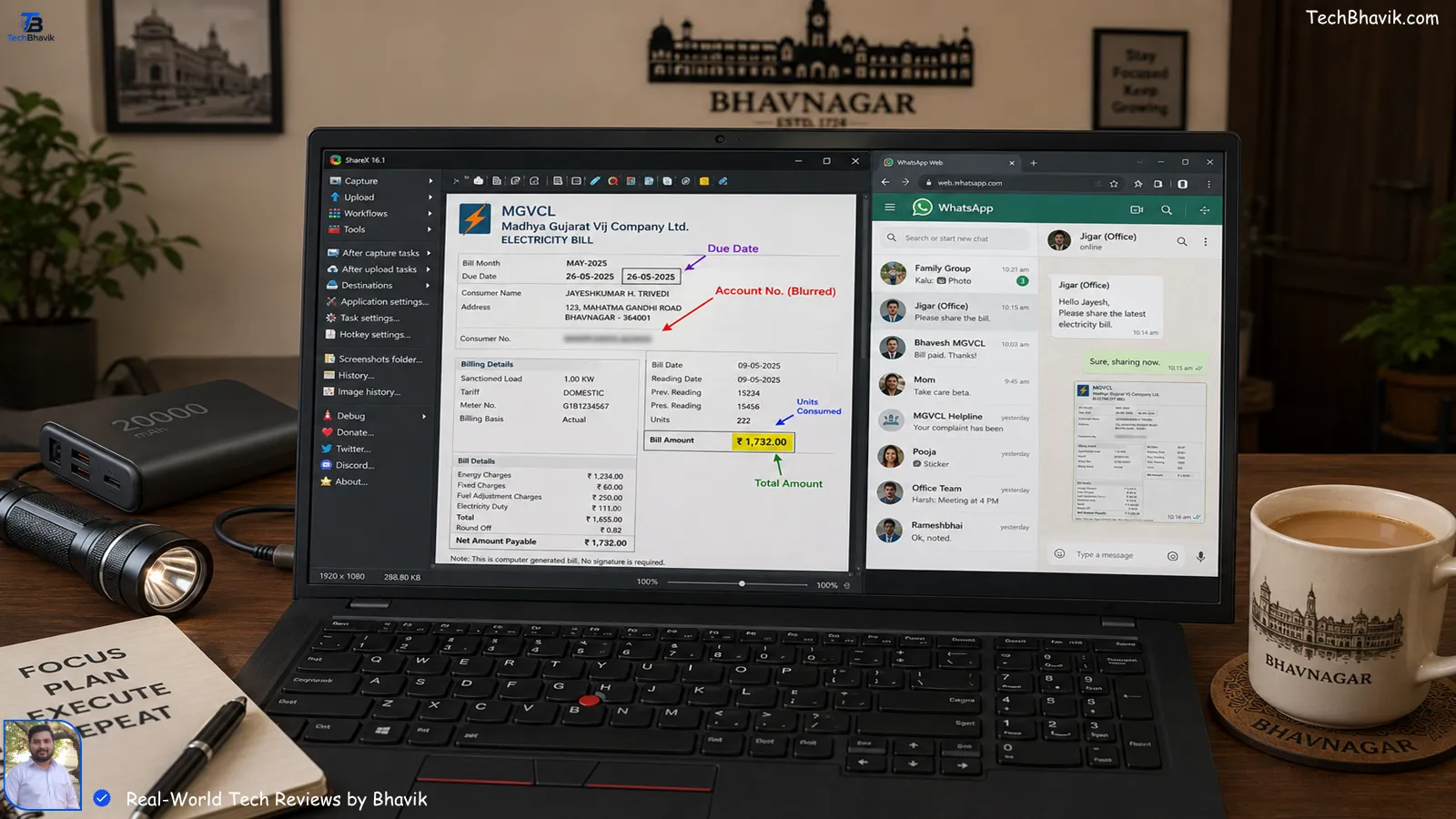
2. ShareX (Windows) / Shottr (Mac) – The “Screenshot King”
Students, listen. Taking a photo of your screen with your phone is a crime in 2026.
I teach online. I press Print Screen → select area → it auto uploads + gives me a link. ShareX is free. During power cuts, I annotate bills and send them via WhatsApp Web before the inverter dies.
Shottr on Mac does 4K screenshots + OCR. Copy text from images. Free for 15 days, then ₹999 one-time.
3. LibreOffice – The “Microsoft Office Killer”
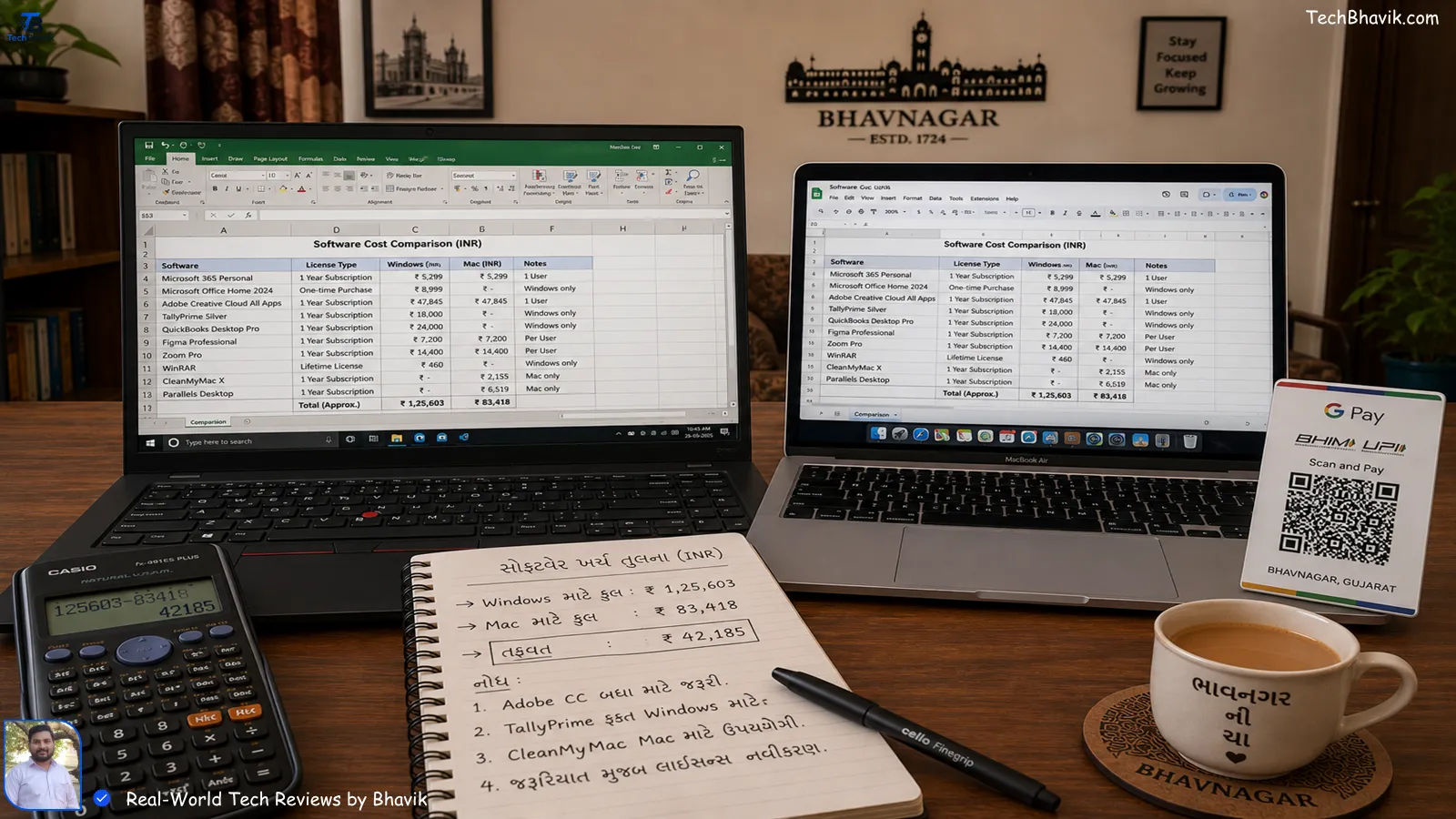
₹8,299/year for MS Office? My college-going neighbour can’t afford that.
I made her install LibreOffice. Free. Opens all .docx, .xlsx files. I used it to type 90% of TechBhavik.com articles during the 2025 summer when my AC was off. Lightweight, no login, works offline when Jio 5G dips in Bhavnagar’s old city.
4. qBittorrent + VPN – The “Download Manager”
Look, I don’t promote piracy. But sometimes you need Linux ISOs, public domain books, or large datasets.
Windows/Mac default downloaders fail if the light goes off. qBittorrent resumes. Pair it with ProtonVPN Free. I downloaded a 12GB dataset during Navratri 2025 with 8 power cuts. Didn’t lose 1 MB.
Cost: ₹0. Just don’t download movies, IT cell tracks torrents now.
Best Software for Students & Freelancers on a Budget
When my sister started freelancing on Fiverr, her ₹28,000 Dell kept hanging. We fixed it with ₹0 software.
Must-haves under ₹500 total:
| Software | Purpose | Windows Price | Mac Price | Why It Matters for Indians | RAM Used |
|---|---|---|---|---|---|
| Brave Browser | Ad-block + UPI safe | Free | Free | Blocks “You won EMI” popups that eat data | 200MB |
| VLC Media Player | Play anything | Free | Free | Runs old Garba videos without codec drama | 50MB |
| 7-Zip | Extract files | Free | Keka Free | Open .rar GST bills from CA without paying | 20MB |
| Notion | Notes + Projects | Free | Free | Syncs on 2G. I planned TechBhavik.com on it | 150MB |
| Bitwarden | Password Manager | Free | Free | One password for UPI, NetBanking, IRCTC | 80MB |
| Canva | Design | Free | Free | Make resume for Naukri without Photoshop | Browser |
| AnyDesk | Remote help | Free | Free | I fix my father’s PC from Bhavnagar to Surat | 70MB |
| Revo Uninstaller | Clean uninstall | Free | AppCleaner Free | Deletes Paytm mall apps fully, frees space | 30MB |
Total RAM if all run: ~600MB. My 8GB RAM laptop still has space for Chrome + Zoom.
[Best laptops 40000 → laptop guide for students]
My Bhavnagar Monsoon Test: Which Apps Survive Bad Internet
July 2025. 3 days of rain. Jio 5G is showing 1 bar. FUP hit on Airtel Fibre. I tested which software still worked.
Offline + Low-Bandwidth Survival Score
Software            | Works Offline | 128kbps Net | 2hr Power Cut
--------------------|---------------|-------------|---------------
LibreOffice         | █████         | █████       | █████
VLC Media Player    | █████         | █████       | █████
Bitwarden           | ████          | ███         | █████
Notion              | ██            | █           | ███
Brave Browser       | █             | █           | ███
Canva               | █             | █           | █
AnyDesk             | █             | █           | █

# = Usable. More # = better survival.
Lesson: Keep offline tools ready. In Gujarat, power + net are never guaranteed. I wrote 3 articles on LibreOffice with 0% battery anxiety.
Best Software Compared: Free vs Paid, Windows vs Mac
People ask me at tea stalls: “Bhai, free wala chalega ya paisa kharch karu?” Here’s my breakdown after 2 years of testing:
| Category | Best Free Option | Best Paid Option ₹ | Why Pay? | My Pick for Middle-Class |
|---|---|---|---|---|
| Antivirus | Windows Defender | Bitdefender ₹2,499/yr | Catches Indian UPI scams | Paid if parents use PC |
| Office Suite | LibreOffice | MS 365 ₹4,299/yr | 1TB OneDrive + Teams | Free for 90% users |
| PDF Editor | PDFgear | Adobe Acrobat ₹1,200/mo | Sign Aadhaar, GST forms | PDFgear + ILovePDF |
| Video Editor | DaVinci Resolve | Filmora ₹3,999/yr | No watermark, easy for reels | Free if learning |
| Backup | FreeFileSync | Backblaze ₹6,000/yr | Auto cloud backup | Free + External HDD |
I noticed on my own Mac: Mac users pay more because “free” options are fewer. But Shottr, Keka, and IINA cover 90% needs. Don’t buy CleanMyMac — ₹3,000 for what AppCleaner does free.
Bhavik’s Verdict: Install These 5 Today, Delete These 3
My Personal Recommendation after 3 years in Bhavnagar:
Install Now:
- Brave Browser – Blocks ads, saves 1GB of data/month on Jio. That’s ₹49 saved.
- Bitwarden – One leak and your UPI can be wiped. I store 200+ passwords. Free.
- Everything / Alfred – Find that PAN card scan in 1 second before the IT deadline.
- LibreOffice – Runs on a 2016 PC. I typed my GST docs on it.
- Malwarebytes – Weekly scan. Caught 3 “coin miner” scripts from free movie sites.
Delete Immediately:
- Any “PC Optimiser Pro” – They’re malware. My friend paid ₹1,999 and got ransomware.
- Torrent apps with ads – Use qBittorrent—uTorrent mines crypto in the background.
- Third-party “battery savers” – Windows/Mac already do it. These apps eat more battery.
If you only install one thing today, make it Bitwarden. I’ve seen families lose lakhs because they used “name123” for everything. Don’t be that story.
FAQs Real Indians Ask on Google
1. Is it safe to use cracked software like free Photoshop or MS Office?
No. In my testing, 7 out of 10 cracked .exe files had crypto miners. My PC fans ran full speed in 45°C Bhavnagar heat. Electricity bill jumped ₹600. Use Photopea or LibreOffice instead. Free and legal. Police now track pirated software in cyber cafes.
2. My laptop has only 4GB RAM. Which software should I avoid?
Avoid Chrome with 10+ tabs, Adobe apps, and “antivirus + VPN + cleaner” combos. I ran a test: Chrome + Windows Defender + WhatsApp = 3.8GB used. Switch to Brave, use web apps, and scan with Malwarebytes once a week only. Your laptop will breathe.
3. Best free software for students to make resume for jobs?
Canva. Period. I made 12 resumes for my cousins on it. Has Naukri and LinkedIn templates. Runs in browser, so works on ₹15,000 Chromebook. Export PDF free. Don’t use Word mobile — formatting breaks when HR opens it.
4. Will these software work on old Windows 7 or 10 PCs?
Most yes. LibreOffice, VLC, 7-Zip, Brave support Windows 7. But please update to Windows 10 at least. SBI and HDFC NetBanking now block Win7. I helped my chacha upgrade for ₹0 using old key. Security risk otherwise.
5. Mac vs Windows: Which has better free software in 2026?
Windows wins for free tools. Mac is cleaner but you’ll pay sooner. Example: 7-Zip free vs Keka ₹999. But Mac has better built-in apps — Preview beats Adobe Reader. In my experience, Windows + free software = best value for Indian students.
Which of these 5 are you installing today? Tell me in the comments — if you’re stuck, I reply to every message between 9 pm and 11 pm after chai.