









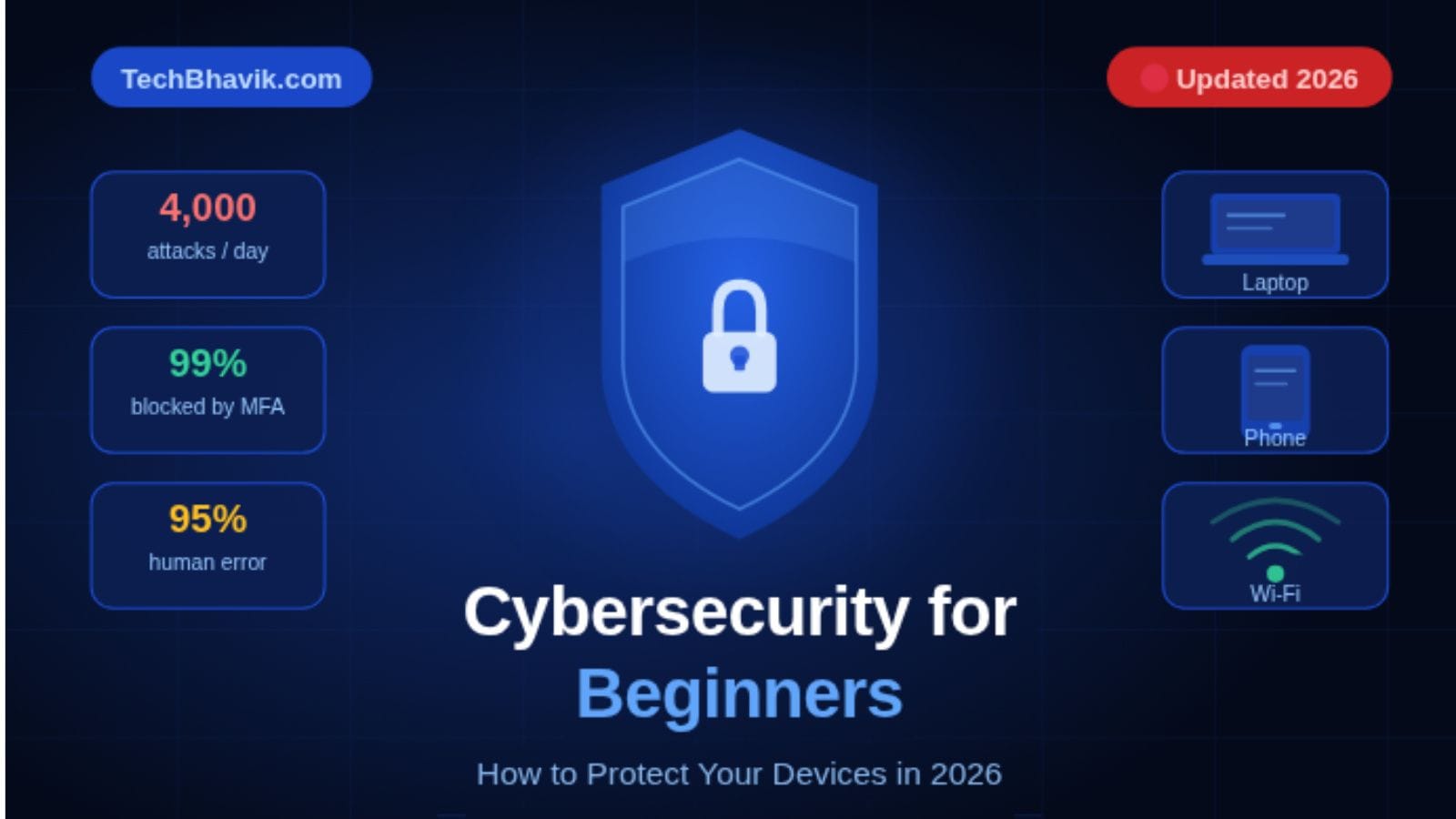

Cybersecurity for Beginners:
How to Protect Your Devices
Hackers launch a new attack every 39 seconds. Your phone, laptop, and home Wi-Fi are all targets — even if you think you’re “too small to matter.” Here’s exactly how to protect yourself, in plain language.
Let me ask you something honestly: When did you last change your Wi-Fi password? Do you use the same password on Gmail, Instagram, and your bank? Have you ever clicked a link in a message that seemed slightly off — and then worried about it for the rest of the day?
If any of that sounds familiar, this guide was written for you. Not for IT professionals who already know what a “zero-day exploit” is — but for regular people who use their phones and laptops every day and simply want to stay safe online without it becoming a full-time job.
The cyber threat landscape in 2026 is genuinely scary. Cyberattacks happen roughly every 39 seconds. Phishing emails are now so convincing — written by AI — that even security professionals get fooled. Hackers use your leaked passwords (from old breaches you forgot about) to try to break into your current accounts automatically. And India specifically has seen a massive spike in digital fraud targeting everyday smartphone users.
The good news? Most cyberattacks exploit basic, fixable mistakes. Weak passwords. Missing software updates. No two-factor authentication. Unsecured home Wi-Fi. Studies consistently show that fixing these fundamentals protects you from over 90% of common threats — without any technical knowledge.
In this guide, I’ll walk you through 15 practical, step-by-step cybersecurity tips for beginners, covering your phone, laptop, home Wi-Fi, and online accounts. I’ll also recommend specific tools I personally use and trust, with honest notes on what’s free versus paid.
Why Cybersecurity Matters Even for “Regular” People
One of the most dangerous myths about cybersecurity is: “I’m not important enough to be hacked.” This belief puts millions of people at risk every year. The truth is — hackers are not sitting in a dark room manually choosing you as a target. Modern cyberattacks are almost entirely automated.
Criminals run software that automatically tests millions of email-password combinations leaked from old data breaches — trying them on Gmail, banking apps, and social media simultaneously. This is called a credential stuffing attack, and it works because most people reuse passwords. Your old password from a 2019 food delivery app might be what gives someone access to your bank account today.
Beyond financial theft, a compromised account can mean your private photos get stolen, your identity gets used for fraudulent loans, or your contacts receive scam messages in your name. For Indian users specifically, the rise of UPI fraud, SIM swapping, and OTP phishing has made cybersecurity a very personal concern — not just a corporate IT problem.
Cybersecurity is no longer just a technical concern — it’s a daily life skill, like locking your front door. The good news? Most attacks still exploit preventable weaknesses that anyone can fix in an afternoon.
— Based on National Cybersecurity Alliance guidance, 2026The 5 Biggest Cybersecurity Threats in 2026
Before we get into the solutions, you need to understand what you’re actually defending against. These are the five threats most likely to affect everyday users in 2026:
Phishing is when a criminal sends you a fake message — email, SMS, WhatsApp — pretending to be your bank, Google, Amazon, or even a friend. The goal is to trick you into clicking a link and entering your login credentials on a fake website. In 2025, phishing initiated 80–95% of all human-related cyber breaches. With AI now writing these messages, they are alarmingly convincing. No more broken English or obvious red flags.
What it looks like: “Your account has been suspended. Click here to verify.” — From an address that looks like support@amazon-security.net instead of the real amazon.com.
Over 2.6 billion personal records were compromised between 2021 and 2023. Criminals buy these leaked email-password databases and use automated tools to try them on hundreds of popular websites simultaneously. If you reuse passwords, one old breach can compromise every account you own. This is why unique passwords for every site are non-negotiable.
Ransomware is malicious software that encrypts all your files and demands payment (usually in cryptocurrency) to restore them. While businesses are the primary targets, ransomware increasingly targets individuals through malicious email attachments and fake software downloads. The average ransomware recovery cost hit $2.73 million in 2025 for businesses — for individuals, losing years of family photos is the real cost.
This is the most frightening new threat of 2026. Using publicly available voice recordings (from social media, YouTube, or WhatsApp), criminals can now clone someone’s voice in seconds and make a fake call. You might receive a call that sounds exactly like your son or daughter saying they’re in trouble and need money transferred urgently. 47% of organisations reported experiencing deepfake attacks in 2025.
When you connect to open Wi-Fi at a cafe, airport, or mall, attackers on the same network can potentially intercept your unencrypted data through a “man-in-the-middle” attack. They can capture login credentials, session cookies (which keep you logged in), and even inject malware into unencrypted downloads. This is especially risky when checking banking apps or business email on public networks.
Tips 1 & 2: Strong Passwords and Password Managers
Tip 1: Stop Using Weak and Reused Passwords
The most common passwords in 2025 were still “123456”, “password”, and “qwerty123”. Even if you’ve moved beyond those, using the same password across multiple accounts is just as dangerous. Here’s what a strong password looks like:
Tr0pical$Mango!2026#Bh — random, long, and never reused anywhere else.I know what you’re thinking: “How am I supposed to remember 50 different passwords like that?” You’re not. That’s exactly what Tip 2 solves.
Tip 2: Use a Password Manager — This is the Single Most Impactful Thing You Can Do
A password manager is an encrypted digital vault that stores all your passwords. You remember one single master password to unlock it, and the app automatically fills in your login credentials everywhere else. It also generates strong, random, unique passwords for every site automatically.
| Password Manager | Price | Best For | Platforms | Standout Feature |
|---|---|---|---|---|
| Bitwarden | Free / $10/yr | Budget-conscious, privacy-focused users | All platforms | Open-source, fully audited code |
| 1Password | ~$3/mo | Families & professionals | All platforms | Travel Mode, Watchtower alerts |
| NordPass | Free / $1.49/mo | NordVPN subscribers | All platforms | Data breach scanner built-in |
| Google Password Manager | Free | Casual users already using Chrome/Android | Chrome, Android | Zero setup, deeply integrated |
| Proton Pass | Free / $2.99/mo | Privacy-first users | All platforms | Swiss privacy laws protection |
My personal recommendation for beginners: Start with Bitwarden (free, open-source, and extremely well-trusted in the security community). If you want something more polished with family sharing, 1Password is worth every rupee.
Tip 3: Enable Two-Factor Authentication (2FA) Everywhere
Two-factor authentication (also called 2FA or MFA — multi-factor authentication) means that even if someone steals your password, they still cannot access your account without a second verification step. Research consistently shows that MFA blocks over 99% of automated account takeover attacks.
Think of it like a bank vault that needs both a password and a fingerprint. A thief with just the password gets nothing.
Types of 2FA — From Weakest to Strongest
When a website sends a one-time password to your phone number, that’s SMS 2FA. It’s much better than no 2FA at all. However, it’s vulnerable to SIM swapping — where a criminal convinces your telecom provider to transfer your number to their SIM card. For regular accounts it’s fine; for banking, try to use a stronger method.
Apps like Google Authenticator, Microsoft Authenticator, or Authy generate a new 6-digit code every 30 seconds on your device. These codes are not transmitted over a network — they exist only on your phone. They cannot be intercepted by SIM swapping. This is the method I recommend for email, banking, social media, and any account that stores payment information.
How to set it up: Go to Security Settings on any major platform → Two-Factor Authentication → Choose Authenticator App → Scan the QR code with the app → Done.
Physical USB keys like YubiKey or Google Titan are the strongest 2FA method. You plug it in (or tap it near your phone) to authenticate. They cannot be phished because the key cryptographically verifies the website’s domain before authenticating — so even a perfect fake website gets nothing. Recommended for: Google account, banking, crypto wallets.
Tip 4: Software Updates Are Not Optional — They Are Security Patches
Every time you dismiss that “Update available” notification, you are potentially leaving a known security hole open. Software updates don’t just add features — they patch specific, documented vulnerabilities that hackers actively exploit. In 2024 alone, Google’s security team identified 75 zero-day vulnerabilities that were being actively exploited in the wild.
What to keep updated:
- Your phone’s operating system (Android & iOS) — always update to the latest version
- Your computer’s OS (Windows 11, macOS) — enable automatic updates
- Your apps and browser — especially Chrome, Firefox, and banking apps
- Your router’s firmware — most people never do this; check the router admin page monthly
- Smart home devices — security cameras, smart bulbs, and locks all need firmware updates
Tip 5: How to Spot and Avoid Phishing Attacks
Phishing is the single most common way people get hacked. And in 2026, with AI writing these messages, they are harder to detect than ever. Here is a practical framework I use to evaluate any suspicious message:
The SLAM Method for Spotting Phishing
The display name can say “Amazon Customer Service” while the actual address is support@amaz0n-helpdesk.net. Always click on the sender’s name to see the real email address. Legitimate companies use their own domain. amazon.com sends from @amazon.com. Always.
On a computer, hover your mouse over any link without clicking. The real destination URL appears in the bottom-left of your browser. If the message claims to be from your bank but the link goes to bankofbarod4-login.site — do not click. On mobile, press and hold the link to preview the URL before opening.
Malicious attachments — often disguised as invoices, delivery notices, or documents — can install malware the moment you open them. If you weren’t expecting an attachment, even from a known sender, verify with them through a separate channel before opening. Legitimate companies rarely email you unexpected ZIP or Office files.
“Your account will be closed in 24 hours!” “Immediate action required!” “Suspicious login detected — verify NOW.” Urgency is a phishing red flag. Legitimate companies give you time. They also don’t ask for your password, OTP, CVV, or Aadhaar number over email or SMS. If you’re unsure, type the company’s URL directly into your browser and contact them from there.
Tips 6 & 7: Secure Your Home Wi-Fi Network
Your home router is the gateway to every connected device you own — your phone, laptop, smart TV, security camera, and even your refrigerator if it’s a smart one. A compromised router means an attacker has a foothold in your entire digital home. Most people set up their router once and never think about it again — but a few simple changes dramatically improve your security.
Tip 6: Change These Three Router Settings Right Now
- Change the admin password: Every router ships with a default password like “admin” or the model number. Log into your router’s admin page (usually 192.168.1.1 or 192.168.0.1) and change this to a long, unique password stored in your password manager.
- Enable WPA3 encryption: WPA3 is the latest Wi-Fi security standard. If your router supports it, select WPA3 or WPA2/WPA3 mixed mode in the wireless settings. Never use WEP or WPA — these are outdated and easily cracked.
- Change the default Wi-Fi network name (SSID): Default names like “TP-Link_3F2A” reveal your router model, which helps attackers target known vulnerabilities. Change it to something generic that doesn’t identify you or your device brand.
Tip 7: Use Public Wi-Fi Safely — Or Avoid It
Open Wi-Fi at cafes, malls, airports, and hotels is convenient but risky. If you must use it, follow these rules:
- Never access internet banking, UPI apps, or anything requiring a password on public Wi-Fi without a VPN
- Use HTTPS-only mode in your browser (Chrome and Firefox both support this)
- Turn off file sharing and AirDrop/Bluetooth discovery when connected to public networks
- Disconnect immediately after use — do not stay connected when you don’t need to be
- If in doubt, use your phone’s mobile data hotspot instead — it’s far safer than open Wi-Fi
Tip 8: VPNs Explained — Do You Really Need One?
A VPN (Virtual Private Network) creates an encrypted tunnel between your device and the internet. Think of it like a private, armoured postal service — your data travels through it unseen by anyone monitoring the connection. Your real IP address is also hidden, replaced by the VPN server’s address.
When a VPN Actually Helps
- Using public Wi-Fi anywhere — cafes, airports, hotels, libraries
- When you want to prevent your Internet Service Provider (ISP) from seeing your browsing activity
- Accessing work resources remotely through a company VPN
- Travelling abroad and accessing services from your home country
When a VPN Does NOT Help
- A VPN does NOT protect you from phishing — you can still click a bad link through a VPN
- A VPN does NOT stop malware that’s already on your device
- A VPN does NOT make you fully anonymous — websites can still track you via cookies and login
- A VPN does NOT replace good passwords or 2FA
| VPN | Price (approx.) | Speed Impact | No-Log Policy | Best For |
|---|---|---|---|---|
| ProtonVPN | Free / ~$5/mo | ~8% slowdown | ✅ Audited | Privacy-focused, free plan available |
| NordVPN | ~$3–5/mo | Very fast | ✅ Audited | Feature-rich, great for beginners |
| Surfshark | ~$2–3/mo | Fast | ✅ Audited | Unlimited devices, budget-friendly |
| ExpressVPN | ~$8/mo | Fastest tested | ✅ Audited | Maximum speed, premium users |
Recommendation for beginners: Start with ProtonVPN’s free plan to understand how VPNs work. If you use public Wi-Fi regularly, upgrade to a paid plan. Never use a random “Free VPN” you find in an app store — these frequently log and sell your data or inject ads.
Tip 9: Antivirus and Device Security in 2026
Antivirus software has evolved far beyond just scanning for viruses. Modern security suites use real-time behavioural analysis, scanning every action a program takes rather than just checking a database of known threats. This allows them to catch new, never-before-seen malware (called zero-day threats).
Do You Need a Paid Antivirus?
For Windows users: Windows Defender (built into Windows 11) is actually excellent in 2026. AV-TEST and other independent testing labs consistently rate it among the top performers. If your budget is tight, keeping Windows fully updated with Defender active gives you solid baseline protection.
For users who want extra protection — especially dark web monitoring, identity theft alerts, a bundled VPN, and multi-device coverage — a paid suite makes sense:
- Bitdefender Total Security — Top-rated by AV-TEST; very light on system resources; excellent real-time protection; ₹1,500–₹3,500/year for 5 devices
- Norton 360 — Bundles antivirus + VPN + password manager + LifeLock identity protection in one; great for families; ₹2,000–₹4,000/year
- Kaspersky — Outstanding malware detection rates; note: some governments have flagged it for geopolitical reasons — personal decision to use
- Malwarebytes — Excellent as a second-opinion scanner alongside any other antivirus; free version is useful for manual scans
Tips 10 & 11: Protecting Your Smartphone
Your smartphone is the most personal device you own — it has your contacts, photos, banking apps, emails, social media, and often your Aadhaar and UPI linked to it. Losing control of your phone (whether physically stolen or hacked remotely) is genuinely devastating. Here’s how to lock it down:
Tip 10: Physical Security Basics
- Use a 6-digit PIN at minimum — not your birthday, not “000000”. A strong PIN is your first line of defence if your phone is physically stolen.
- Enable biometric lock (fingerprint or Face ID) — convenient and significantly harder to bypass than patterns or short PINs.
- Set auto-lock to 30 seconds–1 minute — many people have this set to 5 minutes or never, which is dangerous if you leave your phone unattended.
- Enable “Find My Phone” features — Find My iPhone (iOS) and Google Find My Device (Android) allow you to remotely locate, lock, or wipe your phone if it’s stolen.
- SIM lock (SIM PIN) — Setting a SIM PIN means even if someone takes your SIM card out, they can’t use it without the PIN. This helps prevent SIM swapping. Enable it in Phone/SIM settings.
Tip 11: App Permissions and Privacy Settings
- Regularly audit which apps have access to your camera, microphone, location, and contacts. A flashlight app has no reason to access your contacts.
- For location — set most apps to “Only While Using” instead of “Always”. Very few apps legitimately need your location 24/7.
- Disable Bluetooth and NFC when not actively using them — these can be attack vectors in crowded public spaces.
- Review which apps are installed and uninstall anything you haven’t used in 3+ months.
- Never install APK files (Android) from outside the Play Store unless you are technically confident in the source.
Your social media profiles are a goldmine for cybercriminals building a profile on you — your full name, birthdate, city, phone number, workplace, photos, family members’ names, and daily routine can all appear on a public Instagram or Facebook profile. This information is used for targeted phishing, social engineering, and even voice cloning deepfake scams.
- Set your profile to private on Instagram, Facebook, and Twitter/X — make posts visible only to followers/friends you’ve approved
- Remove your phone number from public profile visibility on all platforms — phone numbers are used for SIM swap attacks
- Disable “People can find me by phone number” in Facebook’s privacy settings specifically
- Review your “tagged photos” — photos others tag you in may reveal your location, workplace, or daily patterns
- Audit third-party app access — go to Settings → Apps on Facebook/Google and revoke access for any apps you no longer use. These may still be pulling your data.
Tip 13: Back Up Your Data Using the 3-2-1 Rule
No security system is perfect. If ransomware hits your laptop, your hard drive fails, or your phone is stolen, having a recent backup is the difference between a minor inconvenience and losing years of irreplaceable data. Security professionals use the 3-2-1 backup rule, and I recommend it for everyone.
This way, if a fire destroys your computer and external drive, your cloud backup survives. If your internet goes down, your local backup is available.
Practical Backup Setup for Most People
- Phone: Enable automatic backup on Google Photos (Android) or iCloud (iPhone). This handles photos and contacts automatically.
- Important documents: Store them in Google Drive or OneDrive so they’re accessible from any device and automatically backed up.
- Computer: Use Windows Backup (built-in) or Time Machine (Mac) to back up to an external hard drive. Schedule weekly backups at minimum.
- Test your backup: Once a month, try restoring a file from backup. Many people discover their backup wasn’t working only when they desperately need it.
Tip 14: Check if Your Data Has Already Been Leaked
There’s a very good chance your email address has already appeared in at least one data breach. The data from these old breaches is sold on dark web marketplaces and used in automated attacks. You can check this instantly and for free.
Go to haveibeenpwned.com, enter your email address, and it will tell you which data breaches have exposed your information. This site is run by security researcher Troy Hunt and is completely trusted by the security community. If your email appears in breaches, immediately change passwords on those services and enable 2FA.
You can also sign up for free breach alerts — you’ll get an email notification any time your address appears in a new breach going forward.
Tip 15: New AI-Powered Scams You Need to Know About in 2026
This is the most important new section I’ve added to this guide for 2026. AI has fundamentally changed what scams look like — and beginners are the most vulnerable because these threats are new and not yet widely understood.
Using just 3–10 seconds of someone’s voice from a social media video or WhatsApp voice note, AI tools can now create a convincing voice clone. Criminals use these to call elderly relatives claiming to be a family member in an emergency. 47% of organisations globally reported deepfake-related incidents in 2025. The same technology is targeting individuals.
Protection: Establish a secret “safe word” with close family members that must be used in any unexpected emergency call asking for money. Never transfer money based on a voice call alone — always hang up and call the person back on their known number.
AI can now write phishing emails that are grammatically perfect, use your name, reference recent events (pulling information from your public social media), and perfectly mimic a brand’s tone and formatting. The traditional advice “check for bad grammar” is no longer sufficient. AI-generated phishing increased click-through rates by up to 54% in 2025 studies.
Protection: Use the SLAM method described earlier. Hover over links. When in any doubt, go directly to the company’s website by typing it in your browser — never use the link in the email.
Employees have been tricked into transferring money after receiving video calls from what appeared to be their CEO or manager — but was actually a deepfake. In one documented case in Hong Kong, an employee transferred $25 million to criminals after a convincing deepfake video call with multiple fake executives. This is happening at the individual level too: fake “tech support” calls, fake “government officials,” and fake “investment advisors.”
Protection: For financial transactions, always verify through a completely separate communication channel (call them on their known personal number). Be especially sceptical of any unexpected “authority figure” asking you to act urgently on financial matters.
Your 30-Day Cybersecurity Action Plan for Beginners
Don’t try to do everything at once. This plan spreads the work over a month, starting with the highest-impact actions first:
- Day 1: Install Bitwarden (free). Create your master password and keep it safe.
- Day 2: Change your email password to a new, Bitwarden-generated unique password. Enable 2FA on your email using Google Authenticator or Microsoft Authenticator.
- Day 3: Change your bank/UPI app passwords. Enable 2FA on banking apps where possible. Set a SIM PIN on your phone.
- Day 4: Go to haveibeenpwned.com. Check all your email addresses for breaches. Change passwords for any breached accounts.
- Day 5: Enable automatic updates on your phone AND your computer. Restart both to install pending updates.
- Day 6–7: Change passwords for your top 5 other accounts (Google, social media, work email) using Bitwarden-generated unique passwords.
- Day 8: Log into your router admin page. Change the admin password. Check for firmware updates. Switch to WPA3 encryption if available.
- Day 9: Review your phone app permissions. Revoke location/camera/microphone access for apps that don’t need them.
- Day 10: Enable “Find My Phone” on your device. Set auto-lock to 1 minute or less.
- Day 11: Ensure Windows Defender is active (Windows) or enable System Preferences → Security (Mac).
- Day 12–14: Set up automatic backup for your phone (Google Photos or iCloud). Set up computer backup to external drive or cloud.
- Day 15: Set Instagram, Facebook, and Twitter/X profiles to private. Remove your phone number from public visibility.
- Day 16: Enable 2FA on all social media accounts and Google using an authenticator app.
- Day 17: Audit Facebook/Google apps — revoke access for apps you don’t use anymore.
- Day 18–19: Install HTTPS Everywhere or enable HTTPS-only mode in your browser.
- Day 20–21: Download ProtonVPN (free) and start using it whenever on public Wi-Fi.
- Day 22–24: Share the voice cloning scam awareness with elderly family members. Establish a “safe word” system for unexpected emergency calls.
- Day 25–26: Sign up for breach monitoring at haveibeenpwned.com. Set up haveibeenpwned.com alerts for your domains if you run a business.
- Day 27–28: Review and update your Bitwarden vault — ensure all remaining important accounts have unique passwords.
- Day 29–30: Test your backup by restoring one file. Congratulate yourself — you’re now more secure than 90% of internet users.
Quick Reference: Your Cybersecurity Checklist
Print this out or save it. Use it to audit your security every 6 months:
- Password manager installed with unique passwords on all important accounts
- 2FA enabled on email, banking, and all major accounts using an authenticator app
- Automatic updates enabled on phone, computer, and router firmware checked
- Email address(es) checked on haveibeenpwned.com with monitoring enabled
- Router admin password changed and WPA3 encryption enabled
- VPN used on all public Wi-Fi connections
- Antivirus / Windows Defender active and running with real-time protection
- 6-digit PIN + biometric lock enabled on phone with 1-minute auto-lock
- Find My Phone enabled on all mobile devices
- Social media profiles set to private with phone number removed from public view
- Automatic photo backup enabled on phone to cloud
- Computer data backed up regularly to external drive or cloud (tested for restore)
- Family members informed about voice cloning scams and “safe word” established
- SIM PIN enabled on phone
- App permissions audited — revoked unnecessary camera, microphone, location access
Frequently Asked Questions About Cybersecurity for Beginners
🛡️ You’re Now Ready to Protect Yourself Online
Cybersecurity doesn’t have to be complicated. Start with the basics — password manager, 2FA, updates, and Wi-Fi security — and you’ll be safer than 90% of internet users. Take it one step at a time.
Start Your 30-Day Plan ↑Found this guide helpful? Share it with a family member or friend who needs it — you might save them from a real nightmare. 📤
— Bhavik · TechBhavik.com · Gujarat, India
📖 Recommended Reading
Highest Paying Programming Languages to Learn in 2026
Discover which coding languages command the biggest paychecks and dominates the tech industry this year.
Blueprint for Scoring Remote Freelance Tech Jobs With Zero Experience
A complete step-by-step roadmap to land your first remote tech client without a portfolio.












Tip 12: Lock Down Your Social Media Privacy Settings