
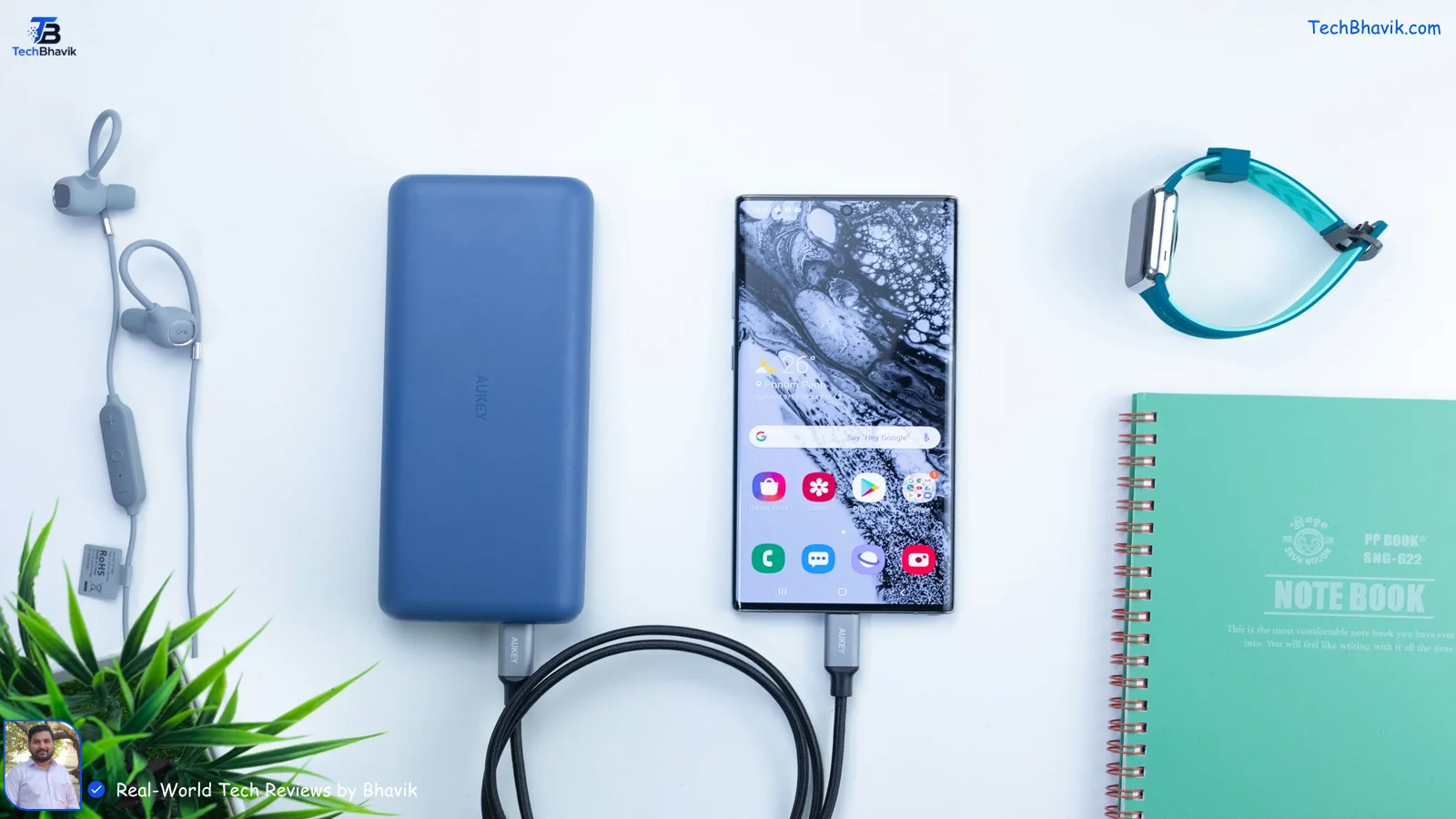

Is your Android phone losing charge faster than it should? What to do ? Bhavik says – You are not alone. Our relative has this same problem when he uses a mobile battery give signal to switch off the mobile. These types of users deal with rapid battery drain every day, and most of the time, the fix is hiding in plain sight right inside your phone’s settings.
Over years of testing dozens of Android devices from Samsung, Google, and OnePlus, I have found that you don’t need to install sketchy third-party “battery booster” apps or resort to a frustrating factory reset. Instead, a few granular adjustments to your stock operating system can yield massive improvements.
In this comprehensive tech guide, we break down the top 10 settings you need to change right now. To make this as seamless as possible, we have included step-by-step instructions and visual screenshots for each setting, showing you exactly what to look for on your own mobile screen.
Table of Contents
Quick Answer: The biggest battery hogs on Android are excessive screen brightness, Always-On Displays, unoptimized background app refresh, and aggressive location tracking. Optimizing just these 10 built-in features can extend your daily battery life by 30% to 50%.
You do not need to install any third-party app or perform a factory reset. In this guide, we walk you through 10 specific Android settings you can change right now to dramatically improve battery life.
Why Does Android Battery Drain So Fast?
Android is a powerful operating system, but that power comes at a cost. Background processes, always-on features, and poorly optimized apps are the three biggest reasons your battery drains fast — even when you are not actively using your phone.
The good news: Android gives you granular control over almost all of these. Let’s fix them one by one.
10 Android Settings to Fix Battery Drain Right Now
Setting #1: Lower Your Screen Brightness
The display is the single largest battery consumer on any smartphone. Most users keep their brightness too high, especially indoors.
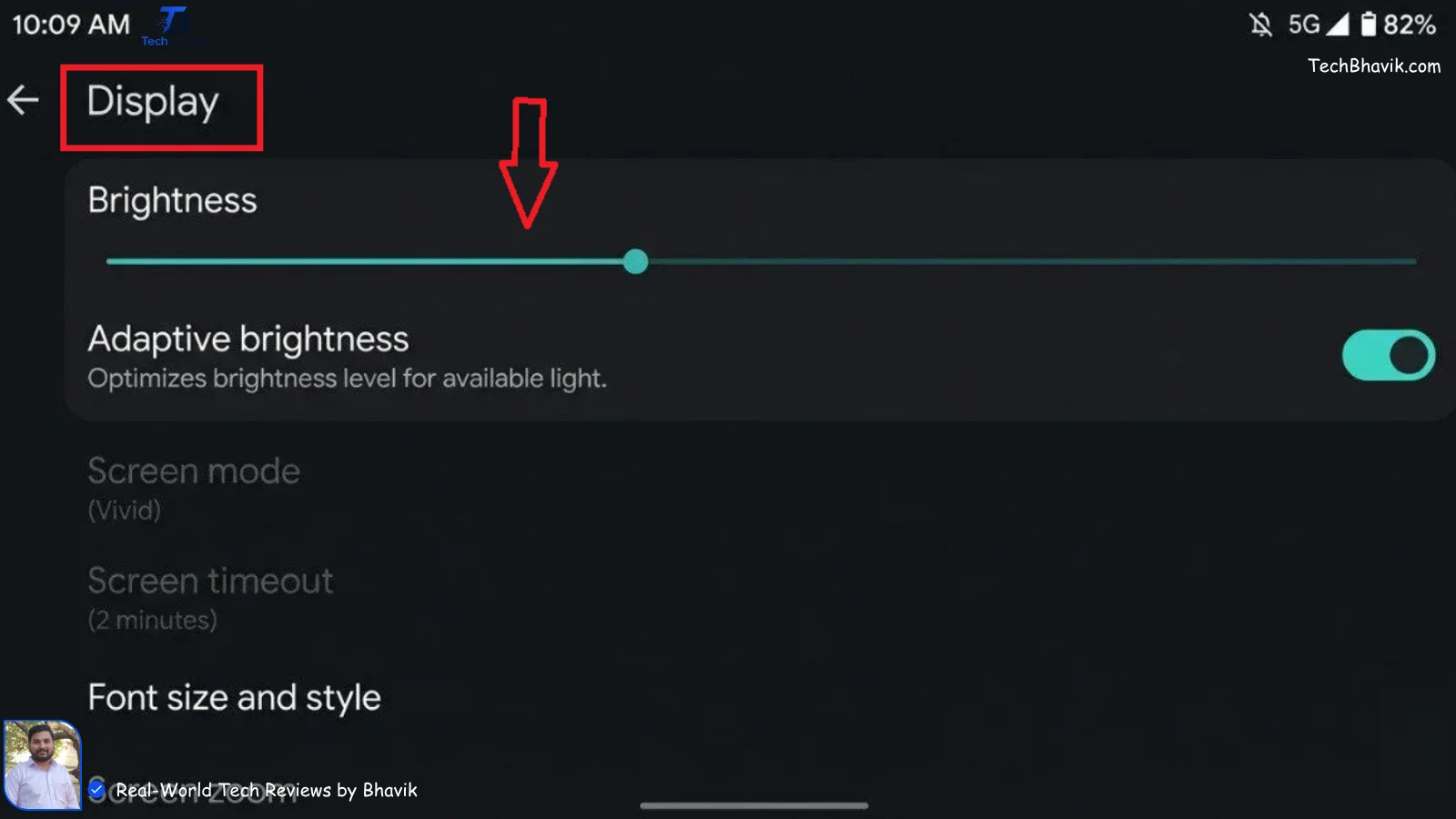
How to fix it: Go to Settings → Display → Brightness and reduce it to 40–50% for indoors. Enable Adaptive Brightness so your phone adjusts automatically based on lighting.
Battery impact: High
Setting #2 Turn Off Always-On Display (AOD)
Always-On Display keeps your screen partially active 24/7. Even though it uses low power per second, it adds up to hours of battery life lost per day.
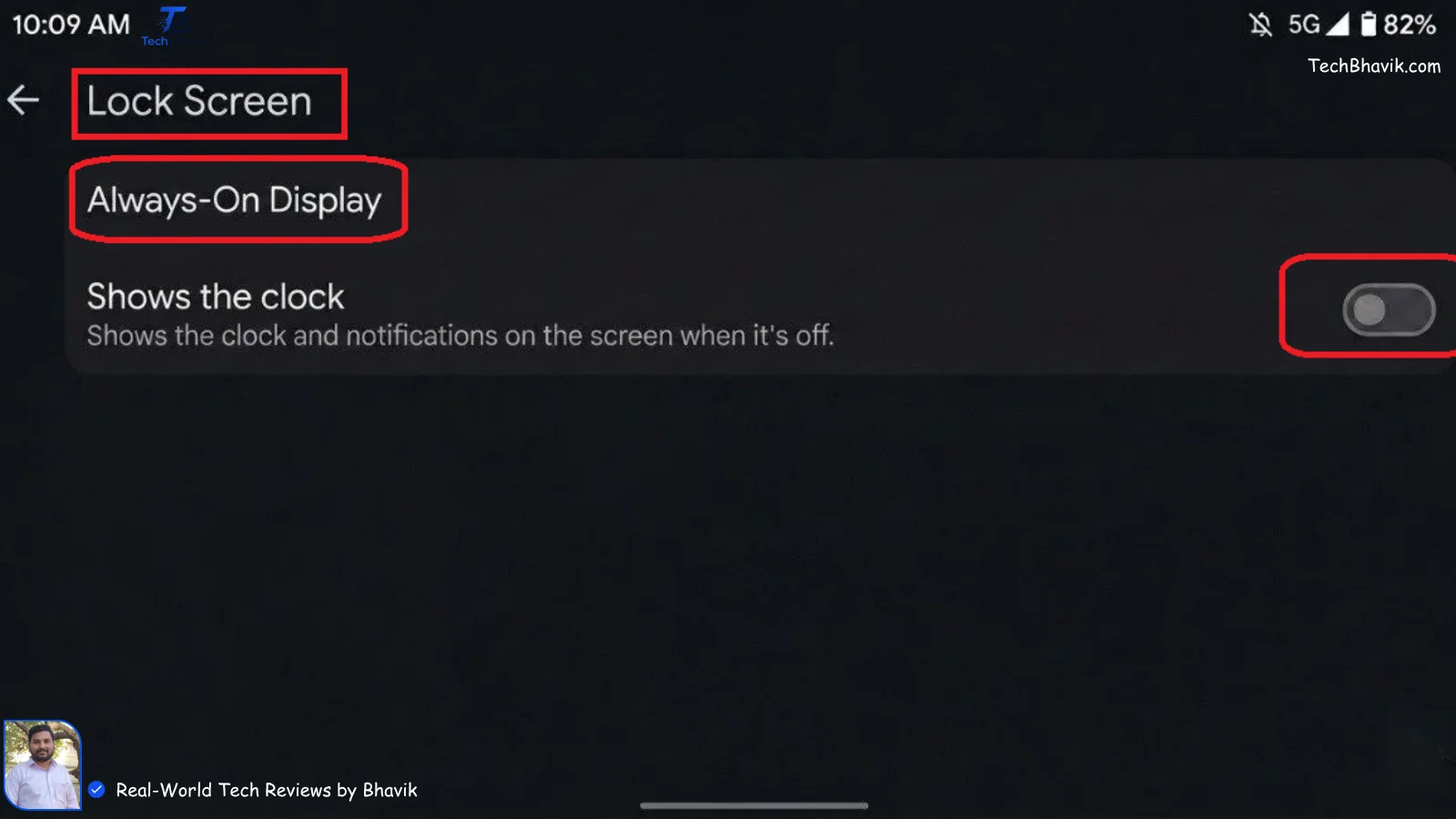
How to fix it: Settings → Lock Screen → Always On Display → Turn it Off, or set it to show only when tapping the screen.
Battery impact: High
Setting #3 Reduce Screen Refresh Rate 60Hz
Many modern Android phones default to 90Hz or 120Hz refresh rates. These make scrolling look silky smooth — but they burn through battery much faster than 60Hz.
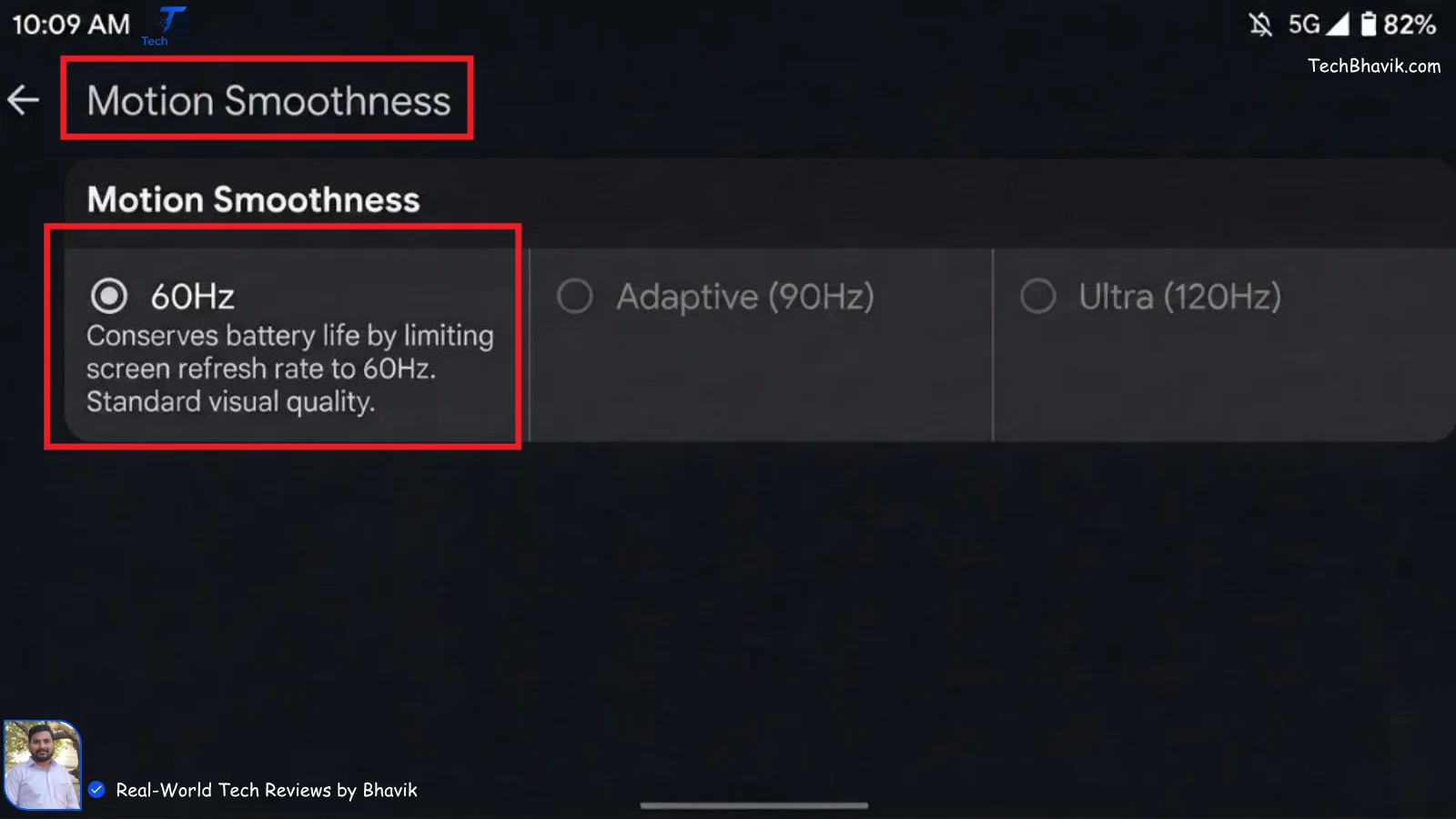
How to fix it: Settings → Display → Motion Smoothness (or Screen Refresh Rate) → Set to 60Hz or Standard.
Battery impact: Medium–High
Setting #4 Restrict Background App Activity
Apps running in the background — even ones you have not opened in days — silently consume battery by syncing data, fetching notifications, and running services.
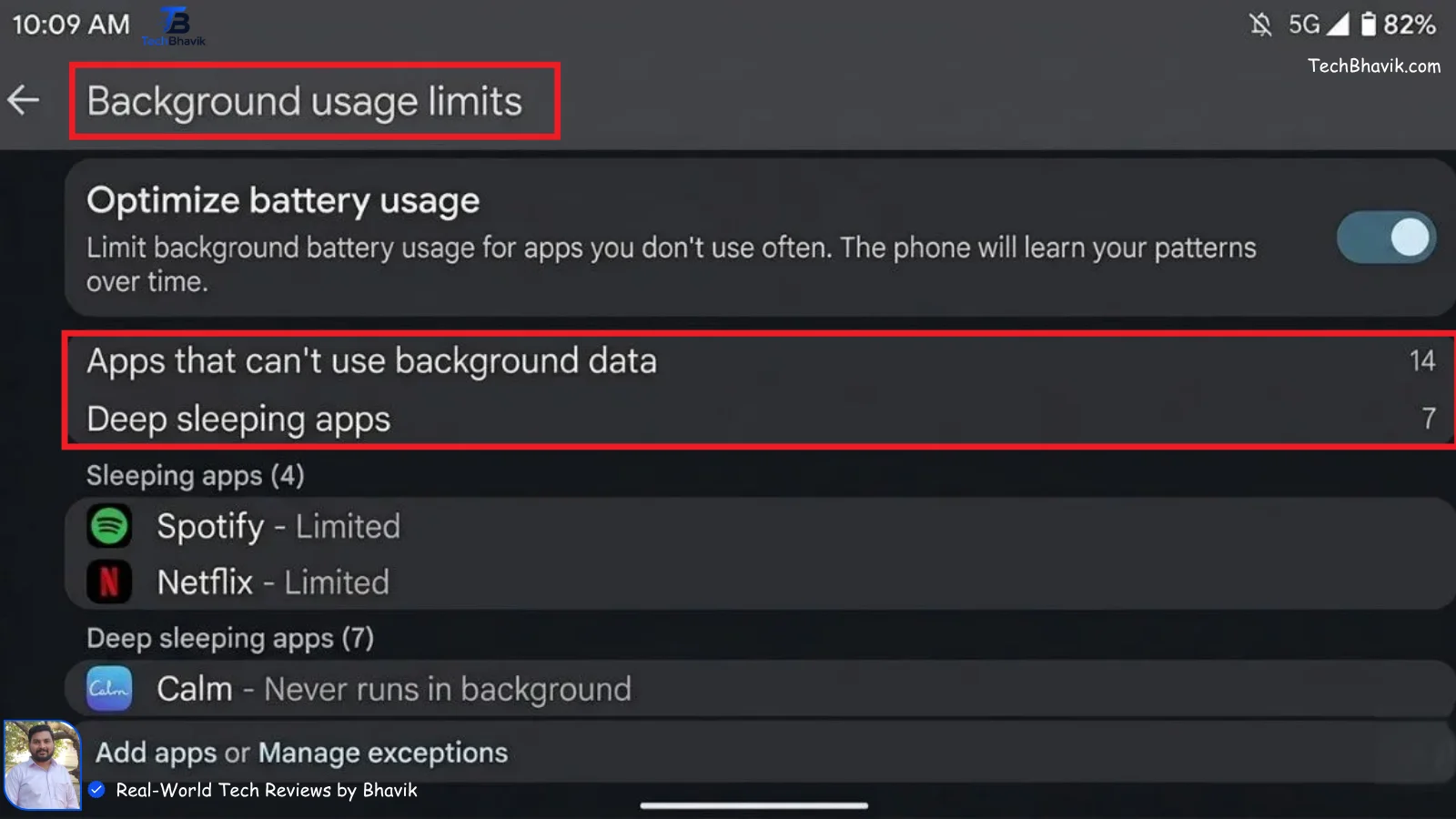
How to fix it: Settings → Battery → Background Usage Limits (or Battery Optimization). Set rarely used apps to “Restricted” or “Deep Sleep.”
Battery impact: High
Setting #5 Disable Location for Unnecessary Apps
GPS is one of the most power-hungry features on your phone. Apps like weather widgets, shopping apps, and social media are often silently accessing your location in the background.
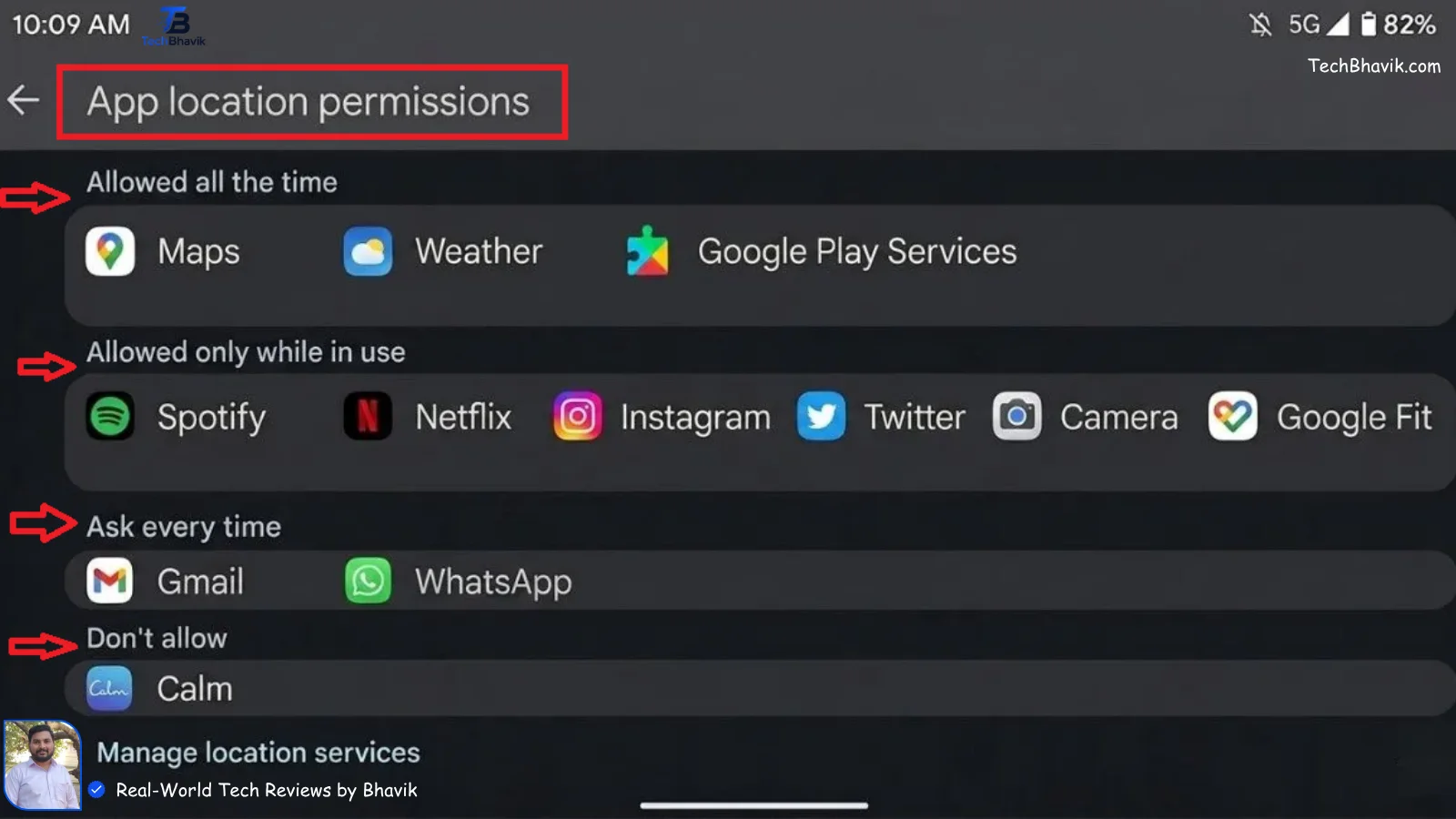
How to fix it: Settings → Location → App Permissions. Set each app to “Only While Using” or “Deny.” Only navigation and maps apps need “Always Allow.”
Battery impact: Medium–High
Setting #6 Turn Off Bluetooth and Wi-Fi When Not in Use
Even when you are not actively connected to anything, Bluetooth and Wi-Fi continuously scan for nearby devices and networks. This scanning process consumes measurable battery.
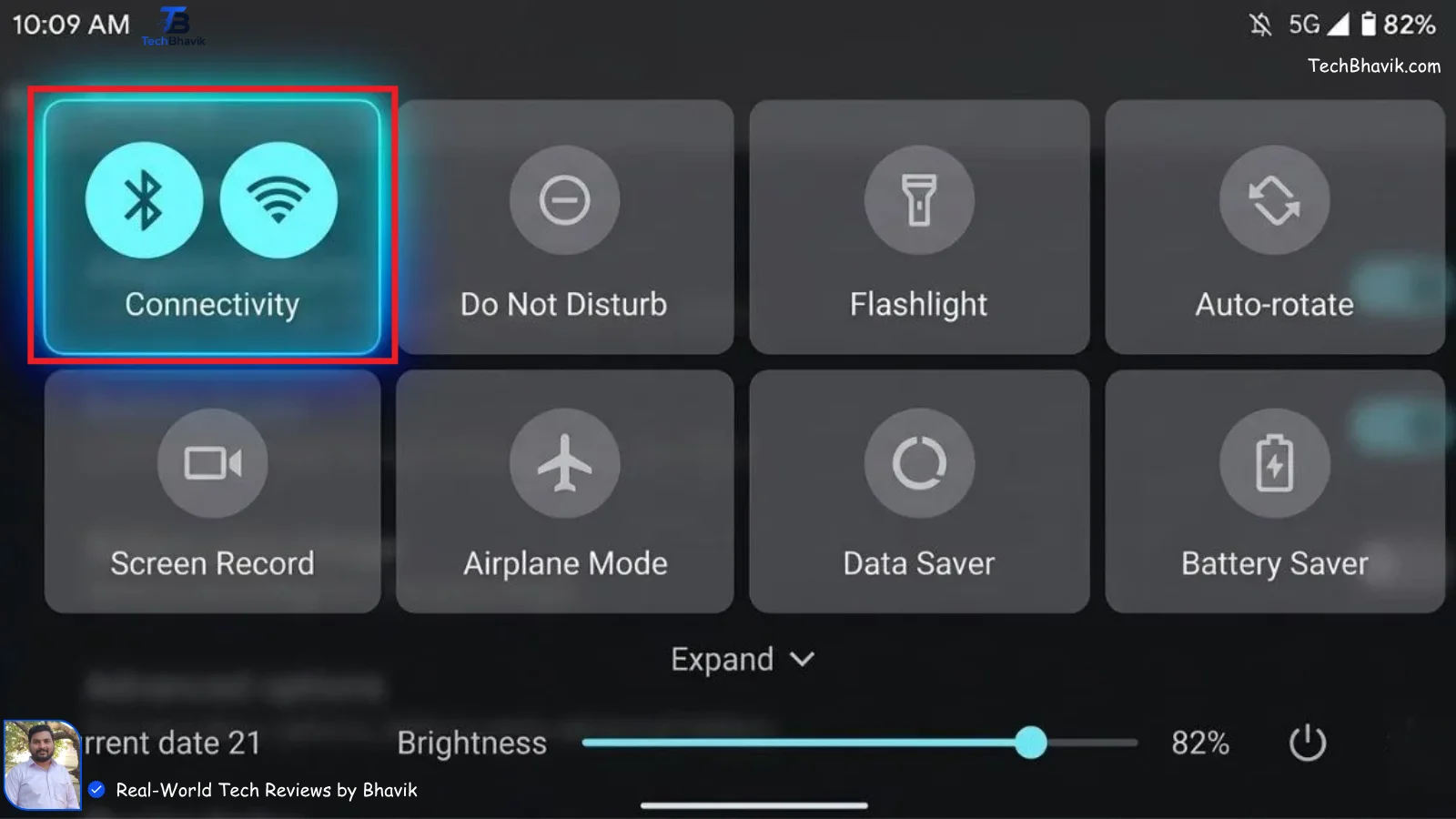
How to fix it: Pull down your Quick Settings panel and toggle off Bluetooth and Wi-Fi when you are away from home or not using wireless devices.
Battery impact: Medium
Setting #7 Reduce Sync Frequency for Email and Apps
Push email and real-time sync mean your phone is constantly maintaining an active connection to fetch new data. If you do not need instant updates, this is wasted battery.
How to fix it: Settings → Accounts → [Your Account] → Account Sync. Switch from Push to Fetch, and set fetch interval to every 15 or 30 minutes.
Battery impact: Medium
Setting #8 Enable Dark Mode
On phones with AMOLED or OLED screens (Samsung, Pixel, OnePlus), dark pixels are literally turned off. Dark mode can reduce display power consumption by up to 40% at maximum brightness.
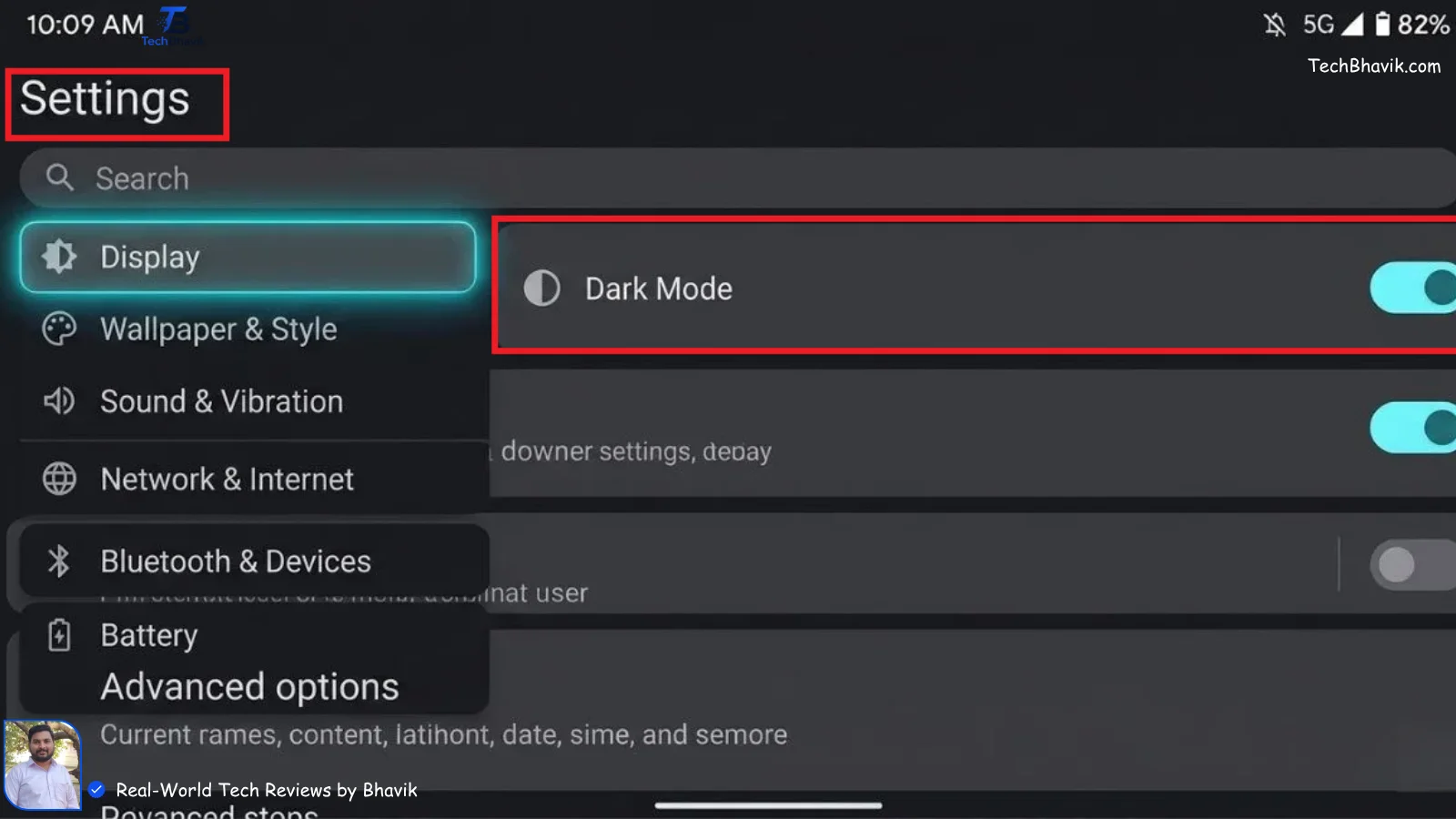
How to fix it: Settings → Display → Dark Mode → Enable. You can also schedule it to activate automatically at sunset.
Battery impact: High (on AMOLED screens)
Setting #9 Check Battery Usage by App
Android tracks exactly which apps are using the most battery. One rogue app — often a social media or news app — can be responsible for draining 20–30% of your battery daily.
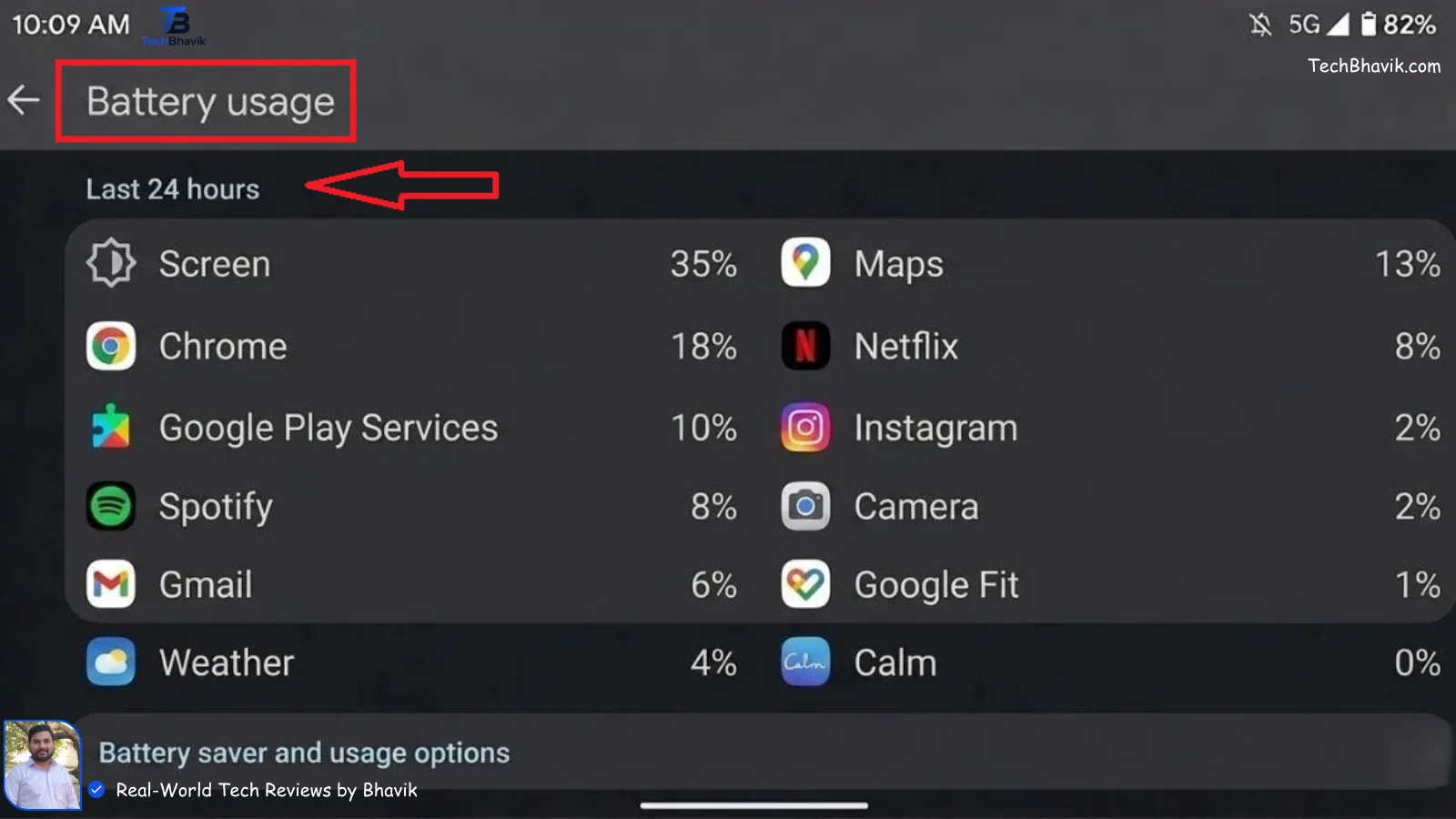
How to fix it: Settings → Battery → Battery Usage. Sort by highest usage. Any app using more than 10% that you did not actively use is a red flag — restrict or uninstall it.
Battery impact: Varies (can be very high)
Setting #10 Enable Battery Saver or Adaptive Battery
Android’s built-in Battery Saver and Adaptive Battery features use machine learning to learn which apps you actually use and limit power to the rest. Most people never turn these on.
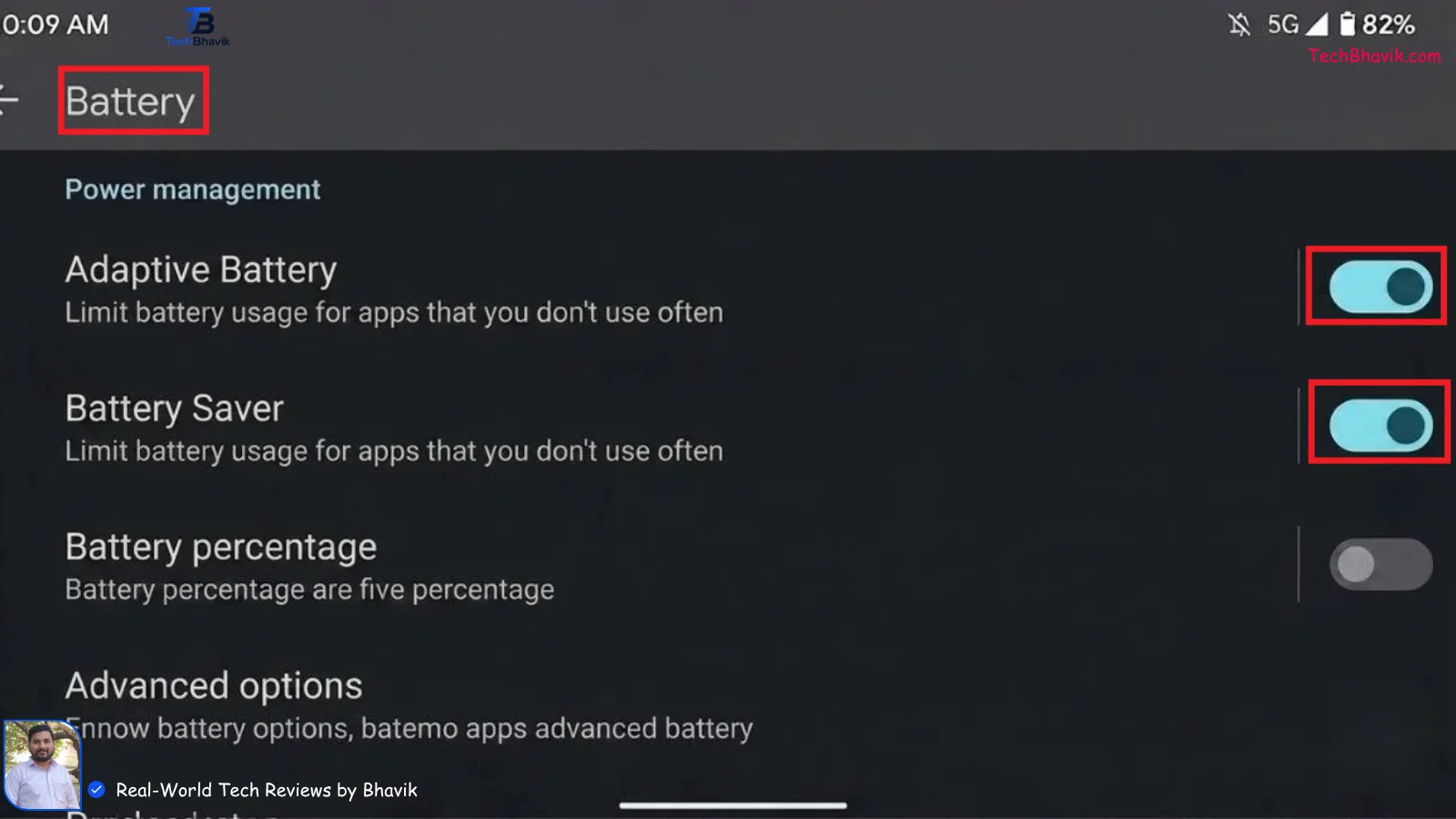
How to fix it: Settings → Battery → Adaptive Battery → Enable. Also set Battery Saver to turn on automatically when battery drops below 20%.
Battery impact: Medium–High
Bonus Tips to Extend Android Battery Life
- Shorten your screen timeout to 30 seconds (Settings → Display → Screen Timeout)
- Disable vibration for keyboard and notifications — motors use surprising amounts of power
- Avoid using live wallpapers — static wallpapers use less GPU
- Keep your Android software updated — newer versions often include battery optimizations
Check it: Latest Post of TechBhavik

Frequently Asked Questions
Why is my Android battery draining so fast all of a sudden?
A recent app update is usually the culprit. Check Settings → Battery → Battery Usage and look for any app that spiked recently. A new system update can also temporarily drain battery for 24–48 hours while it re-indexes.
Does closing apps save battery on Android?
Not really. Android’s memory management handles background apps efficiently. Force-closing and reopening apps actually uses more battery than leaving them in the background. Focus on restricting background activity instead.
How many hours should an Android battery last?
Most modern Android phones should last 6–10 hours of screen-on time. If you are getting less than 4 hours with normal use, the settings in this guide will help significantly.
Best Smartphones Under 15000 India 2026 by TechBhavik
Final Verdict of Bhavik Thoughts
Fixing Android battery drain does not require any special apps or technical knowledge. The 10 settings in this guide — from reducing screen brightness to enabling Adaptive Battery — can collectively extend your battery life by several hours per day.
Start with the highest-impact fixes first: screen brightness, Always-On Display, and background app restrictions. Make these changes today and you will notice the difference by tonight.
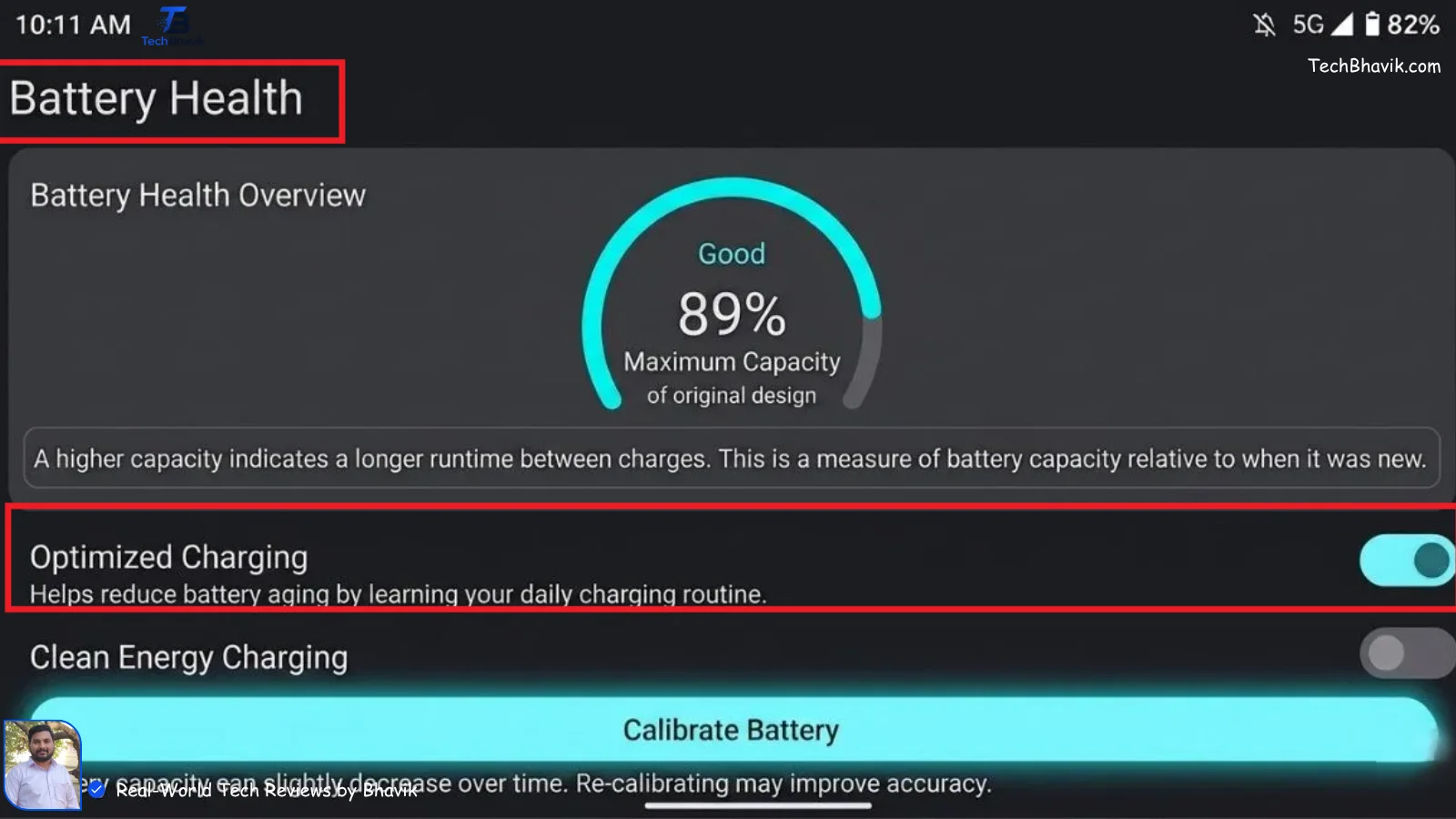
If your battery is still draining unusually fast after trying all of these, your battery may be physically degraded. Most Android phones allow you to check battery health under Settings → Battery → Battery Health (or via a dialer code like *#*#4636#*#*).




















[…] Fix Android Battery Drain: 10 Settings|TechBhavik […]
[…] How to Fix Android Battery Drain: 10 Settings to Change Right Now […]