










"Tech Hacks Everyone Should Know"-TechBhavik
25 real tricks that save time, protect your privacy, stretch your battery life, and make everyday tech feel less like a chore — no technical degree required.
A split-screen comparison graphic showing a frustrated user struggling with messy tech devices on the left and a productive user effortlessly navigating a streamlined laptop display on the right.Who is this article for? Anyone who uses a phone, laptop, or the internet daily, which is pretty much everyone reading this. You don’t need to be technical. These are practical tricks that work on real devices, tested in real life. We’ve skipped the obvious stuff (yes, we know you can turn it off and on again) and focused on the hacks most people have never heard of but use every day once they discover them.
Jump to a Section: Table of Contents
Here’s a truth about technology: the people who seem effortlessly good with their devices aren’t smarter than you. They’ve just stumbled onto a handful of tricks that nobody teaches in school — keyboard shortcuts, hidden settings, browser features buried three menus deep — and those tricks stack up into a surprisingly large time advantage over the course of a day.
We’ve collected 25 of the best ones here. Some are instant. Some take two minutes to set up. All of them are worth knowing. Let’s get into it.
Keyboard Shortcuts That Change Everything
Most people know Ctrl+C and Ctrl+V. According to Microsoft, using advanced shortcuts can significantly boost workflow. The shortcuts below are the ones that genuinely make power users look like wizards.
01 Win+V — Your Secret Clipboard History
Windows · The most underrated shortcut of all time
Most people think Ctrl+C copies one thing and that’s it — copy something new and the old thing is gone forever. Not anymore. Press Win+V on Windows and a clipboard history panel opens, showing every text, image, and file you’ve copied in recent memory. You can scroll back through your clipboard like a history log and paste anything from it.
If you’ve ever copied five things in a row and needed all of them later, this is the feature that changes your life. First time using it, Windows might ask you to enable it — just click “Turn on.”
Mac equivalent: macOS doesn’t have this built-in, but a free app called Maccy (maccy.app) does exactly the same thing. Worth the 30-second download.
02 Ctrl+Z Works on More Than You Think
Windows & Mac · The universal undo nobody fully exploits
Yes, Ctrl+Z (or Cmd+Z on Mac) undoes things. You know that. But did you know it works in places you’d never expect? Accidentally deleted a file on your desktop? Ctrl+Z brings it back. Moved a folder somewhere by mistake in File Explorer? Ctrl+Z undoes it. Renamed a file incorrectly? Ctrl+Z. Even some web forms support it.
Most people’s mental model of “undo” stops at Word documents. Expand that model to your entire operating system and you’ll save yourself a lot of panic.
Tip: Ctrl+Y (or Cmd+Shift+Z on Mac) is the opposite — it redoes what you just undid. Equally useful when you undo too many times.
03 The Shortcut Sheet You’ll Actually Use
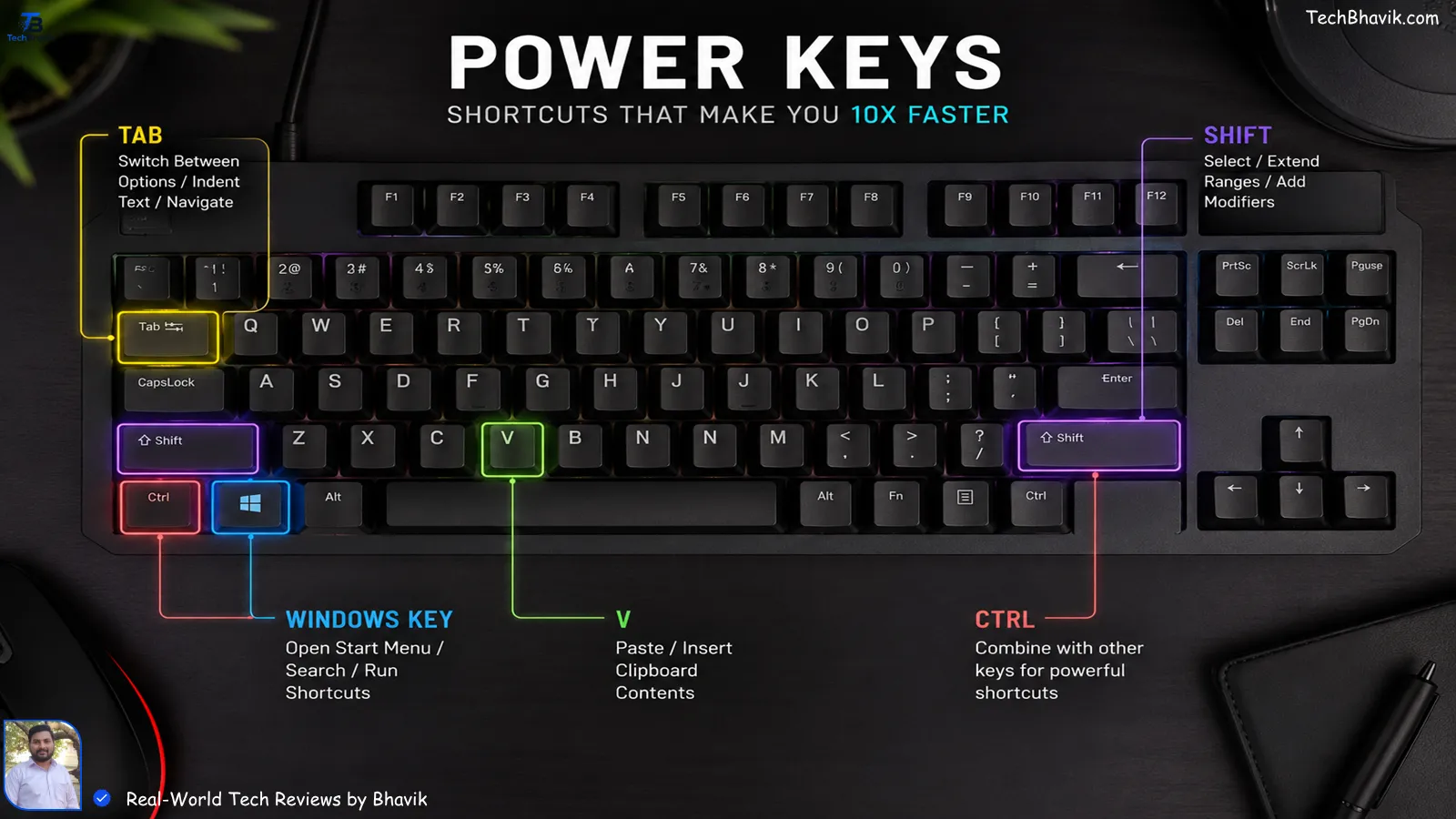
A top-down view of a modern computer keyboard with glowing highlights on key shortcut combinations like Win plus V and Ctrl plus Shift plus Esc for productivity.Windows & Mac · Save this table
Here are the keyboard shortcuts that genuinely change daily computer use. Not an exhaustive list — just the 12 that will come up for you today, tomorrow, and every week after.
| Shortcut (Windows) | Mac Equivalent | What It Does |
|---|---|---|
| Win + D | Mission Control | Show/hide desktop instantly |
| Win + L | Ctrl + Cmd + Q | Lock screen immediately |
| Win + Arrow Keys | Cmd + Ctrl + F | Snap windows to sides of screen |
| Alt + Tab | Cmd + Tab | Switch between open apps |
| Ctrl + Shift + Esc | Cmd + Space → Activity Monitor | Open Task Manager directly |
| Win + . (period) | Cmd + Ctrl + Space | Open emoji keyboard anywhere |
| Ctrl + Backspace | Option + Delete | Delete entire word at once |
| F2 | Enter (in Finder) | Rename selected file/folder |
| Win + Shift + S | Cmd + Shift + 4 | Screenshot a selected region |
| Ctrl + Home / End | Cmd + Up / Down | Jump to top/bottom of document |
| Alt + F4 | Cmd + Q | Close current application |
| Win + V | Maccy app | Open clipboard history |
The people who seem effortlessly good with tech aren’t smarter — they’ve just stumbled onto the tricks nobody teaches.
Browser Hacks That Save Hours
Your browser is the app you probably use more than any other, yet most people use maybe 10% of what it can actually do. These hacks alone can recover 20–30 minutes of your day.
04 Ctrl+Shift+T — Reopen Closed Tabs
Chrome, Edge, Firefox · The one that makes people gasp
You’ve done it. Closed a tab you needed. Maybe even closed a whole window. The panic is instant. Here’s the fix: press Ctrl+Shift+T (Cmd+Shift+T on Mac) and your most recently closed tab reopens. Press it again and the one before that reopens. You can keep pressing to go further back in your closed tab history.
It also works for entire browser windows you’ve closed by accident. This is probably the single most emotionally relieving shortcut on this entire list.
Pro move: Right-click the browser’s back button (←) to see the full history of the current tab. You can jump back 10 pages in one click instead of pressing back repeatedly.
05 Use the Address Bar as a Calculator
Chrome, Edge · Your always-open instant calculator
You don’t need to open a calculator app or a new search tab. Just click your browser’s address bar (or press Ctrl+L to jump to it instantly) and type any maths directly: 15% of 8000, 1450 / 6, sqrt(144). The answer appears in the search suggestions before you even press Enter.
You can also type currency conversions (“100 USD to INR”), unit conversions (“5 miles in km”), and time zone differences (“9pm IST in EST”) directly into the address bar. Google answers them instantly.
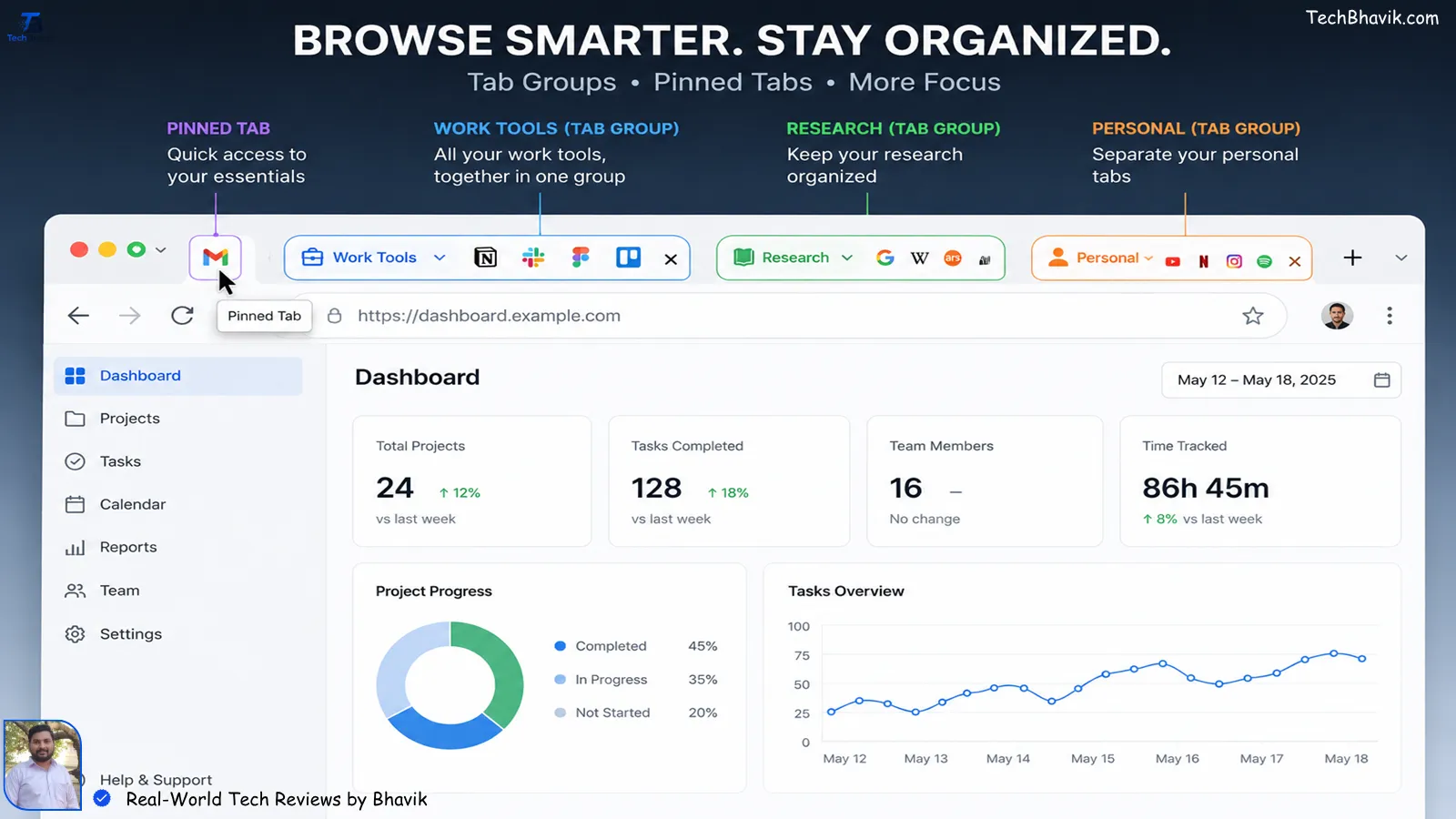
A desktop web browser user interface mockup demonstrating how to use pinned tabs and color-coded tab groups to clear digital clutter.06 Pinned Tabs and Tab Groups
Chrome, Edge, Firefox · Tab chaos, finally solved
If you regularly have 20+ browser tabs open, this one’s for you. Right-click any tab and select “Pin tab” — it shrinks to a tiny icon on the left and stays put even when you close and reopen the browser. Perfect for Gmail, Notion, or any tool you always need open.
Tab Groups take it further: right-click a tab, select “Add to group,” name it, and colour-code it. All your research tabs for one project go in a green group, all your work tools in a blue group. Collapse the group when you’re not using it. It’s the closest thing to a tidy desk your browser will ever have.
Tip: Ctrl+1 through Ctrl+8 jumps directly to tabs 1–8. Ctrl+9 always jumps to the last tab. Combine with pinned tabs and you have instant keyboard navigation.
07 Reader Mode and Distraction-Free Reading
All browsers · The internet without the noise
Most articles on the web are buried under ads, pop-ups, autoplay videos, and newsletter modals that jump out the second you arrive. Browser Reader Mode strips all of that out and shows you clean, pure text with your choice of font and background.
In Edge, look for the book icon in the address bar. In Firefox, it’s the same — a little book icon appears when Reader Mode is available. In Chrome, it’s hidden in settings (chrome://flags, search “reader mode”), or just install a free extension like “Reader View.” Once you use it, you’ll wonder how you ever read long articles without it.
Battery Life Hacks That Actually Work
08 Airplane Mode = Fastest Charger Available
A smartphone is charging on a table, showcasing the airplane mode toggle for faster charging speeds and the 80% maximum battery charge limit setting enabled.
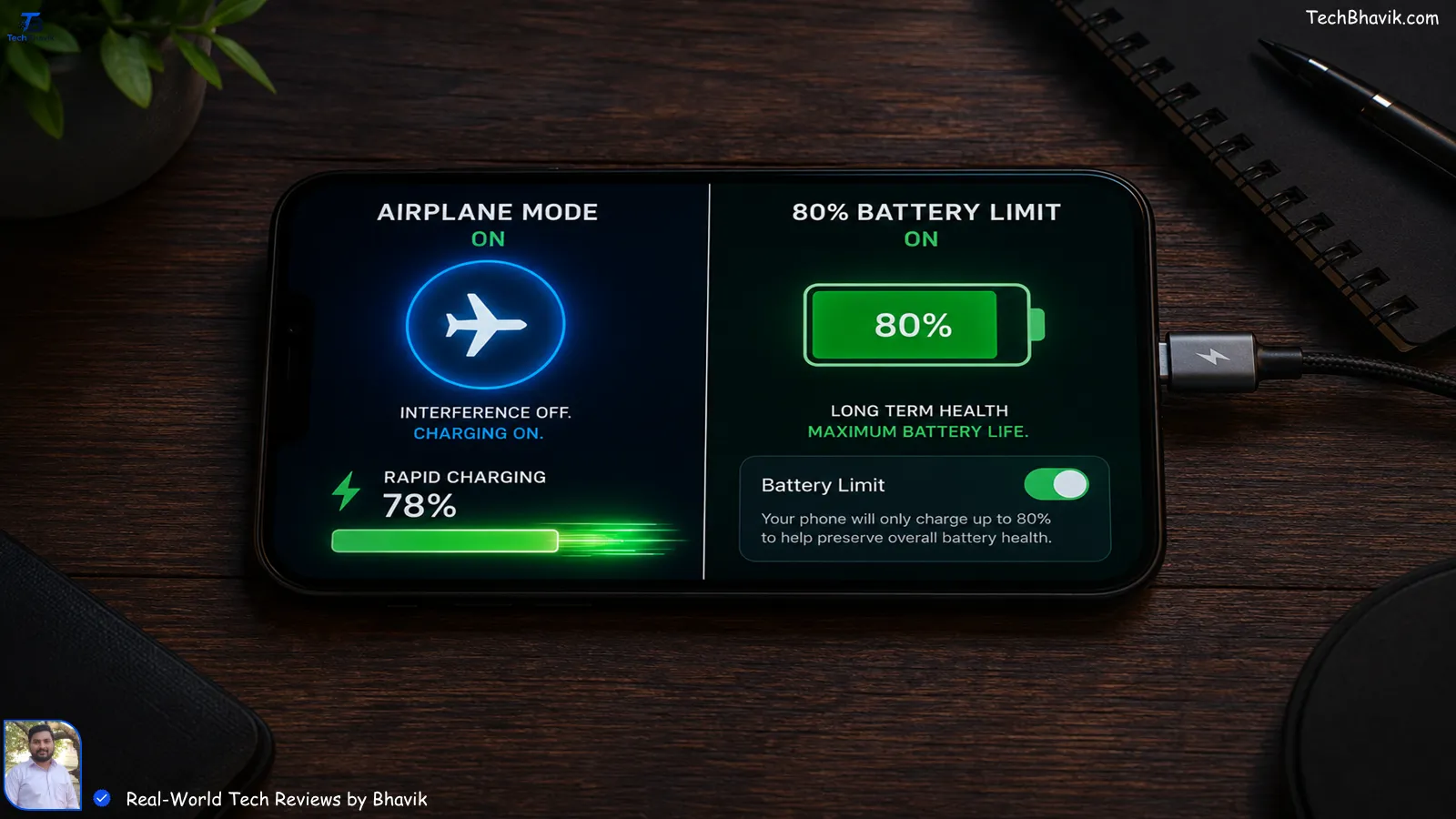
iPhone & Android · Charge 40% faster, no new cable needed
You’re down to 12% battery and have 20 minutes before you need to leave. The single most effective thing you can do — more than buying a faster charger — is turn on Airplane Mode before you plug in.
When your phone is in normal mode, it’s constantly scanning for Wi-Fi, maintaining cellular signal, syncing background apps, and lighting up with notifications. All of that burns power even while charging, slowing the charge rate significantly. Airplane Mode kills all of it. The difference is noticeable — in 20 minutes, you can charge roughly 40% more than you would with normal mode on.
Bonus: Also turn the screen off entirely while charging. The screen is often the biggest single power consumer on a phone. Face it down on a table and let it charge in the dark.
09 Stop Charging to 100% for Long-Term Battery Health
iPhone & Android · The setting most people don’t know exists
Lithium-ion batteries — the kind in every phone, laptop, and EV — degrade faster when regularly charged to 100% or drained near 0%. The sweet spot for long-term battery health is keeping it between 20% and 80%.
Both iPhone (iOS 13+) and Android have now built this insight into their settings. On iPhone, go to Settings → Battery → Battery Health → Optimised Battery Charging. On Android (Samsung, Google Pixel), look for “Protect Battery” or “Battery Care Mode” in battery settings. Enabling this slows the final charge to 100% and avoids holding at maximum, and over two to three years, it can meaningfully preserve your battery’s total capacity.
Reality check: If you need 100% for a long day out, override these settings manually for that day. The feature is for your routine overnight charge, not every single time.
10 Check Which Apps Are Actually Draining Your Battery
iPhone & Android · The real culprit might surprise you
Before you blame the battery, check who’s actually draining it. On iPhone: Settings → Battery → scroll down to see per-app battery usage over the last 24 hours or 10 days. On Android: Settings → Battery → Battery Usage. You’ll almost always find one or two surprising culprits — a game you haven’t opened in a week still refreshing in the background, or a social media app running location tracking 24/7.
For any app using more battery than you’d expect, go to its settings and revoke background refresh, location access, and push notification permissions. Five minutes of this exercise routinely gives people 1–3 extra hours of battery life per day.
Fix Android Battery Drain: 10 Settings|TechBhavik
Phone Tricks Most People Never Discover
11 Hold the Spacebar to Move Your Cursor Precisely
iPhone · The most underused iPhone feature
This is one of the most useful features that Apple built into the iPhone keyboard. A surprising number of people have never heard of it… When you’re typing in any text field and need to position your cursor in a specific place — mid-word, mid-sentence — instead of trying to tap the exact spot (which is infuriatingly imprecise), press and hold the spacebar. The keyboard turns grey and becomes a trackpad. Slide your finger around to position the cursor exactly where you want it, pixel-perfect.
Android users: On Gboard (Google’s keyboard), swipe left or right on the spacebar to move the cursor one character at a time. Not a trackpad, but very effective for precise positioning.
12 Screenshot and Instantly Scan Text
iPhone & Android · Copy text from any image
Both iPhone (iOS 15+) and modern Android phones can extract text from any image. Take a screenshot of anything — a menu, a sign, a document, a whiteboard photo — then tap and hold on the text in the image. Your phone will highlight and let you copy it as regular text you can paste anywhere.
On iPhone, open the photo in your camera roll and look for the small text icon () that appears in the bottom right when text is detected. On Android (Google Pixel and recent Samsung), the Google Lens feature in your photo viewer does the same thing. This has made photographing business cards, whiteboards, and menus genuinely useful rather than just archival.
13 Use Your Volume Buttons as a Camera Shutter
iPhone & Android · Clearer photos, every time
Tapping the on-screen shutter button slightly moves the phone as you press it, especially one-handed. Using your phone’s physical volume buttons (Vol Up or Vol Down) as the shutter solves this entirely — it gives you more stability because you’re gripping the phone with the same hand and using a natural pressing motion rather than an awkward tap reach.
Both iPhone and Android support this natively in the default camera app, no settings change required. It sounds minor, but the improvement in photo sharpness — especially in low light — is real and immediate.
14 Set Up Back Tap for Instant Actions (iPhone)
iPhone iOS 14+ · A shortcut button you didn’t know you had
Your iPhone has a secret button: the back of the phone. Go to Settings → Accessibility → Touch → Back Tap, and you can assign actions to a double-tap or triple-tap on the back glass. You can set it to take a screenshot, open the camera, trigger the flashlight, scroll down, or launch any shortcut you’ve set up in the Shortcuts app.
Set double-tap to screenshot and triple-tap to flashlight, and suddenly those two actions — previously buried in menus — take half a second instead of several.
Privacy & Security Hacks Everyone Needs
Important Context
Privacy and security online have never mattered more than they do in 2026. Data breaches happen constantly, phishing attempts are increasingly sophisticated, and most people are one weak password away from a serious problem. The hacks below require almost no technical knowledge — just 20 minutes of setup that pays dividends for years.
15 Get a Password Manager — Any One

A conceptual digital security graphic representing a mobile password manager app generating strong, encrypted passwords next to a secure padlock.All devices · The single highest-impact security upgrade
If you’re using the same password on multiple websites — or even variations of the same password — you’re one data breach away from having multiple accounts compromised at once. This happens constantly: company X gets hacked, email+password combos are sold online, and automated bots try those combinations on banking sites, email providers, and social media.
A password manager solves this entirely. It generates and stores a completely unique, random, unguessable password for every single site. You only need to remember one master password. Bitwarden is free, open-source, and excellent. 1Password and Dashlane are worth paying for if you want premium features. Your browser’s built-in password manager is better than nothing but lacks cross-browser portability.
Start here: Install Bitwarden (bitwarden.com) on your phone and browser. Immediately change your email account and banking password to a unique randomly generated one. Those two accounts protect everything else.
16 Turn On Two-Factor Authentication on These 3 Accounts
Email, bank, socials · Five minutes of setup, years of protection
Two-factor authentication (2FA) means that even if someone has your password, they can’t log in without also having access to your phone. It’s the single most effective security upgrade available — and despite being years old, most people still haven’t turned it on.
Priority order: (1) Your email account — because whoever controls your email can reset every other password. (2) Your bank account — obvious. (3) Your Apple ID or Google Account — because these store your photos, location history, and are linked to payments. For Gmail, go to myaccount.google.com → Security → 2-Step Verification. For Apple, Settings → [Your Name] → Password & Security. It takes about 5 minutes per account.
17 Audit Your App Permissions — Right Now
iPhone & Android · Stop the invisible data leaks
Go to your phone’s Privacy settings and look at which apps have access to your location, microphone, camera, and contacts. You will almost certainly find apps that have no legitimate reason for those permissions still holding them from years ago.
On iPhone: Settings → Privacy & Security → each category (Location, Microphone, Camera). On Android: Settings → Privacy → Permission Manager. Revoke anything that seems wrong. A flashlight app does not need location access. A game does not need your contacts. A shopping app does not need your microphone running “always.” This five-minute audit closes data collection you didn’t know was happening.
Location specifically: Most apps that request location should be set to “While Using” or “Ask Next Time” — not “Always.” Only navigation and ride apps genuinely need always-on location.
AI Tools Hacks for Everyday Life
In 2026, AI tools have become so capable that avoiding them is genuinely a productivity disadvantage. These aren’t gimmicks — they’re practical applications that save real time on real tasks.
18 Use AI to Draft Emails You Dread Writing
ChatGPT, Claude · The emails that sit in your drafts for days
Everyone has emails they avoid writing — the difficult reply, the complaint to a company, the request for a raise, the awkward follow-up. The blank page problem is real. Here’s the fix: open an AI chat tool (Claude.ai or ChatGPT are both excellent) and simply describe what you need. “Write a polite but firm email to my internet provider about a billing error of ₹2,400 charged without explanation.” Give it context — maybe 2–3 bullet points — and it gives you a draft in under 10 seconds.
You still review, personalise, and send it yourself. But the hard part — staring at a blank page — is gone. This alone is worth the free account signup.
19 Summarise Long Documents and PDFs Instantly
NotebookLM, ChatGPT · Read the 40-page report in 3 minutes
Got a long PDF — a terms and conditions document, a research paper, a job offer contract, a project report — that you need to understand but don’t have time to read in full? Upload it to Google’s NotebookLM (notebooklm.google.com) or paste it into Claude or ChatGPT, and ask specific questions: “What are the main obligations I’m agreeing to?”, “What does section 4 actually mean in plain language?”, “Summarise the key conclusions in 5 bullet points.”
The time savings on this are enormous. A 40-page report that would take 90 minutes to read becomes a 5-minute Q&A session. This is one of the genuinely transformative AI use cases for everyday professionals.
Important: Don’t upload documents containing sensitive personal data (passport details, bank account numbers, medical records) to public AI tools. Use your judgement about what’s appropriate to share.
20 AI for Google Search — Use It Right
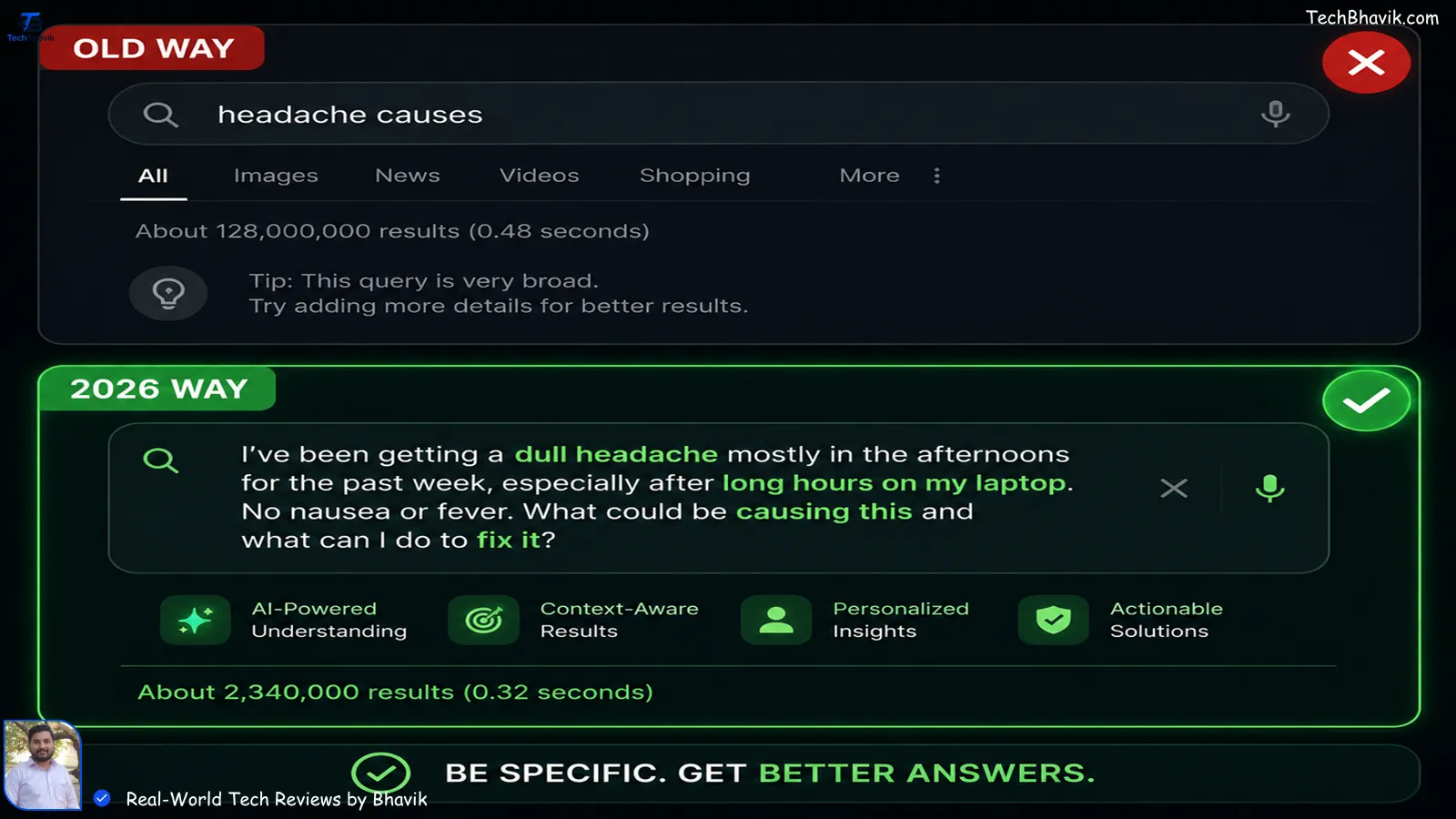
An infographic comparison showing the difference between searching with outdated short keywords versus using descriptive natural language prompts for AI search engines.Google AI Overviews · Better questions = better answers
Google’s AI Overviews now appear at the top of many search results and answer your question in a paragraph before you scroll through ten links. But the quality of the answer depends entirely on how you phrase your question. Instead of keyword searches like “headache causes”, try natural language full questions: “I’ve had a dull headache on the left side of my head for three days, it gets worse in the afternoon — what could cause this?”
More specific question = more specific, useful answer. This works for troubleshooting (“My MacBook fan runs loudly when I’m on video calls but not otherwise — why?”), for decisions (“What should I consider before switching from a full-time job to freelancing?”), and for research. Stop searching like it’s 2010.
Productivity Hacks That Compound Over Time
21 Set Up Text Expanders for Things You Type Repeatedly
All devices · Type 5 characters, get 50 words
If you type the same things repeatedly — your email address, your home address, a standard reply to common questions, your company name, a legal disclaimer — a text expander pays for itself in the first week. You type a short abbreviation, and it automatically expands to the full phrase.
Both iPhone and Android have this built in. On iPhone: Settings → General → Keyboard → Text Replacement. Add “;em” → your full email address. “;addr” → your full address. “;ty” → “Thank you for reaching out, I’ll get back to you within 24 hours.” On Android, it’s in your keyboard settings. For power users on desktop, the free app Espanso (espanso.org) works across all apps on Windows, Mac, and Linux.
22 The 2-Minute Digital Cleanup That Speeds Up Everything
All devices · Monthly maintenance, permanent benefits
Your devices slow down gradually — so gradually you often don’t notice until you compare them to a fresh setup. The culprits are almost always the same: too many apps running at startup, browser extensions you forgot you installed, cached data from apps you haven’t opened in months, and notifications from dozens of apps pulling your attention away constantly.
Once a month, spend two minutes on this: on Windows, open Task Manager → Startup Apps and disable anything you don’t need launching at boot. On any browser, check your extensions (chrome://extensions) and remove ones you don’t use. On your phone, go through notifications settings and turn off everything except the apps you genuinely want to hear from. Each cleanup is small. Over a year, the cumulative effect on speed and focus is significant.
23 Cloud Sync Everything You Can’t Afford to Lose
Google Drive, iCloud, OneDrive · The backup you’ll be glad you set up
Most people think about backing up their data after they’ve lost something. Don’t be that person. Cloud sync means your photos, documents, and important files are automatically replicated off your device in real time — so a stolen laptop, a dropped phone, or a hardware failure becomes an inconvenience rather than a catastrophe.
iPhone users: go to Settings → [Your Name] → iCloud and turn on Photos and iCloud Drive. Android users: Google Photos with Backup turned on covers your photos automatically. For documents, Google Drive and OneDrive both offer free tiers that cover most personal use. The rule of thumb for anything you genuinely cannot replace: it should exist in at least two places, one of which is not the device itself.
Free tiers: Google gives you 15GB free, iCloud gives you 5GB free, OneDrive gives you 5GB free. For most people, 15GB of Google storage covers years of documents with careful management. Google One storage plans start very affordably if you need more.
24 Use Focus / Do Not Disturb Mode Like You Mean It
iPhone & Android · Reclaim your concentration
The average person checks their phone 96 times per day. Most of those aren’t intentional — they’re triggered by a notification buzz or a screen light-up. The single most effective thing you can do for your focus and mental bandwidth is to make your phone silent and unlit during working hours, and only check it intentionally.
Both iPhone and Android have “Focus” or “Do Not Disturb” modes that can be scheduled automatically. Set Work Focus to activate at 9am, allow calls only from contacts, and turn on automatically on weekday mornings. You won’t miss anything important, but you’ll reclaim hours of fragmented attention that notifications were stealing.
25 The Right Way to Search Google (Most People Don’t Know This)
Google · Search operators that actually work
Google has a set of search operators — special commands built into the search box — that let you search with surgical precision instead of sifting through pages of results.
| Operator | Example | What It Does |
|---|---|---|
| “exact phrase” | “climate policy 2026” | Results must include this exact phrase |
| site: | site:bbc.com AI regulation | Only results from that specific website |
| -word | apple -fruit -iphone | Exclude pages containing that word |
| filetype: | annual report filetype:pdf | Only returns that file format |
| intitle: | intitle:best laptops 2026 | Only pages with that phrase in the title |
| before: / after: | AI news after:2026-01-01 | Filter results by date range |
| related: | related:techcrunch.com | Find sites similar to that one |
Combine them: site:reddit.com “budget laptop” 2026 -gaming gives you Reddit threads from the last year about budget laptops that aren’t about gaming. This beats any list article for finding real user opinions.
Frequently Asked Questions on Google
What are the best tech hacks to save time every day?
The highest-impact daily time-savers are: Win+V for clipboard history, Ctrl+Shift+T to reopen closed browser tabs, keyboard text replacements for phrases you type repeatedly, and using your browser’s address bar as a calculator. These alone recover 20–40 minutes daily for most people.
How do I make my phone battery last longer?
Enable Airplane Mode while charging for faster top-ups. Turn on Optimised Battery Charging in your phone settings to stop it holding at 100%. Go to Battery Usage in Settings and revoke background refresh from apps you don’t actively use. These three steps consistently add 1–3 hours of battery life per day without buying anything new.
What browser hacks do most people not know about?
Ctrl+Shift+T reopens closed tabs. Ctrl+L jumps your cursor to the address bar instantly. Right-clicking the back button shows your full history for that tab. Typing maths or unit conversions directly in the address bar gives instant answers. Tab Groups let you organise 20+ tabs into collapsible colour-coded groups.
How can I improve my privacy without being technical?

Four steps cover most of the risk: (1) Install Bitwarden (free password manager) and create unique passwords for your email and bank accounts. (2) Turn on two-factor authentication for your email and bank. (3) Go through your phone’s Permission Manager and revoke location, microphone, and camera access from apps that don’t need them. (4) Review which apps are sending you notifications and mute all but the essential ones.
What AI tools are genuinely useful in everyday life in 2026?

The most useful everyday AI applications are: using Claude or ChatGPT to draft difficult emails and messages, using NotebookLM to summarise long PDFs and reports, using Google’s AI search for natural language questions instead of keyword searches, and using your phone’s built-in text recognition to extract text from images and photos. All of these have free tiers that cover casual use.
What’s the most useful phone trick most people don’t know?
On iPhone, holding the spacebar converts the keyboard into a trackpad for precise cursor positioning — this alone prevents enormous frustration when editing text. On both platforms, using volume buttons as the camera shutter significantly reduces blurry photos. And the back-tap feature on iPhone (Settings → Accessibility → Back Tap) creates two hidden shortcut buttons on the back of your phone.