


Take Back Your Privacy! How to Block Spam Calls on Jio, Airtel, and iPhone Safely
Your smartphone rings. You look down, see an unfamiliar number, and pick it up, thinking it must be something important. Instead? There’s complete silence for two seconds, followed by a robotic, recorded voice trying to sell you a personal loan you never asked for.
Man, I can’t tell you how many times this particular situation has ruined my workflow. The other day, I was talking to my friend Abhijit in Bhavnagar, and his phone kept buzzing with this particular type of annoying telemarketing call. It’s annoying.
The reality is that spam calls in India are completely out of control. Between fake insurance agents, real estate hustlers, bank fraud loops, and terrifyingly straightforward scammers pretending to be from TRAI or the Income Tax Department, it feels like we’re under siege. In my own testing and tracking, I’ve found that the average Indian smartphone user is now getting 15-20 unwanted calls per week.
But here’s the good news I gave Abhijeet and what I want to share with you today: We can actually turn them all off right now. You don’t have to hand over your hard-earned money for premium, paid blocker apps, and you certainly don’t need a degree in engineering to figure this out. Over the past few months, I’ve personally tested some deeply buried, built-in settings that most people completely ignore.
Table of Contents: What We Cover
In this guide, I’ll pull back the curtain on my specific personal setup. I’ll walk you through each method for both Android and iPhone — including the India-specific DND trick I use to block spam at the network level on Jio, Airtel, Vi, and BSNL all at once. Let’s get your peace of mind back.
What You’ll Learn in This Article
- The #1 India-specific method that blocks spam at the network level (works on ALL networks)
- Built-in Android settings that filter spam without any app
- Built-in iPhone settings including the new iOS 26 Call Screening feature
- Truecaller setup — the right way, not just installing and forgetting
- What spam calls DND cannot block — and what to do about those
- How to report spam callers so TRAI can take action
Method 1 — Activate DND via 1909 (Works on Jio, Airtel, Vi, BSNL — All Networks)
This is the single most effective thing any Indian smartphone user can do. It takes 30 seconds and it’s completely free.
DND (Do Not Disturb) is a free, government-backed service run by TRAI (Telecom Regulatory Authority of India) that blocks promotional and telemarketing calls at the network level — meaning the call never even reaches your phone.
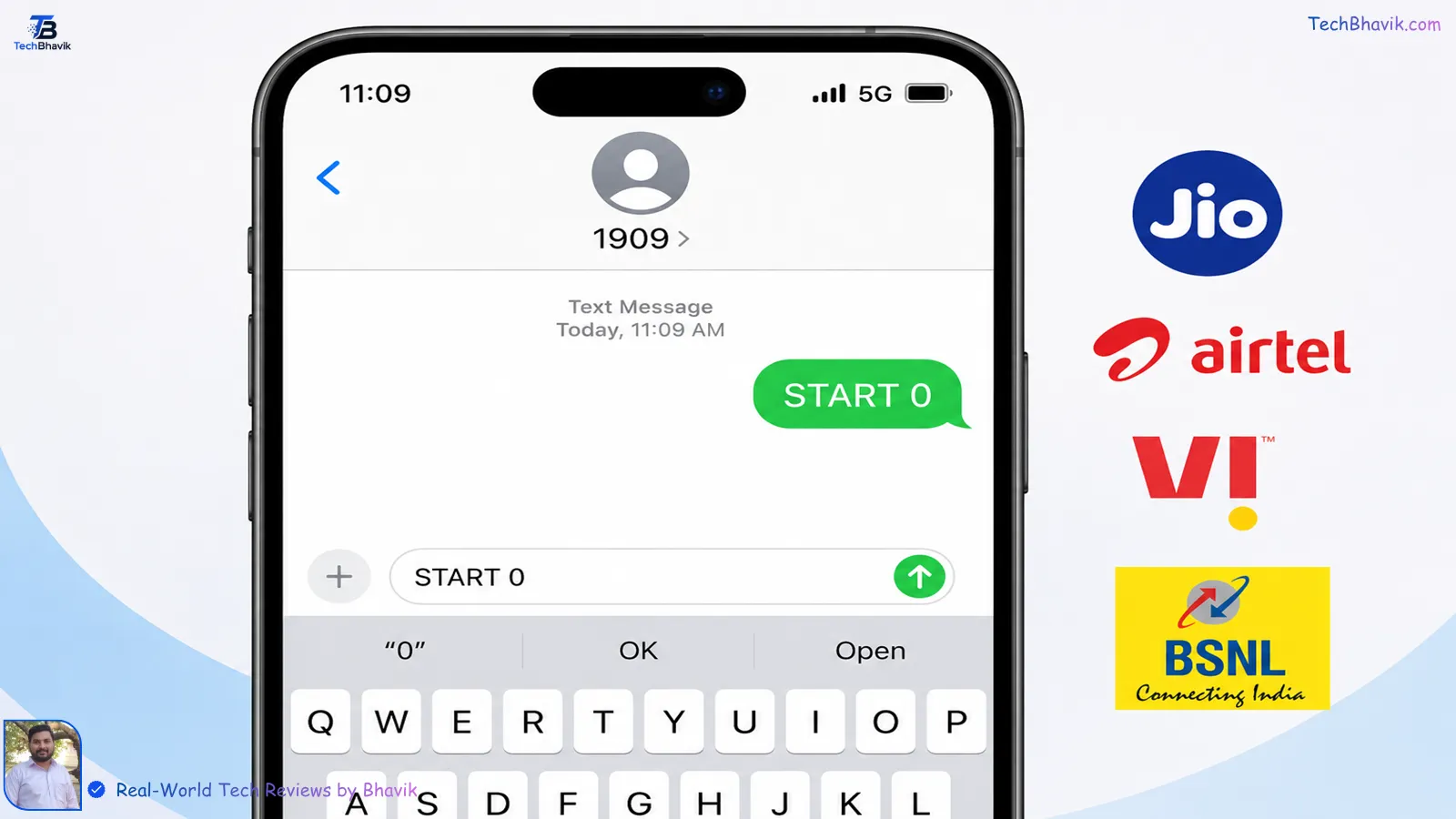
To activate DND on any network, send an SMS with the text “START 0” to 1909 from your phone. You will then receive confirmation steps to complete the process. Alternatively, you can simply call 1909 directly to activate it over the phone.
Your DND service activates within 24 hours. After that, registered telemarketers and promotional callers are blocked before your phone ever rings.
What “START 0” means: The “0” means full DND — block all promotional communication (calls + SMS). If you want to allow specific categories like banking or health alerts, you can choose partial DND instead, but for most users, full DND is the right choice.
Activate DND Through Your Carrier App
For Jio users:
- Open the MyJio app
- Tap More below your mobile number
- Select Do Not Disturb
- Choose Full DND and tap Activate
For Airtel users:
- Open the Airtel Thanks app
- Go to Profile → Do Not Disturb
- Select Stop All and confirm
- Alternatively visit: airtel.in/airtel-dnd/
For Vi (Vodafone Idea) users:
- Open the Vi app
- Go to Help and Support → DND
- Select Full DND and tap Activate
- Alternatively visit: myvi.in/dnd
For BSNL users: Send “START 0” to 1909 — the SMS method works directly for BSNL subscribers without needing an app.
Important note: DND blocks registered telemarketers — it does NOT block scammers calling from regular mobile numbers (like fake TRAI agents or bank fraud calls). For those, continue to Method 2 and beyond.
Best Smartphones Under 15000 India 2026, How to Fix Android Battery Drain, How to Free Up Storage Android
Method 2 — Built-in Android Spam Filter (No App Required)
Android has a built-in spam detection system that most users never turn on. Here’s how to enable it:
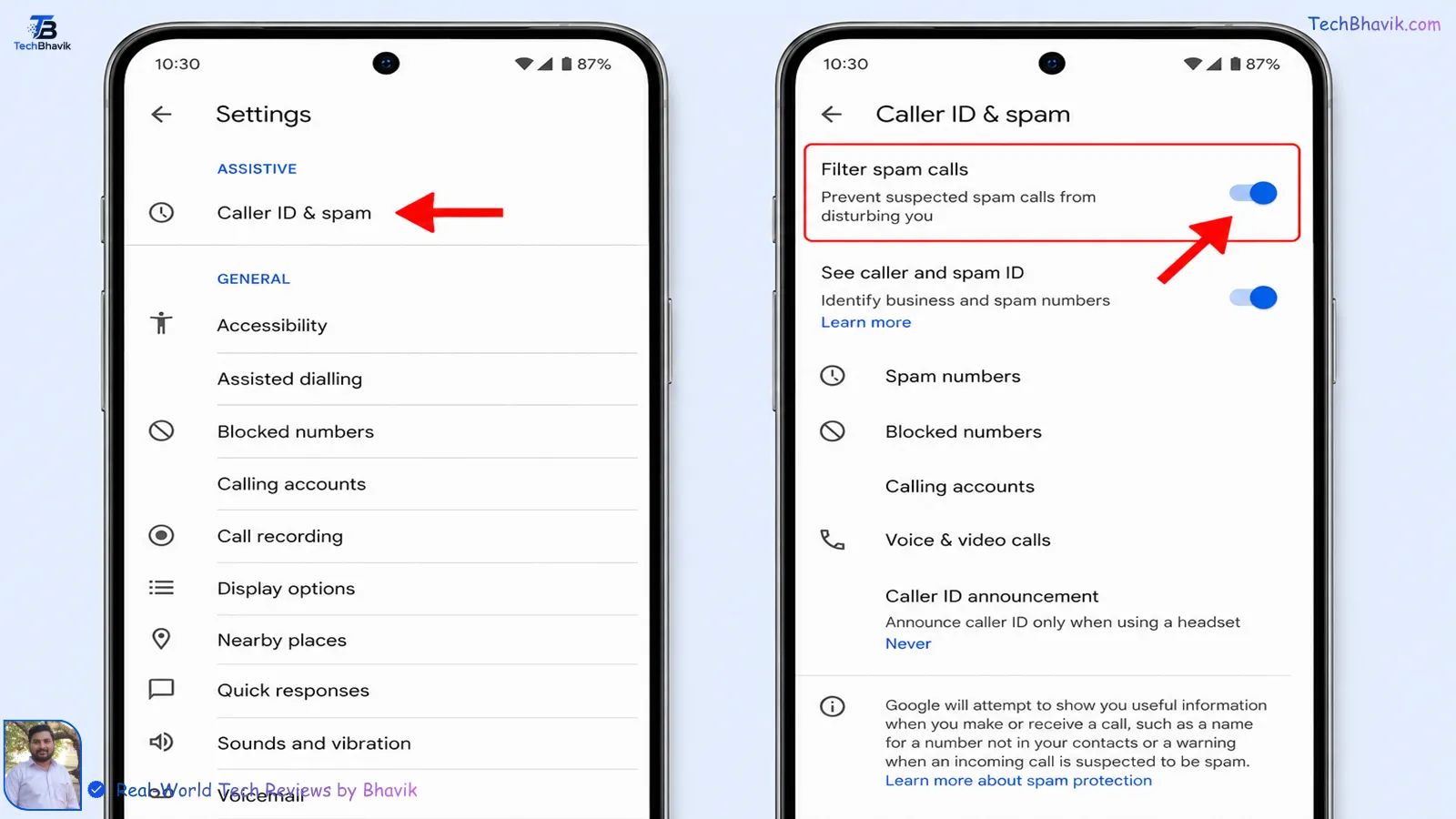
How to enable built-in spam call filter on Stock Android settingsFor Google Pixel and Stock Android (Android 10 and above):
- Open the Phone app
- Tap the three dots (⋮) in the top right corner
- Select Settings
- Tap Caller ID & spam
- Toggle ON See caller and spam ID
- Toggle ON Filter spam calls
Once enabled, calls identified as spam are automatically silenced — they don’t ring, they go directly to voicemail, and you see a “Suspected spam” label in your Recents. You can review and decide whether to call back.
Google also offers an AI-powered Call Screen feature on Pixel phones — it automatically answers calls on your behalf and asks the caller to state their name and reason for calling before your phone even rings. If it’s a spam bot, it hangs up. If it’s a real person with a legitimate reason, your phone rings and shows you the transcript.
For Samsung Galaxy phones (One UI):
- Open the Phone app
- Tap the three vertical dots → Settings
- Tap Caller ID and spam protection
- Enable both Caller ID and Spam protection
Samsung’s spam protection uses a combination of its own database and carrier data to identify and filter known spam numbers in real time.
For other Android phones (Xiaomi, Realme, OnePlus, Oppo, Vivo):
Most Android phones running Android 10+ have a version of this setting, though the menu location varies by brand:
- Xiaomi/MIUI: Phone app → Settings → Block numbers → Block spam calls
- Realme/ColorOS: Phone app → Settings → Blocked → Spam call identification → Enable
- OnePlus/OxygenOS: Phone app → Settings → Call blocking & spam detection → Enable
- Vivo/FunTouchOS: Phone app → Block → Harassment calls → Enable
Method 3 — Block Spam Calls on iPhone (iOS 26 — Updated Method)
Apple significantly upgraded its spam call blocking in iOS 26. If your iPhone is updated, here’s exactly what to enable:
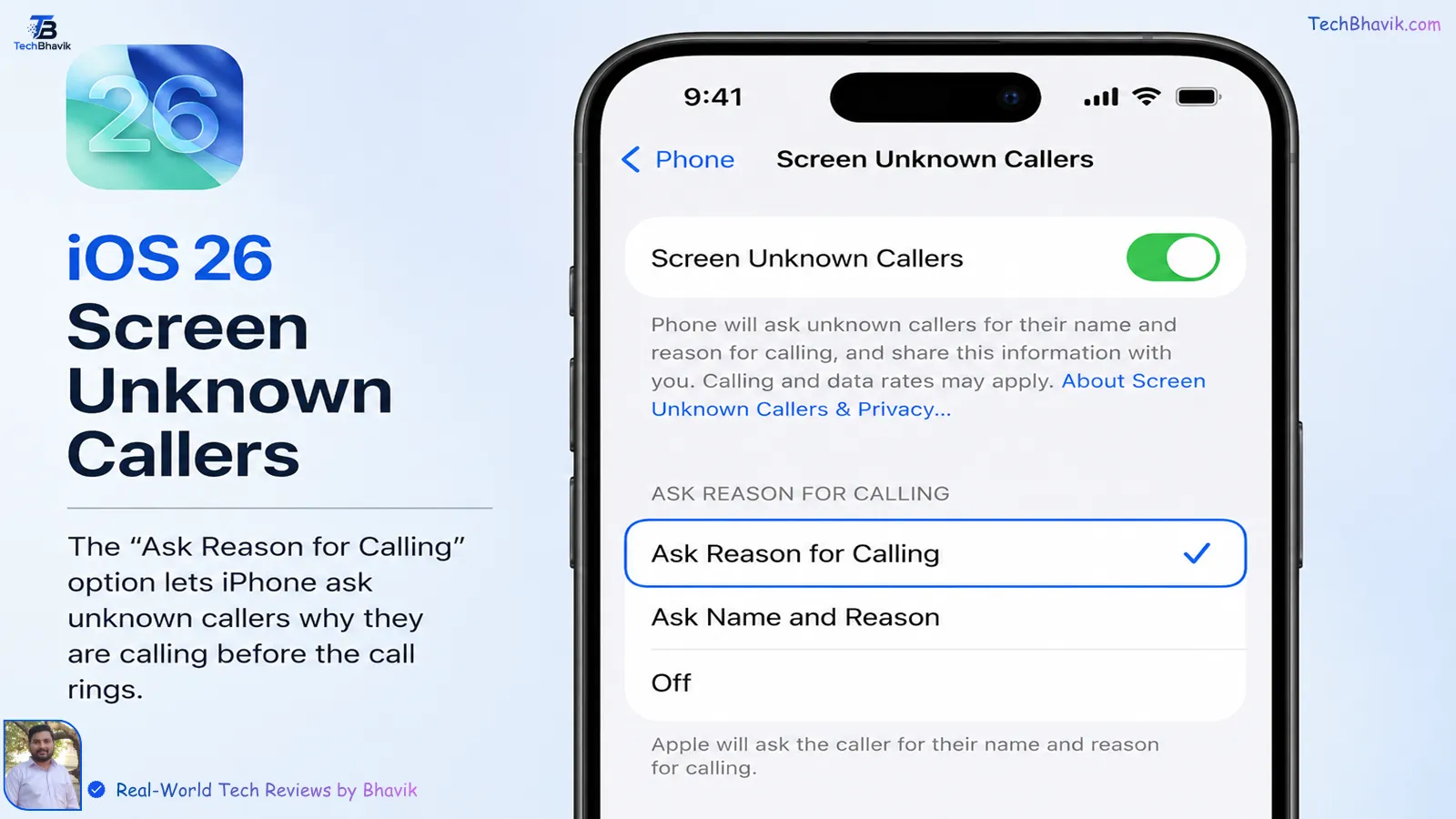
iPhone iOS 26 Screen Unknown Callers settings showing Ask Reason for Calling optionStep 1 — Enable Screen Unknown Callers (iOS 26)
iOS 26 added a powerful new Call Screening feature that works entirely on-device without any third-party app:
- Open Settings
- Tap Apps
- Tap Phone
- Scroll to Screen Unknown Callers
- Select Ask Reason for Calling
What “Ask Reason for Calling” does: Any call from a number not saved in your contacts is automatically intercepted. The caller hears: “This call is being screened. Please state your name and reason for calling.” Your iPhone doesn’t ring. A live transcript appears on your screen. You decide whether to answer.
Scam and robocall systems typically fail to respond and the call ends automatically. Legitimate callers — like a doctor’s office, courier, or delivery person — state their reason and your phone then rings, showing you the transcript so you know exactly who it is before picking up.
What about “Silence” mode? If you select Silence instead, ALL unknown callers go straight to voicemail without ringing. This is more aggressive — useful if you’re not expecting calls from unknown numbers, but you may miss legitimate ones.
Step 2 — Enable Call Filtering and Spam Detection
- Go to Settings → Apps → Phone
- Scroll to Call Filtering
- Turn on Spam — calls identified as spam or fraud by your carrier are silenced and moved to the Spam list
- Turn on Unknown Callers if you want unsaved numbers to go to a separate list
Step 3 — Enable Call Blocking & Identification
- Go to Settings → Apps → Phone
- Tap Call Blocking & Identification
- Enable any third-party spam apps listed here (Truecaller, if installed, appears here)
Step 4 — Manually Block a Number (When a Specific Caller Keeps Calling)
- Open the Phone app
- Go to Recents
- Tap the (i) info button next to the number
- Scroll down → Tap Block this Caller
- Confirm
Blocked callers go directly to voicemail without ringing. They are not notified that they’ve been blocked.
iPhone vs Samsung in 2026: Which One Regret Less?
Method 4 — Set Up Truecaller Properly (Android & iPhone)
Truecaller is the most popular spam call blocking app in India — and for good reason. Its database is built from reports by millions of Indian users, which means it recognises Indian spam numbers that global spam filters miss.
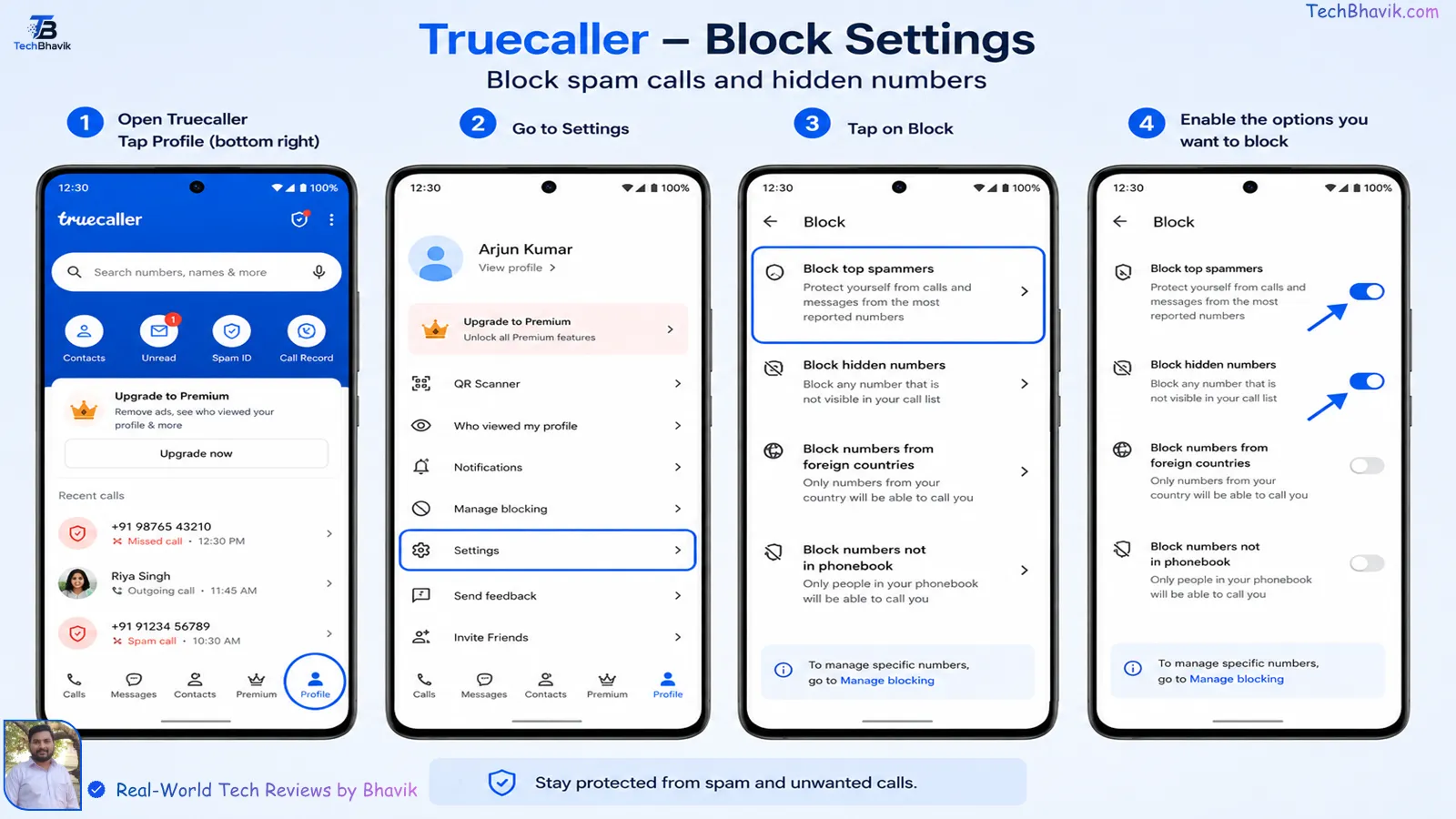
Optimized Truecaller block settings configuration for blocking Indian spam callersBut most people install it and never configure it properly. Here’s the full setup:
For Android:
- Download Truecaller from Google Play Store (free)
- Sign in with your phone number
- Open the app → Tap Settings (gear icon)
- Go to Block settings
- Enable Block spam calls
- Enable Block calls not in your contacts (optional — aggressive but effective)
- Turn on Caller ID so all incoming calls show the caller’s name from Truecaller’s database
Additional step for Android: Make Truecaller your default phone app (Settings → Default apps → Phone app → Truecaller) for the best spam blocking. This allows Truecaller to screen calls before they ring.
For iPhone:
- Download Truecaller from the App Store (free)
- Sign in and complete setup
- Go to iPhone Settings → Apps → Phone → Call Blocking & Identification
- Enable Truecaller in the list
- Back in the Truecaller app → Settings → enable Caller ID and Spam Blocking
Apple iPhone 18 Pro Max: Price, Features, and Release Date
Privacy note for Indian users: Truecaller works by uploading your contacts to its servers to build its database. If you’re concerned about privacy, use the built-in Android or iPhone methods (Methods 2 and 3) instead. They work without sharing your contacts.
Method 5 — Block Calls from Numbers Not in Your Contacts (Android)
If you’re getting spam from random new numbers every time — which means DND and spam databases can’t keep up — this more aggressive setting blocks all unknown numbers entirely:
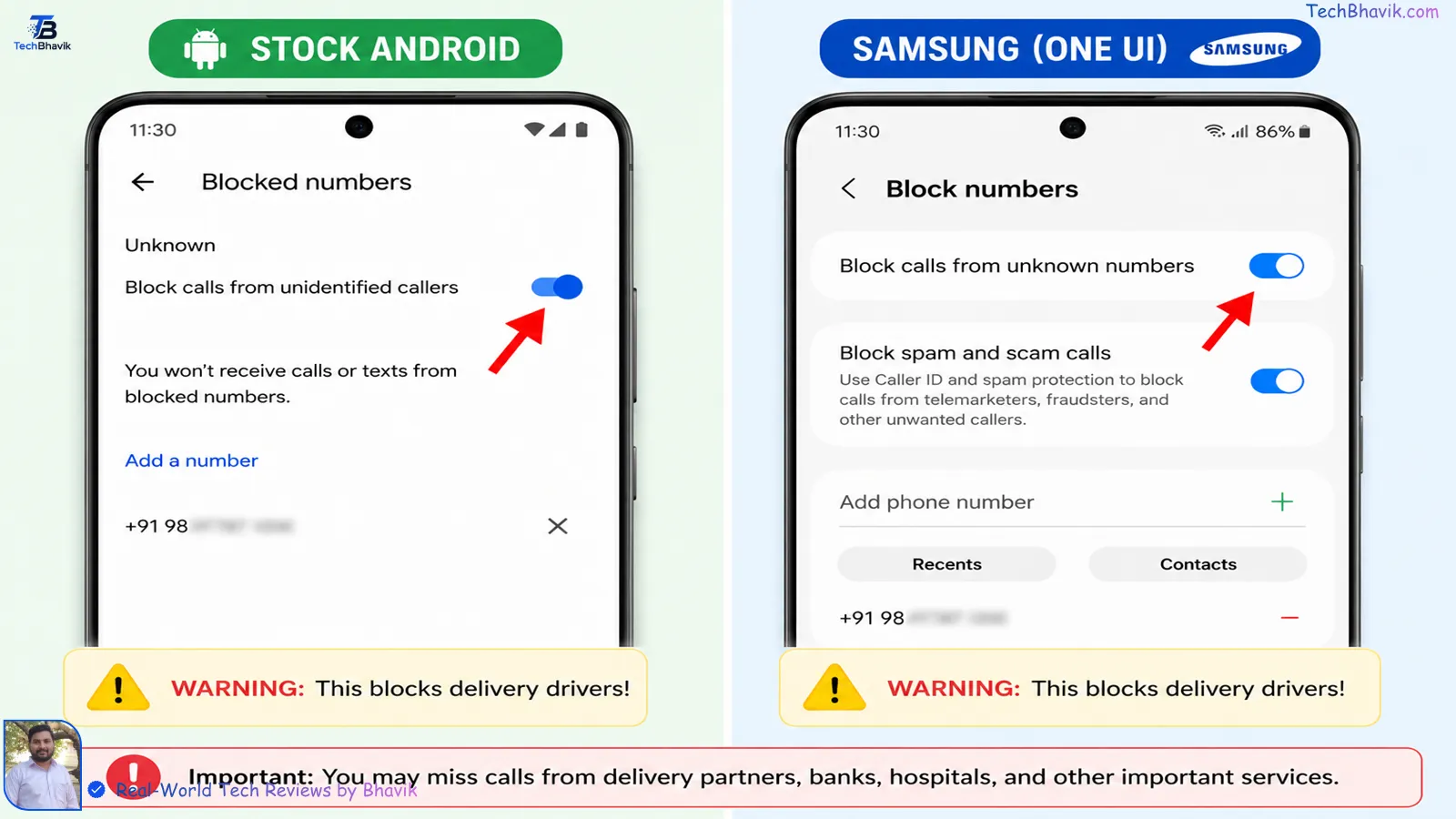
How to block all unknown numbers and unsaved contacts on Android and SamsungOn Stock Android / Pixel:
- Open Phone app → Settings
- Tap Blocked numbers
- Toggle ON Block calls from unidentified callers
On Samsung:
- Phone app → Settings → Block numbers
- Toggle ON Block calls from unknown numbers
Important: This blocks ALL calls from numbers not saved in your contacts — including legitimate ones like delivery personnel, doctors, or new business contacts. Only use this if you’re comfortable missing calls from unsaved numbers, or if you’re getting flooded with spam that other methods aren’t catching.
Method 6 — Report Spam Callers to TRAI (India)
Simply blocking a number helps you — but reporting it helps everyone. TRAI takes action against registered telemarketers who violate DND rules, and enough reports can get a number deregistered or fined.
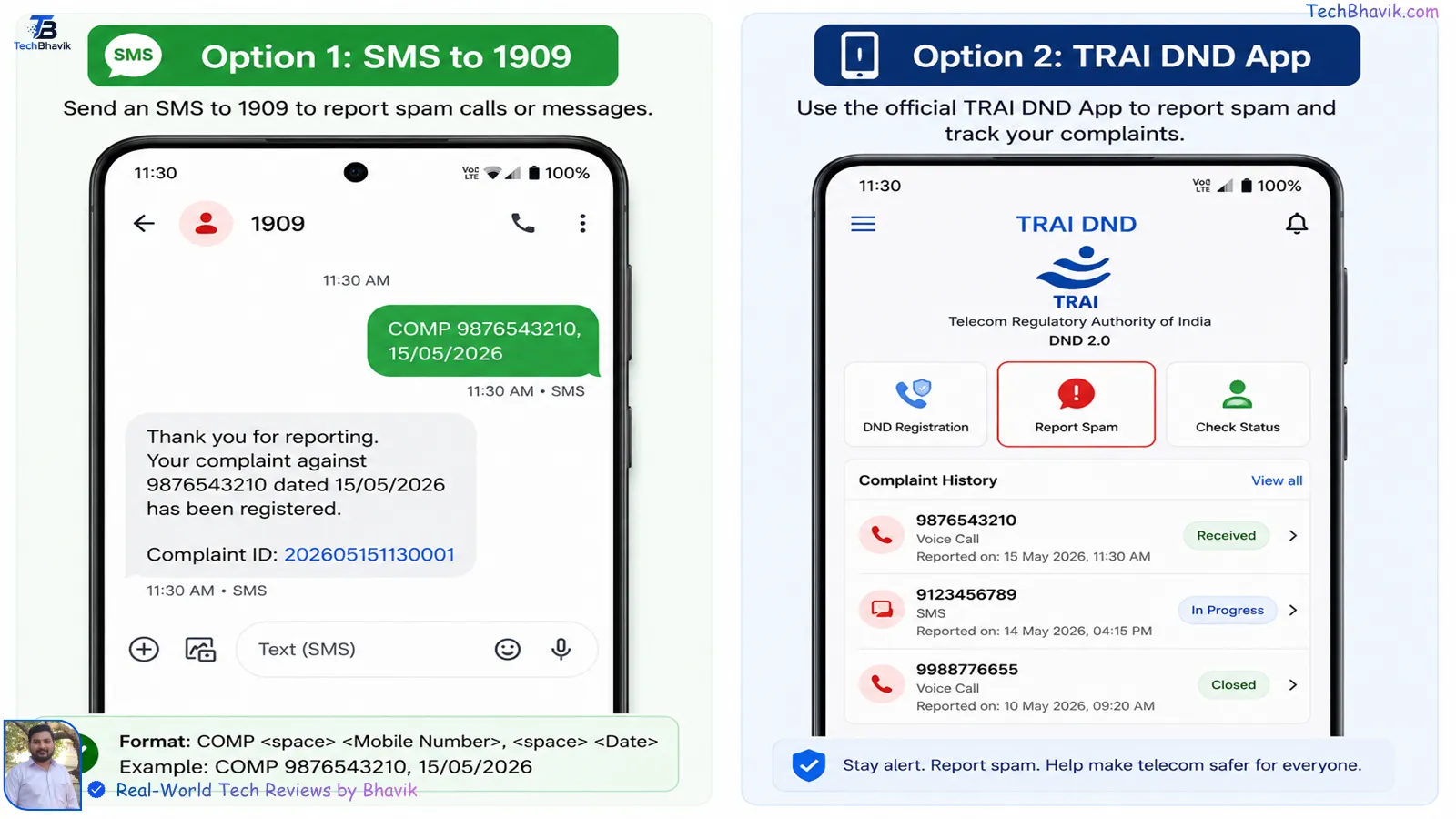
Reporting spam calls to TRAI via SMS 1909 format and official TRAI DND appHow to report a spam call to TRAI:
Option 1 — SMS: Send an SMS to 1909 in this format: COMP <telemarketer number> <date of call DD/MM/YYYY> Example: COMP 9876543210 15/05/2026
Option 2 — TRAI DND App:
- Download TRAI DND from Google Play Store or App Store (official government app)
- Register your number
- Use the in-app complaint feature to report spam calls directly
- TRAI responds to complaints within 7 working days
What DND and Apps Cannot Block — And What To Do
Let’s be completely honest about one thing: no method blocks 100% of unwanted calls.
DND cannot block:
- Fraudsters calling from regular mobile numbers (not registered as telemarketers)
- Fake TRAI/income tax/bank calls from individual numbers
- International spam calls
- Scammers who rotate phone numbers
What to do when these calls come through:
- Never call back unknown missed calls — especially from international numbers starting with +1, +44, +92 — these can be premium rate numbers that charge you for connecting
- Never share OTPs, card numbers, or Aadhaar details with anyone who calls you — no legitimate bank, TRAI, or government official ever asks for these over the phone
- Hang up immediately on calls that ask you to press 1, press 9, or interact with a menu — these are robocalls harvesting active numbers
- Report to Cyber Crime: If you receive a call attempting fraud, report it at cybercrime.gov.in or call 1930 (National Cyber Crime Helpline)
Quick Comparison Table by Bhavik: Which Method Is Best for You?
| Method | Best For | Blocks Telemarketer Calls | Blocks Scammer Calls | Effort |
|---|---|---|---|---|
| DND via 1909 | All Indian users | ✅ Yes | ❌ No | 30 seconds |
| Android built-in filter | Android users, no app | ✅ Yes | Partially | 2 minutes |
| iPhone Screen Unknown Callers | iPhone (iOS 26) users | ✅ Yes | Mostly | 2 minutes |
| Truecaller | Indian users, best database | ✅ Yes | Mostly | 5 minutes |
| Block unknown callers | Users getting flooded | ✅ Yes | ✅ Yes | 1 minute |
| Report to TRAI | Long-term solution | ✅ Over time | ❌ No | 2 minutes |
Our recommendation for most Indian users: Do Method 1 (DND) + Method 4 (Truecaller) + Method 2 or 3, depending on your phone. This combination blocks 90%+ of all unwanted calls in India.
Frequently Asked Questions- FAQ
Q: How do I block spam calls on Jio in 2026?
Send SMS “START 0” to 1909 from your Jio number — this activates full DND and blocks all promotional calls within 24 hours. Alternatively, open the MyJio app → More → Do Not Disturb → Activate Full DND. This is the fastest and most effective method for Jio users.
Q: How do I block spam calls on Airtel in 2026?

Open the Airtel Thanks app → Profile → Do Not Disturb → Stop All. Or visit airtel.in/airtel-dnd/ and enter your number to activate online. You can also send SMS “START 0” to 1909 from your Airtel number.
Q: Does DND block all spam calls in India?
DND blocks calls from registered telemarketers — which covers most promotional and sales calls. It does not block fraudsters calling from personal mobile numbers or international scam calls. For those, use Truecaller and the built-in spam filters on your phone alongside DND.
Q: How to block spam calls on iPhone without installing any app?
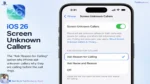
On iOS 26: Go to Settings → Apps → Phone → Screen Unknown Callers → select Ask Reason for Calling. This built-in feature screens all unknown callers without any third-party app. Also enable Call Filtering → Spam for carrier-level spam detection.
Q: Is Truecaller safe to use in India?
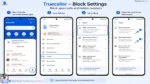
Truecaller is safe to use but it does upload your contact list to its servers to build its caller ID database. If you prefer not to share your contacts, use Android’s or iPhone’s built-in spam filters instead — they work well without requiring contact upload. The choice depends on your privacy preference versus spam blocking effectiveness.
Q: Will blocking unknown callers block important calls too?
Yes — blocking all unknown callers (numbers not in your contacts) will also block legitimate calls from unsaved numbers like delivery personnel, doctors, or new contacts. This method is effective but aggressive. If you need to receive calls from unknown numbers regularly, use Truecaller or the “Ask Reason for Calling” iPhone feature instead — these screen calls rather than blocking them entirely.
Q: How long does DND take to activate in India?

DND activates within 24 hours of sending “START 0” to 1909. Some networks activate it faster — Airtel and Jio users typically see DND working within a few hours.
Final Summary — The Complete Action Plan by Bhavik
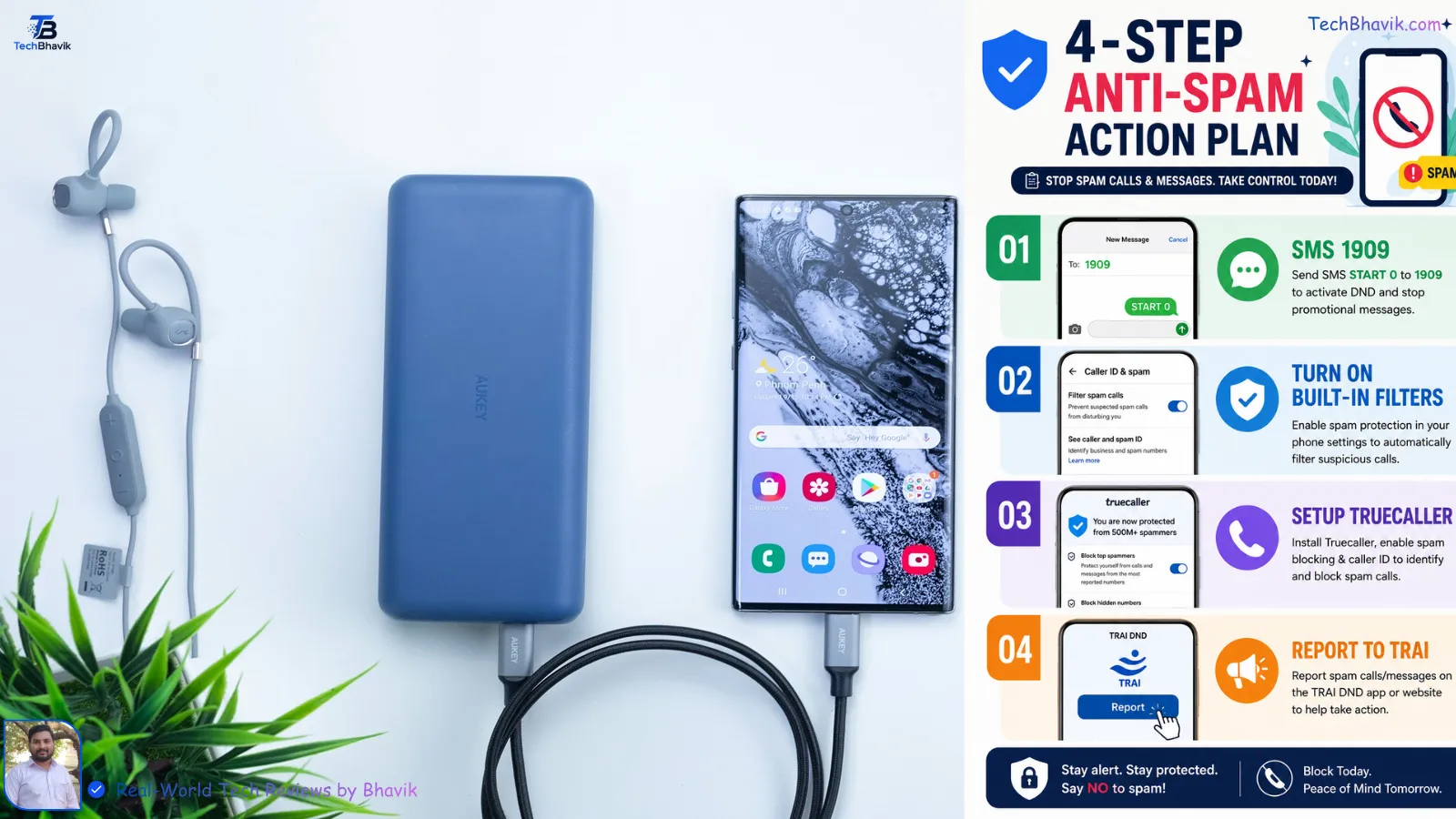
4 step checklist infographic to stop unwanted telemarketing and spam calls in IndiaHere’s everything to do right now, in order:
Step 1 (30 seconds): Send SMS “START 0” to 1909 from your number — activates DND on any Indian network
Step 2 (2 minutes): Enable the built-in spam filter on your phone:
- Android: Phone app → Settings → Caller ID & spam → Enable both toggles
- iPhone: Settings → Apps → Phone → Screen Unknown Callers → Ask Reason for Calling
Step 3 (5 minutes): Install and configure Truecaller for India-specific spam database protection
Step 4 (optional): Download the TRAI DND app to report future spam callers and help protect other Indian users
Do all four and you’ll eliminate 90–95% of spam calls in India — starting from tomorrow.
Last updated: May 2026 | techbhavik.com
Found this guide helpful? Share it with someone who’s tired of getting spam calls every day.

















[…] Tired of 20+ spam calls a week? How to block spam calls permanently on Android and iPhone7 Hidden WhatsApp Tricks Every Indian Should KnowDon’t Upgrade Yet! Windows 11 vs Windows 12 Full Comparison […]