
How to factory reset phone
By Bhavik Munjapara | TechBhavik.com | April 2026
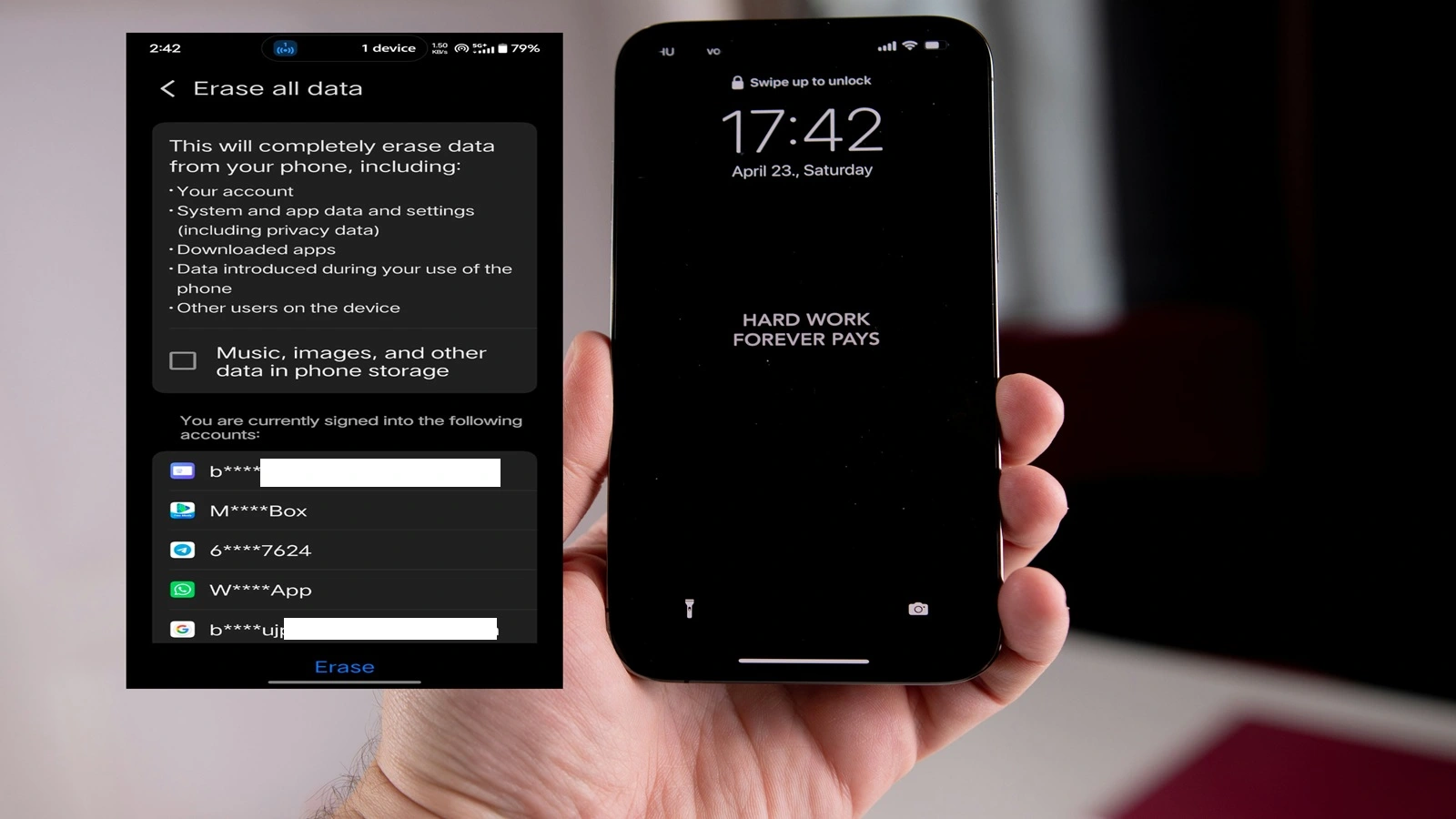
kya aapka phone dheema chal raha hai, bar-bar hang ho raha hai, ajeeb error dikha raha hai, ya kya aap ise bechne ki soch rahe han? factory reset lagbhag kisi bhi smartphone ki samasya ko theek karne ka sabse asardaar tarika hai। yah sab kuch puri tarah se mita deta hai aur aapke phone ko ek nai shuruaat deta hai — theek vaise hi jaise aapne ise kharidne ke din paya tha।
If you are wondering how to factory reset phone models safely, follow these steps :
lakin bina sahi taiyari ke apne phone ko factory reset karne se aapki photo, contacts, message aur zaruri data hamesha ke liye kho sakta hai। isiliye yah puri guide wah sab kuch batati hai jo aapko janana zaruri hai — factory reset kya karta hai, apne data ka surakshit backup kaise len, aur 2026 mein har bade Android brand aur iPhone ke liye step-bi-step nirdesh।
chahe aap Samsung, Redmi, Realme, OnePlus, iPhone, ya koi aur smartphone istemaal karte hon, yah guide aapke liye hi hai।
What is a Factory Reset ? How to factory reset phone
factory reset ek in-bilt function hai jo aapke phone se sara data puri tarah se mita deta hai aur ise iski asli, ekdum nai (out-of-box) halat mein wapas le aata hai। phone kharidne ke baad aapne jo kuch bhi joda tha — apps, photo, contacts, maises, accounts, setings, password — wah sab hamesha ke liye delete ho jata hai।
ise apne poore phone par ‘altimet undo batan’ dabane jaisa samjhen।
factory recet, ek sadharan restart se alag hota hai। apne phone ko restart karne se bus background mein chal rahe process band ho jaate hain aur system refresh ho jata hai। factory reset user ka sara data puri tarah se mita deta hai aur operating system ki ek nai copy phir se install kar deta hai।
How to fix computer problems 2026
When Should You Factory Reset Your Phone?
Factory reset your phone when:
aapka phone bahut zyada dheema ho gaya ho aur koi aur tarika kaam na kar raha ho। aapka phone bar-bar hang ho raha ho ya crash ho raha ho। aapke phone mein koi aisa virus ya malware ho jise hataya na ja sake। aap apna phone kisi aur ko bech rahe hon ya de rahe hon। aap apna screen lock PIN ya password bhool gaye hon। aapka phone ‘boot loop’ mein phans gaya ho aur theek se chalu na ho raha ho। apps bar-bar crash ho rahe hon aur unhen dobara install karne se bhi koi fayda na ho। aap apne phone ke saath ek bilkul nai shuruaat karna chahte hon।
What Gets Deleted in a Factory Reset?
Before resetting, understand what you will lose:
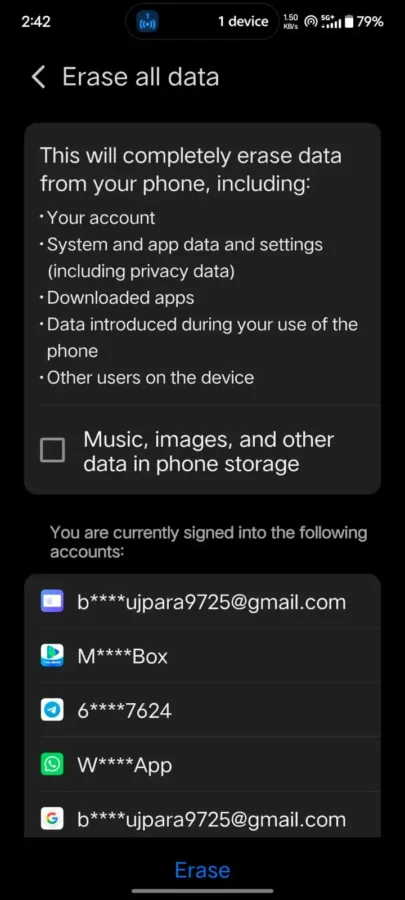
vah sab kuch jo delete ho jaega: aapke phone mein save ki gai sabhi photo aur wedio। sabhi download kiye gaye apps aur unka deta। aapke phone ki memory mein save kiye gaye sabhi contacts। sabhi SMS message aur call histri। sabhi save kiye gaye WiFi passward। aapke phone par log in kiye gaye sabhi accounts। sabhi download kiya gaya music aur filen। sabhi game ki progress aur save deta। sabhi custom settings aur prathmiktaen।
vah sab kuch jo delete nahin hoga: aapke Google account par save kiya gaya data (contacts, Gmail, Drive filen)। aapke SIM card par save kiya gaya deta। aapke SD card par save kiya gaya data (aamtaur par surakshit rahata hai, lekin pakka karne ke liye ise nikaal len)। aapka phone number aur career setings।
Step 1 — Back Up Your Data Before Resetting (Very Important!)
Never factory reset your phone without backing up your data first. Here is how to do it properly. How to factory reset phone
Backup on Android:
step 1 — apne phone par Settings kholen। step 2 — Google ya Accounts par tap karen। step 3 — Backup par tap karen। step 4 — pakka karen ki Back up to Google Drive chalu (ON) hai। step 5 — Back Up Now par tap karen। step 6 — backup pura hone ka intezaar karen — isme kuch minute lag sakte han। step 7 — janch len ki photo, contacts, app data aur SMS sabhi ka backup ho gaya hai।
At least backup steps: Google Photos kholen aur pakka karen ki sabhi photo Google Photos par backup ho gai hain। contacts ko apne Google account par export karen — Settings — Contacts — Export। reset karne se pehle sabhi zaruri password aur WiFi password kahin likh len।
Backup on iPhone:
tarika 1 — iCloud Backup (sujhaya gaya): step 1 — WiFi se connect karen। step 2 — Settings kholen — sabse upar apne naam par tap karen। step 3 — iCloud — iCloud Backup par tap karen। step 4 — Back Up Now par tap karen। step 5 — backup pura hone ka intezaar karen। step 6 — dikhai gai tarikh aur samay dekhkar pushti karen ki backup safal raha। phone ko factory reset kaise karen
tarika 2 — computer par backup: step 1 — ek cable se apne iPhone ko apne Mac ya PC se connect karen। step 2 — Finder (Mac) ya iTunes (Windows) kholen। step 3 — apne iPhone ke naam par click karen। step 4 — Back Up Now par click karen। step 5 — backup pura hone ka intezaar karen।
Best Smartphones Under ₹15,000 India 2026
How to Factory Reset Android Phone — All Major Brands
Method 1 — Factory Reset from Settings (Easiest and Recommended)
This method works on all Android phones when your phone is working normally.
Step 1 — Settings app kholen Step 2 — neeche scroll karen aur General Management ya System par tap karen Step 3 — Reset ya Reset Options par tap karen Step 4 — Factory Data Reset ya Erase All Data par tap karen Step 5 — chetavani ko dhyan se padhen — isme bataya jayega ki kya-kya delete ho jayega Step 6 — Reset ya Delete All par tap karen Step 7 — pushti karne ke liye apna PIN, password ya fingerprint dalen Step 8 — Reset Device ya Erase Everything par tap karen Step 9 — aapka phone restart hoga aur reset ki prakriya shuru ho jayegi Step 10 — reset pura hone ke liye 5 se 15 minute intezaar karen Step 11 — aapka phone restart hoga aur setup screen dikhai degi — bilkul naye phone ki tarah!
How to Factory Reset Samsung Galaxy Phone
yahan bataya gaya hai ki Samsung phone ko factory reset kaise karen। Samsung phone ka menu layout thoda alag hota hai। yahan bataya gaya hai ki 2026 mein Samsung Galaxy phone par reset ka vikalp theek kahan milega। phone ko factory reset kaise karen।
Charan 1 — Settings kholen। charan 2 — neeche scroll karen aur General Management par tap karen। charan 3 — Reset par tap karen। charan 4 — Factory Data Reset par tap karen। charan 5 — neeche scroll karke dekhen ki kya-kya delete hoga। charan 6 — neeche Reset par tap karen। charan 7 — agar pucha jaye, to apna Samsung account password ya PIN dalen। charan 8 — pushti karne ke liye Delete All par tap karen। charan 9 — phone restart hoga aur data mitana shuru kar dega — isme 5 se 10 minute lagenge। charan 10 — pura hone par Setup screen dikhai degi।
Samsung se juda zaruri not: agar aapne apne Samsung account mein sign in kiya hua hai, to pakka kar len ki aapko apne Samsung account ka email aur password yaad ho। reset ke baad aapse ise dalne ke liye kaha ja sakta hai। phone ko factory reset kaise karen।
How to Factory Reset Redmi and Xiaomi Phone
Redmi and Xiaomi phones run MIUI or HyperOS. The reset steps are as follows.
step 1 — settings kholen step 2 — neeche scroll karen aur ‘About Phone’ par tap karen step 3 — ‘Factory Reset’ par tap karen ya neeche scroll karke ‘Additional Settings’ — ‘Backup and Reset’ dhoondhen step 4 — ‘Erase All Data (Factory Reset)’ par tap karen step 5 — ‘Reset Phone’ par tap karen step 6 — apna PIN ya password dalen step 7 — confirm karne ke liye ‘Erase All Data’ par tap karen step 8 — phone restart hoga aur sara data mita dega — isme 5 se 10 minute lagenge
Alternative path on newer MIUI versions: Settings — System Apps — Phone Manager — Factory Reset
How to Factory Reset a Realme Phone
Step 1 — Open Settings Step 2 — Tap Additional Settings Step 3 — Tap Back Up and Reset Step 4 — Tap Erase All Data (Factory Reset) Step 5 — Tap Reset Phone Step 6 — Enter your PIN Step 7 — Tap Erase Everything Step 8 — Wait for phone to restart and complete the reset
How to Factory Reset a OnePlus Phone
Step 1 — Open Settings Step 2 — Tap System (or scroll to find Reset Options) Step 3 — Tap Reset Options Step 4 — Tap Erase All Data (Factory Reset) Step 5 — Tap Reset Phone Step 6 — Enter your PIN or password Step 7 — Tap Erase Everything Step 8 — Phone restarts and completes the reset in 5 to 10 minutes
How to Factory Reset a Vivo Phone
Step 1 — Open Settings Step 2 — Scroll down and tap More Settings Step 3 — Tap Backup and Reset Step 4 — Tap Factory Reset Step 5 — Tap Reset Phone Step 6 — Enter your PIN Step 7 — Tap Reset to confirm Step 8 — Wait for phone to restart
Method 2 — Factory Reset Using Recovery Mode (When Phone Won’t Turn On)
Use this method only when your phone is completely frozen, stuck on the logo screen, or you cannot access the Settings app.How to factory reset phone.
For most Android phones:
Step 1 — Turn off your phone completely Step 2 — Press and hold Volume Down + Power button together for 10 seconds Step 3 — Release when you see the Recovery Mode screen (black screen with text) Step 4 — Use Volume Down button to navigate to Wipe Data / Factory Reset Step 5 — Press Power button to select it Step 6 — Navigate to Yes and press Power button to confirm Step 7 — Wait for wipe to complete Step 8 — Select Reboot System Now Step 9 — Phone restarts fresh
Note: Button combinations vary by brand. Samsung: Volume Up + Power button, Redmi: Volume Up + Power button, Realme: Volume Down + Power button, OnePlus: Volume Down + Power button
How to Factory Reset an iPhone in 2026
Method 1 — Factory Reset from Settings (Easiest)
This is the recommended method for all iPhone models when your iPhone is working normally.
Step 1 — Settings app kholen Step 2 — sabse upar apna naam (Apple ID) tap karen Step 3 — neeche scroll karen aur Sign Out tap karen Step 4 — apna Apple ID password dalen Step 5 — Find My iPhone ko band karne ke liye Turn Off tap karen Step 6 — Settings par wapas jayen Step 7 — General tap karen Step 8 — sabse neeche tak scroll karen — Transfer or Reset iPhone tap karen Step 9 — Erase All Content and Settings tap karen Step 10 — poochhe jaane par apna iPhone passcode dalen Step 11 — pushti karne ke liye Erase iPhone tap karen Step 12 — reset pura hone ke liye 5 se 15 minute intezaar karen Step 13 — iPhone restart hoga aur Hello screen dikhaega
Works on: iPhone 8, iPhone X, iPhone 11, iPhone 12, iPhone 13, iPhone 14, iPhone 15, iPhone 16, iPhone 17 (all models in 2026)
Method 2 — Factory Reset iPhone Using Computer
agar aapka iPhone disable ho gaya hai, freez ho gaya hai, ya aap apna passcode bhool gaye han, to is tarike ka istemaal karen।
Mac par: step 1 — USB cable se iPhone ko Mac se connect karen। step 2 — Finder kholen। step 3 — sidebar mein apne iPhone ke naam par click karen। step 4 — Restore iPhone par click karen। step 5 — confirm karne ke liye Restore par click karen। step 6 — Mac latest iOS download karega aur aapke iPhone ko Restore kar dega।
Windows PC par: step 1 — USB cable se iPhone ko PC se connect karen। step 2 — iTunes ya Apple Devices app kholen। step 3 — iPhone icon par click karen। step 4 — Restore iPhone par click karen। step 5 — confirm karne ke liye Restore par click karen। step 6 — iTunes latest iOS download karega aur aapke iPhone ko Restore kar dega।
Method 3 — Factory Reset iPhone Remotely via iCloud
Use this if your iPhone is lost or you cannot physically access it.
Step 1 — Go to iCloud.com on any browser Step 2 — Sign in with your Apple ID and password Step 3 — Click Find My (or Find iPhone) Step 4 — Select your iPhone from the device list Step 5 — Click Erase This Device Step 6 — Follow on-screen confirmation steps Step 7 — iPhone will erase remotely next time it connects to the internet
Check it: Apple iPhone 18 Pro Max: Price, Features, and Release Date
What to Do After Factory Reset
After successfully resetting your phone, follow these steps to set it up properly.
Android phone ke liye: step 1 — apni bhasha aur kshetra chunein step 2 — WiFi se connect karen step 3 — apne Google khate mein sign in karen step 4 — ‘backup se restore karen’ ya ‘naye device ke taur par set up karen’ chunein step 5 — agar restore kar rahe hain — to sabse naya backup chunein step 6 — apps aur data ke restore hone ka intezaar karen — isme 15 se 30 minute lag sakte hain step 7 — fingarprint, fes unlock aur PIN set up karen step 8 — ab aap apna phone istemaal karne ke liye taiyar han!
iPhone ke liye: step 1 — apni bhasha chunein step 2 — WiFi se connect karen step 3 — apni Apple ID se sign in karen step 4 — ‘iCloud backup se restore karen’ ya ‘naye iPhone ke taur par set up karen’ chunein step 5 — agar restore kar rahe hain — to sabse naya backup chunein step 6 — restore pura hone ka intezaar karen — isme 20 se 40 minute lag sakte hain step 7 — Face ID ya Touch ID aur passcode set up karen step 8 — aapka iPhone taiyar hai! phone ko factory reset kaise karen।
Common Factory Reset Problems and Solutions
samasya 1 — Android reset ke baad phone Google account mangta hai। ise FRP Lock (Factory Reset Protection) kahte han। yah chori se bachane ke liye ek security fichar hai। aapko wahi Google account dalna hoga jo pehle phone par sign in tha। agar aap password bhool gaye han, to reset karne se pehle use recover karne ke liye accounts.google.com par jaen।
samasya 2 — reset ke baad iPhone Apple logo par atak gaya। kam se kam 15 minute intezaar karen। agar Apple logo nahin hatata hai, to Volume Up, phir Volume Down dabakar, aur phir Side button ko tab tak dabae rakhkar apne iPhone ko force restart karen jab tak Apple logo dikhai na de।
samasya 3 — Factory reset ka option grey (greyed out) dikh raha hai। iska matlab aam taur par yah hota hai ki iPhone par Screen Time ki pabandiyan chalu hain ya Android par koi device administrator install hai। Settings mein jaakar Screen Time band karen ya pehle device administrator app ko hata den।
samasya 4 — reset ke baad phone ka sara data chala gaya, lekin mere paas koi backup nahin hai। badkismati se, bina backup ke Factory reset mein delete hua data aam tareekon se recover nahin kiya ja sakta। isiliye reset karne se pehle backup lena bahut zaruri hai।
samasya 5 — reset mein bahut zyada samay lag raha hai। zyadatar phone par ek aam Factory reset mein 5 se 15 minute lagte han। agar isme zyada samay lagta hai, to ise atka hua manne se pehle 30 minute tak intezaar karen। reset process ke dauran phone band na karen। phone ko Factory reset kaise karen
Quick Reference — Factory Reset Steps by Brand
Samsung Galaxy: Settings — General Management — Reset — Factory Data Reset Redmi / Xiaomi: Settings — About Phone — Factory Reset Realme: Settings — Additional Settings — Back Up and Reset — Factory Reset OnePlus: Settings — System — Reset Options — Erase All Data Vivo: Settings — More Settings — Backup and Reset — Factory Reset iPhone: Settings — General — Transfer or Reset iPhone — Erase All Content
- Don’t Upgrade Yet! Windows 11 vs Windows 12 Full Comparison
![Windows 11 vs Windows 12 side by side comparison on desktop monitors in India]](data:image/svg+xml;base64,PHN2ZyB4bWxucz0iaHR0cDovL3d3dy53My5vcmcvMjAwMC9zdmciIHdpZHRoPSIxMjAwIiBoZWlnaHQ9IjY3NSIgdmlld0JveD0iMCAwIDEyMDAgNjc1Ij48cmVjdCB3aWR0aD0iMTAwJSIgaGVpZ2h0PSIxMDAlIiBzdHlsZT0iZmlsbDojY2ZkNGRiO2ZpbGwtb3BhY2l0eTogMC4xOyIvPjwvc3ZnPg== "Don't Upgrade Yet! Windows 11 vs Windows 12 Full Comparison")
- 7 Hidden WhatsApp Tricks Every Indian Should Know

- Nvidia RTX Spark: The AI Chip That Reinvents Your PC
- I Bought 5 Expensive Cool Gadgets from Amazon India – My Honest Unboxing & Ratings
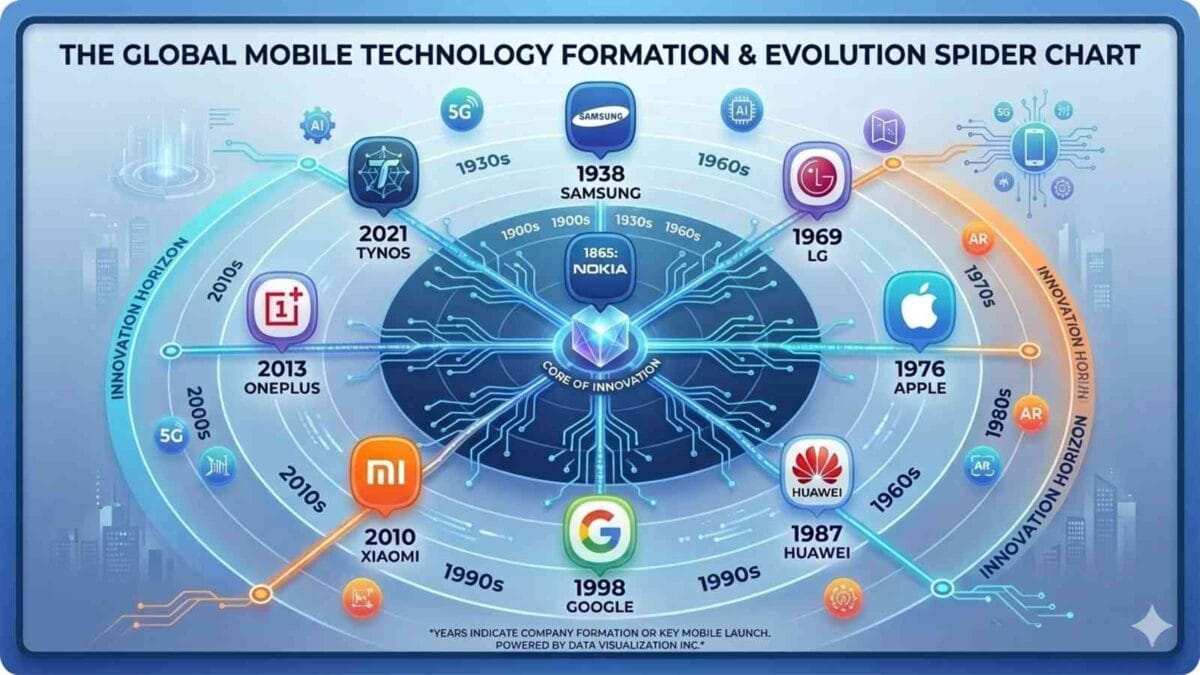
- World’s Top Mobile Companies: Founded Year, Owners & Market Share
- VPN Explained: Do You Really Need One in 2026? (Honest Guide)

![Windows 11 vs Windows 12 side by side comparison on desktop monitors in India]](https://techbhavik.com/wp-content/uploads/2026/06/win-12-1200x675.webp "Don't Upgrade Yet! Windows 11 vs Windows 12 Full Comparison")




Frequently Asked Questions (FAQ)
Many people ask how to factory reset phone settings without a computer.
Q1. Will a factory reset remove viruses and malware from my phone?
Yes, in almost all cases, a factory reset completely removes viruses and malware from your phone. Since it wipes everything, including all installed apps and files, the malicious software gets deleted along with everything else. After resetting, be careful about which apps you reinstall and only download from the official Google Play Store or Apple App Store.
Q2. How long does a factory reset take on Android?
A factory reset on Android typically takes 5 to 15 minutes. However, if your phone has a lot of data stored or is an older model with slower internal storage, it can take up to 30 minutes. Always make sure your phone is charged to at least 50 per cent before starting a factory reset.
Q3. Does a factory reset delete everything on the SD card?
In most cases, a factory reset does not delete data on your SD card. However, some phones offer an option to also format the SD card during reset. To be safe, always remove your SD card before performing a factory reset. How to factory reset a phone.
Q4. Can I recover data after a factory reset without backup?
Unfortunately, recovering data after a factory reset without a backup is extremely difficult. Some professional data recovery services may be able to recover certain types of data, but there is no guarantee. This is why creating a backup before resetting is the most important step in this entire guide.How to factory reset a phone.
Q5. Will factory resetting improve my phone’s speed?
Yes, a factory reset almost always significantly improves phone speed. It removes all accumulated junk data, clears storage space, removes problematic apps, and gives the operating system a fresh start. Most users report their phones feeling like new after a factory reset.
Q6. Do I need to remove my SIM card before a factory reset?
You do not need to remove your SIM card before factory resetting your phone. The factory reset does not delete data from the SIM card. However, it is a good practice to note down important contacts stored on the SIM before resetting, just to be safe.
Q7. What is the difference between a soft reset and a factory reset?
A soft reset is simply restarting your phone — it fixes minor glitches and temporary slowdowns without deleting any data. A factory reset completely wipes all user data and restores the phone to its original out-of-box state. Always try a soft reset first before performing a factory reset.
Final Verdict
factory recet, smartphone users ke liye uplabdh sabse asardaar tools mein se ek hai — yah lagbhag kisi bhi software problem ko theek kar sakta hai, performance ko kafi behtar bana sakta hai, aur aapke phone ko kisi naye malik ke liye surakshit roop se taiyar kar sakta hai।
Subse zaruri baat jo yaad rakhni chahiye, wah yah hai ki reset karne se pehle hamesha apne data ka backup le len। chahe aap Android par Google Drive backup istemaal karte hon ya iPhone par iCloud backup, backup banane ke liye 5 minute nikalne se aap reset ke baad hone wale ghanton ke pachtave se bach sakte hain।
is guide mein apne khas phone brand ke liye diye gaye step-bi-step nirdeshon ka palan karen aur aapka factory reset har baar aasani se ho jaega। Phone ko factory reset kaise karen
Kya aapke paas apne khas phone model ko factory reset karne ke baare mein koi sawal han? neeche ek comment karen ya contact@techbhavik.com par humse sampark karen।
— Bhavik Munjapara, TechBhavik.com
Tags: how to factory reset phone 2026, factory reset android phone, factory reset iphone 2026, how to reset samsung galaxy, how to reset redmi phone, how to reset realme phone, factory reset without losing data, hard reset android phone, factory reset iphone settings, reset phone before selling

B.L. Munjapara is the founder of TechBhavik.com and a technology writer specializing in AI tools, smartphone rankings, software guides, gadget reviews, and global technology trends. He helps readers understand emerging technology and make smarter digital decisions.
Wow gret full information topic i saw it is really helpful tech information