TechBhavikHome › Technology › How to Update Windows Technology
Is Your Windows Outdated? The Ultimate 2026 Guide to Manual & Auto Updates
📅 Updated: April 2025📖 7 min read
Yahan ek aisi cheez hai jiske baare mein zyadatar log tab tak nahin sochte jab tak system mein koi badi dikkat na aa jaye — unka Windows OS out of date ho jana. Kya aapka computer dheema (slow) chalne laga hai? Ya koi naya software install karte waqt error aa raha hai? Ho sakta hai aapko hafton se “Updates are available” ka notification mil raha ho aur aap use lagatar ignore kar rahe hon. Agar aisa hai, to aap akele nahin hain.
Ek tech expert ke taur par, main aapko bata doon ki Windows ko update rakhna aapke computer ke liye sabse aasan aur sabse zaroori kaam hai. Yeh na sirf aapke system ko cyber threats se surakshit (secure) rakhta hai, balki background bugs ko fix karke system performance ko boost karta hai aur naye features bhi unlock karta hai. Is complete technical guide mein, hum step-by-step jaanenge ki Windows 10 aur Windows 11 ko sahi tarike se kaise update kiya jata hai.
2026 Tech Update & Security Alert: Microsoft ne October 14, 2025 ko Windows 10 ke liye apna official free support poori tarah band kar diya hai. Iska matlab hai ki agar aap abhi bhi Windows 10 istemaal kar rahe hain, to aapko naye security patches aur updates nahi milenge, jisse aapka PC malware ke liye vulnerable ho jata hai. Is guide mein hum aapko Windows 11 par safely upgrade karne ka official tarika bhi batayenge takon aapka data safe rahe.
aapko Windows ko updated kyon rakhna chahiye?
isse pehle ki hum yah jaanen ki ise kaise karna hai, aaie jaldi se samajhte hain ki yah kyon zaruri hai। bahut se log updates ko chhod dete hain kyonki unhen dar hota hai ki kuch kharab ho jaega, ya ve bus restart karne ki jhanjhat mein nahin padna chahte। yah puri tarah se samajh mein aata hai — lekin asliyat yah hai:
har baar jab Microsoft koi update jaari karta hai, to wah un kamiyon ko theek karta hai jinka istemaal hackers aur malware aapke system mein ghusne ke liye karte han। bina updated Windows PC aisa hai jaise aap apne ghar ka mukhya darwaza khula chhod den। security ke alava, updates un software bugs ko bhi theek karte hain jinki vajah se apps crash ho jaate han, aapke PC ke memory aur battery istemaal karne ke tarike ko behtar banate han, aur kabhi-kabhi naye feeachers bhi jodte hain — jaise behtar taskbar vikalp, nai setings, ya Windows 11 mein pehle se maujood AI tuls।
sidhi si baat yah hai — updated Windows ka matlab hai ek zyada surakshit, tez aur sthir computer।
caption: Windows Update na sirf security patch deta hai, balki driver updats, fichar sudhar aur performance feccess bhi deta hai — sab kuch ek hi jagah par।
Windows 11 ko kaise update karen — step-by-step
agar aapka computer pehle se hi Windows 11 par chal raha hai, to ise update karna bahut tez aur aasan hai। aapko theek yahi karna hai:
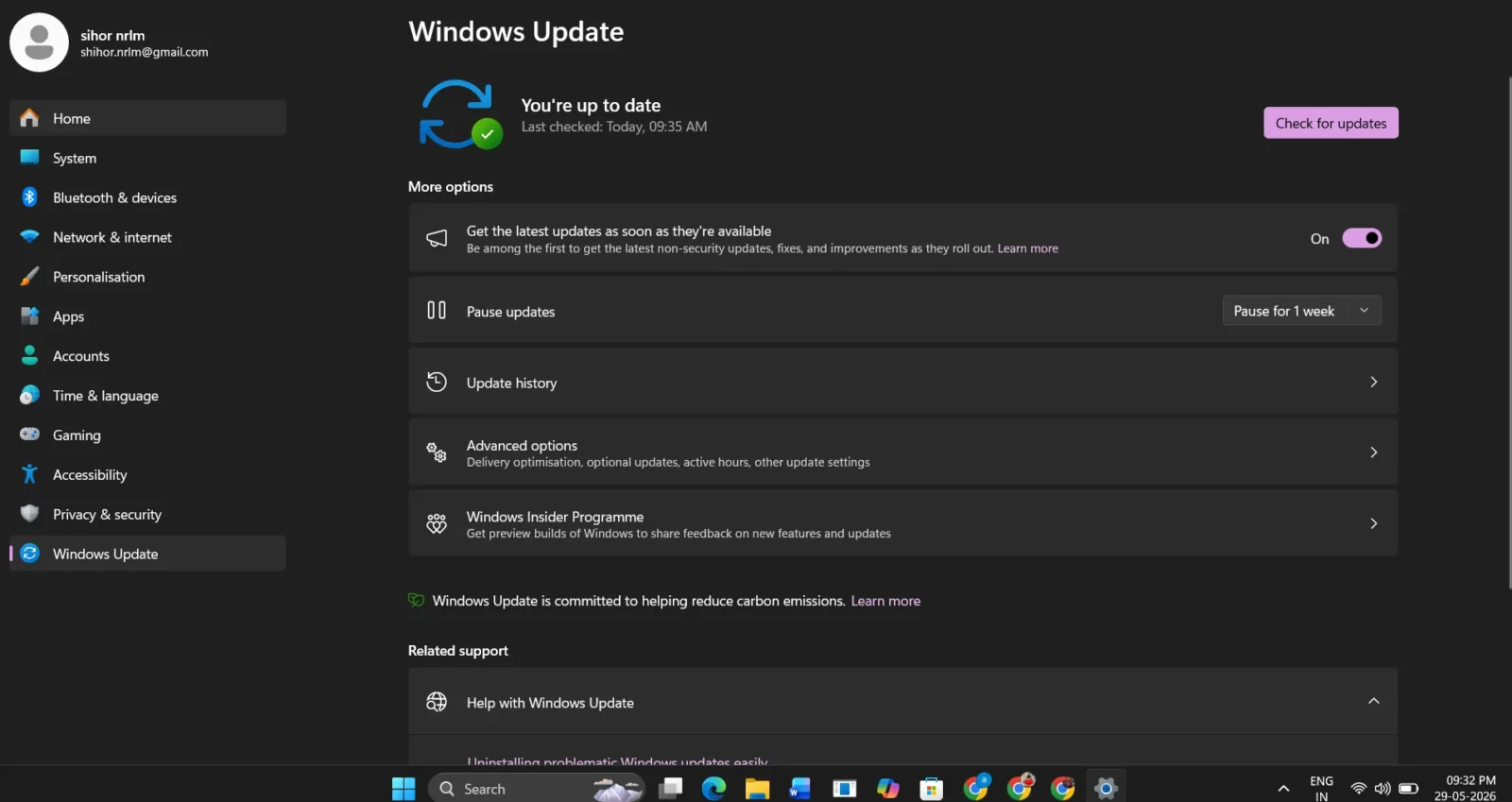
- Start button par click karen — yah aapki screen ke neeche Windows ka icon hota hai — aur phir Settings (giyar icon) par click karen।
- Settings window men, bai or ke sidebar mein dekhen aur Windows Update par click karen। yah aamtaur par list mein sabse neeche hota hai।
- ab aapko Windows Update page dikhai dega। neele rang ke “Check for updates” button par click karen। Windows uplabdh updates ke liye scan karna shuru kar dega।
- agar updates uplabdh han, to ve aapko screen par list mein dikhai denge। process shuru karne ke liye “Download & install” par click karen। bade updates ko download hone mein aapki internet speed ke aadhar par kuch minute lag sakte han।
- download pura hone ke bad, Windows aapse update install karne ka kaam pura karne ke liye apne PC ko Restart karne ke liye kahega। “Restart now” par click karen — ya apni suvidha ke anusar kisi samay ke liye restart schedule karen, taki aapka koi bhi khula hua kaam kho na jaye।
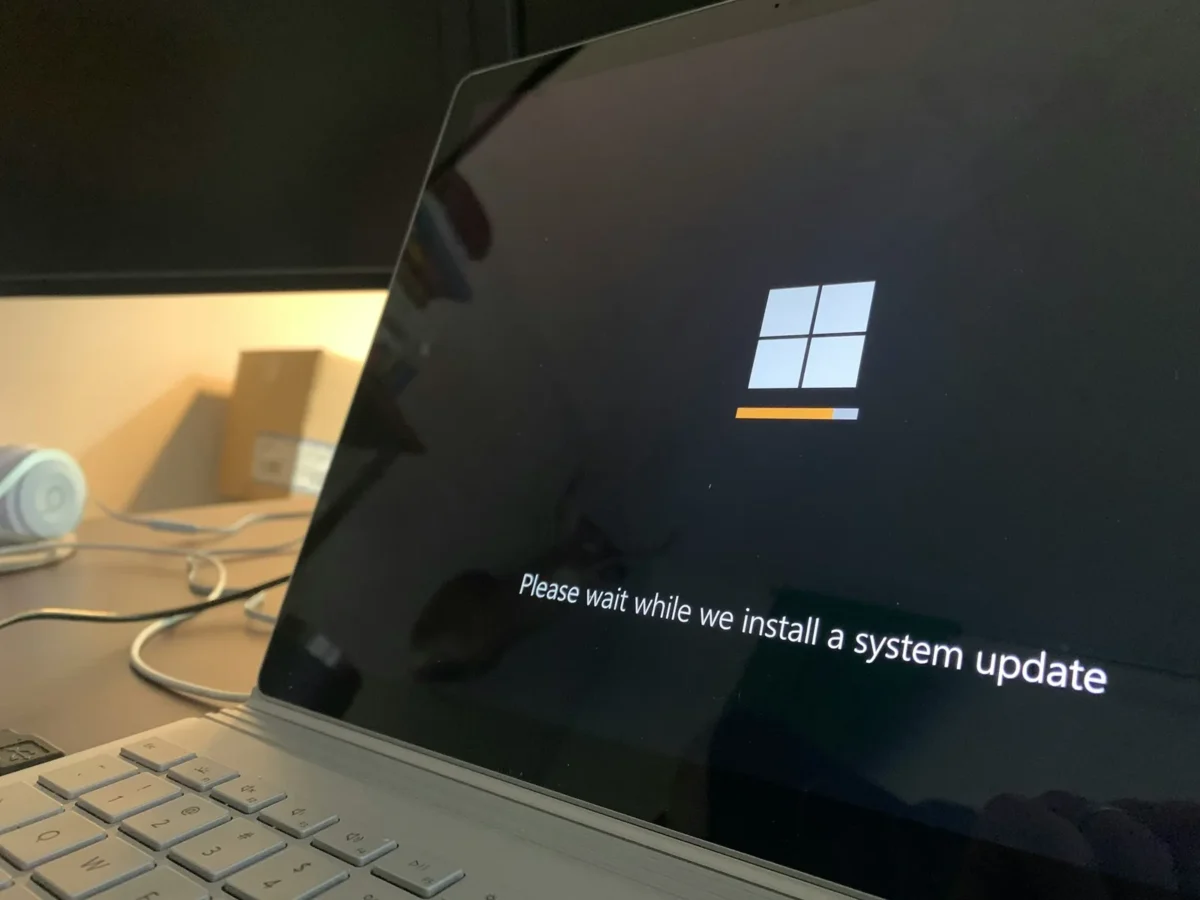
- aapka PC restart hoga aur ho sakta hai ki ek screen dikhai de jis par likha ho “Working on updates — please wait।” yah puri tarah se samanya hai। is charan ke dauran apne computer ko band na karen। jab yah pura ho jaega, to aap puri tarah se updated hokar apne desktop par wapas aa jaenge।
✅ Pro tip: updates tezi se payen। Windows Update settings men, “Get the latest updates as soon as they’re available” ko chalu (toggle on) karen। isse aapka PC naye updates ke liye kataar mein sabse aage aa jata hai, jisme Windows 11 ka version 25H2 bhi shamil hai — jo Microsoft ka 2025 ka sabse naya update hai।
Caption: Settings mein Windows Update page aapki sabhi zarooraton ke liye ek hi jagah hai — yah pending updates aur update history dikhata hai, aur aapko restart schedule karne ki suvidha deta hai, taki aapke kaam mein koi rukavat na aaye।
Windows 10 ko kaise update karen — step-by-step gid
kya aap abhi bhi Windows 10 istemaal kar rahe han? koi baat nahin। update karne ka process thoda alag hai, lekin utna hi aasan hai। in steps ko follow karen:
- Start button par click karen aur Settings (Start menu ke bai or bana gear icon) kholen।
- Update & Security par click karen। yah section khas taur par Windows Update aur anya suraksha suvidhaon ke liye hai।
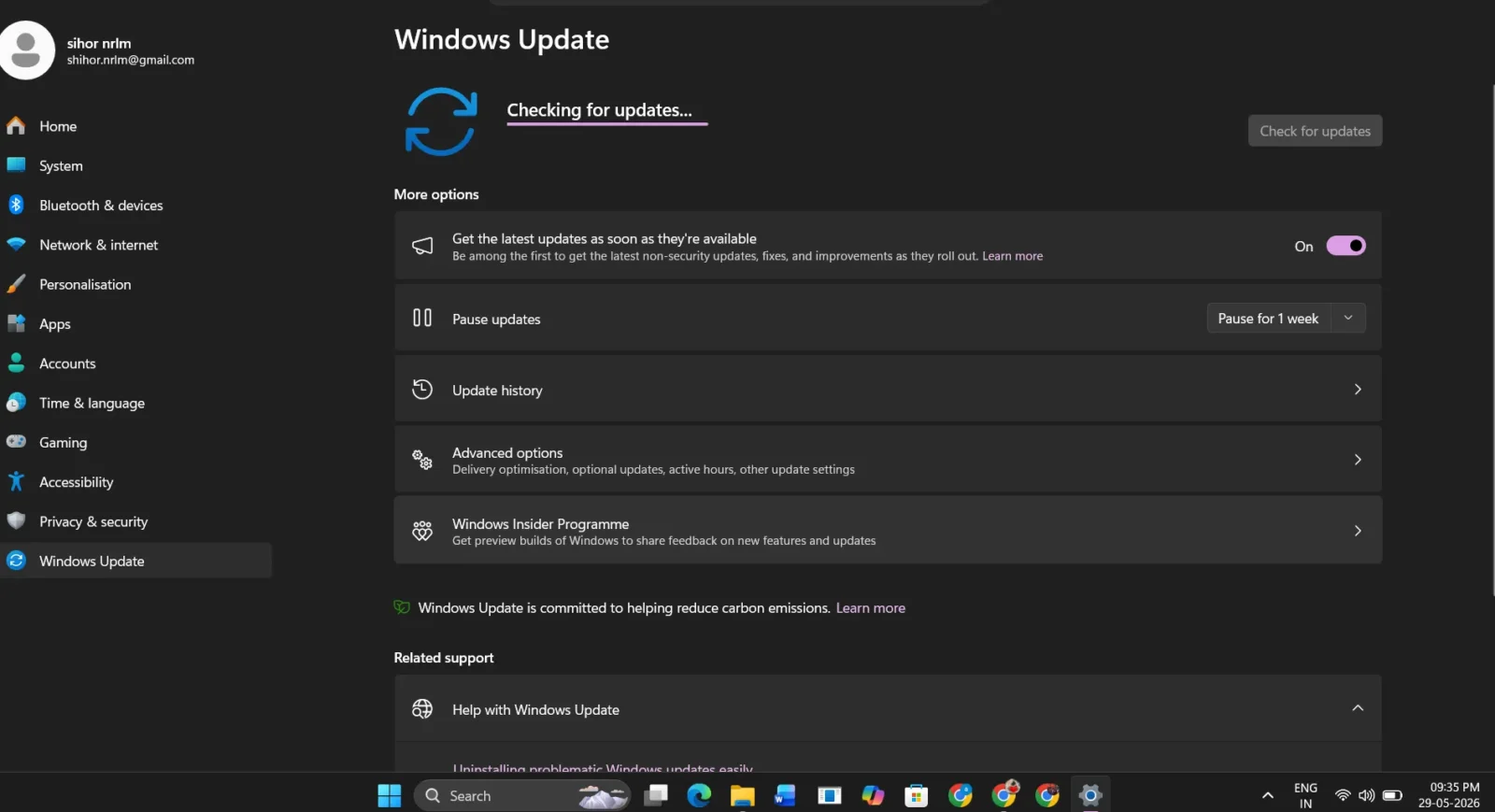
- Bai or, yah pakka kar len ki Windows Update chuna hua ho। phir “Check for updates” button par click karen।
- Windows uplabdh updates ki khoj karega। agar koi update uplabdh hai, to Download par click karen aur process ko chalne den। updates background mein download hote samay aap apne PC ka istemaal jaari rakh sakte han।
- download hone ke bad, installation pura karne ke liye aapko PC restart karne ke liye kaha jaega। restart karne ka aisa samay chunein jo aapke liye sabse sahi ho।
⚠️zruri: Windows 10 ka support october 2025 mein khatm ho gaya। Microsoft ne 14 octuber, 2025 ke baad Windows 10 ke liye muft security update dena band kar diya hai। agar aapka PC zaruri sharten puri karta hai, to hum aapko lagatar suraksha aur naye feeachers paane ke liye Windows 11 par upgrade karne ki zordar salah dete han।
caption: Windows 10 men, Windows Update section Settings mein “Update & Security” ke andar hota hai — yah Windows 11 se thodi alag jagah par hai, lekin ise dhoondna utna hi aasan hai।
Tech Insider
“Uncovering the tech secrets Big Tech doesn’t always broadcast. TechBhavik tracks the rapid industry moves, software updates, and smart hacks you need today.”
Bhavik is Also the founder, administrator, and driving force behind ABTadka and TechBhavik. As a passionate automotive enthusiast and tech visionary, he bridges the gap between horsepower and processing power. At abTadka, Bhavik delivers the latest Auto trends, breaking Cars News, and comprehensive Bike News. Meanwhile, through TechBhavik, he dives deep into the digital frontier, sharing expert insights on Tech & Technology, Artificial Intelligence (AI), and breaking down complex tech information for everyday readers. Dedicated to authority and accuracy, Bhavik ensures his audiences are always ahead of the curve.
Windows ko update kaise karen
Windows 10 se Windows 11
- agar aapka PC Windows 11 ko support karta hai, to upgrade karna muft hai। Microsoft, Windows Update ke zariye hi yah janch karna aur upgrade karna aasan banata hai। yahan bataya gaya hai ki yah kaise karen: Windows ko update kaise karen
- Sabse pahle, janchen ki kya aapka PC compatible hai। Microsoft ki website se muft PC Health Check app download karen। yah aapko turant bata dega ki aapka device Windows 11 chala sakta hai ya nahin।
- agar compatible hai, to Settings > Update & Security > Windows Update kholen। aapko ek banner dikh sakta hai jis par likha hoga “Windows 11 aapke device ke liye taiyar hai।”
- Windows 11 upgrade option ke neeche “Download and install” par click karen। download lagbhag 4–6 GB ka hota hai, isliye ek stable internet connection madadgar hoga।
- jab prompt mile, to apne PC ko restart karen। Upgrade apne aap install ho jayega aur aapki filen, apps aur settings surakshit rahengi।
🔒upgred karne se pehle backup len। upgrade aam taur par surakshit hote hain aur aapke data ko surakshit rakhte han, lekin kisi bhi bade Windows upgrade se pehle apni zaruri filon ka kisi bahari drive ya OneDrive par backup lena hamesha ek samajhdari bhara vichar hota hai — bus ehtiyaat ke taur par।
caption: Windows 11 version 25H2 — september 2025 mein release hua — AI-powerd fichars, ek naya design kiya gaya Start menu, aur Microsoft ki Secure Future Initiative par aadharit behtar suraksha lata hai। Windows ko kaise update karen
Windows ko update karne ke 4 tarike — tulna
Windows ko update karne ka ek se zyada tarika hai, aur har tarika aapki sthiti ke aadhar par alag tarah se kaam karta hai। yahan ek quick overview diya gaya hai jo aapko sahi tarika chunne mein madad karega:
| Method | Best For | Difficulty | Notes |
|---|---|---|---|
| Windows Update (Settings) | Most users — everyday updates | Easy | Recommended for all users. Safe and automatic. |
| Installation Assistant Tool | Upgrading to a new Windows version | Easy | Download from Microsoft site. Guides you step by step. |
| Media Creation Tool | Multiple PCs or clean install | Medium | Creates a bootable USB. For advanced users. |
| ISO File Download | Manual / offline installation | Medium | Full Windows image. Best for IT professionals. |
ghar par zyadatar rozana ke users ke liye, pehla tarika — Settings ke andar Windows Update — hi kafi hoga। baaki tarike khas sthitiyon ke liye han, jaise ki kisi aise PC ko upgrade karna jise automatic update nahin mil rahe han, ya jab aap koi bilkul nai machine set up kar rahe hon। Windows ko kaise update karen
How to fix computer problems 2026
Windows Update ki aam samasyaen aur unhen theek karne ke tarike
update aam taur par aasani se ho jaate han, lekin kabhi-kabhi cheezein plan ke mutabik nahin hotin। yahan kuch sabse aam samasyaen di gai hain jinka samna logon ko karna padta hai, aur unhen bina kisi technician ki madad ke kaise theek kiya ja sakta hai:
update 0% par atak jana ya download na hona
aisa aamtaur par tab hota hai jab download ke beech mein aapka internet connection toot jata hai, ya koi pichla update theek se pura nahin ho pata। apne router aur PC ko restart karke dekhen, aur phir se update check karen। agar samasya bani rehti hai, to Settings > System > Troubleshoot > Other troubleshooters mein jaakar Windows Update Troubleshooter chalaen।
update install karne ke liye disk mein paryapt jagah na hona
kuchh Windows update ka size bada hota hai aur unhen install karne ke liye khali jagah ki zaroorat hoti hai। File Explorer kholen, apni C: drive par right-clik karen, aur dekhen ki kitni jagah khali hai। agar yah 10 GB se kam hai, to update ko dobara aazmane se pehle jagah khali karne ke liye Disk Cleanup tool (ise Start mein khojen) ka istemaal karen।
update fail ho jana aur bar-bar pichli sthiti par laut aana
agar Windows koi update install karne ki koshish karta hai, fail ho jata hai, aur apne-aap pichle version par laut aata hai, to iska matlab ho sakta hai ki update mein aapke PC ki kisi cheez ke saath kampatibility ki samasya hai। kuch din intezaar karen — Microsoft aksar iska samadhan (fix) jaldi hi jaari kar deta hai। aap Microsoft ki website par Windows release health page bhi dekh sakte han, taki pata chal sake ki aapki samasya koi jani-pahchani samasya hai ya nahin।
update ke baad PC ka dheema chalna
kabhi-kabhi, koi update aane par PC kuch samay ke liye dheema ho sakta hai, kyonki Windows background mein chal rahe kaam (jaise indexing) poore kar raha hota hai। naya update aane aur restart karne ke bad, apne PC ko samanya hone ke liye lagbhag 30 minute ka samay den। agar PC phir bhi dheema chalta rahata hai, to Task Manager (Ctrl + Shift + Esc) kholkar dekhen ki kahin koi process bahut zyada resource to istemaal nahin kar raha hai।
🚫update ke dauran apne PC ko kabhi bhi band na karen। Windows update ke beech mein hi use rokna, system mein gambhir gadbdiyan paida kar sakta hai। update ko hamesha pura hone den, bhale hi isme ummeed se zyada samay kyon na lage। battery kam hone ke karan PC band na ho jaye, iske liye apne laptop ko hamesha power se jodkar (plugged in) rakhen।
Caption: The Windows Update Troubleshooter is a built-in tool that automatically detects and fixes the most common update problems — a great first step before trying anything else.
Windows mein Automatic Updates kaise chalu karen
agar aap chahte hain ki Windows hamesha apne-aap update hota rahe aur aapko iske liye kuch bhi yaad rakhne ki zaroorat na pade, to aap Automatic Updates chalu kar sakte han। aisa karne par, Windows background mein hi update download aur install kar lega, aur aapse PC restart karne ke liye tabhi kahega jab aapke liye aisa karna suvidhajanak hoga।
Windows 11 men, Settings > Windows Update > Advanced options par jaen। yahan aap “Metered connections par update download karen” (Download updates over metered connections) vikalp chalu kar sakte hain aur apne sakriya ghante (active hours) set kar sakte han, taki Windows ko pata rahe ki jab aap kaam kar rahe hon, to wah aapke PC ko restart na kare। Windows 10 men, yahi settings Settings > Update & Security > Windows Update > Advanced options ke antargat uplabdh han।
apne sakriya ghante sahi dhang se set karna, yahan aap jo kuch bhi kar sakte han, unme sabse zyada faydemand cheez hai। udaharan ke liye, Windows ko bataen ki aap aam taur par subah 9 baje se raat 10 baje tak sakriya rahte han; aisa karne par wah hamesha restart ko is samay-sima ke baad ke liye schedule karega — taki jab aap so rahe hon, tab update chupchap poore ho jaen।
- Don’t Upgrade Yet! Windows 11 vs Windows 12 Full Comparison
![Windows 11 vs Windows 12 side by side comparison on desktop monitors in India]](data:image/svg+xml;base64,PHN2ZyB4bWxucz0iaHR0cDovL3d3dy53My5vcmcvMjAwMC9zdmciIHdpZHRoPSIxNTAiIGhlaWdodD0iODQiIHZpZXdCb3g9IjAgMCAxNTAgODQiPjxyZWN0IHdpZHRoPSIxMDAlIiBoZWlnaHQ9IjEwMCUiIHN0eWxlPSJmaWxsOiNjZmQ0ZGI7ZmlsbC1vcGFjaXR5OiAwLjE7Ii8+PC9zdmc+ "Don't Upgrade Yet! Windows 11 vs Windows 12 Full Comparison")
- 7 Hidden WhatsApp Tricks Every Indian Should Know

- Nvidia RTX Spark: The AI Chip That Reinvents Your PC
- I Bought 5 Expensive Cool Gadgets from Amazon India – My Honest Unboxing & Ratings
- World’s Top Mobile Companies: Founded Year, Owners & Market Share
- VPN Explained: Do You Really Need One in 2026? (Honest Guide)

![Windows 11 vs Windows 12 side by side comparison on desktop monitors in India]](https://techbhavik.com/wp-content/uploads/2026/06/win-12-150x84.webp "Don't Upgrade Yet! Windows 11 vs Windows 12 Full Comparison")





Frequently Asked Questions
1. How do I check which version of Windows I have?
Press the Windows key + R on your keyboard, type winver, and press Enter. A small window will pop up showing your exact Windows version and build number. This tells you whether you are on Windows 10, Windows 11, and which specific version like 23H2 or 25H2.
2 Is it safe to update Windows?
Yes, absolutely. Microsoft tests updates thoroughly before releasing them. Very occasionally, a rare update may cause a minor issue on specific hardware — but these are quickly identified and Microsoft releases a fix. The risk of NOT updating is far greater, as your system becomes vulnerable to security threats.
3 What is the latest version of Windows 11 in 2025?
As of late 2025, the latest version is Windows 11 version 25H2, released in September 2025. It includes AI-powered features, an improved Start menu, and enhanced security. You can get it through Windows Update by enabling the “Get the latest updates as soon as they’re available” toggle. how to update windows
4 Will updating Windows delete my files?
No. Regular Windows updates and even major version upgrades (like going from Windows 10 to Windows 11) do not delete your personal files, photos, documents, or installed apps. However, it is always a good habit to back up important files before any major upgrade just to be safe. how to update windows
5 How long does a Windows update take?
Small security updates usually take 5 to 15 minutes including restart time. Larger feature updates like version upgrades can take 30 minutes to an hour depending on your PC’s speed and internet connection. Make sure your laptop is plugged in and you have a stable internet connection before starting a big update.
6 Can I pause Windows updates?
Yes. In Windows 11, go to Settings > Windows Update and you will see a “Pause updates” option. You can pause updates for up to 5 weeks. This is useful if you are in the middle of an important project and do not want any unexpected restarts. Just remember to unpause and update soon after — staying unprotected for too long is not ideal.
7 My PC says it is not compatible with Windows 11 — what should I do?
Windows 11 requires specific hardware — including a TPM 2.0 chip, a compatible 64-bit processor, at least 4 GB RAM, and 64 GB of storage. If your PC does not meet these requirements, Microsoft recommends staying on Windows 10 for now or considering purchasing a new PC that supports Windows 11. Do not try unofficial workarounds to force the upgrade as they can cause stability issues.
aakhiri baatein — apne Windows ko updated rakhen, apne PC ko surakshit rakhen
Windows ko updated rakhna, sach kahoon to, aapke computer ke liye sabse aasan aur sabse asardaar cheezon mein se ek hai jo aap kar sakte han। isme bus kuch hi click lagte hain aur yah zyadatar background mein hi ho jata hai। iske badle men, aapko ek zyada surakshit, sthir aur kaabil PC milta hai। “PC Health Check app“
chahe aap bus naya masik patch install kar rahe hon ya Windows 10 se Windows 11 version 25H2 par ja rahe hon, yah prakriya is tarah se design ki gai hai ki yah jitni ho sake utni aasan ho। is guide mein diye gaye steps ko follow karen, update ko chalne den, aur aapka computer iske liye aapka shukriya ada karega। Windows ko kaise update karen।
agar aapko yah guide madadgar lagi, to ise kisi aise dost ya parivar ke sadasya ke saath share karen jo apne Windows update ko hamesha talta rahata hai। aur agar aapka koi aisa sawal hai jiska zikr humne nahin kiya, to use comments mein poochhen — hamen aapki madad karke hamesha khushi hoti hai।
Windows ko update kaise karen
© 2025 TechBhavik | technology | techbhavik.com
Check it:

B.L. Munjapara is the founder of TechBhavik.com and a technology writer specializing in AI tools, smartphone rankings, software guides, gadget reviews, and global technology trends. He helps readers understand emerging technology and make smarter digital decisions.