
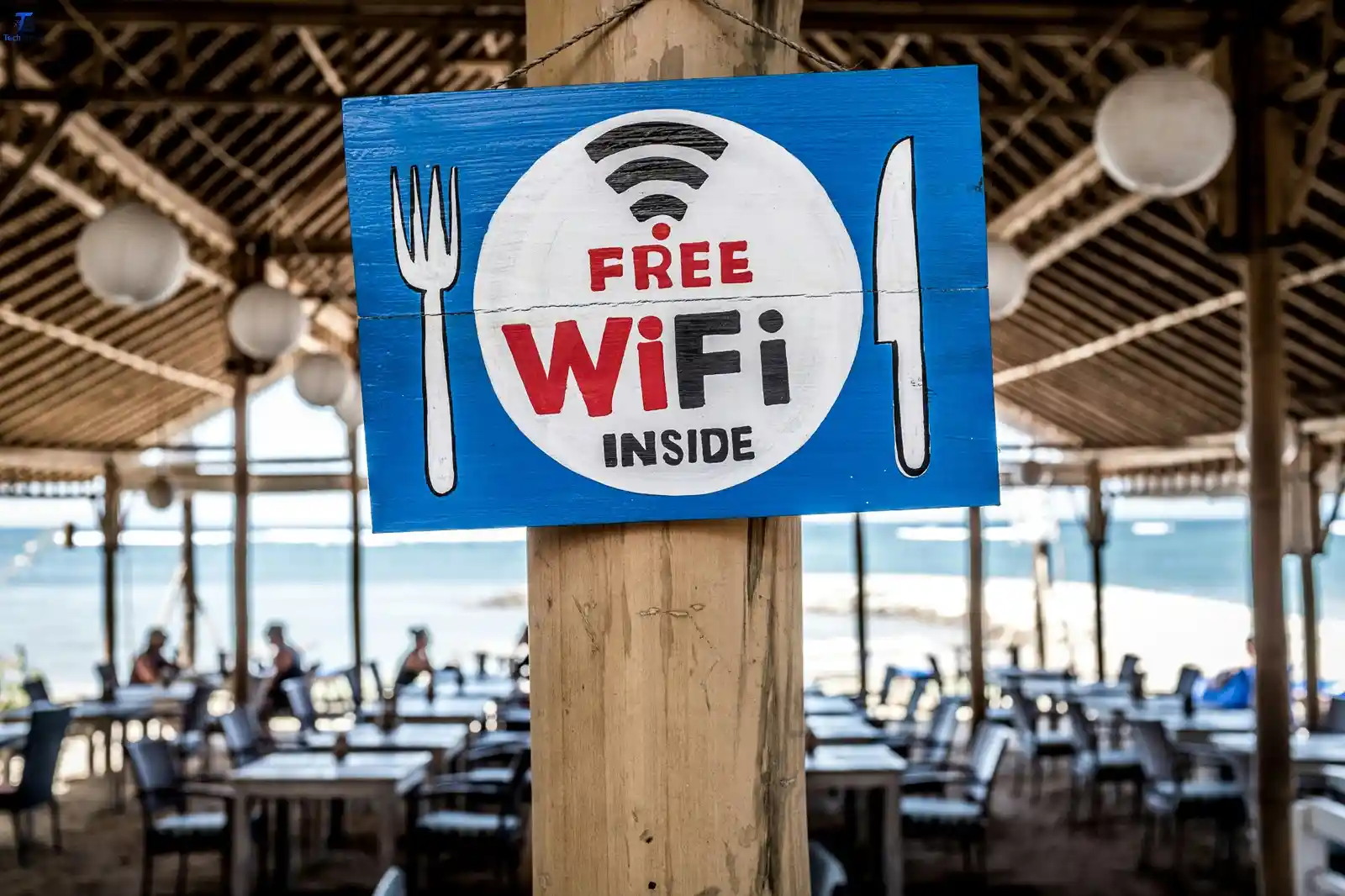
sach kahoon to — internet ki zaroorat hone par bhi uska istemaal na kar pana, isse zyada pareshan karne wali cheezein bahut kam han। chahe aapne abhi-abhi koi naya device khareeda ho, kisi nai jagah shift hue hon, ya aapka connection achanak cut gaya ho, yah sawal ki “main WiFi se kaise connect karun?” web par sabse zyada search ki jaane wali cheezon mein se ek hai। aur aap akele nahin han।
achi khabar kya hai? WiFi network se connect karna asal mein bahut aasan hai, bus aapko yah pata hona chahiye ki kahan dekhna hai। is guide men, hum aapko har bade device — Windows, Mac, Android, aur iPhone — par yah kaam step-bi-step karna sikhaenge। hum yah bhi batayenge ki jab cheezein plan ke mutabik na hon to kya karna chahiye, kyonki kabhi-kabhi WiFi apni marzi se chalta hai।
caption: WiFi, jiska pura naam Wireless Fidelity hai, aapke device ko ek wireless router ke zariye internet se judne mein madad karta hai — iske liye kisi cable ki zaroorat nahin hoti।
WiFi kya hai aur yah kaise kaam karta hai?
isse pehle ki hum steps par aage badhen, aaie jaldi se yah samajh len ki jab aap “WiFi se kanect” karte hain to asal mein kya hota hai। aapka internet service provider (ISP) ek physical cable ke zariye aapke ghar ya office tak internet pahunchata hai। wah cable ek router se judti hai, jo phir ek wireless signal bhejta hai — yahi aapka WiFi network hota hai।
jab aapka phon, laptop ya tablet us signal ko pakad leta hai aur sahi password ka istemaal karke router se safaltapurvak jud jata hai, to aap connect ho jaate han। asal men, yah apne mool roop mein itna hi aasan hai। asli chunauti yah janana hai ki apne khas device par theek kahan tap, click ya togal karna hai।
caption: aapka router aapke home network ka kendra hota hai — yah aapke internet connection ko ek wireless signal mein badal deta hai, jise aapke device pehchankar usse jud sakte han।
Windows PC ya Laptop par WiFi se kaise connect karen
agar aap Windows computer istemaal kar rahe hain — chahe wah desktop ho, laptop ho, ya Surface ho — to connect hone ka sabse aasan tarika yah hai:
step 1 apni screen ke niche-daayen kone mein dekhen aur WiFi icon dundhen। yah kuch ghumavdar lainon ya signal baar jaisa dikhta hai। is par click karen।
step 2 ek panel khulega jisme aas-pas ke sabhi uplabdh network dikhai denge। list mein apne network ka naam (jise SSID bhi kahte han) dundhen।
step 3 apne network par click karen, phir Connect par click karen। agar aap pehli baar connect kar rahe han, to us box ko check karen jis par likha hai “Connect automatically” (apne-aap connect karen), taki aapko har baar aisa na karna pade।
Step 4 jab pucha jaye to WiFi password dalen aur Next dabaen। aapke device ko connect hone mein kuch second lagenge, aur phir aap online ho jaenge।
agar taskbar mein WiFi icon nahin dikh raha hai, to Settings → Network & Internet → WiFi par jayen aur pakka karen ki WiFi chalu (toggled on) hai।
Caption: Windows 11 par, WiFi panel Quick Settings area se access kiya ja sakta hai — bus screen ke nichale-daayen kone mein ghadi ke paas network icon par click karen।
MacBook par WiFi se kaise connect karen
Apple ne hamesha cheezon ko saf-suthara aur aasan rakha hai, aur Mac par WiFi se connect karna bhi vaisa hi hai।
Step 1 apni screen ke upari-daayen kone mein WiFi icon par click karen (yah menu baar mein hota hai)। agar aapko yah nahin dikhta hai, to System Settings → WiFi par jayen aur ise chalu karen।
Step 2 ek dropdown khulega jisme sabhi uplabdh network dikhenge। apne network ke naam par click karen।
Step 3 dikhne wale box mein apna password dalen, phir Join par click karen।
Step 4 menu baar mein maujood icon bhar jaega, jisse signal ki mazbooti pata chalegi; iska matlab hai ki aap connect ho gaye hain aur ab aap iska istemaal kar sakte han।
Pro tip: agar aap chahte hain ki jab bhi koi bharosemand network aas-pas ho, to aapka Mac usse apne-aap connect ho jaye, to network ke naam par right-clik karen aur “Add to Preferred Networks” chunen।
Caption: macOS par, upari menu baar mein maujood WiFi icon aapko uplabdh network aur connection ki sthiti ki jankari turant aur ek nazar mein de deta hai।
Android phone ya tablet par WiFi se kaise connect karen
Android phone ka layout brand (Samsung, OnePlus, Xiaomi, vagairh) ke hisab se thoda alag ho sakta hai, lekin sabhi mein connect karne ka tarika lagbhag ek jaisa hi hota hai।
Step 1
apni Settings app kholen — ya to app drawer se, ya phir neeche ki or swipe karke gear icon par tap karke।
Step 2
WiFi ya Network & Internet → WiFi par tap karen (yah aapke phone ke version par nirbhar karta hai)।
Step 3
pakka karen ki WiFi togal chalu hai। aapko uplabdh network ki ek list dikhai degi। step 4
apne network ke naam par tap karen, password dalen, aur Connect par tap karen।
kanect hone ke bad, aapko apni screen ke upari hisse mein status baar mein WiFi ka nishan dikhai dega। kuch Android phone aapko turant connect hone ke liye QR code scan karne ki suvidha bhi dete hain — yah ek aasan shortcut hai, agar koi apna WiFi QR code ke roop mein share karta hai।
caption: zyadatar Android device status baar mein WiFi indicator dikhate hain — WiFi ka bhara hua arc (aadha gola) hone ka matlab hai ki aap connected han, jabki khali arc hone ka matlab aksar yah hota hai ki aap network se jude hone ke bavjood internet ka istemaal nahin kar paa rahe han।
Check It: Apple iPhone 18 Pro Max: Price, Features, and Release Date
iPhone ya iPad par WiFi se kaise connect karen
iPhone duniya bhar mein bahut zyada lokpriya han, aur Apple WiFi se connect hone ki prakriya ko bahut aasan aur sidha-sada banata hai।
step 1
Settings mein jayen (aapki home screen par maujood grey rang ke gear wale icon par tap karen)।
step 2
menu mein sabse upar ki or maujood WiFi par tap karen।
step 3
pakka kar len ki WiFi ka switch hare rang ka (chalu) ho। aapko “Other Networks” ke neeche uplabdh network ki ek list dikhai degi।
step 4
apne WiFi network ke naam par tap karen, password dalen, aur Join par tap karen।
connected network ke bagal mein ek neela chek-mark dikhai dega, aur aapki screen ke upar-baayen kone mein WiFi baar dikhai denge। ab aap puri tarah taiyar han!
caption: iPhone par, Settings mein network naam ke bagal mein ek neele chek-mark ka matlab hai ki aapka device usse sakriya roop se juda hua hai।
WiFi ki aam samasyaen aur unhen theek karne ke tarike
bhale hi aap sab kuch sahi tarike se karen, phir bhi kabhi-kabhi WiFi theek se kaam nahin karta। yahan kuch sabse aam samasyaen di gai hain jinka samna log karte han, aur aap unhen kaise theek kar sakte han:
galat password ki samasya
yah samasya aapki soch se kahin zyada aam hai। WiFi password kes-sencitiv hote hain (yani unme chhote aur bade aksharon ka fark hota hai), isliye dobara janch len ki kahin aapne galti se koi bada akshar to nahin type kar diya, jahan uski zaroorat nahin thi। zyadatar password field mein ek chhota “aankh” (eye) jaisa icon hota hai — aapne jo type kiya hai use dekhne ke liye us par tap karen।
connected hai, lekin internet nahin chal raha
aap network se to jude hue han, lekin websitein khul nahin rahi han। iska matlab aamtaur par yah hota hai ki samasya aapke device mein nahin, balki router mein hi hai। router ko band karke dekhen, 30 second intezaar karen, aur phir use dobara chalu karen। agar samasya bani rehti hai, to ho sakta hai ki samasya aapke ISP (internet seva pradata) ki taraf se ho। WiFi se kaise juden।
netwark dikhai nahin de raha
agar aapko suchi mein apna WiFi network dikhai nahin de raha hai, to ho sakta hai ki aapka router bahut zyada door ho, ya phir network chhipa hua (hidden) ho। pakka karen ki aap router ki seema (range) ke andar han, aur suchi ko refresh karne ke liye apne device ka WiFi band karke dobara chalu karke dekhen।
dhima WiFi kanection
agar page dhire-dhire khul rahe han, to router ke aur kareeb jaane ki koshish karen, ek hi samay par jude hue deviceon ki sankhya kam karen, ya apne router ko restart karen। deewaren aur dusre electronic upkaran WiFi signal ki mazbooti mein rukavat daal sakte han।
caption: router ko bus ek baar restart karna — yaani use 30 second ke liye unplug karke dobara plug in karna — WiFi ki kai samasyaon ko bina kisi takniki jankari ke hi theek kar deta hai।
WiFi suraksha par ek chhoti si baat
jab aap kisi sarvajanik WiFi se judte hain — jaise kisi cafe, hawai adde, ya hotel mein — to online aap jo kuch bhi karte han, uske baare mein savdhan rahen। sarvajanik network aam taur par asurakshit hote han, jiska matlab hai ki usi network par maujood dusre log bhi aapka data dekh sakte han। sarvajanik WiFi ka istemaal karte samay apne bank khate mein log in karne ya koi bhi samvedansheel niji jankari dalne se bachen। agar aap aksar sarvajanik network ka istemaal karte han, to VPN (vartual private netwark) ka istemaal karne se suraksha ki ek atirikt parat mil jaati hai।
home network ke liye, apne WiFi ke liye hamesha ek mazboot aur anokha password istemaal karen। “12345678” ya apne naam jaise aasan password istemaal karne se bachen। aksharon, ankon aur chihnon ka mail aapke network ko todna bahut mushkil bana deta hai।
Frequently Asked Questions (FAQ)
Q1. How do I find my WiFi password?
Your WiFi password is usually printed on a sticker on the back or bottom of your router. If you’ve changed it and forgotten it, you can view the saved password through your router’s admin settings by typing your router’s IP address (commonly 192.168.1.1) into a browser.
Q2. Why does my device keep disconnecting from WiFi?
This can happen due to a weak signal, outdated network drivers (on Windows/Mac), or power-saving settings that turn off WiFi to save battery. Try moving closer to the router, updating your device’s software, or adjusting power settings.
Q3. Can I connect to WiFi without a password?
Only if the network is an open (unsecured) network, which is common in public places like libraries or cafes. Home networks should always have a password for security reasons. You can also connect via WPS button on some routers without entering a password.
Q4. What is the difference between 2.4GHz and 5GHz WiFi?
Most modern routers broadcast two frequencies. The 2.4GHz band covers a larger area but is slower. The 5GHz band is faster but has a shorter range. For everyday browsing, 2.4GHz works fine. For streaming or gaming, connect to 5GHz if you’re close to the router.
Q5. How many devices can I connect to one WiFi network?
Most home routers can handle 20 to 30 connected devices comfortably. However, the more devices actively using the internet at the same time, the slower your speeds will be. Some high-end routers can support 50+ devices without noticeable slowdown.
Q6. Is it safe to use public WiFi?
Public WiFi is convenient but comes with risks. Avoid accessing sensitive accounts like online banking on public networks. Use a VPN to encrypt your connection, and make sure websites use HTTPS (look for the padlock icon in your browser’s address bar).
Q7. Why is my WiFi speed slow even after connecting?
Slow speeds after connecting can be caused by distance from the router, interference from other devices, too many users on the network, or an issue with your internet plan. Try restarting the router, moving closer to it, or running a speed test at fast.com to check your actual speeds.
- Don’t Upgrade Yet! Windows 11 vs Windows 12 Full Comparison
![Windows 11 vs Windows 12 side by side comparison on desktop monitors in India]](data:image/svg+xml;base64,PHN2ZyB4bWxucz0iaHR0cDovL3d3dy53My5vcmcvMjAwMC9zdmciIHdpZHRoPSIxNTAiIGhlaWdodD0iODQiIHZpZXdCb3g9IjAgMCAxNTAgODQiPjxyZWN0IHdpZHRoPSIxMDAlIiBoZWlnaHQ9IjEwMCUiIHN0eWxlPSJmaWxsOiNjZmQ0ZGI7ZmlsbC1vcGFjaXR5OiAwLjE7Ii8+PC9zdmc+ "Don't Upgrade Yet! Windows 11 vs Windows 12 Full Comparison")
- 7 Hidden WhatsApp Tricks Every Indian Should Know

- Nvidia RTX Spark: The AI Chip That Reinvents Your PC
- I Bought 5 Expensive Cool Gadgets from Amazon India – My Honest Unboxing & Ratings
- World’s Top Mobile Companies: Founded Year, Owners & Market Share
![Windows 11 vs Windows 12 side by side comparison on desktop monitors in India]](https://techbhavik.com/wp-content/uploads/2026/06/win-12-150x84.webp "Don't Upgrade Yet! Windows 11 vs Windows 12 Full Comparison")




Final Thoughts — You’ve Got This
Connecting to WiFi doesn’t have to feel complicated. Whether you’re on a Windows laptop, a MacBook, an Android phone, or an iPhone, the process follows the same basic logic: turn on WiFi, find your network, enter the password, and connect. Once you’ve done it a few times, it becomes second nature.
If things go wrong — and sometimes they will — don’t panic. A quick router restart solves most problems. And if you’re dealing with a more persistent issue, checking your device’s network settings or calling your ISP is usually the next best step.
We hope this guide answered your question “How do I connect to WiFi?” in a way that actually makes sense. Bookmark this page for the next time you (or someone you know) needs a hand getting online. The internet is waiting for you — and now you know exactly how to get there.
Found this helpful? Share it with someone who needs it. Got a question we didn’t cover? Drop it in the comments below.
Wondering how to connect to WiFi on your phone, laptop, or tablet? This easy guide covers every device — Windows, Mac, Android, iPhone — with tips to fix common problems fast.
How to fix computer problems 2026
How to Speed Up Windows 11 PC in 2026

B.L. Munjapara is the founder of TechBhavik.com and a technology writer specializing in AI tools, smartphone rankings, software guides, gadget reviews, and global technology trends. He helps readers understand emerging technology and make smarter digital decisions.
Hey
Enlist techbhavik.com in GoogleSearchIndex and have it be displayed in online search results!
Register techbhavik.com