
2026 ma saamanya computer samasyaao kevi rite thik karvi — TechBhavik dwara sampurn mushkelinivaran margdarshika
By Bhavik Munjapara | TechBhavik.com | April 2026
shu tamarun computer tamne mushkeli aapi rahyu chhe? shu te sharu thavaano inkar kare chhe, nirashajanak rite dhimu chale chhe, andhari rite kresh thaay chhe, athva internetthi connect thavaano inkar kare chhe? tame ekla nathi. computer samasyaao vishvbharma sauthi vadhu shodhayelaa vishayomani ek che – ane saara kaaranosar. lagbhag darek computer vapraashkarta koine koi samaye aa samsyaono samno kare chhe.
sara samachar e che ke motabhagni saamanya computer samsyaoma saral ukelo che je tame ghare jaate ajmavi shako cho — teknisianne bolavya vina athva samarkam par paisa kharchya vinaa.
aa sampurn margdarshikama, hu tamne 2026 ma 10 sauthi saamanya computer samsyaomathi pasaar karish ane tamne bataavish ke darekne kevi rite paglu dwara paglu thik karvi. bhale tame Windows PC, Laptop athva Desktop no upyog karo cho, aa ukelo darek maate kaam kare chhe.
How to fix computer problem: PC won’t turn on : problem 1
aa sauthi bhayanak computer samasyaomani ek che – tame power button dabavo cho ane kai thatu nathi. gabharata pahela, aa saral ukelo ajamavo.
tene kevi rite thik karvu:
lepatop mate: paglu 1 — tapaso ke tamarun laptop charge thayel che ke nahin. charjarne connect karo ane tene farithi chalu karvano prayas karta pahela 10 minit rah juo. paglu 2 — alag charger cable ajamavo. khamiyukt charger e laptop chalu na thavanu ek khoob j saamanya kaaran chhe. paglu 3 — betree dur karo (jo dur kari shakay tevu hoy), power batanne 30 second maate pakadi raakho, betree farithi dakhal karo ane farithi prayas karo. paglu 4 — betree samasya che ke nahi te jova maate betree vina laptopne sidha power saathe connect karo.
For Desktop PCs : paglu 1 — tapaso ke power cable pc ane wall socet banne saathe majbut rite jodayel chhe. paglu 2 — wall socet kaam kari rahyu che teni khatari karwa maate bija upkaran saathe tenu parixan karo. paglu 3 — deskatopni pachhadnaa bhagma power swich tapaso – khatari karo ke te chalu sthitima chhe. paglu 4 — tapaso ke power button cable kesni andar motherboard saathe yogya rite jodayel chhe.
vyavasayik madad kyare levi: jo aamanthi koi paglu kaam kartu nathi, to power supply unit (PSU) nishfal thai shake che ane tene vyavsayik riplesamentni jarur padashe.
samasyaa 2 — computer khoob dhimu chali rahyu chhe
dhimun computer e vishvbharma sauthi saamanya fariyad chhe. te nirashajanak che parantu lagbhag hamesha koipan kharch vina sudhari shakay chhe.
How to Fix It:
pagalu 1 — tamara kamputerne farithi sharu karo. aa sauthi saral ane sauthi asarkaarak pahelu paglu chhe. farithi sharu karvathi RAM saaf thaay che ane pushthbhumi prakriyao bandh thaay chhe.
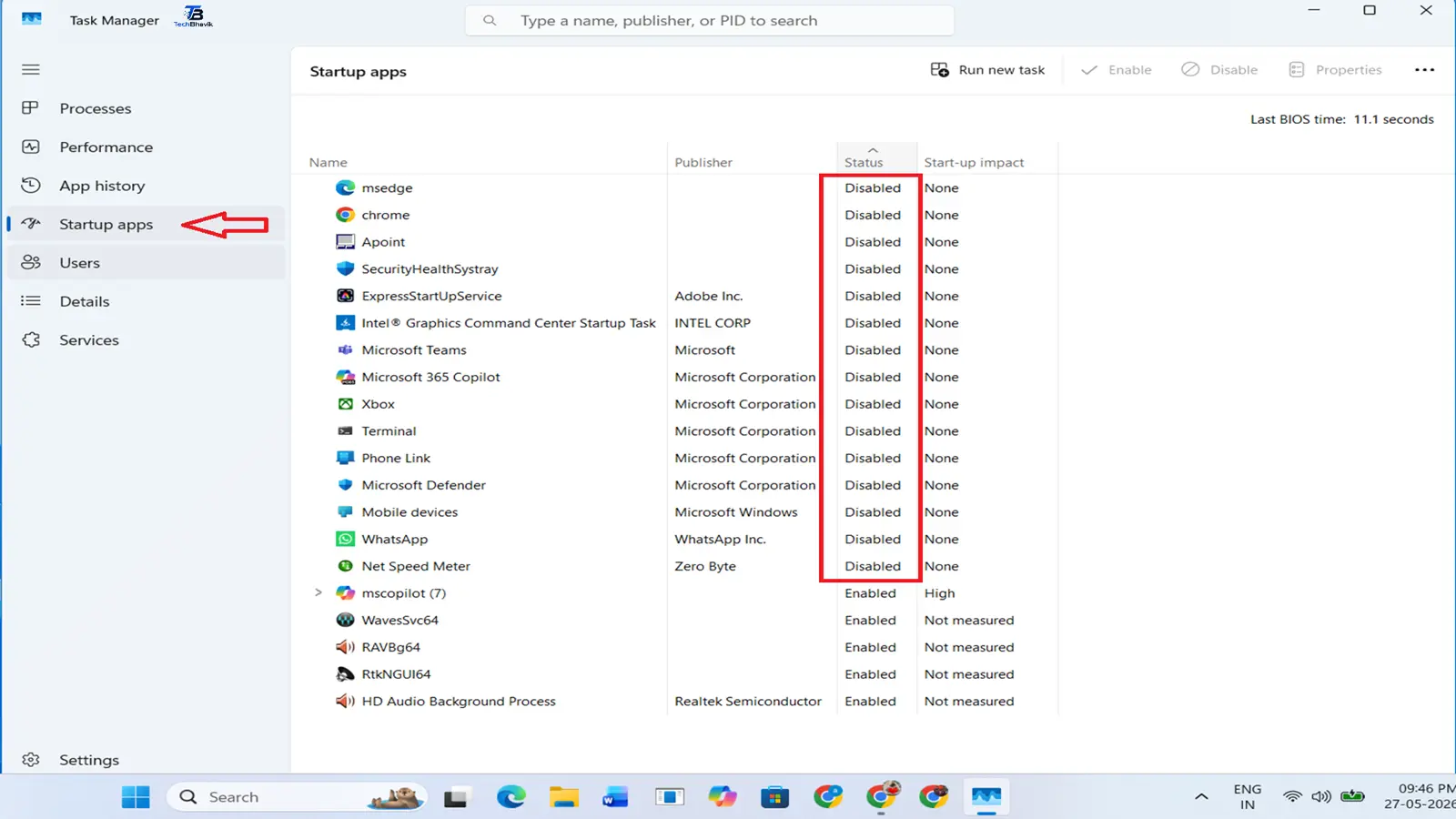
pagalu 2 — startup prograamsne aksham karo. task manager kholava maate Ctrl + Shift + Esc dabavo. dabi bajuae startup applications par click karo. startup par sharu thati badhi binjaruri aplicationone aksham karo.
pagalu 3 — tamara sansadhanono upyog shu kari rahyu che te tapaso. task manager (Ctrl + Shift + Esc) kholo. upyog dwara sort karwa maate CPU athva memory kolam par click karo. tamara CPU athva RAM na 50% thi vadhu upyog karine koipan application bandh karo.
pagalu 4 — disc spes saaf karo. setings kholava maate Windows + I dabavo. system — storage — tampri filo par jao. badhi tampri filo kaadhi nakho.
pagalu 5 — malver maate scan karo. vindoz security kholo. tamara systemne dhimu karta virus tapasva maate purn scan chalaavo.
pagalu 6 — tamari RAM upgrade karo athva SSD par swich karo. jo tamara computerma 8GB karta ochhi RAM hoye athva juni HDD no upyog kare, to upgrade karvu e sauthi asarkaarak lamba gaadaano ukel chhe.
apexit sudharo: motabhagna vapraashkartao aa paglanne anusarya pachhi gatima 30 thi 60 taka sudharo juae chhe.
Problem 3 — Blue Screen of Death (BSOD)
blu screen of deth e ek mahatvapurn vindoz bhool che je tamara kamputerne kresh kare che ane error code saathe blu screen pradarshit kare chhe. te chintajanak che parantu saamanya rite sudhari shakay chhe.
samany BSOD bhool kods ane temna arth: IRQL_NOT_LESS_OR_EQUAL — saamanya rite khamiyukt driverne kaarane thaay chhe. MEMORY_MANAGEMENT — RAM samasya athva dushit system filo. CRITICAL_PROCESS_DIED — ek mukhya vindoz prakriya nishfal gai chhe. WHEA_UNCORRECTABLE_ERROR — hardver nisfalta, ghanivar CPU athva RAM.
tene kevi rite thik karvi:
pagalu 1 — vadadee screen par batavel bhool code par dhyan aapo. chokkas margdarshan maate tene online shodho.
pagalu 2 — tamara kamputerne farithi sharu karo. ghanaa BSOD e ek vakhatni ghatanao che je kaamchalaau bhulne kaarane thaay chhe.
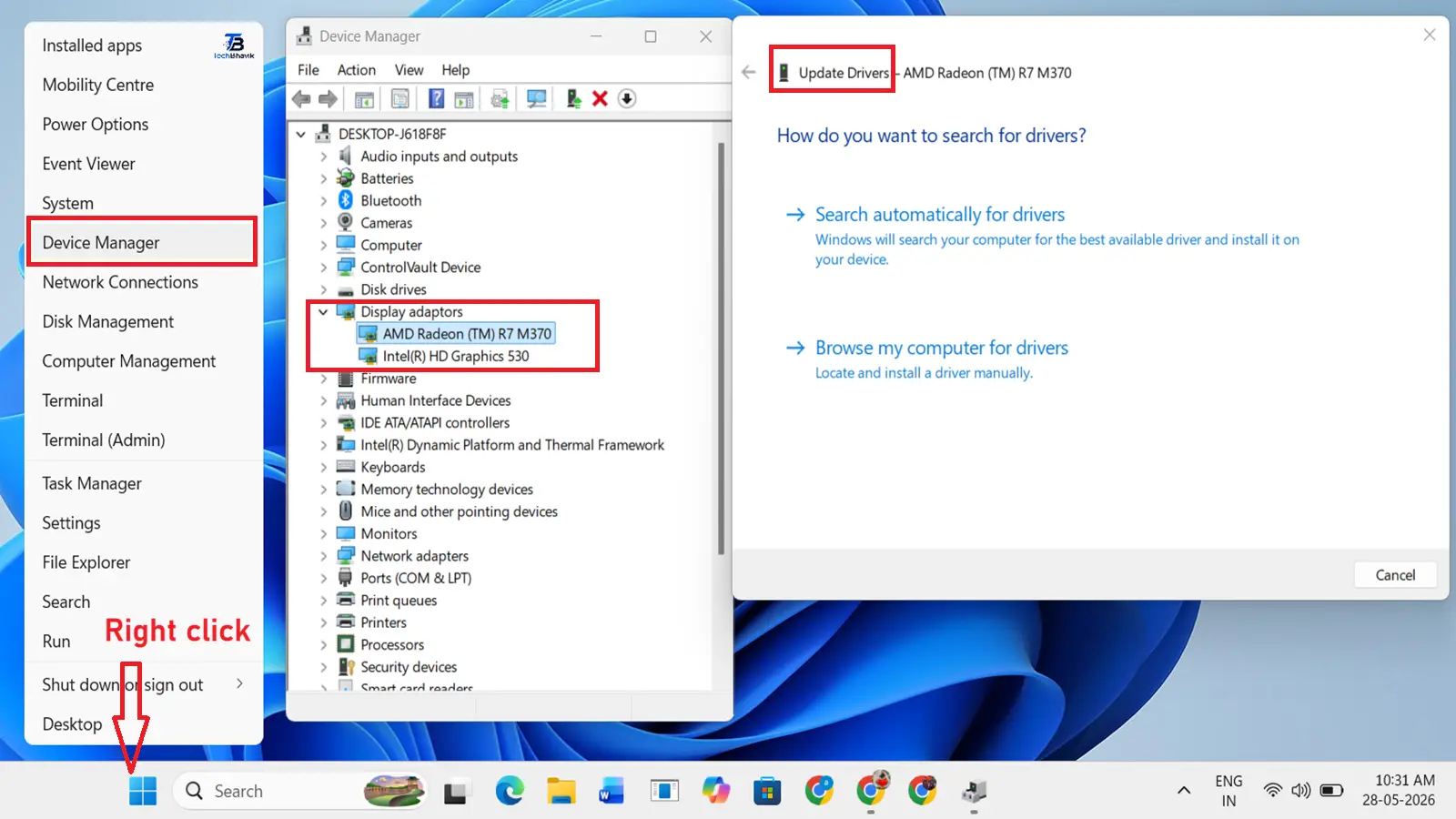
pagalu 3 — tamara drivarone apadet karo. start — divais manager par jamanu-clik karo. pila chetavani chinavala koipan upkaran maate juo. jamanu-clik karo ane driver apadet karo pasand karo.
pagalu 4 — vindoz memory diagnostik chalaavo. vindoz + R dabavo, mdsched.exe lakho, anter dabavo. hamna farithi sharu karo ane samasyaao maate tapaso. aa bhulo maate tamari RAM nu parixan kare chhe.
pagalu 5 — system file chekar chalaavo. edministrater tarike command prompt kholo. prakar: sfc /scannow anter dabavo ane scan purn thaay tya sudhi rah juo. aa dushit vindoz system fileone riper kare chhe.
pagalu 6 — tajetarma instol karel software athva drivarone anainstol karo. jo BSOD kaink navu instol karyaa pachhi sharu thayu hoy, to tene tarat j anainstol karo.
pagalu 7 — jo kai kaam na kare, to Windows reset karo. setings — system — punprapti — aa pc reset karo. tamara detane sachavava maate maari filo rakho pasand karo.
Problem 4 — Computer Overheating
ovarahiting e ek gambhir samasya che jene avaganvama aave to tamara kamputernaa ghatakone kaayami dhorane nuksaan pahonchadi shake chhe. ovarahitingnaa chinoma kamputernu rendmali bandh thavu, pankho chalu rahevu shaamel chhe.
How to Fix It:
paglu 1 — vent ane pankha saaf karo. badha vent ane pankhana khulla bhagomanthi dhul udaadva maate kompresda arno upyog karo. juna kamputersma dhul jama thavi e ovarahitingnu mukhya kaaran chhe. dar 6 mahine ochhama ochhu ek var aa karo.
pagalu 2 — ventileshan tapaso. khatari karo ke tamarun laptop athva desktop saari rite ventilated vistarma mukvama aavyu chhe. kyarey bed, sofa athva carpet par laptopno upyog karsho nahi – aa ventne sampurnpane avrodhe chhe. hamesha tamara laptopno upyog sakhat, sapaat sapati par karo.
pagalu 3 — laptop maate kuling pedno upyog karo. bharatma ek saara kuling pedni kimmat fakt 500 thi 1500 rupiya che ane te tapmanane 10 thi 15 degree ghatadi shake chhe.
pagalu 4 — cpu tapman tapaso. tamara cpu tapman tapasva maate echadbalyumonuter (mafat softver) downlod karo. saamanya taapman: lod hethal 40 thi 70 degree selsiys. khatarnak taapman: 90 degree selsiysthi upar.
pagalu 5 — thermal pest badalo. jo tamarun computer 3 varshthi vadhu junu chhe, to tamara CPU parni thermal pest sukaai gai hashe. tene badalvu e ek sastu upaay che je tapmanma natyatmak ghatado kari shake chhe. aa maate tamara laptop athva deskatopne kholavani jarur che – jo tamne te jaate karvama aramdayak na laage to vyavsayik madad lo.
Problem 5 — Computer Won’t Connect to Internet
Internet connectivity problems are incredibly frustrating, especially when you are working from home or studying online.
How to Fix It:
paglu 1 — pahela spasht babato tapaso. khatari karo ke WiFi chalu chhe. tamara keyboard par WiFi button shodho (ghanivar Fn + F2). tapaso ke samasya tamara raauterma chhe, tamara computerma nahin. bija upkaranne connect karvano prayas karo.
pagalu 2 — tamara raauterne restart karo. 30 second maate raauterne powerthi anplg karo. tene farithi plug in karo ane te sampurnpane restart thaay tya sudhi 2 minit rah juo. farithi connect karvano prayas karo.
pagalu 3 — bhuli jaao ane WiFi network saathe farithi connect karo. taskabarma WiFi icon par click karo. tamara network naamni bajuma teer par click karo. bhuli jaao par click karo. farithi password dakhal karine farithi connect karo.
pagalu 4 — network trbalshutar chalaavo. setings — system — trbalshut — anya trbalshutars. internet knectionceni bajuma Run par click karo. on-scrin suchanaonu palan karo.
pagalu 5 — network setings reset karo. edministrater tarike command prompt kholo. aa aadesho ek pachhi ek lakho ane darek pachhi Enter dabavo: netsh winsock reset netsh int ip reset ipconfig /release ipconfig /flushdns ipconfig /renew badha aadesho chalavya pachhi tamara kamputerne farithi sharu karo.
pagalu 6 — network drivero apadet karo. divais manager — network edeptero. tamara WiFi edeptar par jamanu-clik karo — driver apadet karo.
Problem 6 — Computer Freezing or Crashing
A computer that freezes or crashes randomly is extremely frustrating, especially when you lose unsaved work.
How to Fix It:
paglu 1 — uplabdh RAM tapaso. task manager — parformans — memory kholo. jo RAM no upyog satat 85 takathi vadhu hoy, to tamne vadhu RAM ni jarur che athva eplicationo bandh karvani jarur chhe.
pagalu 2 — ovarahiting tapaso (upar samasya 4 juo). ovarahiting e random freez ane kresh thavana sauthi saamanya karanomannun ek chhe.
pagalu 3 — badha drivero apadet karo. juna graafiks, network ane odio drivero system freez thavanu mukhya kaaran chhe. divais manager — darek divais par jamanu-clik karo — driver apadet karo.
pagalu 4 — hard drive health tapasva maate CHKDSK chalaavo. edministrater tarike command prompt kholo. prakar: chkdsk C: /f /r Enter dabavo ane tamara kamputerne restart karo. aa hard drive bhulo maate tapas kare che ane riper kare chhe.
pagalu 5 — vindoz apadets maate tapaso. setings — vindoz apadet — apadets maate tapaso. badha baki apadets instol karo ane restart karo.
pagalu 6 — fast startupne aksham karo. control penal — power vikalpo — power batano shu kare che te pasand karo. fast startup chalu karo ne anchek karo. aa rahasymay frizing samsyaonu nirakaran kari shake chhe.
Problem 7 — Computer Making Strange Noises
Unusual sounds from your computer are always a warning sign that should not be ignored.
Types of noises and what they mean:
Loud whirring or rattling — Usually a cooling fan with dust buildup or failing bearings. Clean the fan with compressed air. If the noise continues, the fan may need replacement.
Clicking or grinding sound from storage — This is very serious. It means your hard drive is failing. Back up all your important data immediately and replace the drive as soon as possible.
Beeping sounds during startup — This indicates a hardware error. The number of beeps corresponds to a specific error code. Search your PC brand and the beep pattern online for the exact meaning.
High-pitched whine — Often caused by electrical components under high load. Usually harmless but can indicate a power supply issue in older computers.
How to Fix It:
Step 1 — Use compressed air to clean all fans and vents. Step 2 — Open the computer case (desktop) or bottom panel (laptop) to check for loose cables touching fans. Step 3 — Download CrystalDiskInfo (free) to check hard drive health status. Step 4 — If the hard drive shows Caution or Bad status — back up everything immediately and replace the drive.
Problem 8 — Computer Screen Problems
Display issues can range from a blank screen to flickering, color distortion, or dead pixels.
How to Fix It:
Blank screen on startup: Step 1 — Check that the monitor cable is firmly connected to both the PC and monitor. Step 2 — Try a different cable or port. Step 3 — Press Windows key + P and select a display mode. Step 4 — Connect to an external monitor to check if the problem is with the screen or the graphics card.
Screen flickering: Step 1 — Update your graphics driver immediately. Step 2 — Change the screen refresh rate. Right-click desktop — Display settings — Advanced display — choose 60Hz or higher. Step 3 — Check if a specific app causes flickering — if yes, the app is incompatible with your display driver.
Screen too dim: Press the brightness function keys on your keyboard (usually Fn + brightness key). Settings — System — Display — Brightness.
Problem 9 — Keyboard or Mouse Not Working
How to Fix It:
For wired keyboard and mouse: Step 1 — Unplug and re-plug the USB cable. Step 2 — Try a different USB port. Step 3 — Test on a different computer to check if the device itself is faulty. Step 4 — Update drivers. Device Manager — Keyboards or Mice — Update driver.
For wireless keyboard and mouse: Step 1 — Replace the batteries. Step 2 — Re-sync the device. Most wireless devices have a small sync button on the bottom. Step 3 — Check if the USB receiver is properly connected. Step 4 — Try a different USB port for the receiver.
For laptop keyboard not working: Step 1 — Restart the laptop. Step 2 — Check if specific keys are stuck or damaged. Step 3 — Settings — Accessibility — Keyboard — make sure Filter Keys and Sticky Keys are turned off. Step 4 — Update keyboard drivers in Device Manager.
Problem 10 — Computer Has Virus or Malware
Signs your computer has a virus: extremely slow performance, unexpected pop-up ads, programs opening and closing on their own, browser redirecting to unknown websites, or high CPU usage with no open apps.
How to Fix It:
Step 1 — Open Windows Security. Press Windows + I — Privacy and Security — Windows Security. Click Virus and threat protection. Run a Full scan.
Step 2 — Download Malwarebytes (free). Visit malwarebytes.com and download the free version. Run a full system scan. Remove all detected threats.
Step 3 — Reset your browser. Chrome: Settings — Reset settings — Restore settings to original defaults. Edge: Settings — Reset settings — Restore settings to default values.
Step 4 — Check startup programs for suspicious entries. Task Manager — Startup apps. Disable any program you do not recognize.
Step 5 — Change all your passwords after removing the virus. Viruses can steal passwords and personal data.
Step 6 — If the virus cannot be removed, reset Windows. Settings — System — Recovery — Reset this PC — Keep my files.
Quick Reference — All 10 Problems and Solutions
Problem 1 — Computer won’t turn on — Check power cable and charger Problem 2 — Computer running slow — Disable startup apps, clean temp files Problem 3 — Blue Screen of Death — Update drivers, run SFC scan Problem 4 — Overheating — Clean vents, use cooling pad, replace thermal paste Problem 5 — No internet connection — Restart router, reset network settings Problem 6 — Freezing and crashing — Check RAM, update drivers, run CHKDSK Problem 7 — Strange noises — Clean fans, check hard drive health Problem 8 — Screen problems — Check cables, update graphics driver Problem 9 — Keyboard or mouse not working — Reconnect, replace batteries, update drivers Problem 10 — Virus or malware — Run Windows Security scan, use Malwarebytes
motabhagni computer samasyaao ghare j ukeli shakay chhe, parantu ketlik paristhitioma vyavsayik sahayni jarur pade chhe:
tamari hard drive cliking awaajo kari rahi che ane kharaab swasthya sthiti darshaave che – data punprapti tatkalik jaruri chhe. badha power fiksono prayas karyaa pachhi pan tamarun computer chalu thatu nathi – hardver nisfalta. badha software fix pachhi pan blu screen bhulo chalu rahe che – shakya CPU athva RAM hardver nisfalta. tamara laptop screen bhautik rite tirad athva kshatigrast chhe. tamara kamputerne pani athva pravahi nukasan.
bhartma, motabhagni computer riper shops saamanya samarkam maate ru. 200 thi ru. 1,500 ni vachche charge kare chhe. koipan samarkam karya maate sammat thata pahela hamesha bhav mangvo.
- Don’t Upgrade Yet! Windows 11 vs Windows 12 Full Comparison
- 7 Hidden WhatsApp Tricks Every Indian Should Know
- Nvidia RTX Spark: The AI Chip That Reinvents Your PC
- I Bought 5 Expensive Cool Gadgets from Amazon India – My Honest Unboxing & Ratings
- World’s Top Mobile Companies: Founded Year, Owners & Market Share
- VPN Explained: Do You Really Need One in 2026? (Honest Guide)
Frequently Asked Questions (FAQ)
Q1. What should I do first when my computer has a problem?
The very first thing to always try is restarting your computer. This simple step fixes a surprisingly large number of problems — from slow performance to internet connectivity issues to software crashes. After restarting, if the problem persists, follow the specific troubleshooting steps for your issue as described in this guide.
Q2. How do I know if my computer has a virus?
Common signs of a virus include sudden slowdown in performance, unexpected pop-up ads appearing on your screen, your browser homepage changing without your permission, programs opening or closing on their own, and high CPU or RAM usage even when no apps are open. Run a free scan with Windows Security or Malwarebytes to confirm and remove any threats.
Q3. Is it safe to fix computer problems myself?
Yes, all the software-based fixes described in this guide are completely safe to try yourself. However, for hardware repairs like replacing a hard drive, RAM, or fan, you should only proceed if you are comfortable opening your computer. When in doubt, seek professional help to avoid causing additional damage.
Q4. How can I prevent computer problems in the future?
Keep Windows and all software updated regularly, install a good antivirus program, clean your computer vents with compressed air every 6 months, restart your computer at least once every few days, back up important data regularly to an external drive or cloud storage, and avoid downloading software from unknown websites.
Q5. My computer is very old and slow — should I repair it or buy a new one?
If your computer is more than 6 to 7 years old and struggles with basic tasks even after optimization, it may be more cost-effective to buy a new one. However, if it is 3 to 5 years old, upgrading the RAM to 8GB and replacing the HDD with an SSD can give it a new lease on life at a fraction of the cost of a new computer.
Q6. How do I back up my important data before fixing a serious problem?
Connect an external hard drive or USB drive to your computer. Copy all important files — documents, photos, videos — to the external drive. Alternatively, use free cloud storage like Google Drive (15GB free) or OneDrive (5GB free) to back up your most important files online.
Final Verdict
digital yugma computer samasyaao jivanno ek bhag che – parantu te tanaavpurn ke kharchal hovi jaruri nathi. yogya gyan ane mushkelinivaran maate vyavasthit abhigam sathe, tame motabhagni saamanya computer samsyaone minitoman jaate ukeli shako cho.
kamputer mushkelinivaranno suvarna niyam saral chhe: hamesha sauthi saral ukelthi sharuaat karo. tamara kamputerne farithi sharu karo, badha connections tapaso, tamara drivero apadet karo ane disc spes saaf karo. aa char paglaa j motabhagni rojinda computer samsyaonu nirakaran laave chhe.
jo tamne aa margdarshika madadrup laagi, to tene tamara parivar ane mitro saathe sher karo jeo computer samasyaao saathe sangharsh kari rahya chhe. technology darek maate kaam karvi joiae – ane yogya gyan sathe, te kari shake chhe.
shu aa margdarshikama koi computer samasya aavari levama aavi nathi? niche tippani muko athva contact@techbhavik.com par amaro sampark karo ane ame tamne tene thik karvama madad karishu!
— bhavik munjapara, TechBhavik.com
Tags: how to fix computer problems, common computer problems and solutions, computer troubleshooting guide 2026, fix slow computer, blue screen of death fix, computer not turning on, computer overheating fix, internet not working PC, computer virus removal, fix computer problems yourself
Also Visit : How to speed Up Windows 11

B.L. Munjapara is the founder of TechBhavik.com and a technology writer specializing in AI tools, smartphone rankings, software guides, gadget reviews, and global technology trends. He helps readers understand emerging technology and make smarter digital decisions.

Pingback: 10 Proven Tips To Speed Up Windows 11 In 2026 (Ultimate Guide) - TechBhavik
Pingback: How To Set Up Free Microsoft Office In 2026 (Every Legitimate Method)
Pingback: 8GB Vs 16GB Vs 32GB RAM — What Actually Matters?