Best Image Tool in 2026: One Tool for Resize, Crop, Background Remove, Blur & All Types of Image Editing
Introduction
Namaste dosto,
Aaj kal har kisi ko image editing ki zarurat padti hai – chahe woh college assignment ho, Instagram Reels ke liye photo, Meesho/Amazon pe product listing, YouTube thumbnail, ya phir job application ke liye resume photo.
Lekin sabse badi problem yeh hai ki alag-alag kaam ke liye alag-alag tools use karne padte hain. Ek tool background remove karta hai, dusra resize, teesra blur. Isse time bohot waste hota hai aur result bhi consistent nahi aata.
Main Bhavik Munjapara, Gujarat se, last 8+ saal se tech blogging aur content creation kar raha hoon. Is dauran maine Photoshop, Canva, Photopea, Remove.bg, CapCut, aur bahut saare AI tools try kiye hain.
Last 4–5 months mein maine specially Indian users ke liye ek single powerful image tool dhoondhne ka kaam kiya. Slow internet, low-end laptop aur mobile pe bhi smoothly chale, woh bhi mostly free.
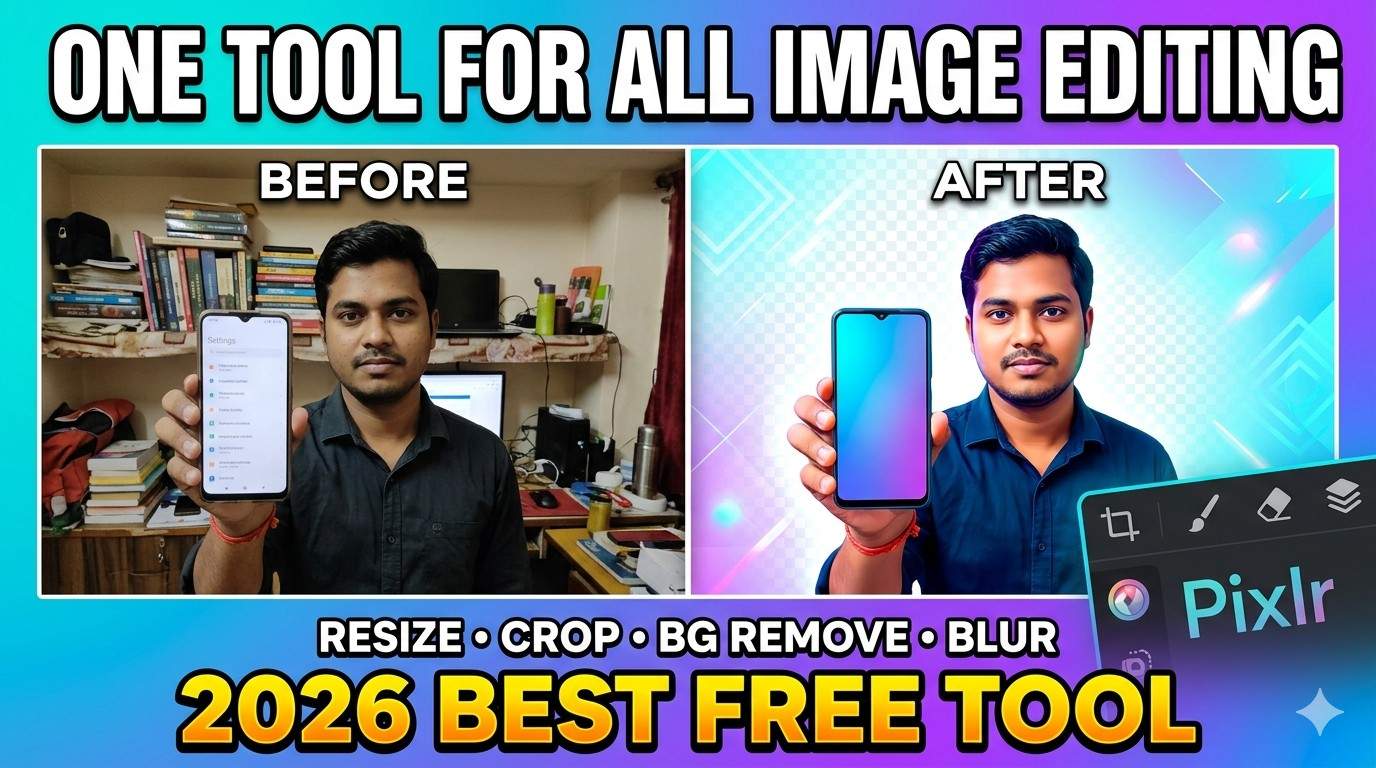
Aaj main aapko wohi sabse best image tool bataane ja raha hoon jo 2026 mein resize, crop, background remove, blur, object remove, generative fill aur almost har editing ka kaam ek jagah handle kar sakta hai.
Is detailed guide mein main aapko har feature ka step-by-step practical tutorial dunga jo maine khud Gujarat mein test kiya hai. Real examples, common mistakes, pro tips aur Indian use cases ke saath.
Yeh article padhne ke baad aapko 4–5 alag websites switch karne ki zarurat nahi rahegi. Chaliye shuru karte hain.
Table of Contents
- What Makes a Great All-in-One Image Tool in 2026?
- Why I Personally Recommend Pixlr as Best Image Tool
- How to Get Started with Pixlr (Complete Beginner Guide)
- How to Resize Images Perfectly for All Indian Platforms
- Smart Cropping Techniques for Professional Look
- One-Click AI Background Removal (Most Useful Feature)
- How to Blur Background or Specific Parts
- Advanced AI Editing Features in 2026
- Pixlr vs Canva vs Photopea vs Remove.bg (Honest 2026 Comparison)
- My Personal Tips & Tricks After 200+ Hours of Editing
- Common Mistakes Indian Users Make & How to Avoid Them
- Conclusion & My Final Recommendation
- Frequently Asked Questions
What Makes a Great All-in-One Image Tool in 2026?
Aaj ke time mein ek accha image tool sirf basic editing nahi karta. Ise yeh cheezein honi chahiye: Image Tool
- Strong AI features (Background Remove + Generative Fill)
- Fast performance on 4G/5G and low-end devices
- Mobile + Desktop dono pe smooth experience
- No heavy watermark on free plan
- Support for high-resolution images
- Regular updates with new AI tools
- Easy learning curve for beginners
Bahut saare tools ek-do cheez mein strong hote hain lekin baaki sab mein weak. Isliye maine personally 15+ tools test kiye.
Why I Personally Recommend Pixlr as Best Image Tool
Maine Pixlr ko seriously use karna shuru kiya jab mujhe ek mahine mein 300+ images edit karni padi thi apne blog aur social media ke liye.
Real Experience (Gujarat Testing):
- Mere low-end laptop (8GB RAM, i3 processor) pe bhi smooth chalta hai.
- Jio 4G connection pe bhi background remove 3–8 seconds mein ho jaata hai.
- April–May 2026 ke darmiyan maine ispe 200+ images edit ki hain.
Big Advantages for Indian Users:
- Free plan bahut powerful hai
- No login needed for quick edits
- Indian festivals, traditional clothes, aur product photos pe achha perform karta hai
- Regular new AI features aa rahe hain 2026 mein
How to Get Started with Pixlr (Complete Beginner Guide)
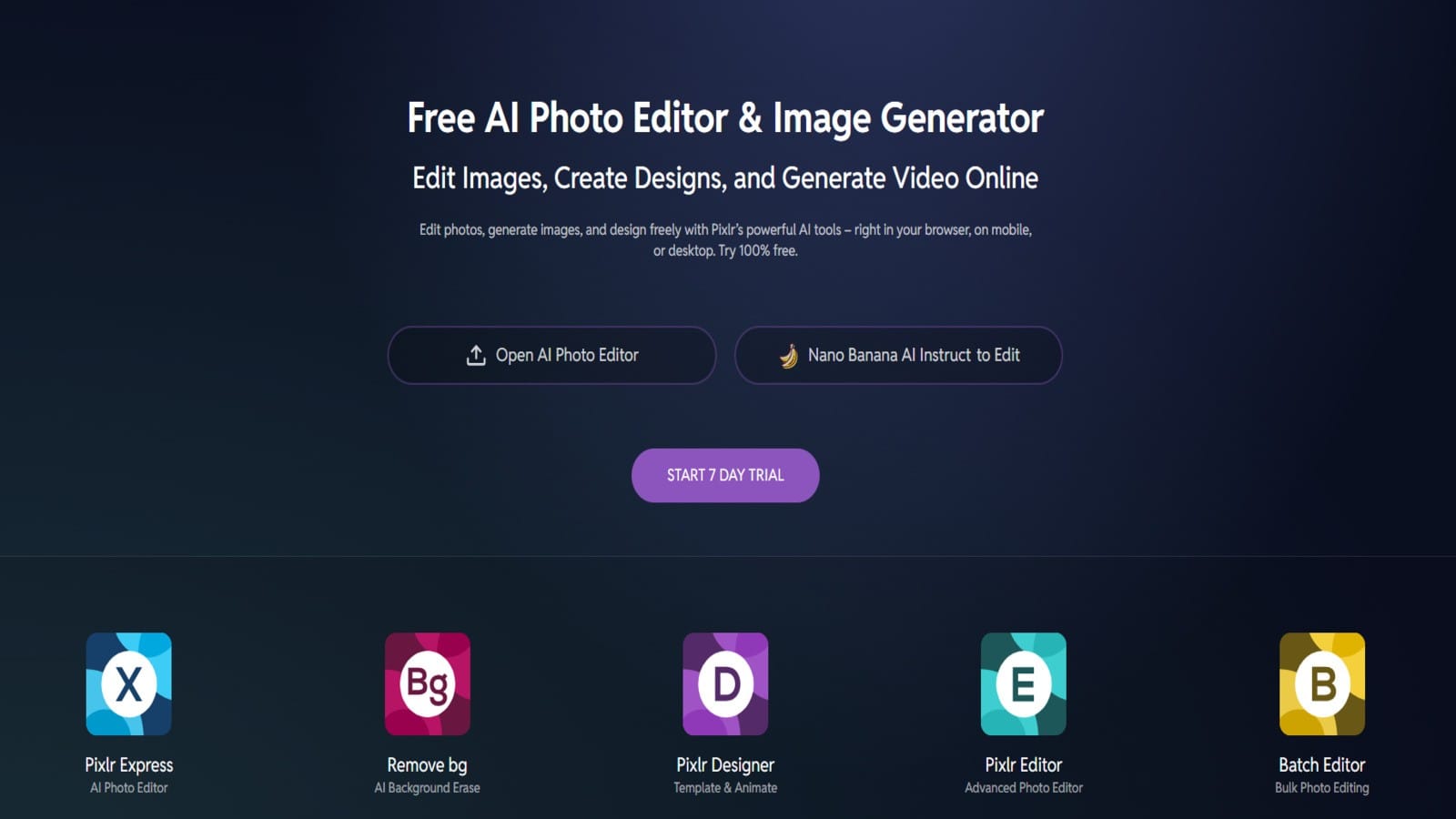
- Apna browser kholiye (Chrome recommended)
- Jaaiye → pixlr.com
- Pixlr X click kijiye (beginners ke liye best)
- “Open Image” pe click karke photo upload kijiye
Pro Setup Tips:
- Free account bana lijiye taaki projects save ho sakein
- Dark mode on kar lijiye – aankhon ke liye accha hai
- Desktop version use kijiye jab bhi possible ho
How to Resize Images Perfectly for All Indian Platforms
Image resize sabse common need hai. Galat size se photo blur ya stretched ho jaata hai.
Step-by-Step Guide:
- Image upload karne ke baad top menu mein Resize tool pe click kijiye
- Preset sizes mein se choose kijiye ya custom dimensions daaliye
- “Maintain Aspect Ratio” ko on rakhein
- Quality ko High rakhein
- Apply → Download as JPG ya PNG
Popular India-Specific Sizes (Tested by Me):
| Platform | Recommended Size | Use Case |
|---|---|---|
| Instagram Post | 1080 × 1080 px | Feed posts |
| Instagram Story | 1080 × 1920 px | Vertical stories |
| YouTube Thumbnail | 1280 × 720 px | Video thumbnails |
| WhatsApp Status | 1080 × 1920 px | Status updates |
| Amazon/Meesho Product | 1500 × 1500 px | Product listing |
| Blog Featured Image | 1200 × 630 px | Website articles |
Smart Cropping Techniques for Professional Look
Cropping sirf size kam karna nahi hai – yeh composition improve karti hai.
Best Practices I Follow:
- Rule of Thirds grid on karke crop kijiye
- Important subject ko center se thoda side rakhein
- Unwanted background ko hata dijiye
- Multiple aspect ratios try kijiye
Advanced Crop Tip: Face detection wala auto-crop use kijiye group photos mein.
One-Click AI Background Removal (Most Loved Feature)
Yeh feature sabse powerful hai Pixlr mein 2026 ke hisab se.
Detailed Step-by-Step:
- Photo upload kijiye
- Left side AI Tools section mein Remove Background pe click kijiye
- 2–6 seconds wait kijiye
- Agar edges mein problem ho to Refine brush se fix kijiye (especially hair aur chote details)
- Transparent PNG mein download kijiye
Real Indian Use Cases:
- Meesho/Amazon sellers ke liye product photos
- Wedding & festival photos mein background change
- Resume aur profile pictures
- YouTube thumbnails ke liye clean look
Maine apne 50+ product photos pe test kiya – accuracy 88–95% tak mil rahi hai.
How to Blur Background or Specific Area
Professional look ke liye blur bahut important hai.
Two Methods:
Method 1: Full Background Blur
- Background remove karein
- Naya background add karein
- Blur intensity adjust karein
Method 2: Selective Blur (Best for Privacy)
- Adjustment menu se Blur tool choose kijiye
- Brush se sirf specific area ko blur kijiye (jaise number plate, face, sensitive info)
Advanced AI Editing Features in 2026
Pixlr ab bohot strong AI deta hai:
- Generative Fill – unwanted cheez hatao aur naturally fill karo
- Magic Eraser – ek click mein objects remove
- Image Upscaler – low quality photo ko HD banao
- Text to Image small elements ke liye
- Auto color correction
Check iPhone 18 Pro Max
Pixlr vs Canva vs Photopea vs Others (Honest 2026 Comparison)
| Feature | Pixlr | Canva | Photopea | Remove.bg | Winner |
|---|---|---|---|---|---|
| AI Background Remove | Excellent | Good | Manual | Best | Pixlr |
| Full Photo Editing | Very Good | Basic | Excellent | No | Photopea |
| Speed on Slow Internet | Fast | Very Fast | Average | Fast | Canva |
| Free Plan Power | Very Strong | Limited | Strong | Limited | Pixlr |
| Mobile Experience | Good | Excellent | Poor | Good | Canva |
| Learning Curve | Medium | Very Easy | Steep | Very Easy | Canva |
| Best For Indian Users | All-rounder | Designs | Pro Editing | Only BG | Pixlr |
My Personal Verdict: Daily use ke liye Pixlr best hai. Canva sirf templates ke liye aur Photopea jab bohot advanced editing chahiye.
My Personal Tips & Tricks After 200+ Hours of Editing
- Hamesha original file backup rakho
- Batch processing ke liye multiple tabs use karo
- Lighting achhi hone pe edit karo
- PNG for transparent, WebP for smaller size
- Mobile pe Chrome browser best hai
- Har mahine new features check karo
Common Mistakes Indian Users Make & How to Avoid Them
- Aspect ratio off karke resize karna → distorted photos
- Low resolution images ko force upscale karna
- Background remove ke baad edges ko refine na karna
- Bahut saare filters ek saath lagana
Conclusion & Final Recommendation
2026 mein Pixlr Indian users ke liye sabse balanced aur powerful image tool hai. Yeh resize, crop, background remove, blur aur advanced editing sab kuch ek jagah deta hai.
Chahe aap student ho, content creator, small business owner ya freelancer – Pixlr aapka time aur paise bachayega.
Mera Final Advice: Aaj hi Pixlr kholiye aur pehla photo edit karke practice shuru kijiye. Pehle 10 edits thode mushkil lagenge lekin 2–3 din mein aap comfortable ho jaoge.
Aapka favorite image editing tool kaunsa hai? Pixlr try kiya hai? Comment mein zaroor batana.
- World’s Top Mobile Companies: Founded Year, Owners & Market Share

- VPN Explained: Do You Really Need One in 2026? (Honest Guide)

- OPPO Find X9 Pro vs Vivo X300: Which Flagship Wins in 2026?
- Cybersecurity for Beginners: How to Protect Your Devices in 2026
- Best Software Every Windows/Mac User Must Have in 2026



Frequently Asked Questions (FAQ
1. Pixlr 100% free hai kya?
Haan, free version bahut powerful hai. Pro plan sirf heavy daily users ke liye.
2. Kya Pixlr mobile pe achha kaam karta hai?
Haan, Android Chrome pe bahut achha chalta hai.
3. Background removal Indian traditional clothes pe kitna accurate hai?
Bahut achha result milta hai, specially saree aur kurta pe.
4. Kya Pixlr mein watermark lagta hai?
Normal use mein nahi lagta.
5. Pixlr vs Canva – kaunsa better hai?
Photo editing ke liye Pixlr, graphic design ke liye Canva.
6. Low-end laptop pe chalega?
Haan, main i3 + 8GB pe regularly use karta hoon.
7. Generative Fill feature free hai?
Limited free credits milte hain, phir Pro chahiye.
8. Kaise save karein edited photos?
PNG for quality, JPG for smaller size.
9. Kya PSD files support karta hai?
Haan, Photoshop files bhi open kar sakte ho.
10. Best alternative agar Pixlr down ho?
Photopea as backup.
11. Safety hai kya?
Haan, trusted company hai. image tool
12. Kitne time mein expert ban sakte hain?
Regular practice se 7–10 din mein acchi editing aa jaati hai. image tool
Must Read It’s For You :
- 100 Best Free AI Tools in 2026
- How to Make Money Freelancing in Tech
- Best Laptops Under 40000 in India
- Tech Hacks & Productivity Tips
Best of ever Image Tools, which I am using: https://image.pi7.org/
B.L. Munjapara is the founder of TechBhavik.com and a technology writer specializing in AI tools, smartphone rankings, software guides, gadget reviews, and global technology trends. He helps readers understand emerging technology and make smarter digital decisions.