
Let’s be honest, says Bhavik for a second: Microsoft 365 isn’t cheap. My Personal Microsoft Office subscription will easily set you back roughly $70–$100 per year. Honestly, my jaw dropped back in few years ago when prices jumped nearly 30% just because Microsoft decided to bundle Copilot AI into most of its single plans.
Look, I love AI as much as the next tech geek, but forcing everyone to pay a premium for it? That just didn’t sit right with me. Just the other day, I was sitting with my friend Abhijit here in Bhavnagar, and he was finding a way to explain how ridiculous these subscription costs have gotten just to type up basic documents.
I told Abhijit exactly what I’m going to tell you: you don’t need to pull out your credit card. Because of that price hike, I spent weeks personally testing every single workaround from my desk in Bhavnagar to find out what actually works.
That’s why I put this guide together. Below, Tech Bhavik breaks down every single legitimate method to get Microsoft Office up and running without spending a dime. These aren’t just theoretical workarounds; I have personally verified, installed, and set up every single one of these methods myself, so you can trust they work flawlessly.
Table of Contents
What most people don’t realize is that Microsoft itself offers multiple legitimate, fully legal ways to use Word, Excel, and PowerPoint without paying a single rupee. Abhijit asked me if he should just grab one of those sketchy “free keys” from a random Telegram channel or grey-market site. I told him straight up: “Bhai, don’t do it.” We’ve all been tempted by those, only to have them revoked three months later—or worse, infect our rigs with malware. Let’s skip that headache. No cracked software, no shady activation codes, and no anxiety. This guide covers every real, Microsoft-approved method—ranked by how useful they actually are for tech professionals—complete with the exact step-by-step setup instructions I used to get Abhijit running. Let’s get you set up!
A Quick Note Before You Start
If you’ve ever been tempted by a “free Microsoft Office key” from a random site, here’s the honest reality: those keys are either stolen, spoofed, or will be flagged and deactivated by Microsoft’s activation servers.
You end up with an Office installation that stops working mid-project, potentially malware on your system, and zero support. It’s not worth the 10 minutes you saved.
Everything in this guide comes directly from Microsoft. Your license is real, your installation is clean, and nothing breaks unexpectedly.
Method 1: Microsoft 365 on the Web (Office.com) — Fastest, Zero Setup
Best for: Everyday document work, cloud-native workflows, quick edits on any device. Cost: Free forever. Offline access: No
The fastest way to use Microsoft Office for free is to open a browser, go to office.com, sign in with a free Microsoft account (Outlook, Hotmail, or Live), and start working.
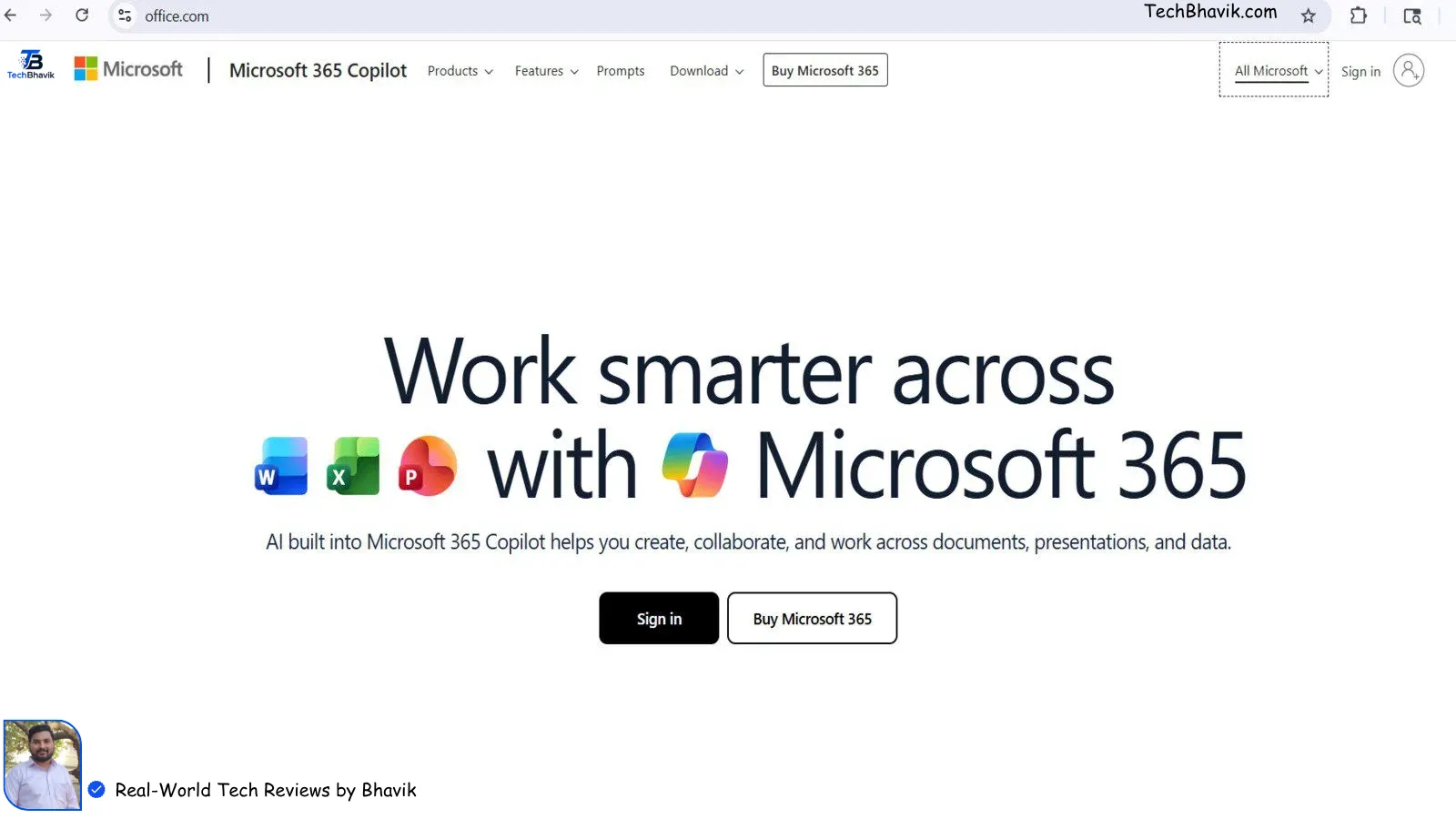
You get full access to web versions of Word, Excel, PowerPoint, OneNote, and OneDrive — right in your browser, no installation required.
Step-by-Step Setup
- Go to office.com
- Click Sign in → select Create one if you don’t have a Microsoft account
- Complete the free account registration (email, password, phone verification)
- Once signed in, click any app icon on the dashboard — Word, Excel, PowerPoint — and start working immediately
- All files are auto-saved to OneDrive (5GB free storage included)
That’s genuinely it. No credit card, no trial period, no expiry.
What the Web Version Can (and Can’t) Do
how to set up free Microsoft Office
The web apps handle the vast majority of everyday tasks: writing documents, building spreadsheets, creating presentations, real-time collaboration with others. For most standard professional work, they’re indistinguishable from the desktop apps.
What’s missing: complex Excel macros, advanced VBA automation, offline access, and a handful of niche features buried in the desktop apps. If you’re doing heavy data processing or building macro-driven workflows, you’ll hit limits. For everything else, the web version is more than sufficient.
Pro tip for Windows 10/11 users: Press Alt + Windows + Ctrl + Shift to instantly open free web versions of Office apps directly from your desktop — a keyboard shortcut most Windows users don’t know exists.
Method 2: Microsoft 365 Education — Full Desktop Apps, Completely Free
Best for: Students, teachers, university staff, anyone with an institutional email Cost: Free (requires academic email) Offline access: Yes — full desktop installation
If you have an active university, college, or school email address, this is the best option on this list, full stop.
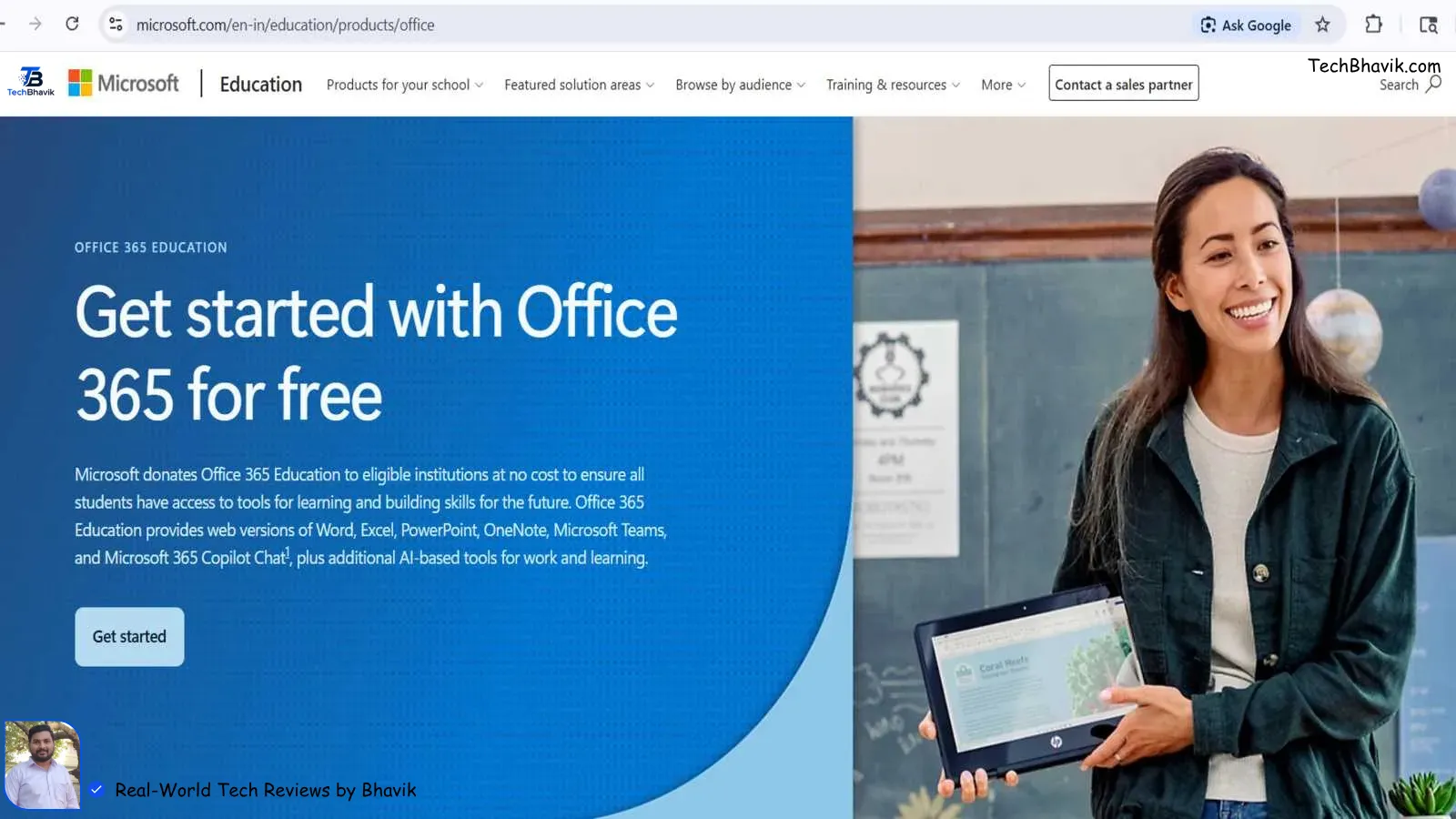
Microsoft’s Education A1 plan gives eligible users the complete Microsoft 365 suite — including downloadable desktop apps for Windows and Mac — at zero cost, for as long as you maintain your institutional email. That means full offline Word, Excel, PowerPoint, Teams, OneNote, and 1TB of OneDrive storage.
Step-by-Step Setup
- Go to microsoft.com/education/products/office
- Enter your school or university email address (the one ending in your institution’s domain)
- Microsoft’s system verifies your eligibility instantly — if your institution is enrolled, you’ll be approved immediately
- Sign in with your academic email → follow the prompts to set up your Microsoft account
- Download the full Office desktop suite from your account dashboard
- Install as normal — your license is tied to your academic account and activates automatically
If Your Institution Isn’t Enrolled
Some smaller colleges and private institutions may not be part of Microsoft’s Education licensing program. In that case, contact your IT department — in many instances the institution has a site license that students can access but nobody told them about. Worth a five-minute email before moving on to other methods.
Method 3: The Microsoft 365 Developer Sandbox — The Power User Option
Best for: Developers, IT professionals, solution architects, Microsoft 365 power users Cost: Free (requires qualifying developer account) Offline access: Yes — full Microsoft 365 E5 desktop installation
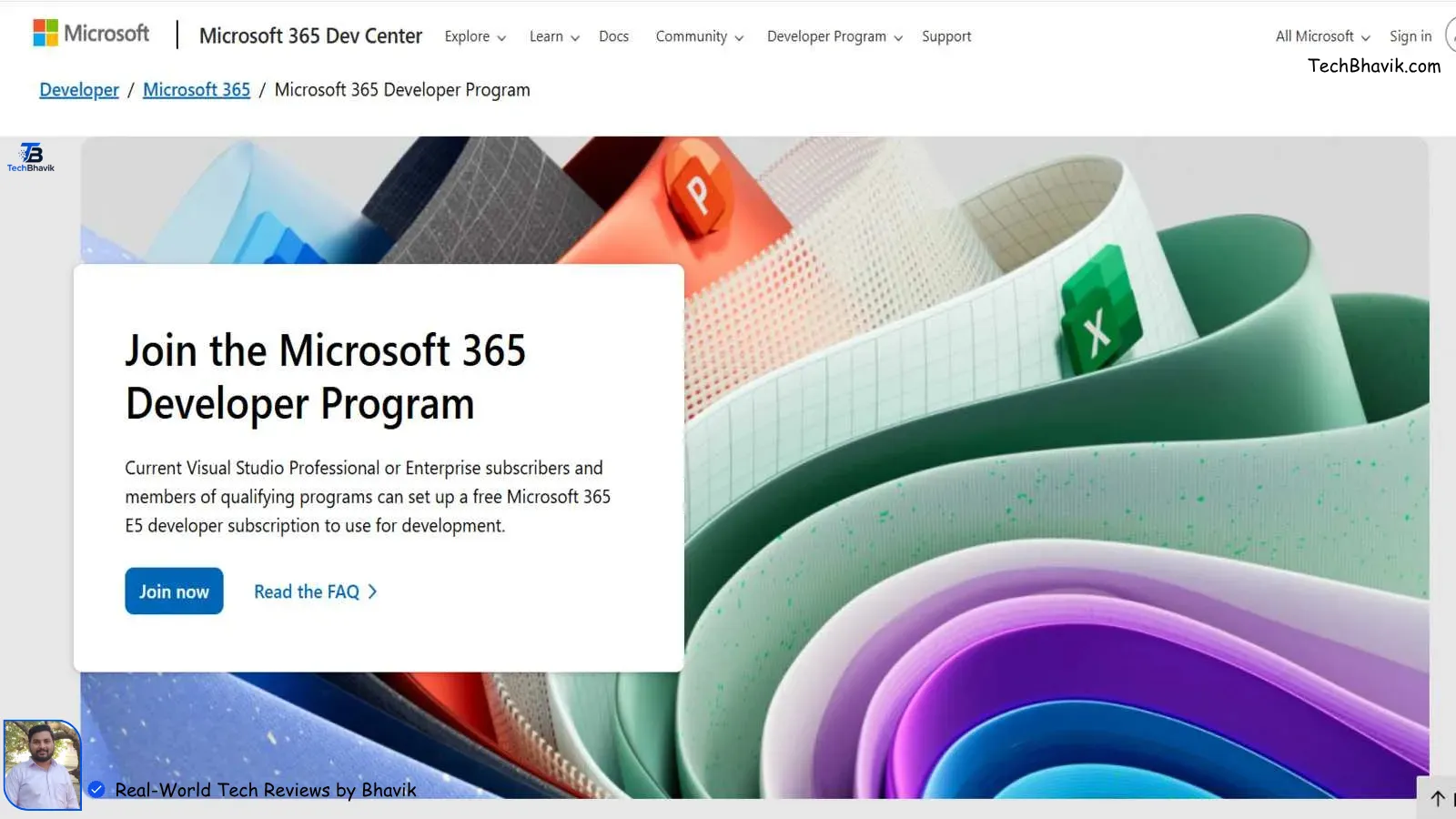
This is the method most tech professionals don’t know about — and it’s the most powerful free option on this list.
The Microsoft 365 Developer Program gives qualifying members a full Microsoft 365 E5 sandbox — the highest tier of Microsoft 365 available — for free. The sandbox includes:
- Complete desktop Office apps (Word, Excel, PowerPoint, Outlook, Teams, OneNote)
- 25 user licenses on your own tenant
- Power Apps, Power BI, Microsoft Entra ID (formerly Azure AD)
- Enterprise Mobility + Security and Office 365 Advanced Threat Protection
- Pre-installed sample data for development and testing
- SharePoint, Teams, and full Microsoft Graph API access
The subscription lasts 90 days and renews automatically as long as you’re actively using it for development work — which, for most tech professionals, is perpetually.
Who Qualifies in 2026
Qualifying Microsoft 365 Developer Program members can set up a Microsoft 365 E5 developer subscription for use in building solutions independent of your production environment. The Microsoft 365 E5 developer sandbox subscription includes 25 user licenses and lasts for up to 90 days, depending on your activity. If you use your subscription for a valid development activity, it will renew automatically. Commercial transactions, including purchasing paid services, are not currently supported.
Microsoft tightened sandbox eligibility in 2025. The clearest qualifying paths right now are:
- Visual Studio Professional or Enterprise standard subscribers — sandbox renews automatically for the lifetime of your VS subscription
- Microsoft AI Cloud Partner Program members
- University students and staff — especially with an academic email (this often unlocks eligibility that a personal account won’t)
- Active developers building Microsoft 365 integrations — Microsoft evaluates based on GitHub activity, app registrations, and Graph API usage
If you join and see “You don’t currently qualify for a sandbox subscription,” try linking a Visual Studio Dev Essentials account (free to sign up) to the same Microsoft account and wait 5–10 minutes for the systems to sync, then check again.
Step-by-Step: Setting Up the Developer Sandbox
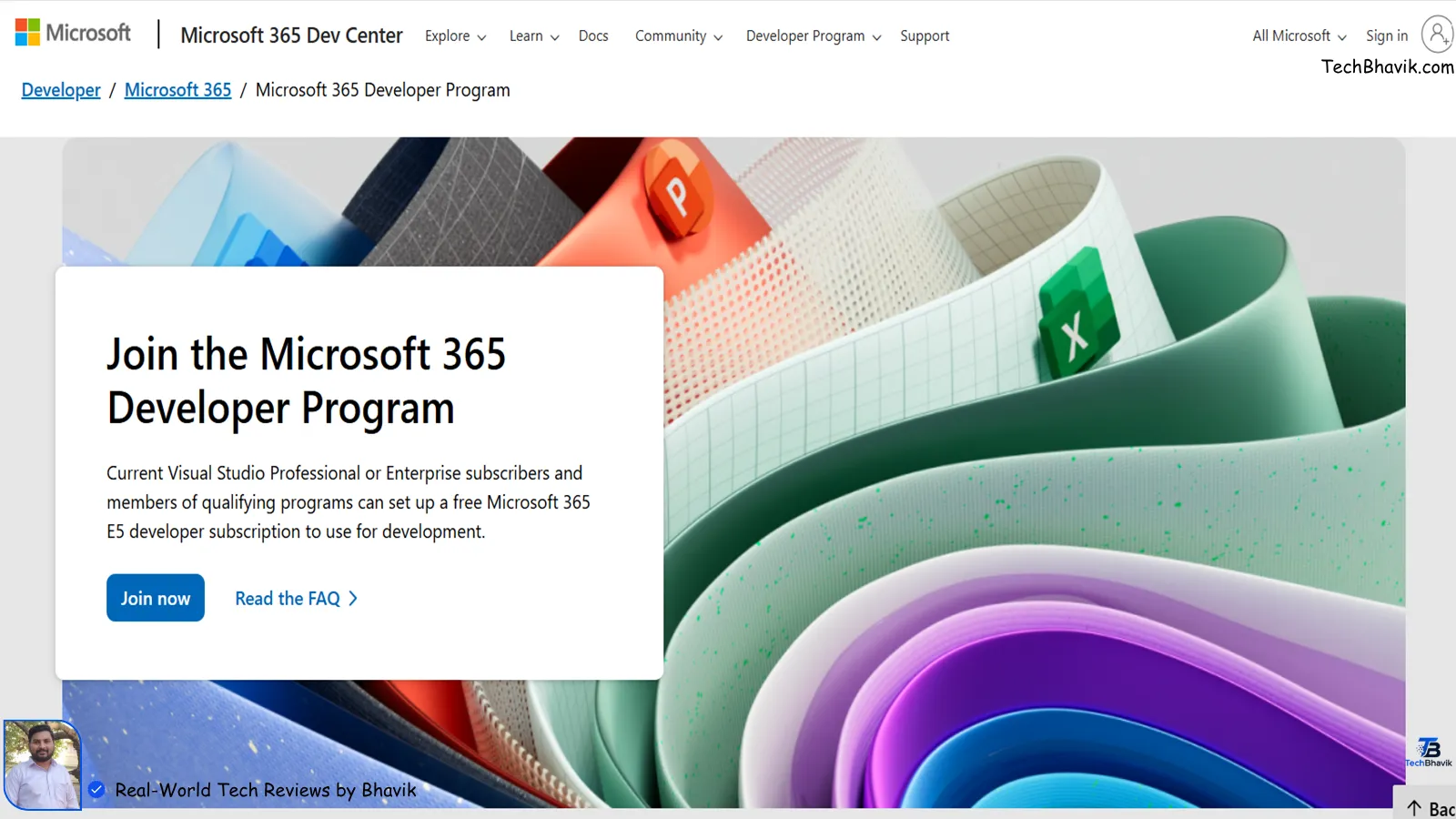
- Go to developer.microsoft.com/microsoft-365/dev-program
- Click Join now → sign in with your Microsoft account
- Fill in your developer profile (country, primary development focus, company)
- Accept the terms and conditions → click Next
- On your dashboard, click Set up E5 subscription
- Choose Instant Sandbox (recommended — pre-provisioned in seconds) or Configurable Sandbox (lets you customise your domain name but takes up to 2 days to provision)
- Select your region carefully — this cannot be changed later
- Set your admin username and password
- Verify your identity via phone OTP
- Click Set up — your 90-day E5 subscription activates immediately
Your dashboard will show your domain name, admin credentials, subscription validity, and 25 pre-configured test user accounts.
To install the desktop apps: sign into your new sandbox admin account at office.com, go to Install apps → Microsoft 365 apps, and download the full suite for Windows or Mac.
Keeping the Sandbox Active
Microsoft monitors for genuine development activity. Maintaining the sandbox long-term means actually using it for development: building Office add-ins, registering apps in Azure AD, making Microsoft Graph API calls, working with SharePoint or Teams development, or building Power Apps solutions. If you link your GitHub account to your Developer Program profile, that activity also counts toward renewal.
Don’t use the sandbox for production workloads or personal data storage — it’s designed as a development environment, and Microsoft’s terms are clear on this.
Method 4: Microsoft 365 Free Trial — Full Desktop Apps for 30 Days
Best for: Short-term project needs, evaluating the full suite before deciding on a subscription Cost: Free for 30 days (credit card required; cancel before day 30) Offline access: Yes — full desktop installation
Microsoft offers a one-month free trial of Microsoft 365 Family, which covers up to 6 users simultaneously. Each user gets their own 1TB OneDrive storage and full desktop app access across Windows, Mac, iOS, and Android.
Step-by-Step Setup
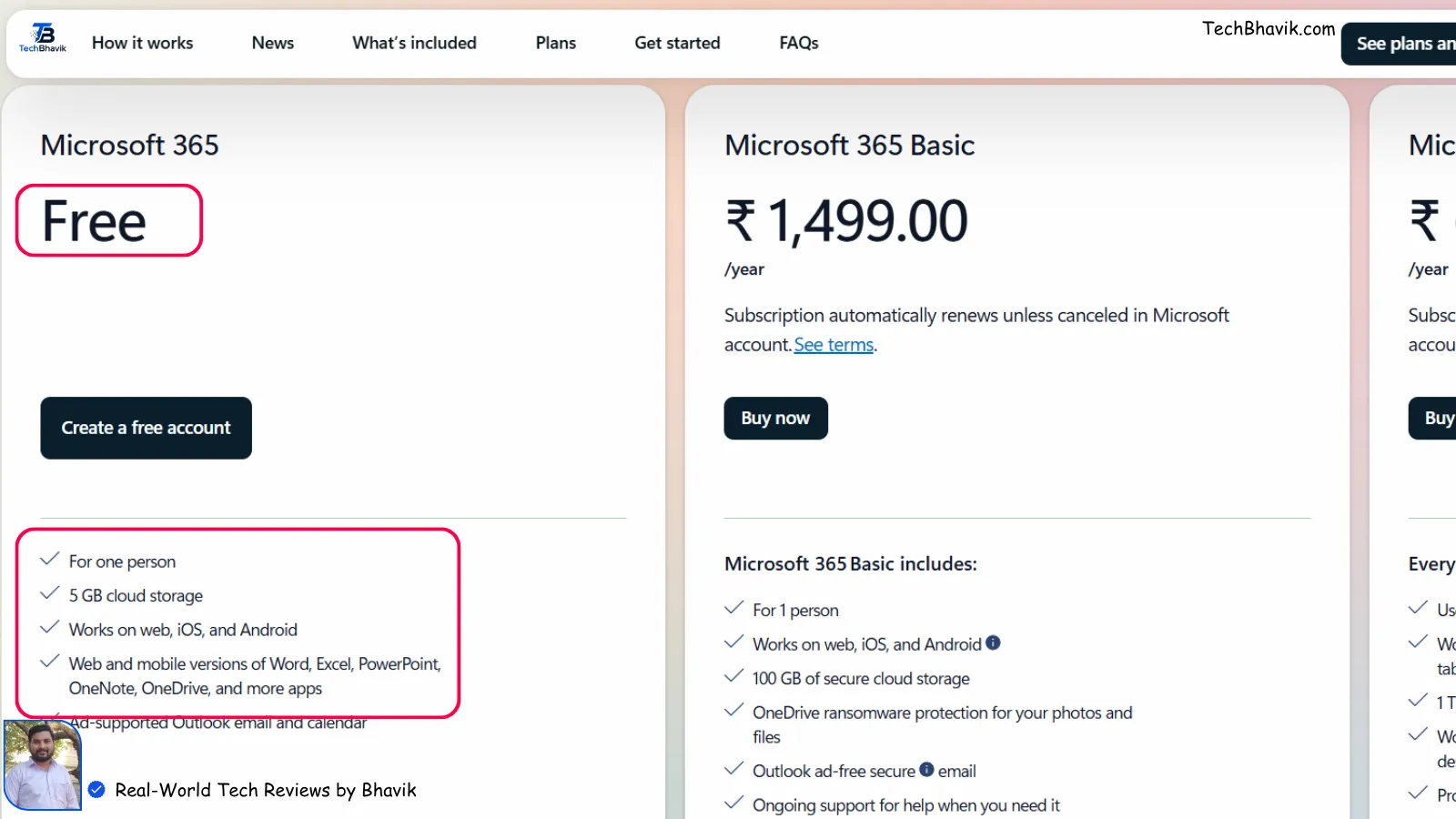
- Go to microsoft.com/microsoft-365 → select Microsoft 365 Family
- Click Try free for 1 month
- Sign in or create a Microsoft account
- Enter payment details — a credit card is required, but you won’t be charged during the trial period
- Download and install the Office apps from your account dashboard
- Set a calendar reminder for day 29 — cancel before day 30 to avoid being billed
The trial gives you the complete, unrestricted desktop experience. If your goal is evaluating the full feature set or completing a specific project that requires desktop-only features, this is the cleanest option.
Method 5: Microsoft Office Mobile Apps — Free on Smartphones and Tablets
Best for: On-the-go editing, reviewing documents, quick updates from a phone or tablet Cost: Free (with device screen size restrictions) Offline access: Yes (downloaded files)
The official Microsoft 365 app on iOS and Android is free for devices with screens 10.1 inches or smaller — which covers every smartphone and most standard tablets.
You can create, edit, and save Word documents, Excel spreadsheets, and PowerPoint presentations without any subscription. Files sync to OneDrive automatically, so anything you edit on your phone is available on your desktop browser at office.com.
Step-by-Step Setup
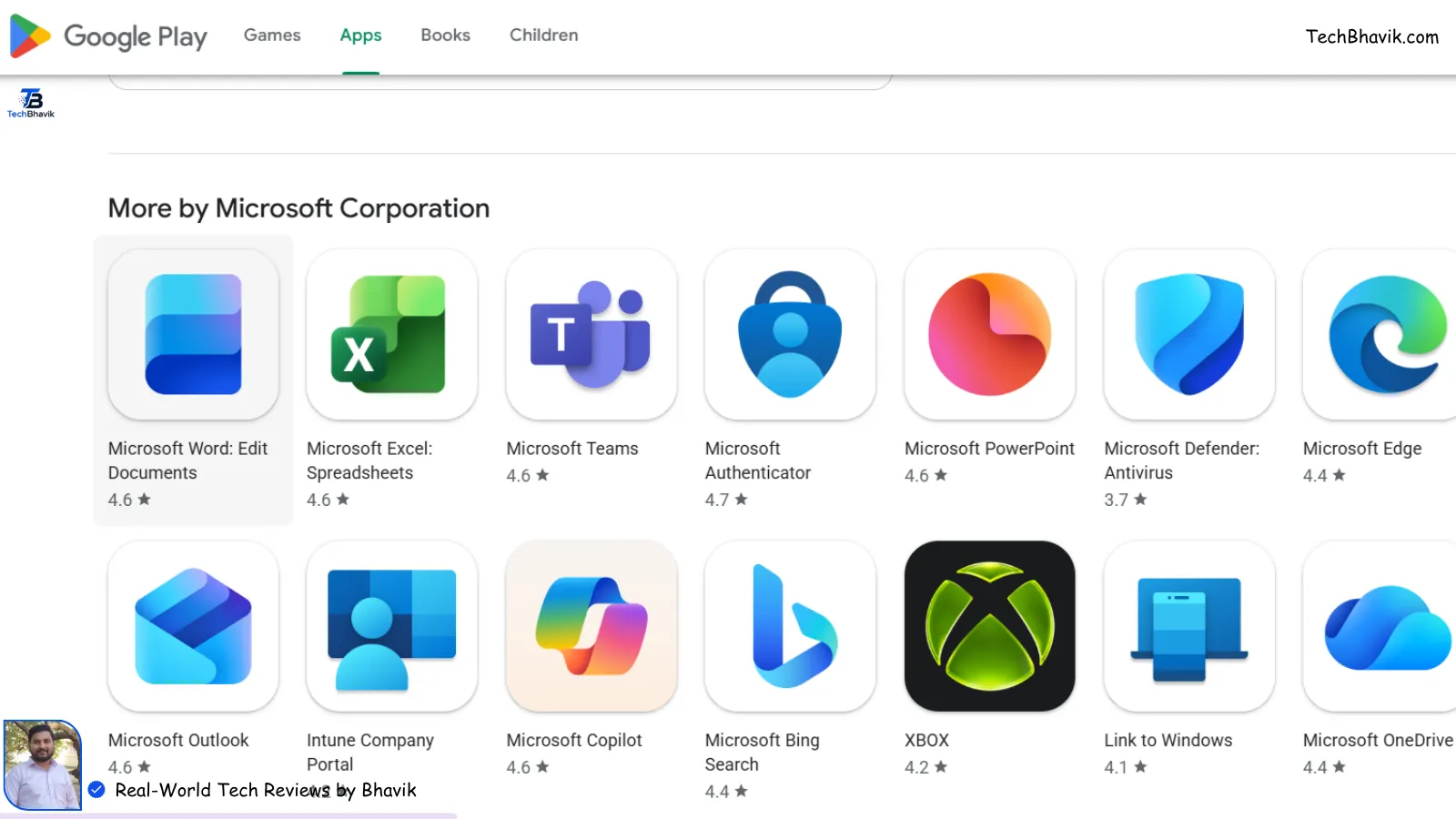
- Open the Google Play Store or Apple App Store
- Search “Microsoft 365” — download the official Microsoft app
- Open the app → sign in with your free Microsoft account
- Start creating or editing documents directly on your device
Note: If you’re using an iPad Pro or a large-format tablet (screen over 10.1 inches), editing is restricted to read-only mode without a subscription. On all standard smartphones, full editing is free.
Method 6: LibreOffice — The Full Offline Alternative
Best for: Users who need a fully offline, subscription-free, permanently free solution Cost: Free forever, open source Offline access: Yes — fully offline, no account required
Strictly speaking, LibreOffice is not Microsoft Office. But it opens, edits, and saves .docx, .xlsx, and .pptx files — the standard Microsoft formats — with strong compatibility, no internet connection, no account, and no subscription ever.
For tech professionals who work primarily offline, need to handle Office-format files routinely, or simply want to never think about license renewals again, LibreOffice is a serious option.
Step-by-Step Setup
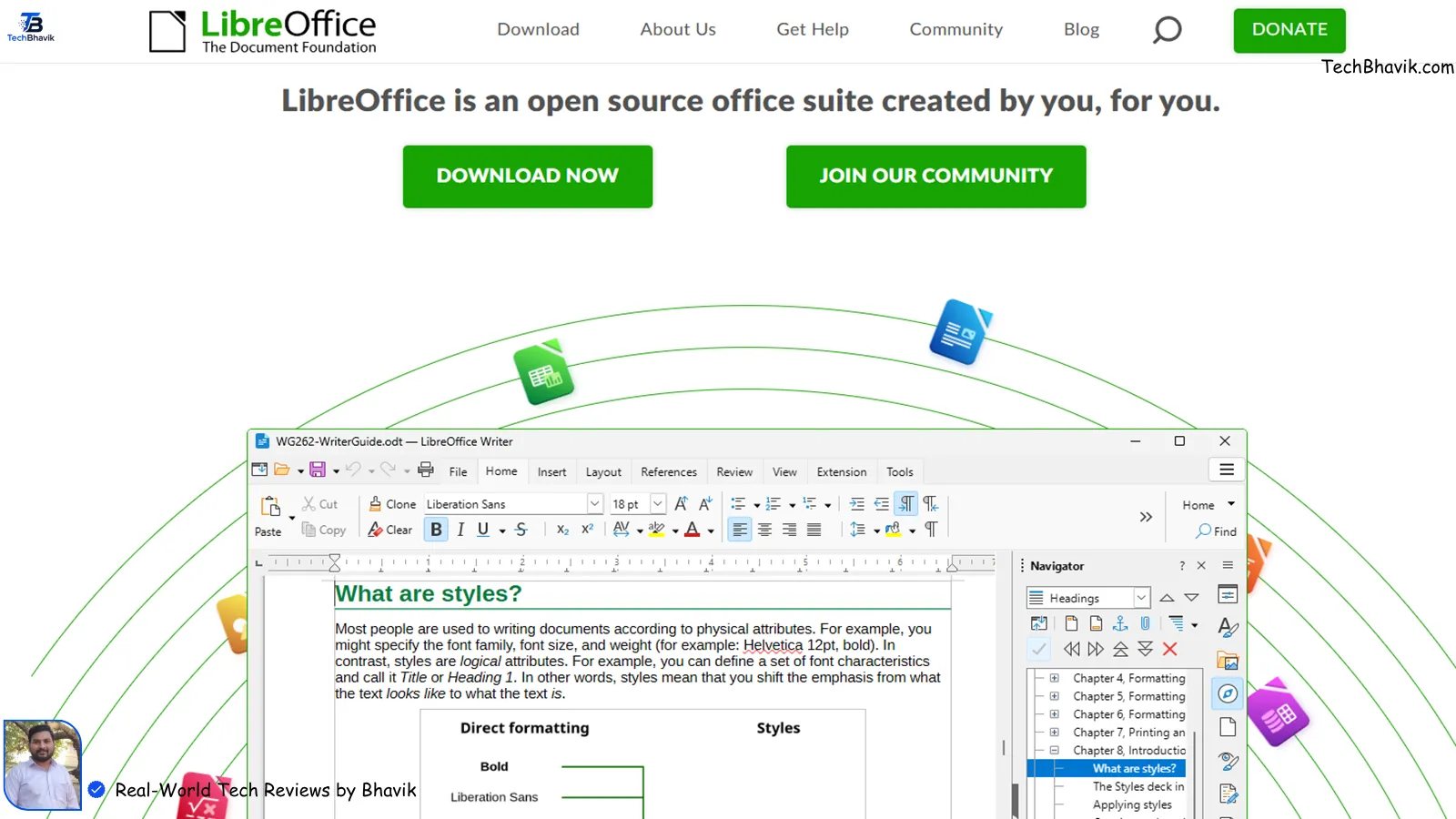
- Go to libreoffice.org
- Click Download LibreOffice → choose your operating system (Windows, Mac, Linux)
- Run the installer — standard installation, no account required
- Open any .docx or .xlsx file directly in LibreOffice Writer or Calc
The interface differs from Microsoft Office, but the core functionality is comparable. Complex formatting, pivot tables, and macros generally work well, though very advanced Excel VBA macros may need adjustment.
Also check: How to fix computer problems 2026, How to Secure Your PC, How to Update Windows.
Comparing the Table for All 6 Methods summary
| Method | Desktop Apps | Offline Access | Duration | Best For |
|---|---|---|---|---|
| Office.com (Web) | No | No | Permanent | Quick work, any device |
| Education License | Yes | Yes | While enrolled | Students & teachers |
| Developer Sandbox | Yes (E5) | Yes | 90 days (renewable) | Developers & IT pros |
| 30-Day Free Trial | Yes | Yes | 30 days | Short-term projects |
| Mobile Apps | Mobile only | Partial | Permanent | Smartphone editing |
| LibreOffice | Yes | Yes | Permanent | Offline-first users |
Which Method Is Right for You?
If you’re a developer or IT professional: Start with the Developer Sandbox (Method 3). Microsoft 365 E5 is the most feature-complete option on this list, it’s renewable indefinitely with active development usage, and it gives you a full tenant to experiment with — which is genuinely useful for Microsoft 365 development work regardless of the free access angle.
If you’re a student or academic: Use your institutional email for the Education license (Method 2). Full desktop apps, 1TB OneDrive, free for your entire enrolled period. There’s no better deal here.
If you just need to edit documents and collaborate occasionally: Office.com (Method 1) is genuinely good enough. The web apps have improved dramatically over the past three years and handle most professional tasks without friction.
If you need the full desktop experience for a specific project: The 30-day trial (Method 4) gives you unrestricted access to everything. Just cancel before day 30.
Frequently Asked Questions
Q: Is Microsoft Office actually free in 2026?

Yes — partially. Microsoft offers free web-based versions of Word, Excel, and PowerPoint at office.com, free mobile apps for devices under 10.1 inches, and free access for qualifying students and developers. The full desktop suite requires either a subscription, educational eligibility, or developer program access.
Q: Can I get Microsoft Office permanently free without a subscription?
The web version at office.com is permanently free. LibreOffice is permanently free and fully offline. For full Microsoft desktop apps without ongoing cost, the Developer Sandbox is the best option for those who qualify — it renews automatically with active development usage.
Q: Is the Microsoft 365 Developer Sandbox legal to use for personal work?

The sandbox is officially designed for development and testing, not personal production use. For development workflows, testing integrations, and building Microsoft 365 solutions, it’s completely legitimate. Microsoft’s terms of service prohibit using it for commercial transactions or as a substitute for a personal subscription.
Q: Does Microsoft 365 free include Microsoft Teams?
The web version at office.com includes Teams for personal use. The Education A1 plan includes full Teams for classroom collaboration. The Developer Sandbox includes the full enterprise Teams with 25 user licenses.
Q: Is Microsoft Office free for students in India?
Yes — if your institution is enrolled in Microsoft’s Education program. Enter your college or university email at the Microsoft Education page to check eligibility instantly. Many Indian universities participate, including IITs, NITs, and numerous private institutions.
Q: What happens if I don’t cancel the Microsoft 365 trial before 30 days?
Microsoft will charge your saved payment method automatically for the first month of a paid subscription. Set a reminder for day 28 or 29 to cancel if you don’t intend to continue. Cancellation is straightforward — sign into your Microsoft account, go to Services & Subscriptions, and cancel from there.

Last One final Thing to Avoid by Bhavik
A word on “free product key generators” and unofficial activation tools that appear prominently in some search results: these are not legitimate, and they carry real risks. Keys obtained this way are typically stolen from volume licensing agreements, spoofed, or generated by tools that often bundle malware. Microsoft’s activation servers flag them routinely, and you end up with an Office installation that deactivates itself with no warning.
Every method in this guide comes directly from Microsoft. Your activation is real, your files stay accessible, and you’re not exposing your system to anything in the process.
Last updated: May 2026 | techbhavik.com